What "your own AI assistant" means, in one minute
Some jobs come back every week: a quote, a reply to a customer, a social post, notes from a meeting. Each time you explain the same rules again. Your own assistant is those rules, saved once, so you only paste the new details.
In Gemini this is called a skill. You give it a name, a short description of when to use it, and instructions, and then you call it in any chat with @. Google says skills are free for personal accounts. They're also replacing Gems: Google says Gems move to skills from November 2026.
ChatGPT and Claude have their own version: a project with its own instructions. Personal ChatGPT accounts can no longer create new GPTs, OpenAI says, so projects are the way to go there.
Which one to build
All three save your instructions. The difference is how you call them up and what else they keep.
Build a Gemini skill when
- The job is a small, repeatable task: write a quote, answer a review, summarize notes.
- You want to use it in the middle of any chat, by typing @ and its name.
- You want to combine it with other skills in the same request. Google says you can use several at once.
Use a project instead when
ChatGPT project: You work in ChatGPT and the job has files and history: one client, one big job. A project keeps its own chats, files and instructions together.
Read the guideClaude: You work in Claude. A Claude project can have its own instructions, and Claude has skills of its own too.
Read the guide
Your first assistant, in six steps
A real example: Dan runs a small painting business and writes the same kind of quote every week. The pictures use Gemini on a free account.
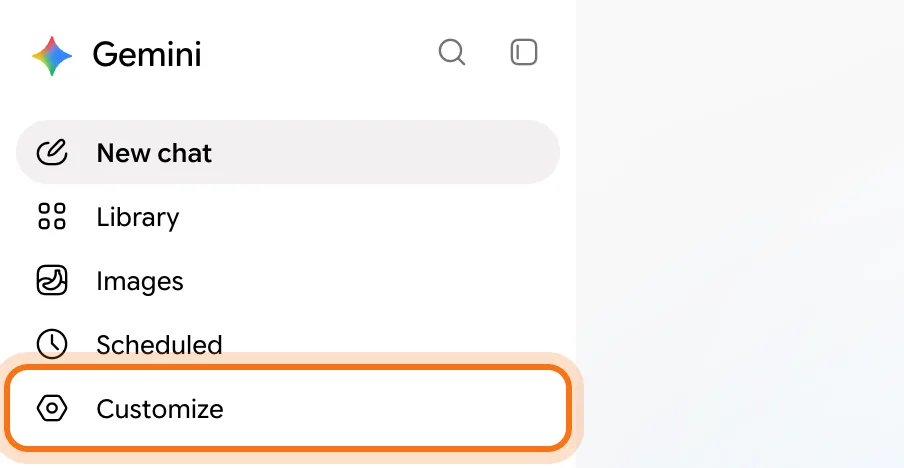
Step 1: Open Customize
Go to gemini.google.com and sign in with a personal Google account. In the menu on the left, click "Customize". Google says to look under "More" if you don't see it.
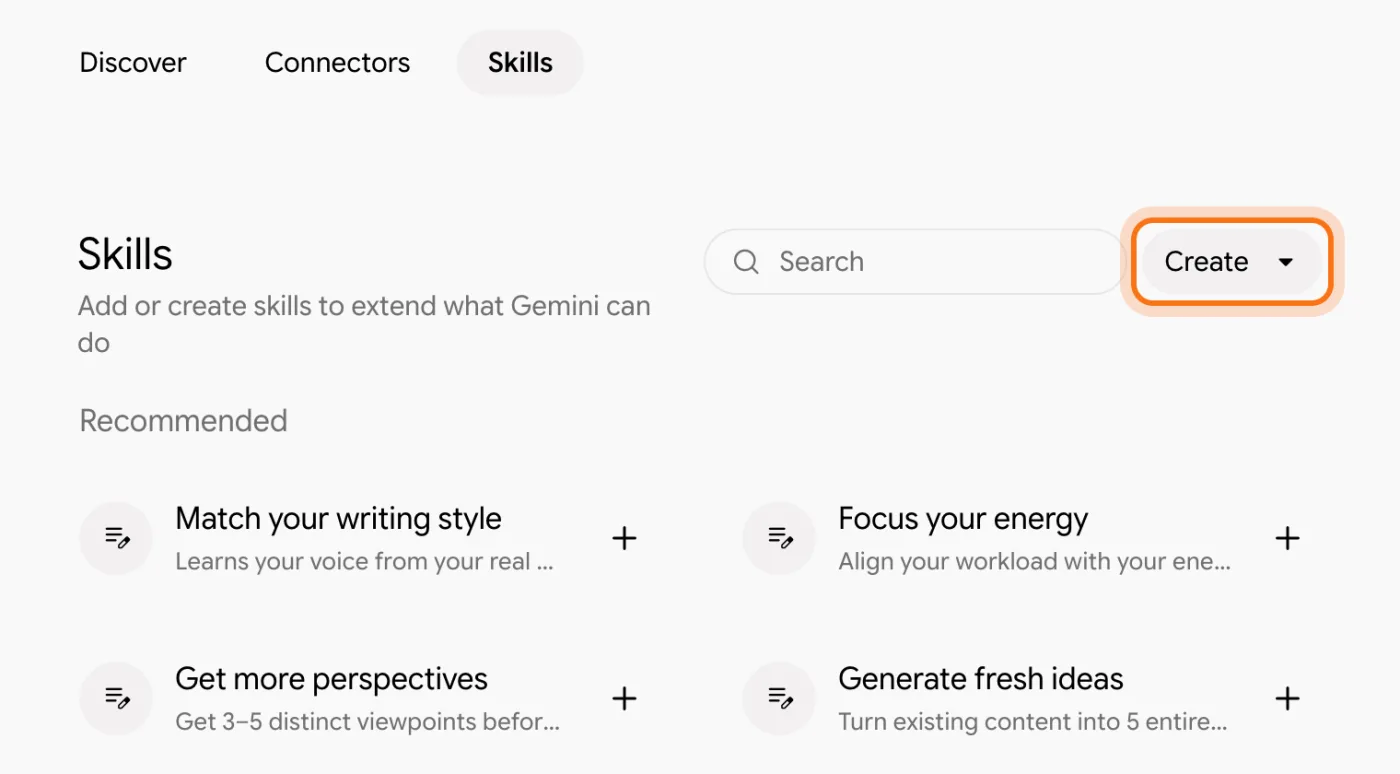
Step 2: Go to Skills and click Create
At the top, click "Skills". You'll see a few ready-made ones under "Recommended", like "Prep for meetings". To make your own, click "Create".
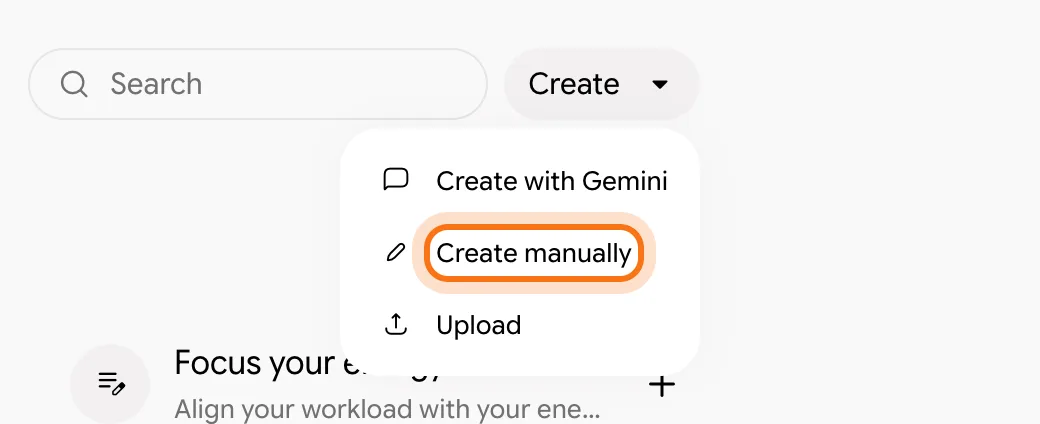
Step 3: Choose "Create manually"
The menu offers three ways: "Create with Gemini" (describe it and Gemini drafts it), "Create manually" and "Upload". Writing it yourself is the clearest way to start, so choose "Create manually".
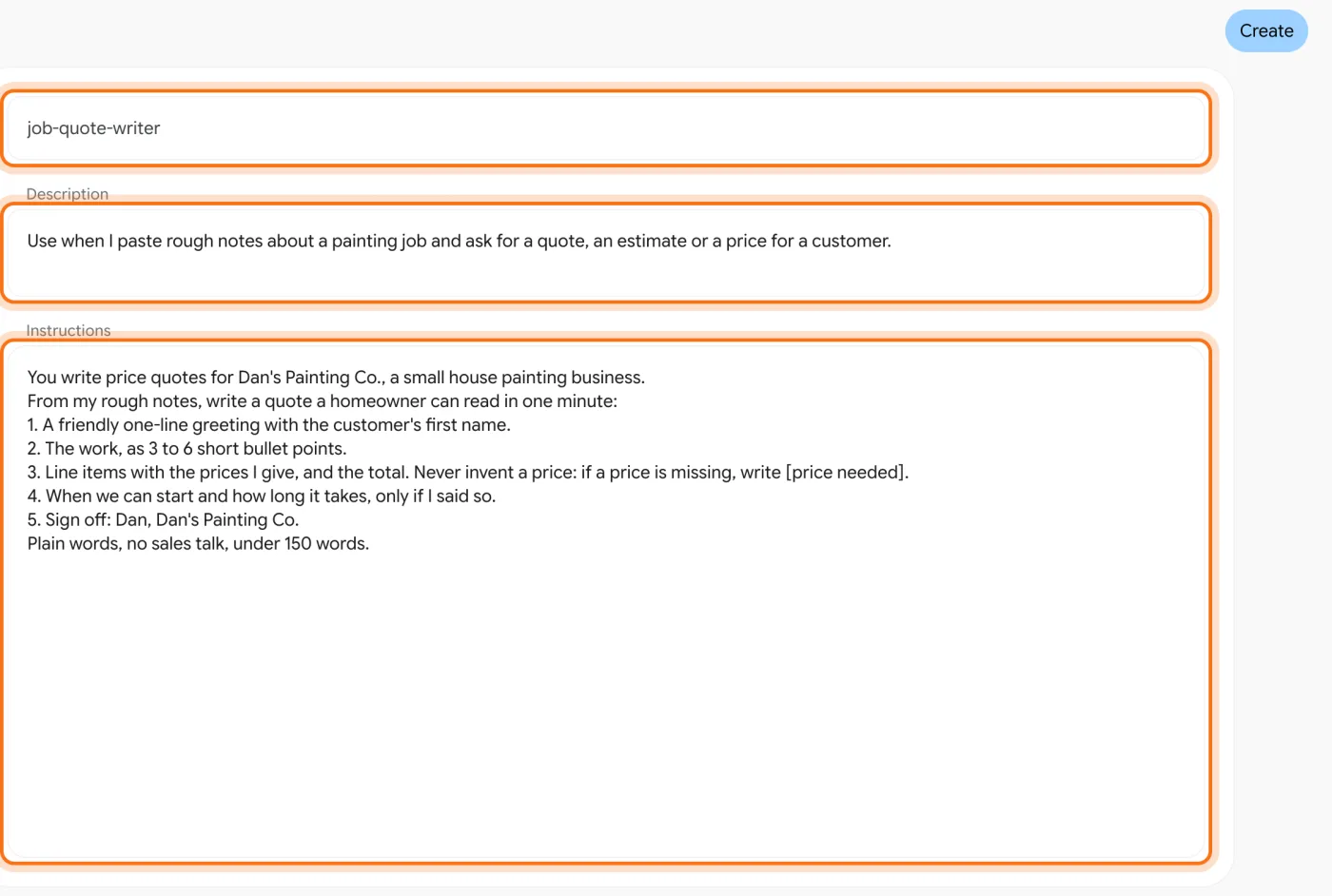
Step 4: Name it, say when to use it, write the instructions
Three boxes. The name must be lowercase words joined by hyphens, like job-quote-writer. The description says when Gemini should use it. The instructions are the rules, step by step. Then click "Create" at the top right.
Try this prompt
You write [what] for [business name], a small [business type].
From my rough notes, write [the result] that [the reader] can read in one minute:
1. [first part]
2. [second part]
3. [the numbers or details I give; never invent them: write [missing] instead]
Sign off: [your name], [business name].
Plain words, no sales talk, under [150] words.
Step 5: Call it in a chat with @
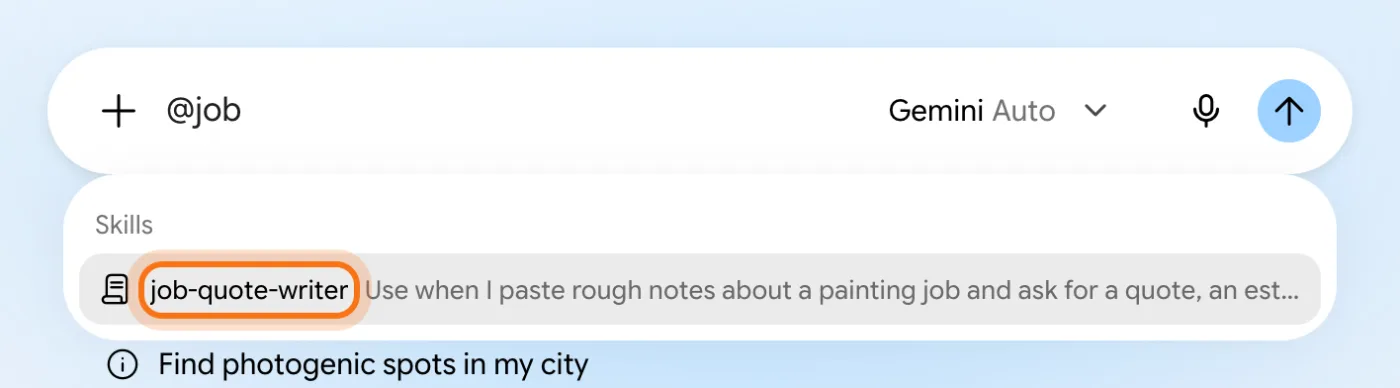
Open a new chat (skills weren't offered in a temporary chat when we tested). Type @ and the start of the name, and pick your skill from the "Skills" list. The message box itself says "Type @ for connectors, skills and more".
Step 6: Paste the new details, and get the job done
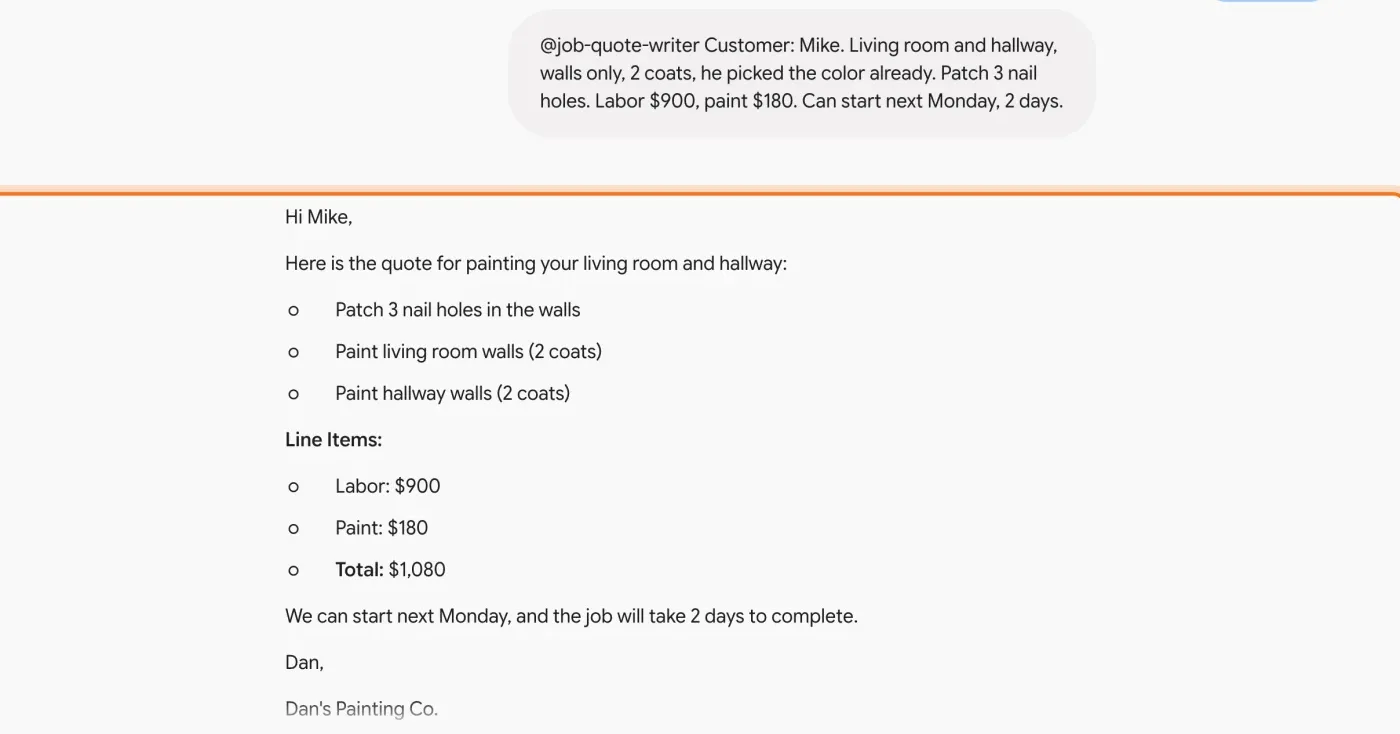
After the skill, paste only what's new: the customer, the work, the prices. Here Gemini wrote the whole quote in Dan's format, used only the prices he gave, added the total and signed it his way.
Try this prompt
@[your-skill] Customer: [name]. [The work, in a few words]. [Prices]. [Start date and how long, if you know].
Members
The rest of this guide is for members
Create a free account and every room in the academy opens for 30 days. No credit card needed.
In the rest of this guide
8 assistants worth building, with instructions to copy
- A quote writer
- A review responder
- A social post writer in your voice
- A meeting notes summarizer
- A customer question answerer
- A job ad writer
- A plain-language explainer for customers
- A weekly planner
Settings and options worth knowing
- Your skills, under Active
- Edit, pause or delete a skill
- Start from a ready-made skill
- Already have Gems?
- In ChatGPT: a project with instructions
- In Claude: a project, or a Claude skill
When something goes wrong, and how to fix it
- You can't find Customize or Skills
- The name isn't accepted
- @ doesn't show your skill
- Gemini uses your skill when you didn't want it
- The answer doesn't follow your instructions
- It adds details you didn't give
- You can't add your Word or Excel file to a skill
- ChatGPT won't let you create a GPT
Where to go next
An assistant is only as good as its instructions. These guides help you write them and use them.