What Gemini is, in one minute
Gemini is Google's AI assistant. You write to it in plain words and it writes back: a message to a customer, an explanation, a plan, a summary of a long file.
You sign in with your Google account, the same one you use for Gmail. That's its biggest strength: it can work with your Google files, and send its answers to Google Docs or Gmail.
Like every AI tool, it writes the most likely answer, so it can be wrong. Google says so under every chat: "Gemini is AI and can make mistakes." This guide uses gemini.google.com on a computer.
When to pick Gemini, and when another tool fits better
Gemini, ChatGPT and Claude can all write, explain and summarize. The real differences are in the extras, and in which one fits the way you already work.
Pick Gemini when
- You already use Gmail, Google Docs and Drive. Gemini can add a file from your Drive, and send an answer to Google Docs or a Gmail draft.
- You want a lot on a free plan. Google lists image creation, Deep Research, Canvas, Gems and Gemini Live as part of free Gemini.
- You want help writing a longer document. Canvas opens it as a page you can edit yourself, or ask Gemini to change.
Look at another tool when
ChatGPT: You want to draw a quick sketch and attach it, or connect apps like Adobe, right from the chat's + menu.
Read the guideClaude: You want a small working tool, like a price calculator, built beside the chat on a free plan.
Read the guide
Your first useful answer, in five steps
Most weak answers come from a weak request, not a weak tool. Here's the whole loop, from opening Gemini to an answer you can use.
Step 1: Open gemini.google.com and sign in
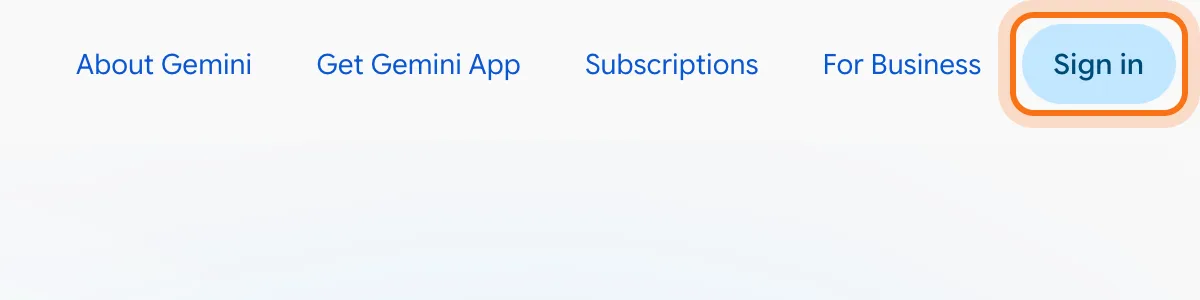
Go to gemini.google.com and click "Sign in" at the top right, with your Google account. You can try a question without signing in, but signing in saves your chats, and some tools, like Deep Research, need it.
Step 2: Click "Ask Gemini" and describe the job
Write what you need, who it's for and how long it should be, in one message. The more of the picture you give, the less Gemini has to guess.
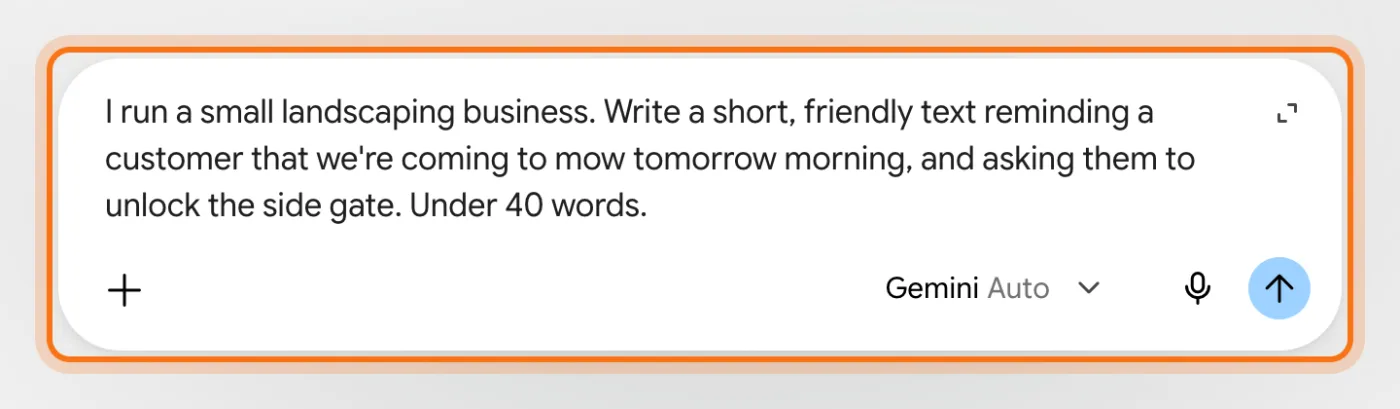
The example in the picture: a landscaping company reminding a customer about tomorrow's visit.
Try this prompt
I [what you do]. [What happened, or what you need]. Write [what kind of text] for [who will read it]. Keep it [how long, what tone].Step 3: Send it and read the answer
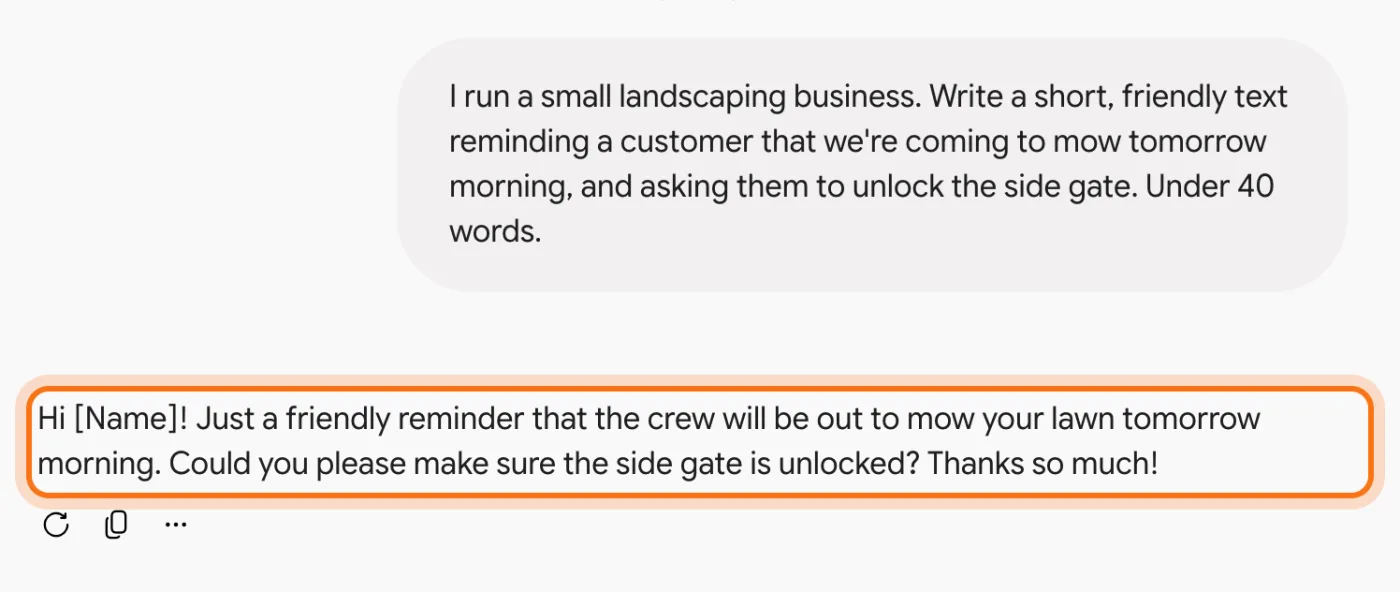
Press Enter or click the arrow. Sometimes Gemini gives you a few versions to pick from. Read it like a first draft: usually close, sometimes off.
Step 4: Fix it in the same chat
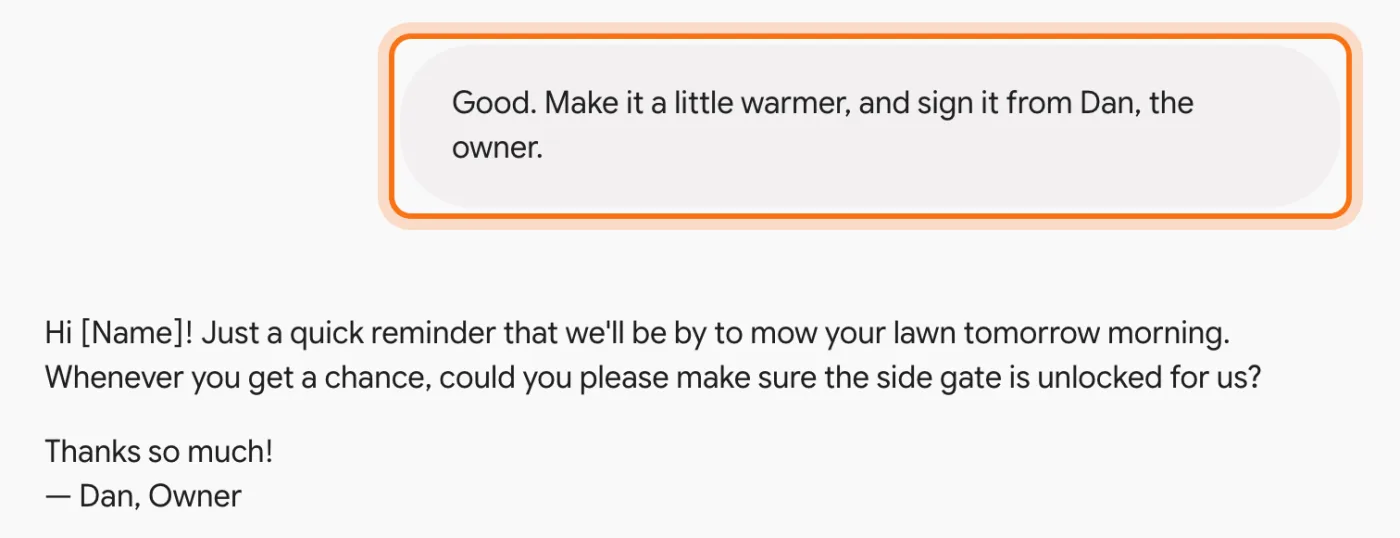
Reply with what to change: "warmer", "shorter", "sign it from Dan". Gemini remembers the whole conversation, so you never have to repeat the details.
Step 5: Copy it, or send it to Docs or Gmail
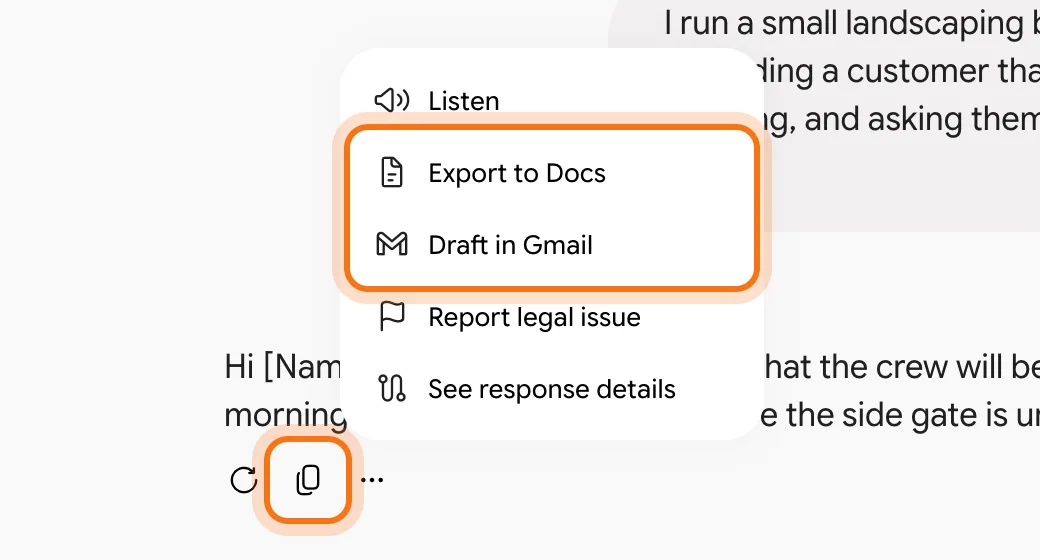
Under the answer, the copy icon copies the text. The three dots open more options, including "Export to Docs" and "Draft in Gmail", which put the answer into a Google Doc or a new email draft, for you to check and send.
Members
The rest of this guide is for members
Create a free account and every room in the academy opens for 30 days. No credit card needed.
In the rest of this guide
8 real jobs Gemini does well, with prompts to copy
- Ask about a file in your Google Drive
- Understand a PDF or a photo
- Write an email and open it in Gmail
- Write a longer document with Canvas
- Research a question properly with Deep Research
- Learn something with Guided learning
- Create an image
- Save instructions you use again and again (Gems)
Buttons and settings worth knowing
- The model picker: leave it on Auto
- Temporary chat, for things you don't want saved
- Talk instead of typing
When Gemini gets it wrong, and how to fix it
- It gets a fact wrong, with confidence
- A model in the picker is locked
- It won't open with your work or school account
- It can't see your Gmail or Drive when you ask about them
- It brings up something from an old chat
- The answer is generic, or too long
- You're not sure what's safe to paste
Where to go next
Two habits make every AI tool better: clear requests, and checking what matters. These guides go deeper.