What "setting up ChatGPT" means, in one minute
Most people start every chat by explaining the same things again: what their business does, who the customers are, how they like to sound. ChatGPT can keep that for you, so every answer starts from your business instead of from zero.
There are three places to put it. Custom instructions are a few lines ChatGPT reads before every chat: who you are and how you want answers. Memory is what ChatGPT picks up from your chats over time. Projects are folders with their own instructions and files, for one client or one kind of work.
Custom instructions are on every plan, Free included, and take ten minutes. Write them once, check them every few months, and keep out anything you wouldn't want in every chat.
Which one to use for what
Start with custom instructions. Add a project when one client or one job needs its own background. Let memory fill in the rest.
Use custom instructions when
- The same background fits almost every chat: your business, your customers, your busy season.
- You want the same style everywhere: shorter answers, plain words, your name under customer messages.
- There are rules you never want broken, like "never promise a price I didn't give you".
Using Gemini or Claude? They have the same idea
Gemini: It's called "Instructions for Gemini". Google says to open Settings, then "Personal Intelligence", then "Instructions for Gemini", and click Add.
Read the guideClaude: It's called profile preferences: a box in Settings that asks what personal preferences Claude should consider. Claude's projects can also have their own instructions.
Read the guide
Set it up once, in six steps
A real example: Mike owns a lawn care company and wants every answer to sound like his business. The pictures use ChatGPT on a free account.
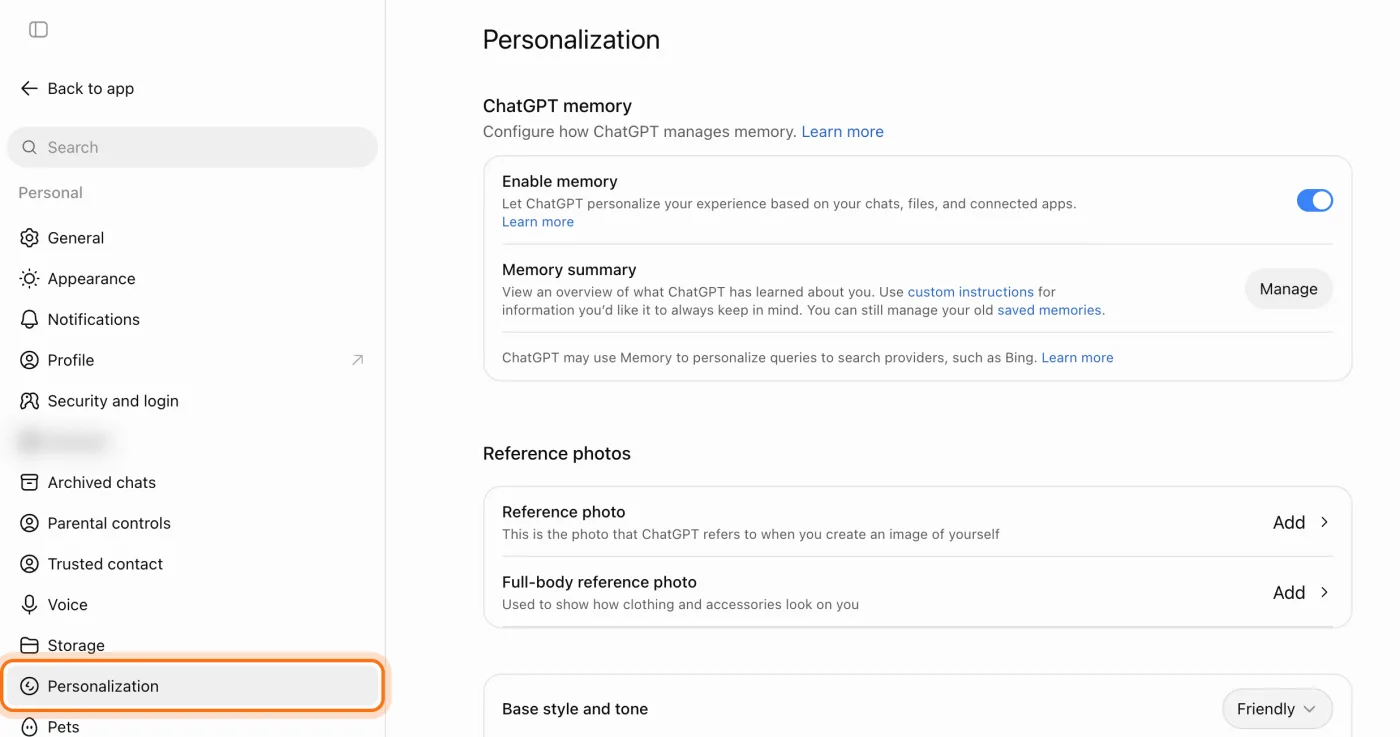
Step 1: Open Settings, then Personalization
Go to chatgpt.com and sign in. Click your name at the bottom left, then "Settings", then "Personalization" in the list on the left. Memory and custom instructions both live on this page.
Step 2: Under "Custom instructions", click ChatGPT
Scroll down to "Custom instructions" and click the row that says "ChatGPT": "Give ChatGPT extra instructions and context for all chats". The editor opens.

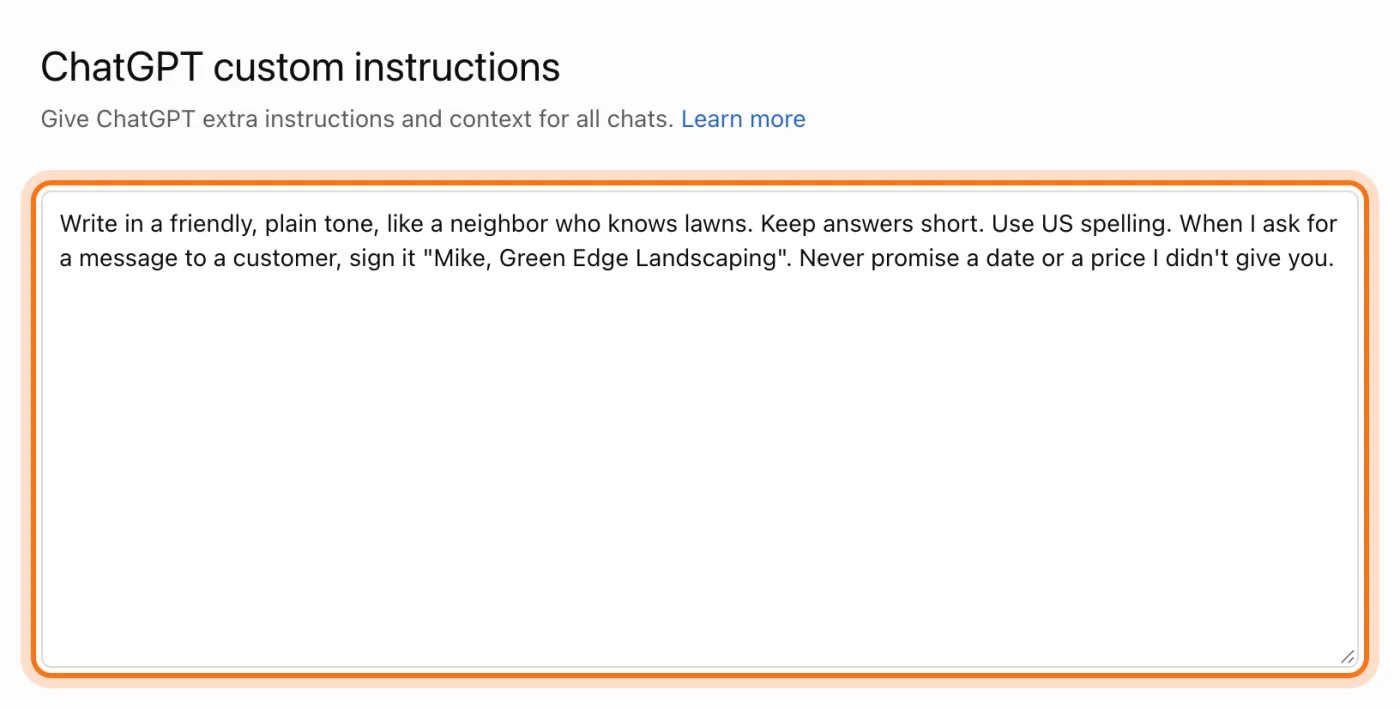
Step 3: In the big box, say how you want answers
This box is for how ChatGPT should answer: the tone, the length, your sign-off, and the rules it must keep. Short, clear sentences work best, one rule each.
Try this prompt
Write in a [friendly, plain] tone. Keep answers [short]. Use [US] spelling. When I ask for a message to a customer, sign it "[Your name], [Business name]". Never promise a date or a price I didn't give you.Step 4: Fill in your name, what you do, and more about you
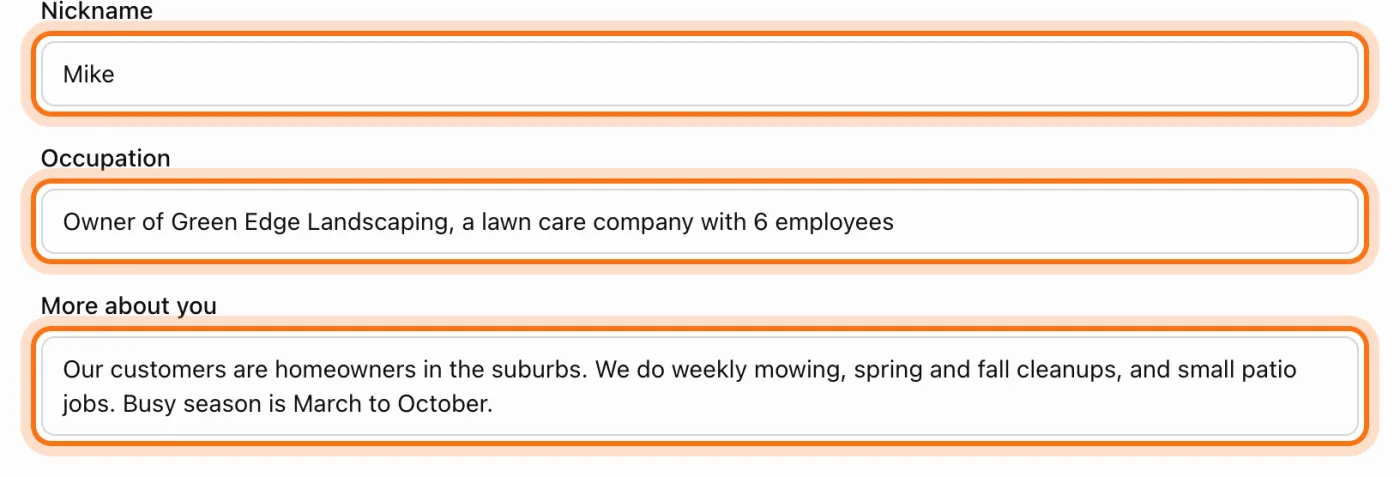
Under the big box: "Nickname" is what ChatGPT calls you, "Occupation" is what you do, and "More about you" is the background that helps every answer: your customers, what you sell, your busy season.
Try this prompt
Our customers are [who]. We [what you sell or do]. Our busy season is [when]. We're located in [area] and we [one thing that makes you different].Step 5: Click Save
Click "Save" at the top right. OpenAI says the change applies right away to all your chats, including the ones you already have. To undo it later, come back, clear the boxes and save again.

Step 6: Try it on a real job
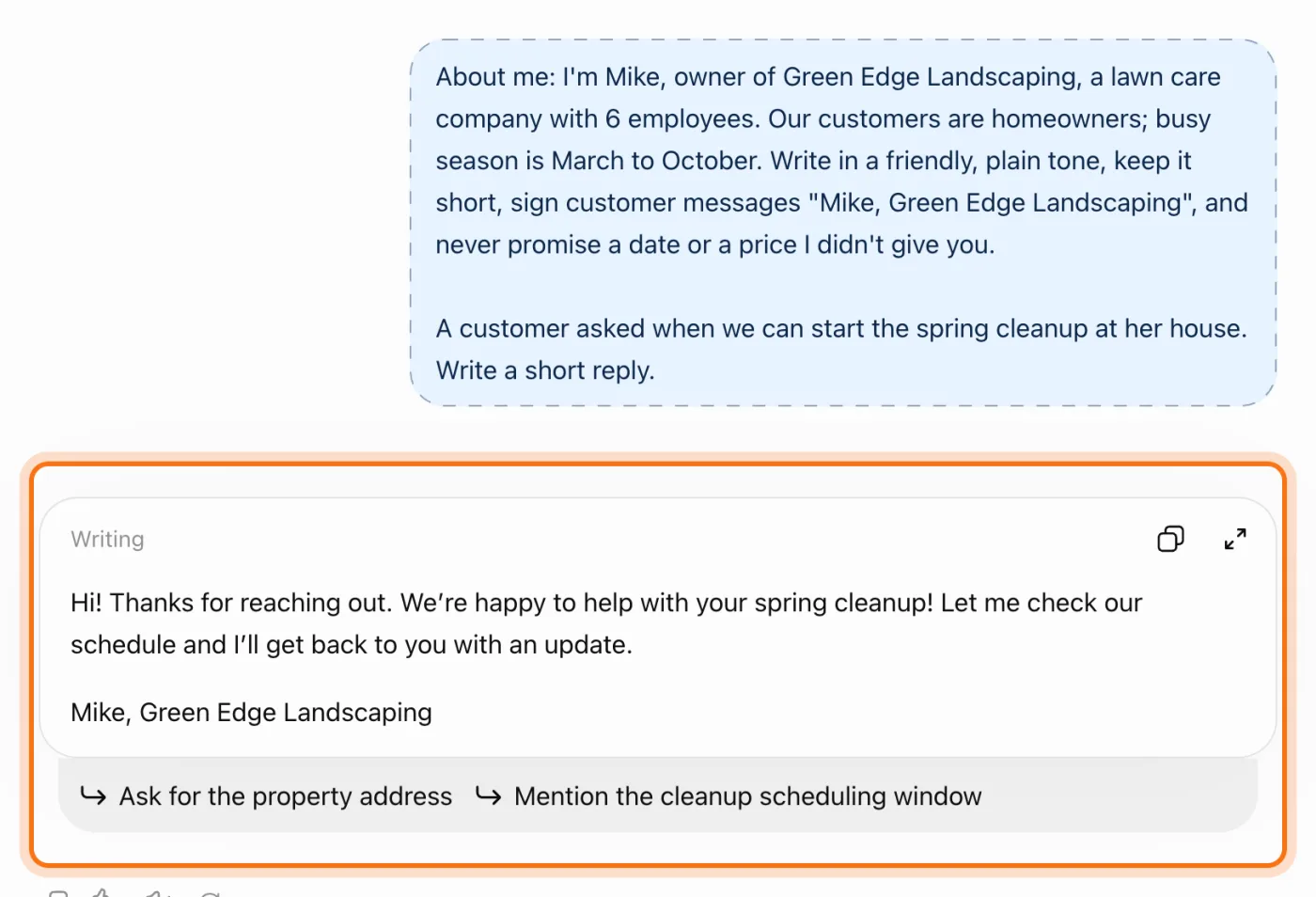
Ask for something you'd normally do by hand, like a reply to a customer. The answer should sound like you and follow your rules. Here the same instructions were pasted at the top of a temporary chat to test them before saving: the reply kept the tone, made no promise and signed "Mike, Green Edge Landscaping".
Try this prompt
A customer asked when we can start the spring cleanup at her house. Write a short reply.
Members
The rest of this guide is for members
Create a free account and every room in the academy opens for 30 days. No credit card needed.
In the rest of this guide
8 ways to make ChatGPT work like it knows you, with prompts to copy
- Let ChatGPT write your custom instructions
- Set a house style for customer messages
- Make a project for each big client
- Keep your price list or menu at hand
- Get shorter answers everywhere
- Teach it one fact, in a normal chat
- Check what ChatGPT knows about your business
- Turn your setup into a staff cheat sheet
Settings worth knowing
- Memory: on, off, and what it learned
- Style: tone, warmth, enthusiasm
- Projects: + next to Projects
- Gemini: Instructions for Gemini
- Claude: profile preferences and projects
When something goes wrong, and how to fix it
- ChatGPT ignores one of your instructions
- Every answer talks about your business, even when you don't want it to
- It uses information that's out of date
- A temporary chat still knows your business
- Details from one client show up in another client's work
- Someone else uses the same ChatGPT account
- You set it up on the computer, and the phone app doesn't seem to know
- You're not sure what's safe to put in
Where to go next
With ChatGPT set up, these guides help you get more from every chat.