What Claude Code is, in one minute
Claude Code is Anthropic's AI assistant for working with files and code on your own computer. You describe what you want in plain words, and it reads your files, writes or changes code, and runs commands, asking you before it changes anything.
Anthropic says you don't need to know how to code to use it. It can build a simple web page from a description, rename and sort files in a folder, or explain a project someone handed you.
To use it, you need a paid Claude plan (Pro, Max, Team or Enterprise) or a Claude Console account, which pays as you go. The pictures in this guide are Anthropic's own installation pages, since installing means typing one line, not clicking through a website.
Terminal, desktop app, or something else
Claude Code comes in several places. The terminal version is what this guide installs, and there are easier doors if a terminal feels like too much.
Install the terminal version when
- You want the full Claude Code, working in any folder on your computer, with Anthropic's quick install.
- You're comfortable copying one line into a window and pressing Enter. That's all the install takes.
- You plan to use it with a code editor later. The same Claude Code also comes as an extension for VS Code and JetBrains.
Look at another option when
The Claude Code desktop app: You'd rather not use a terminal at all. Anthropic says the desktop app for macOS and Windows lets you skip the terminal entirely.
Read the guideClaude Cowork: Your work is documents and files, not code. Cowork, in the Claude desktop app, works with the files in a folder you give it.
Read the guide
Install Claude Code on a Mac, in five steps
These are Anthropic's own steps, shown on its installation page for new users. Windows is right after, in its own step. Anthropic says Claude Code needs macOS 13.0 or later.
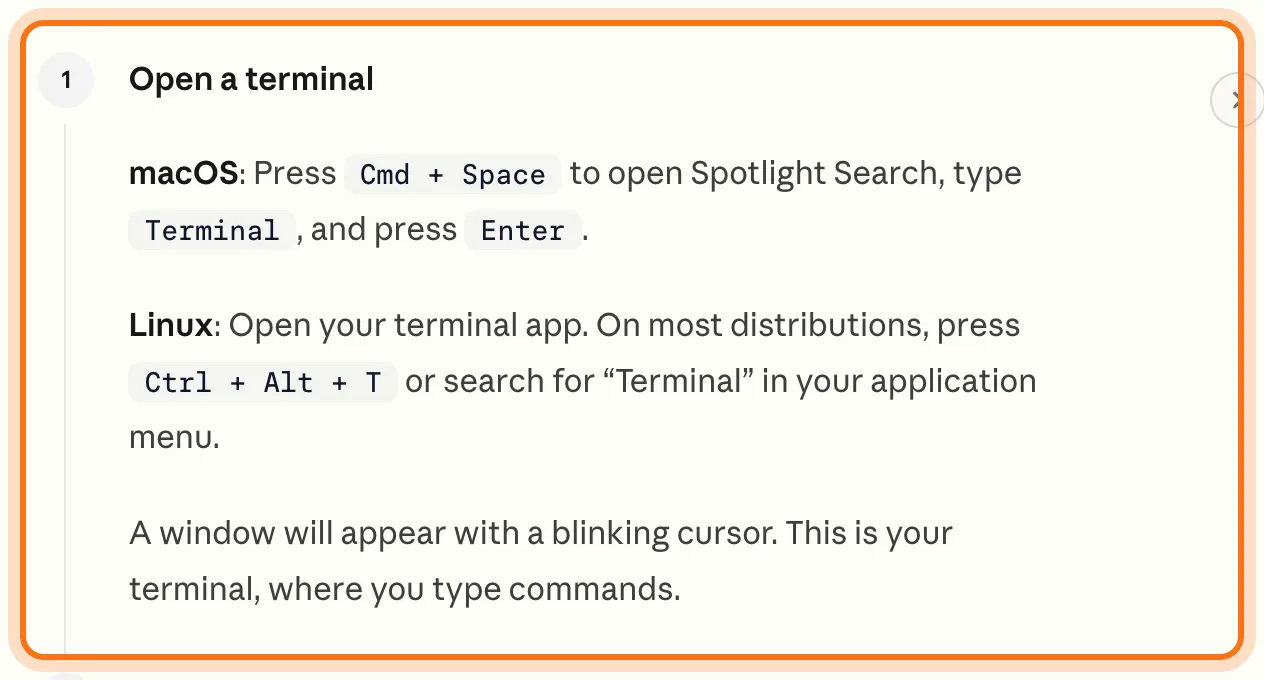
Step 1: Open the Terminal
Press Cmd + Space to open Spotlight Search, type "Terminal", and press Enter. A window with a blinking cursor opens. That's the terminal, where you type commands. You can't click inside it: you type, and press Enter.
Step 2: Paste the install line and press Enter
Copy Anthropic's install line, paste it into the terminal with Cmd + V, and press Enter. It shows no progress while it downloads, so leave the window open and wait. When it's done, you'll see "Claude Code successfully installed!"
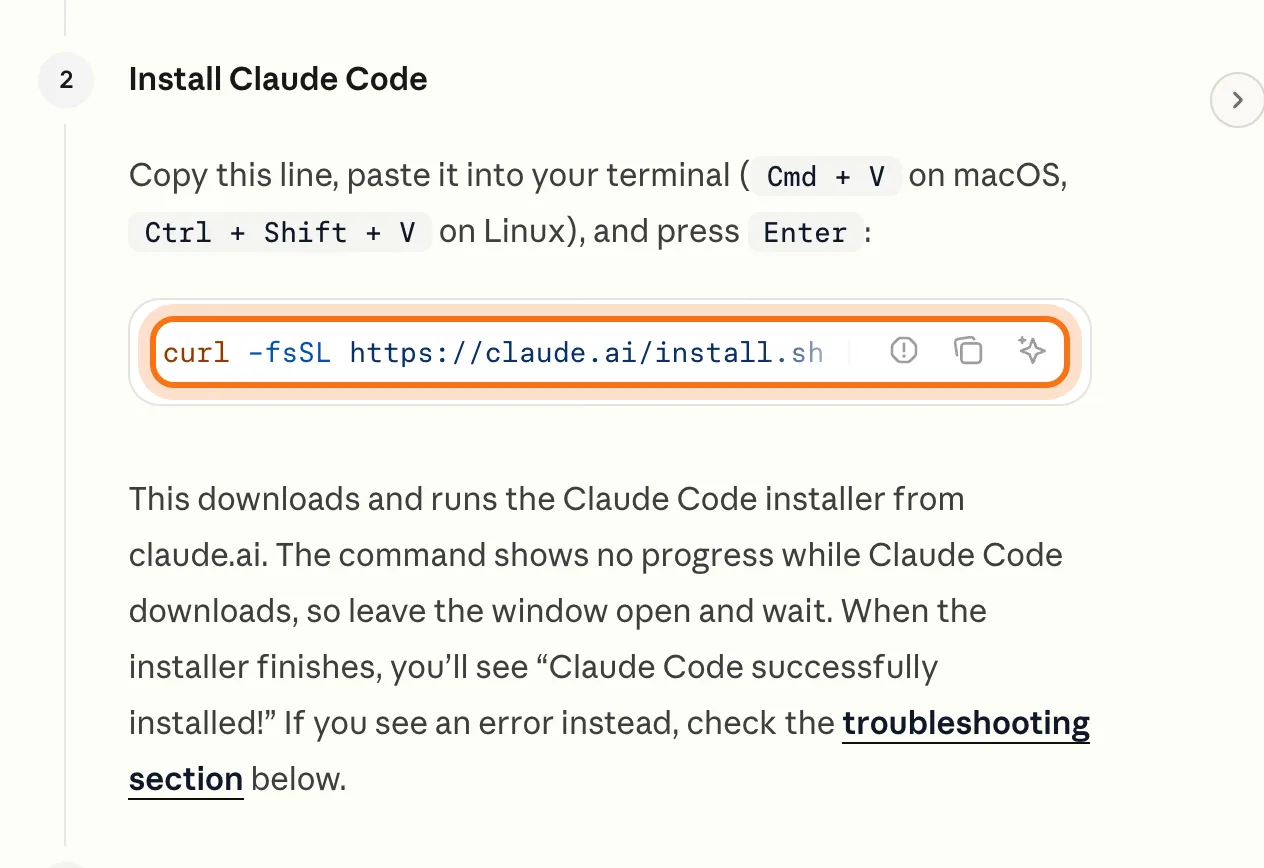
Copy the line from this guide or from Anthropic's page, code.claude.com. Only run install commands from the official source.
Try this prompt
curl -fsSL https://claude.ai/install.sh | bashStep 3: Check that it worked
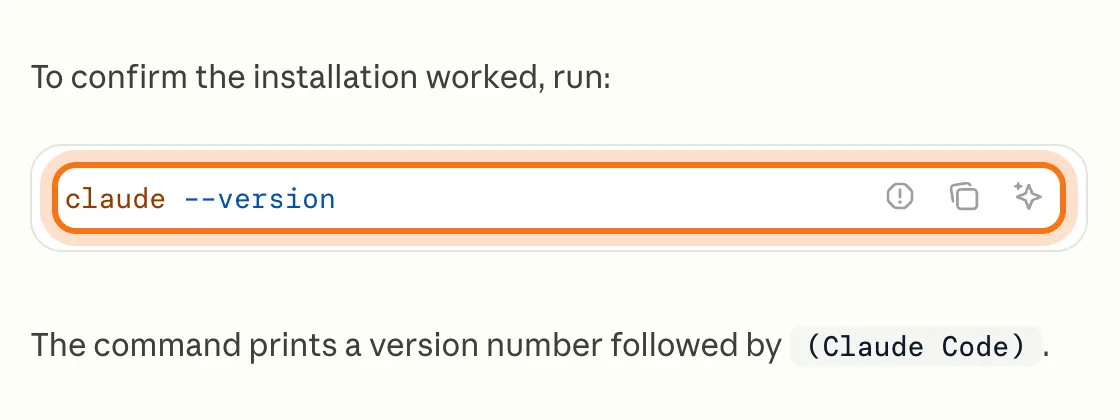
Open a new terminal window and type claude --version, then press Enter. A working install prints a version number followed by "(Claude Code)". If the terminal says the command isn't found, see the fixes at the end of this guide.
Try this prompt
claude --versionStep 4: Start Claude Code and sign in
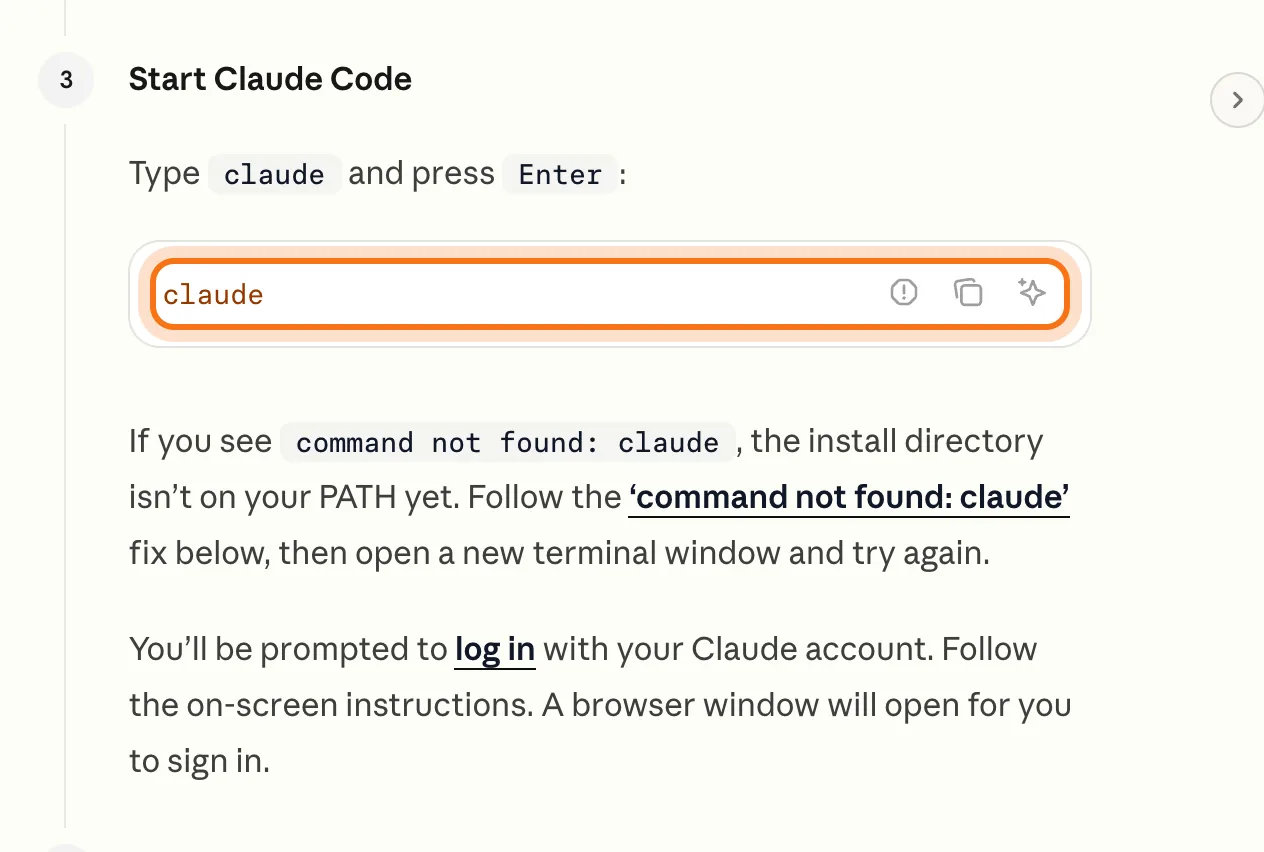
Type claude and press Enter. The first time, Claude Code asks you to log in: a browser window opens, you sign in with your Claude account, and you're back in the terminal. You won't need to log in again on this computer.
Try this prompt
claudeStep 5: Ask your first question
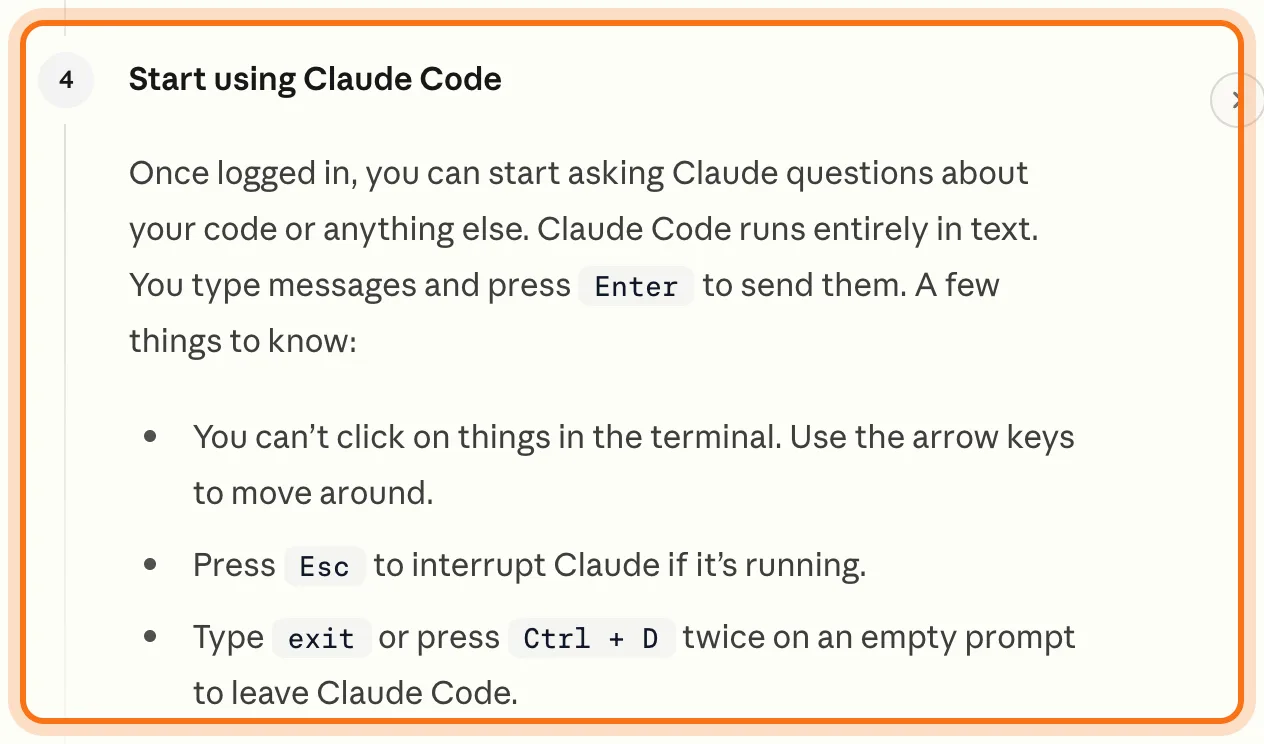
Type what you want in plain words and press Enter. Press Esc to stop Claude if it's running, type /help to see the commands, and type exit (or press Ctrl + D twice) to leave. If it asks before creating or changing a file, press Enter to say yes.
Try this prompt
Make me a simple web page that says hello world.
Members
The rest of this guide is for members
Create a free account and every room in the academy opens for 30 days. No credit card needed.
In the rest of this guide
8 first things to try, with prompts to copy
- Build a one-page website for your business
- Rename a folder of files
- Understand a project someone handed you
- Plan a small tool before you build it
- Clean up a spreadsheet file
- Summarize a folder of documents
- Fix something small
- Ask what it can do
Windows, and other ways to install
- On Windows: open PowerShell, then paste the Windows line
- Skip the terminal with the desktop app
- Homebrew or WinGet, if you already use them
- Inside a code editor
When the install doesn't work, and how to fix it
- "command not found: claude" after installing
- On Windows: "'claude' is not recognized" or "'irm' is not recognized"
- You see HTML code or "syntax error near unexpected token"
- A "dyld" error, or "built for Mac OS X 13.0"
- It won't let you use it after you sign in
- It looks frozen during the install
- Claude is doing something you didn't want
- You want the newest version
Where to go next
Installed? These guides show what to do with it.