What Claude Cowork is, in one minute
Claude Cowork is where you hand Claude a whole task instead of a single question. Anthropic says Cowork reads from your folders and the services you connect, does the work over many steps, and saves the result as a real file you can open, share, or keep editing.
Think of the difference between asking a coworker "what should this report say?" and "here's the folder, please write the report". A chat answers. Cowork does the job: sorts the invoices, compares the quotes, drafts the summary, and leaves the files where you asked.
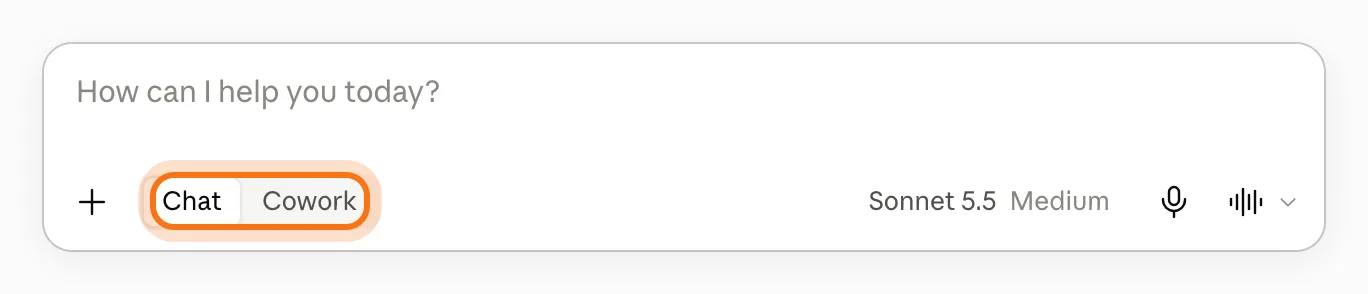
Anthropic lists Cowork on its paid plans: Pro, Max, Team and Enterprise, in the Claude desktop app, with web and mobile too. On the free account we used, the Cowork switch was visible in the message box. The other pictures are Anthropic's own pages.
Cowork, Chat or Claude Code
All three are Claude. They differ in how much of the work Claude does on its own, and where.
Pick Cowork when
- The task lives in files: a folder of receipts, a set of reports, documents to compare, and you want the result saved as a file.
- The job has many steps you'd rather not do one message at a time, like reading twenty files and writing one summary.
- You'd rather click than type commands. Cowork works from the Claude desktop app, with no terminal.
Pick something else when
Claude Chat: You want an answer, an idea or a short piece of writing, right now. A chat is faster, and it's on the free plan.
Read the guideClaude Code: The task is code: a website, a script, an app. Claude Code works in a terminal or a code editor, and it's built for that.
Read the guide
Your first Cowork task, in five steps
These are Anthropic's own setup steps, from Claude Academy, plus its safety advice. You need a paid plan and, for files on your computer, the Claude desktop app.
Step 1: Open Claude and choose Cowork
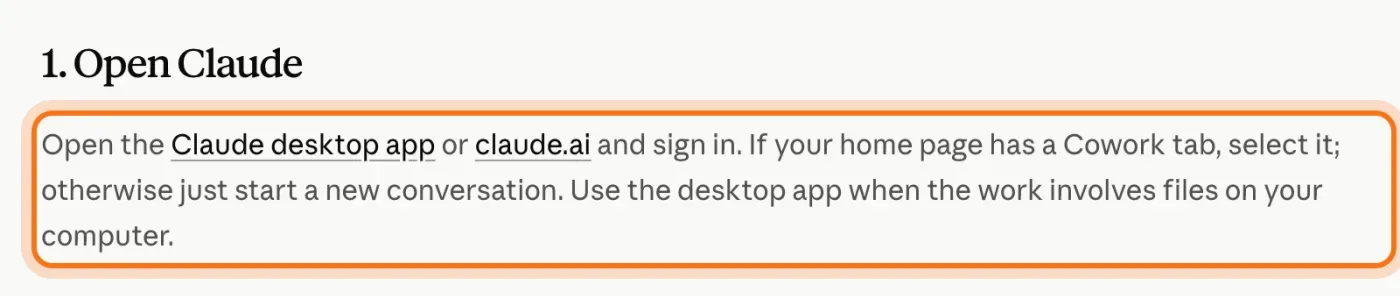
Open the Claude desktop app, or claude.ai, and sign in. In the message box, switch from "Chat" to "Cowork". Anthropic says to use the desktop app when the work involves files on your computer.
Step 2: Run the guided setup
In a new conversation, type /setup-claude and press Enter. Anthropic says Claude walks you through choosing your role, installing a matching plugin, and connecting tools like Slack, Google Workspace or Microsoft 365. New users see a "Set up Cowork" banner that starts the same thing.
Try this prompt
/setup-claudeStep 3: Give it a place to work
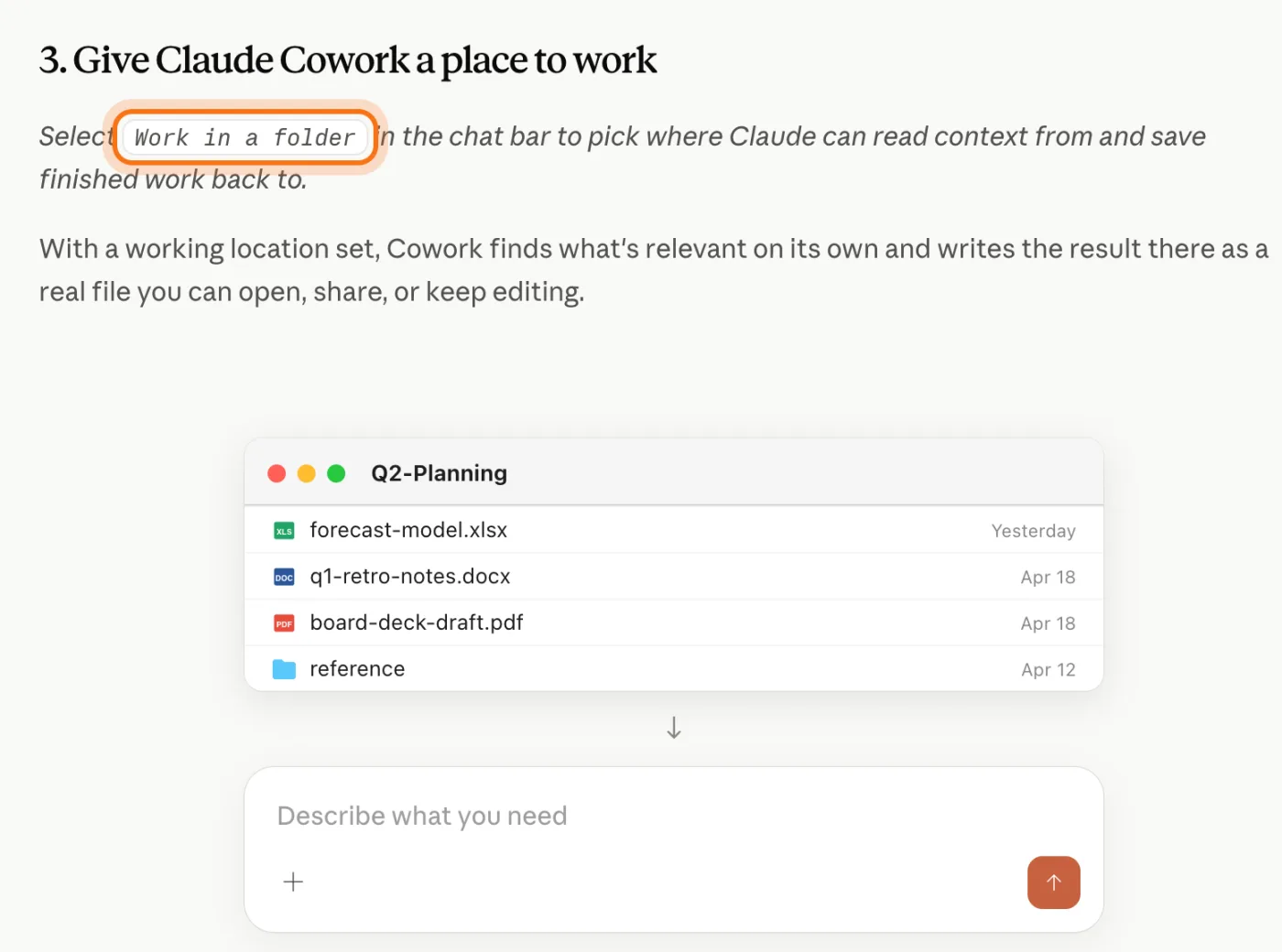
Click "Work in a folder" in the message box and pick a folder. Cowork reads what's there and saves new files next to it. You can also use a Project instead, which keeps its own files, instructions and memory. Start with a folder made for this task, not your whole Documents folder.
Step 4: Describe the whole task, and the result you want
Say what to do, which files to use, and what the finished file should look like. Then let it work, and step in whenever it asks for your approval.
Try this prompt
Read the [quotes / invoices / reports] in this folder. Make [a table / a summary / a list] of [what you need], and save it as [file name and type] in this folder. Tell me if any file was hard to read.Step 5: Choose how closely you watch
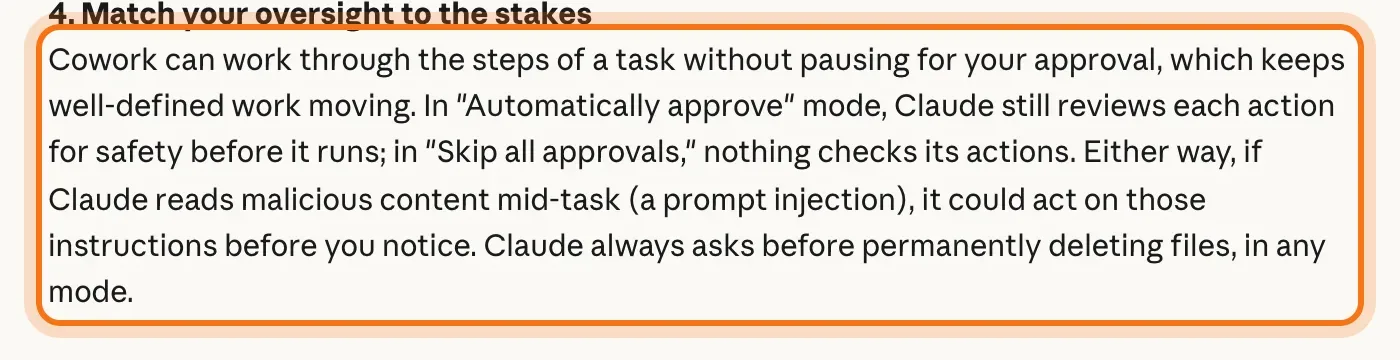
Anthropic describes three approval modes: "Manually approve", "Automatically approve", where Claude still reviews each action for safety, and "Skip all approvals", where nothing checks its actions. Start with manual approval. In every mode, Claude asks before it permanently deletes files.
Members
The rest of this guide is for members
Create a free account and every room in the academy opens for 30 days. No credit card needed.
In the rest of this guide
8 real tasks to hand Cowork, with prompts to copy
- Turn a folder of invoices into a spreadsheet
- Compare quotes from several suppliers
- Sort and rename a messy folder
- Write a report from a pile of notes
- Make a short presentation from your documents
- Check documents against a checklist
- Prepare a recurring weekly summary
- Research a decision and save a brief
Safety habits from Anthropic
- Use a dedicated folder, and keep backups
- Be careful with web pages and emails it reads
- Stick to verified extensions
- Watch the task, not just the result
When Cowork doesn't do what you wanted, and how to fix it
- You don't see Cowork, or it won't start
- It can't see your files
- The finished file isn't what you pictured
- It read or changed more than you expected
- It skipped some files
- The report has a number or a fact that isn't in your files
- The task stopped halfway
- You're not sure what's safe to give it
Where to go next
These guides cover the rest of the Claude family.