How Claude Code works, in one minute
Claude Code works inside a folder on your computer. You describe what you want, and it reads the files it needs, makes changes, and runs commands, asking you first before anything risky. Anthropic describes it as an assistant that "explores, plans, and implements" instead of only answering.
That makes it different from a chat. A chat gives you text to copy. Claude Code does the work in your files: builds the page, fixes the bug, renames the folder. You stay the one who decides, by approving, stopping, or undoing.
You need it installed first (see our install guide) and a paid Claude plan or a Console account. The pictures in this guide are Anthropic's own documentation pages, since Claude Code runs as text in a terminal.
When to use Claude Code, and when a chat is enough
Both are Claude. The difference is whether you want an answer, or the work done in your files.
Use Claude Code when
- The result should end up as files on your computer: a website, a script, a cleaned-up spreadsheet, a renamed folder.
- The job has several steps across many files, and you'd rather review than copy and paste between a chat and your folder.
- You want a project explained from the inside. Anthropic's quickstart starts with "what does this project do?"
Use something else when
Claude in the browser: You want writing, ideas or an explanation, not changes to files. A regular chat is faster for that.
Read the guideClaude Cowork: Your work is documents, not code, and you'd rather click than type in a terminal. Cowork works with your files from the Claude desktop app.
Read the guide
Your first session, in five steps
Here's the loop from Anthropic's quickstart, from opening a folder to a change you approved. Use a folder made for practice the first time.
Step 1: Start Claude Code in your folder
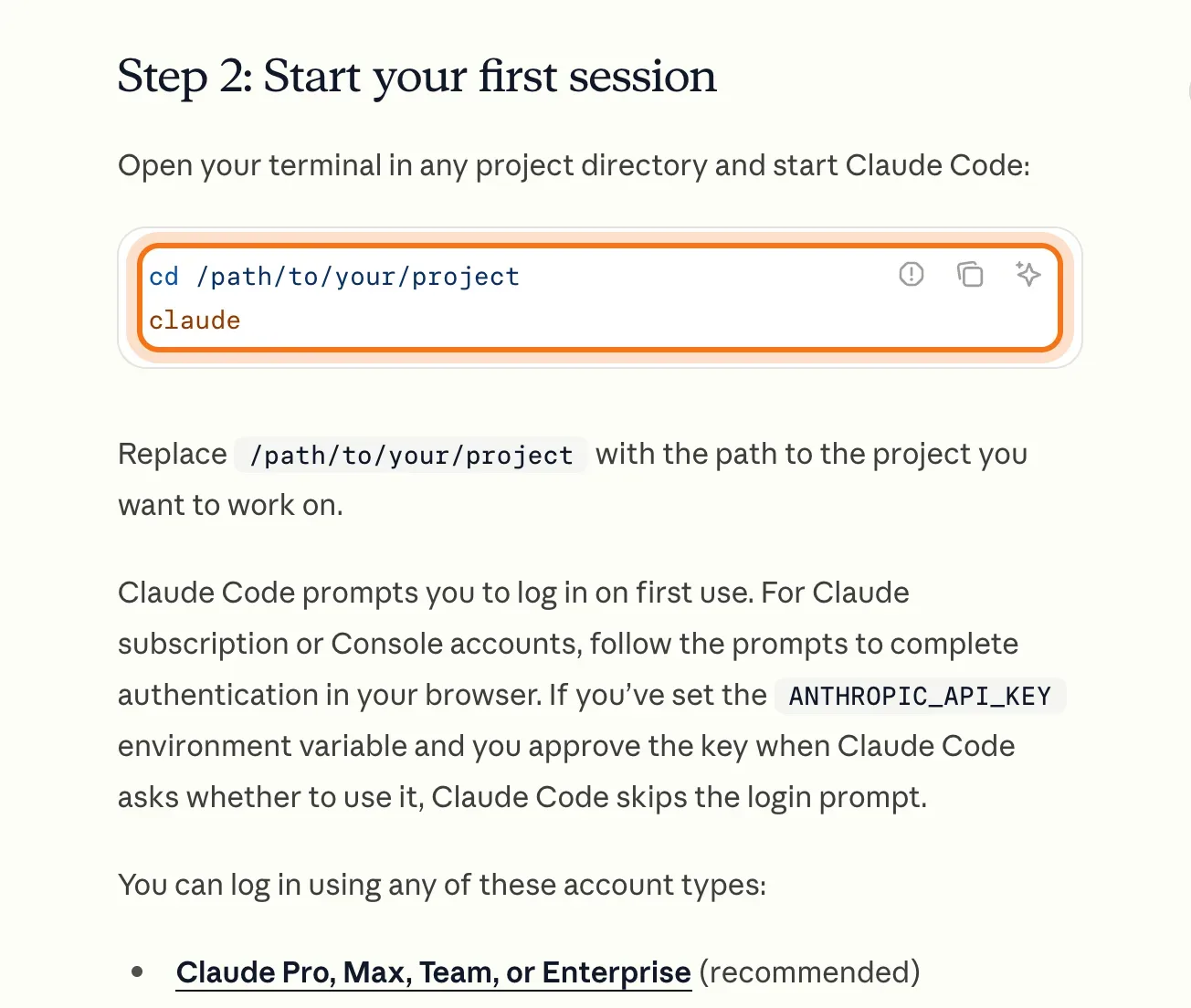
Open the terminal, go to your project's folder with cd, and type claude. Replace the path with your own folder. The first time, it asks you to log in through your browser. After that, the prompt shows the version, the model and the folder you're in.
Try this prompt
cd /path/to/your/project
claude
Step 2: Ask about the project first
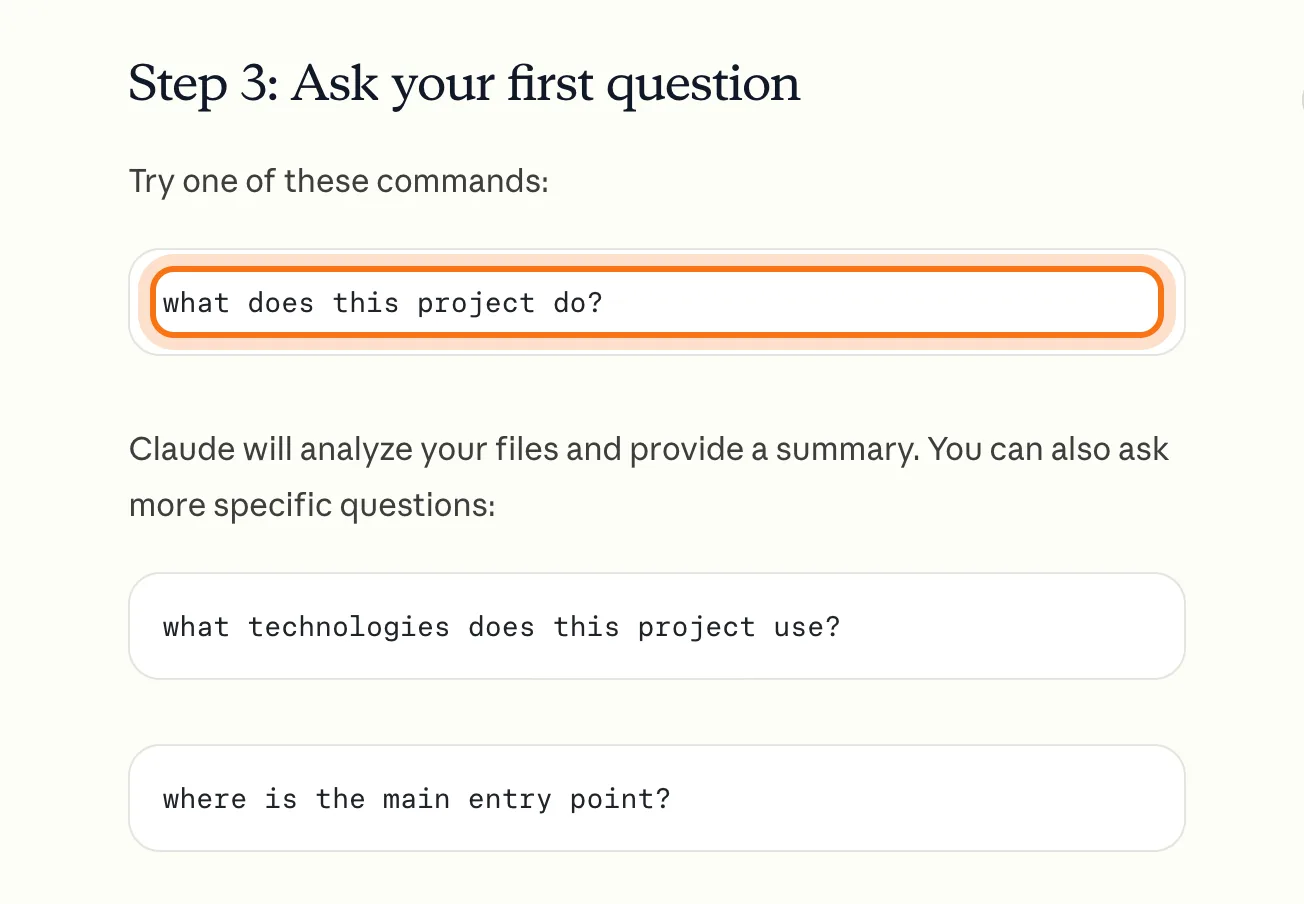
Before you change anything, ask what's there. Claude reads the files it needs and answers in plain words. Anthropic notes that you don't have to add context by hand: it reads your project files as needed.
Try this prompt
what does this project do?Step 3: Ask for a small change, and approve it
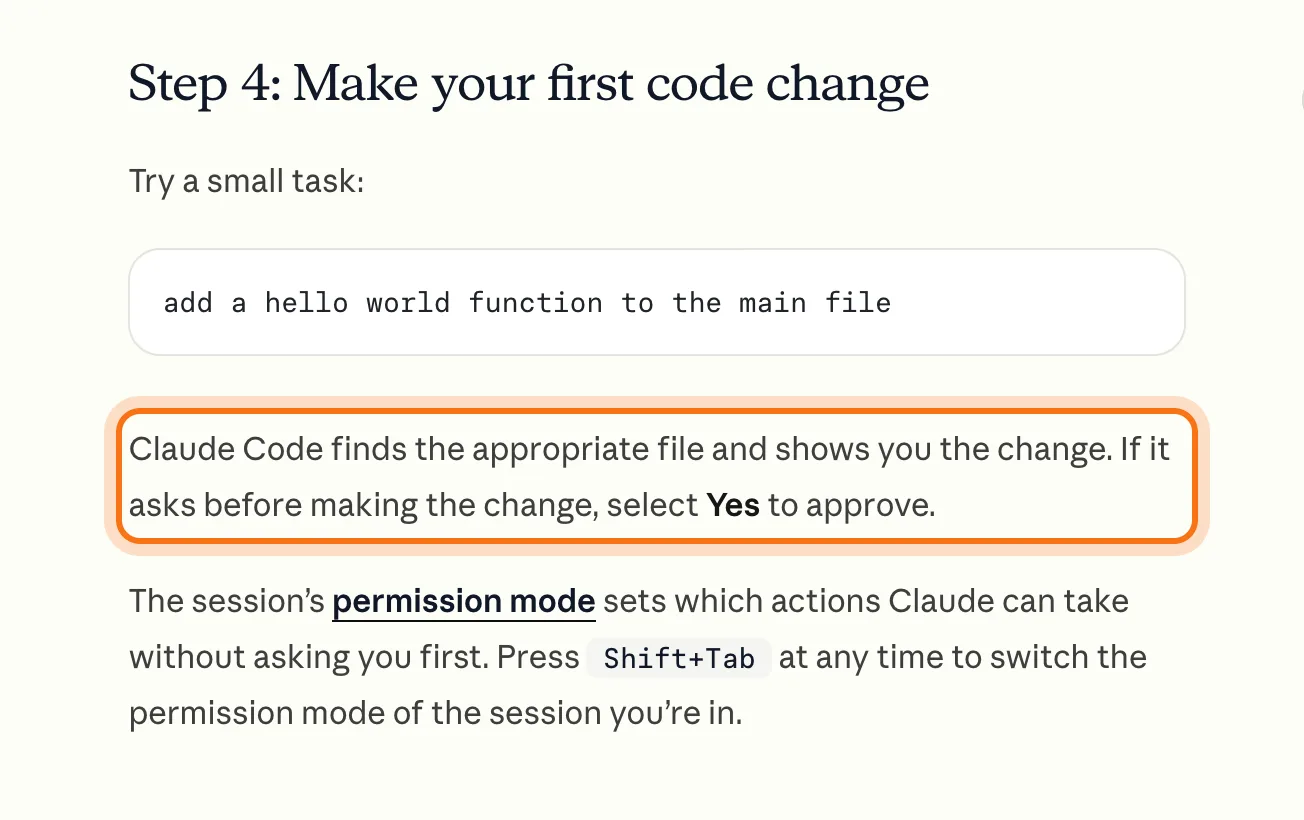
Describe one small task. Claude finds the right file and shows you the change. If it asks before making it, choose "Yes" to approve, or say no and tell it what you want instead. Shift + Tab switches the permission mode, which decides what it may do without asking.
Try this prompt
add a hello world function to the main fileStep 4: For bigger jobs, plan first
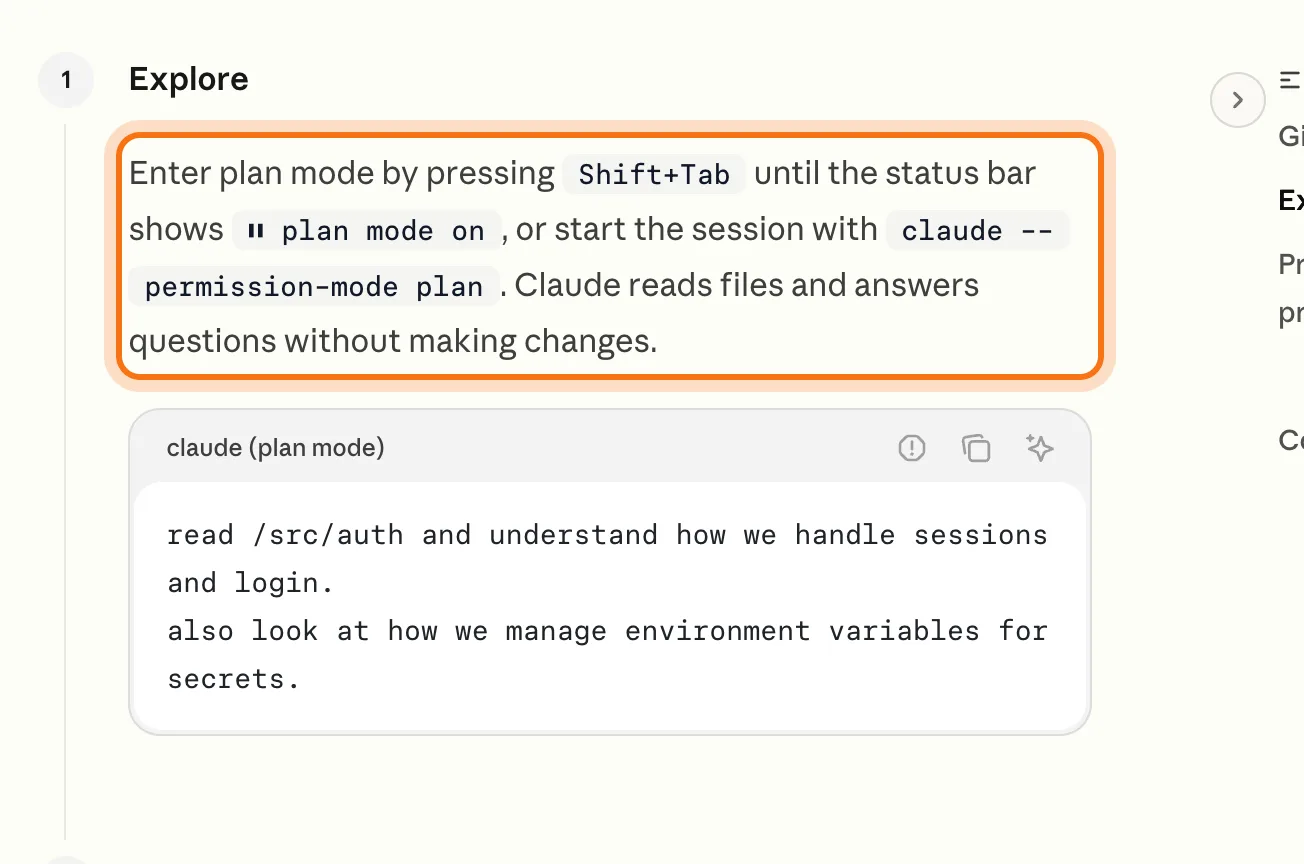
Anthropic recommends exploring and planning before coding. Press Shift + Tab until the status bar shows plan mode. Claude then reads files and answers questions without changing anything. Ask for a plan, read it, and approve it when it looks right.
Try this prompt
I want to [the change]. Read the files involved, then give me a short plan in plain words. Don't change anything yet.Step 5: Stop, undo, or start fresh
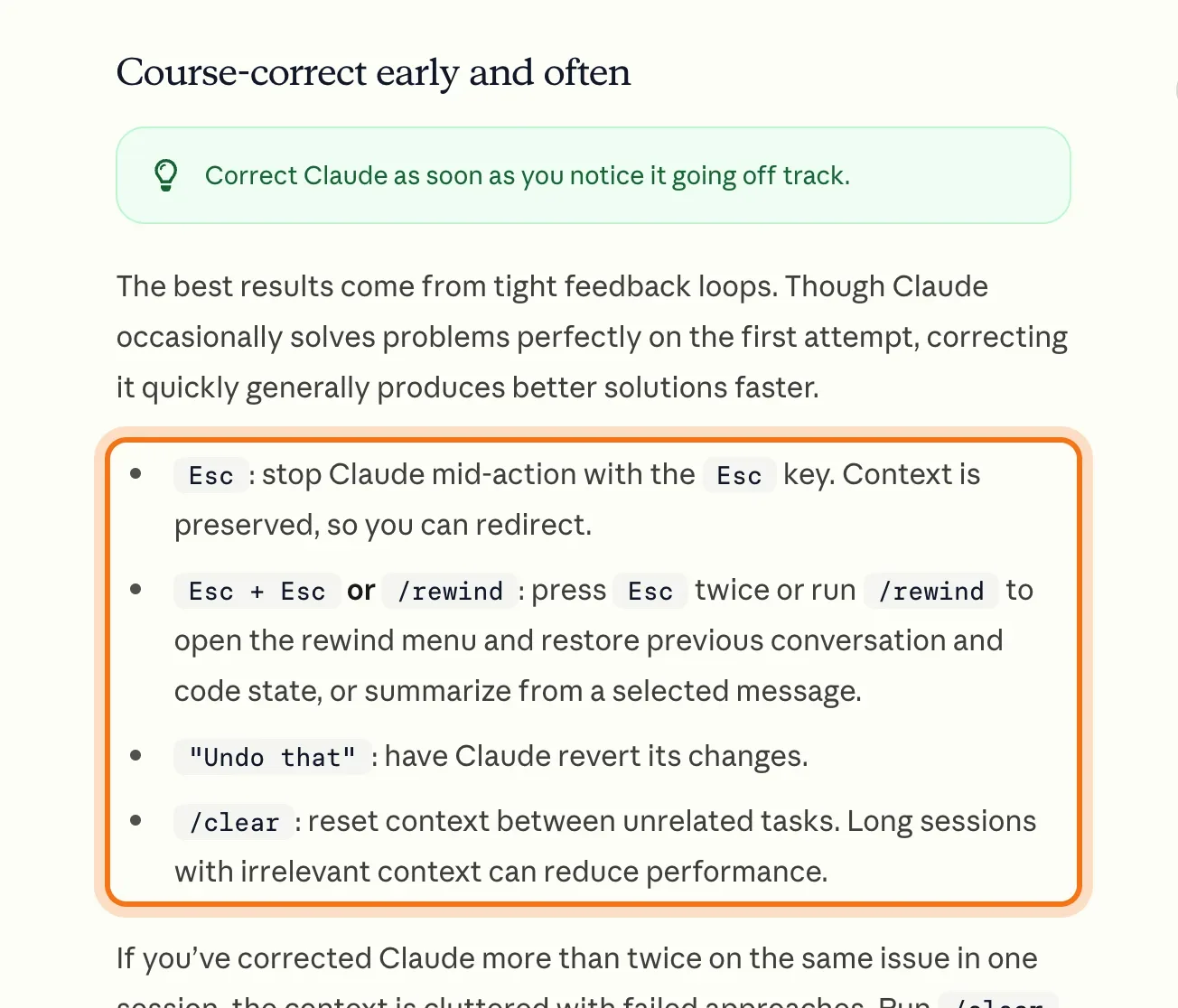
You're always in control. Esc stops Claude mid-action, and you can redirect it. Esc twice, or /rewind, takes you back to an earlier point, including the code. "Undo that" asks it to revert its changes. /clear starts a clean conversation for a new task.
Members
The rest of this guide is for members
Create a free account and every room in the academy opens for 30 days. No credit card needed.
In the rest of this guide
8 real jobs for Claude Code, with prompts to copy
- Build or update a simple website
- Understand a project you inherited
- Fix a bug, with a check
- Organize a folder of files
- Turn a spreadsheet into a report
- Automate a boring task
- Let Claude interview you before a bigger build
- Save your work with Git
Habits and commands worth knowing
- CLAUDE.md: rules Claude reads every time
- Be specific: name the file, the case, the check
- Three commands to remember
- Keep the conversation clean
When a session goes wrong, and how to fix it
- It gets confused after a long session
- You keep correcting the same mistake
- It says it's done, but it doesn't work
- It solved a different problem than the one you meant
- It ignores a rule in your CLAUDE.md
- It asks for permission all the time
- You want to undo what it did
- It says you've reached your usage limit
Where to go next
These guides cover installing, skills, and the no-terminal option.