What AI photo editing is, in one minute
You upload a photo and say what you want changed, in plain words: "put it on a white background", "remove the cup on the left", "make it look like morning light". The AI gives you a new version. No layers, no brushes, no editing skills.
Gemini does this for free if you're 18 or over. ChatGPT can edit photos too, with limits on the free plan. It's great for product photos, social posts and fixing a picture that's almost right.
One thing to know: the AI makes a new image, it doesn't touch your original. Small details can change along the way, so look closely before you use the result, especially for a product you sell.
When AI editing is the right tool
AI editing is fast and needs no skills. A regular photo editor is still better when every pixel has to stay exactly the same.
Use AI editing when
- You need a clean background for a product photo or a profile picture.
- Something small is in the way: a cup, a cable, a sign, a coaster.
- You want the same product in a new setting for a post or an ad, without a new photo shoot.
Choose something else when
Create a new image: You don't have a photo to start from, and you want AI to make the whole picture.
Read the guideCanva: You want to add text, a logo or a layout on top of the photo, for a flyer or a post.
Read the guide
Your first AI photo edit, in five steps
A real example: a candle on a wooden table that needs a clean white background for an online store. The pictures use Gemini on a free account.
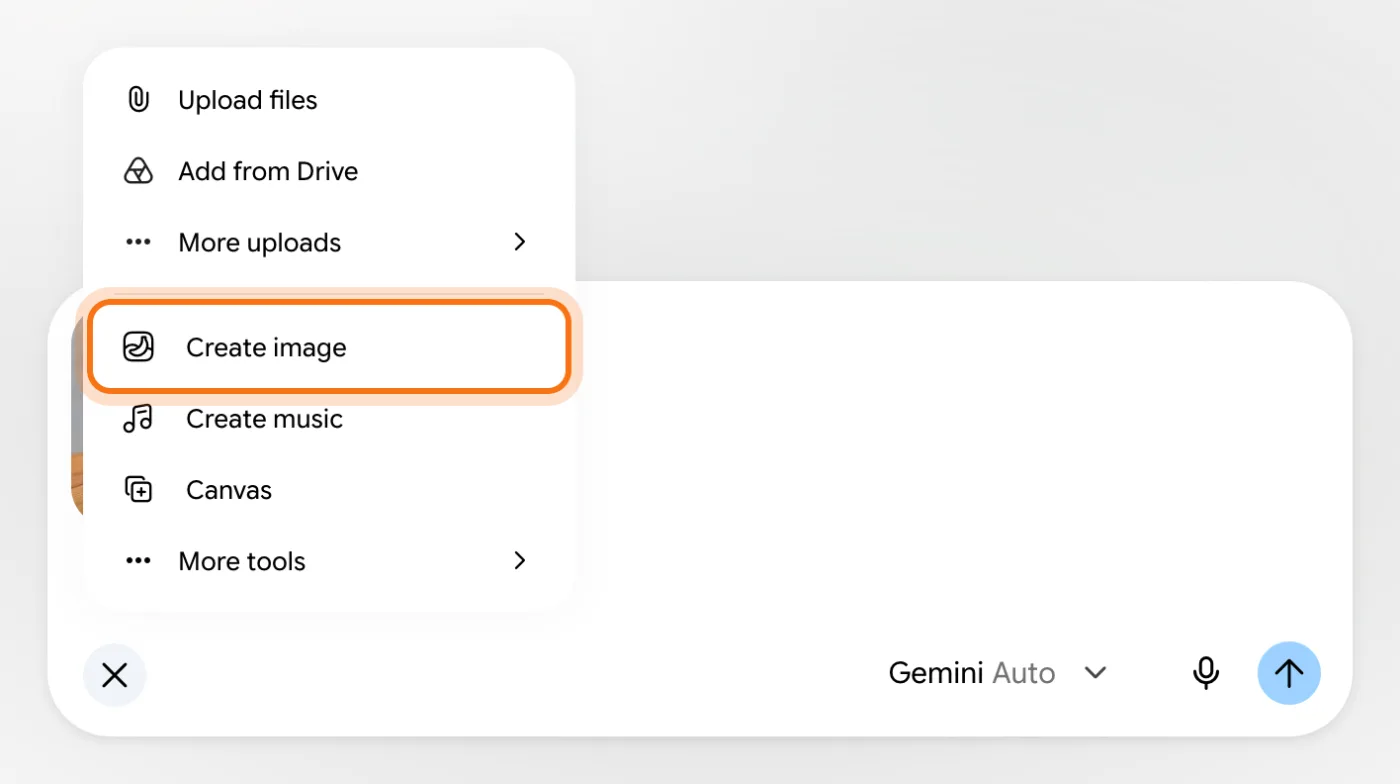
Step 1: Add your photo, then choose "Create image"
Go to gemini.google.com and sign in. Click + at the left of the message box, then "Upload files" and pick your photo. Click + again and choose "Create image". Google says this is the tool for editing a photo you upload.
Step 2: Say what to change, and what to keep
With the tool on, the box shows "Images". Write the change in one sentence, then name what must stay the same. That second part protects the details you care about.
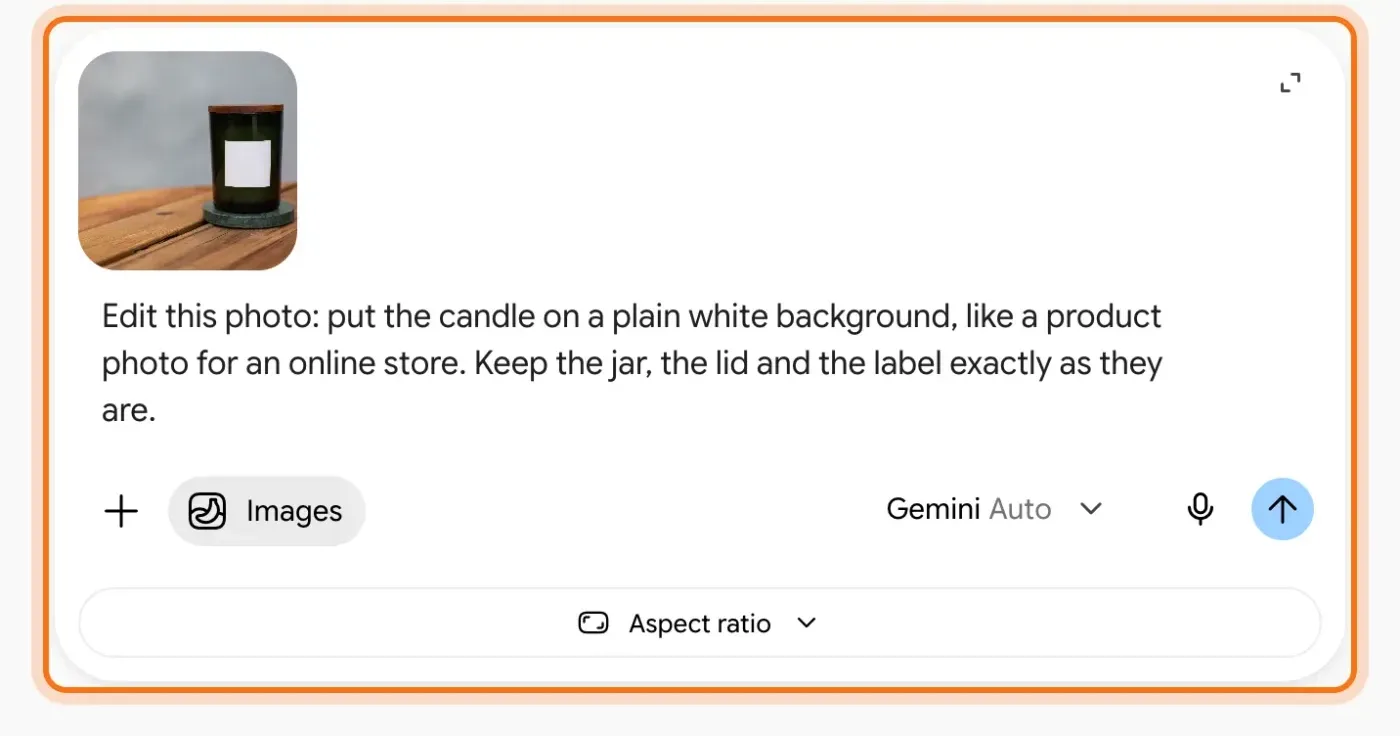
Try this prompt
Edit this photo: [the change, for example: put the candle on a plain white background, like a product photo for an online store]. Keep [the jar, the lid and the label] exactly as they are.Step 3: Look closely at the result
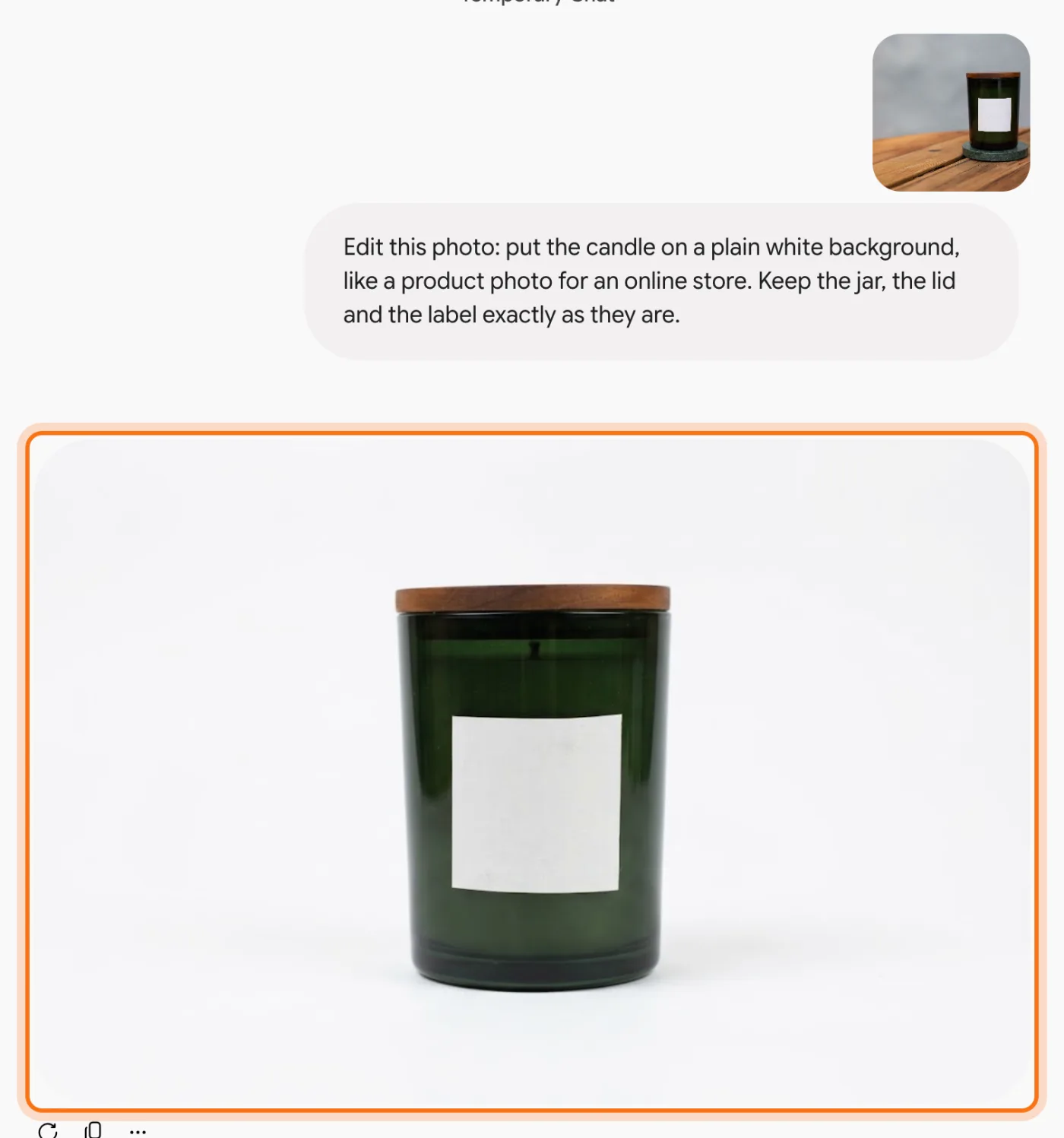
Gemini answers with the edited photo under your request. Here the candle stands on clean white, and the jar, the lid and the label look the same. Zoom in on the parts that matter: edges, text, small details.
Step 4: Ask for one more change
Keep going in the same chat, one change at a time. Gemini works from the last version, so you can build up the photo you want step by step.
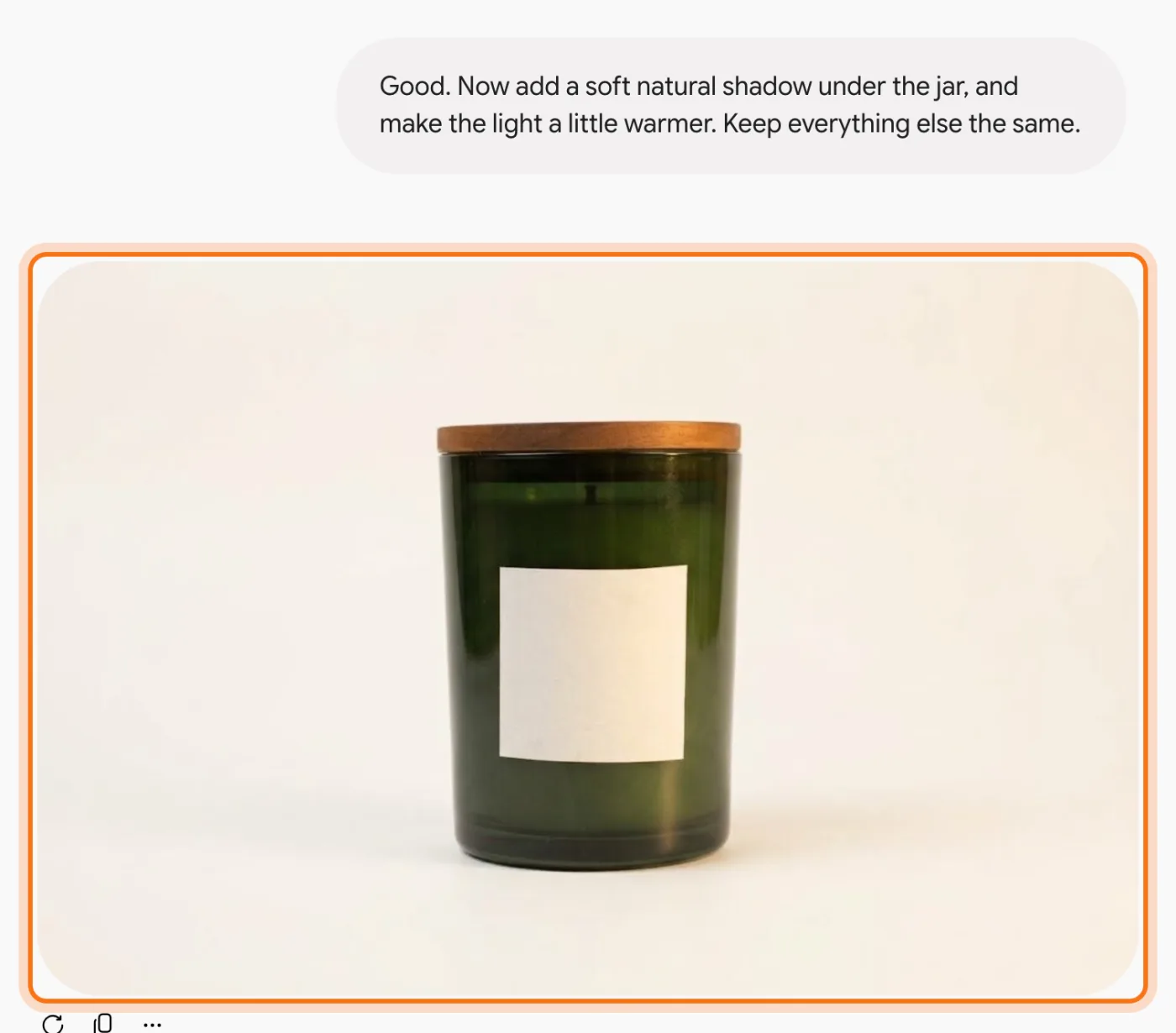
Try this prompt
Good. Now add a soft natural shadow under the jar, and make the light a little warmer. Keep everything else the same.Step 5: Download the version you like
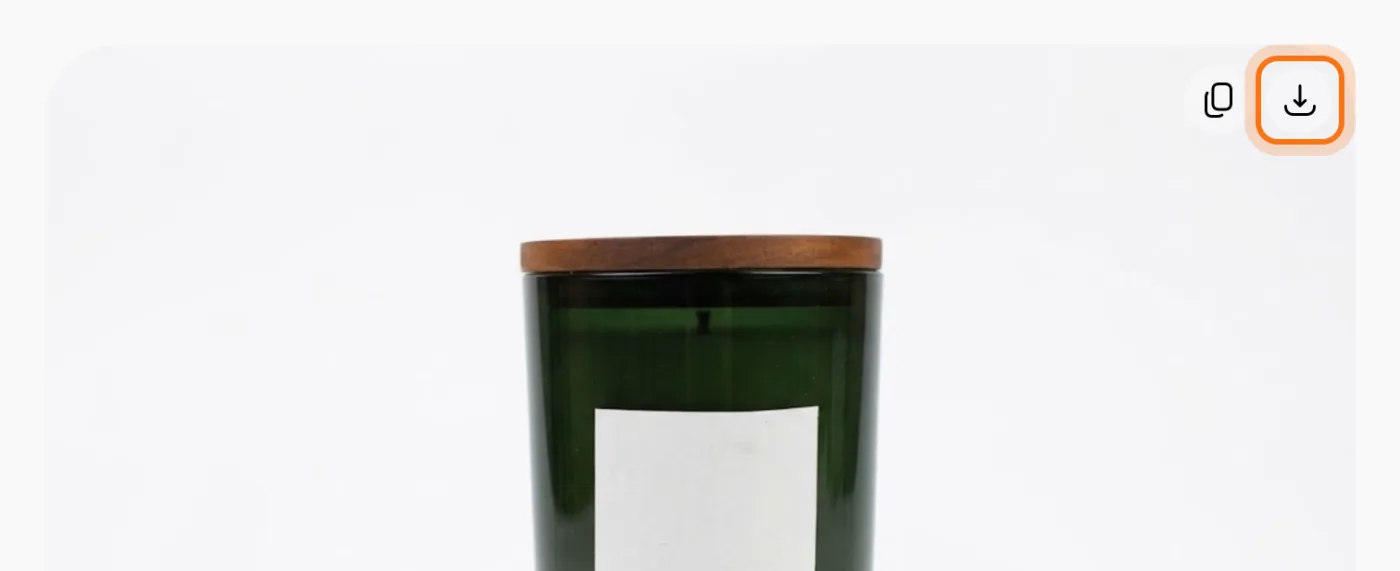
Point at the picture and its buttons appear at the top right. Click the download arrow to save it. Your original photo stays as it was on your computer.
Members
The rest of this guide is for members
Create a free account and every room in the academy opens for 30 days. No credit card needed.
In the rest of this guide
8 real photo edits, with prompts to copy
- A clean white background for an online store
- Remove something that's in the way
- Fix a dark or gloomy photo
- Put your product in a new scene
- Make a tall version for stories
- A tidier profile picture
- Change the season or the occasion
- Combine two photos into one
More edits worth knowing
- Remove an object
- A new scene for the same product
- Keep test edits out of your history
- ChatGPT can edit photos too
When something goes wrong, and how to fix it
- Something you didn't ask to change looks different
- Gemini answers in words instead of editing the photo
- The words on your product or sign come out wrong
- You're not sure the edited photo is fair to use
- A person in the photo looks a little different
- It stops making pictures after a few edits
- You can't find photo editing in Gemini
- There's a small mark on the edited picture
Where to go next
Edited photos are the start. These guides help you turn them into posts and designs.