What Canva is, in one minute
Canva is a design tool that works in your browser. You start from a ready-made template, like a social media post, a flyer or a presentation, and change the words, photos and colors to make it yours.
It also has AI tools. Canva AI can write and design from a request, and on a free account Canva's help says the AI tools share up to 20 uses a month. Templates and your own editing don't need AI at all.
You can start free at canva.com. We made a free account with "Continue with Google" for the pictures in this guide, on a computer. Anything with a small crown is for paid plans.
When to pick Canva, and when another tool fits better
Canva, Gamma and the AI image tools can all help you make something that looks good. The difference is how much you want to decide yourself.
Pick Canva when
- You want to control the look: the photos, the colors, the fonts and where everything goes.
- You need a common format fast: a social post, a flyer, a menu, a business card or a presentation.
- You'd like to start from a design that already looks good and only change the details.
Look at another tool when
Gamma: You want a whole presentation written and designed for you from a short description.
Read the guideAI images: You need a new picture made from a description, not a layout with your text.
Read the guide
Your first design, in five steps
Here's the whole loop, from a search to a file you can post. The example: an Instagram post for a coffee shop's loyalty card.
Step 1: Open canva.com and sign up
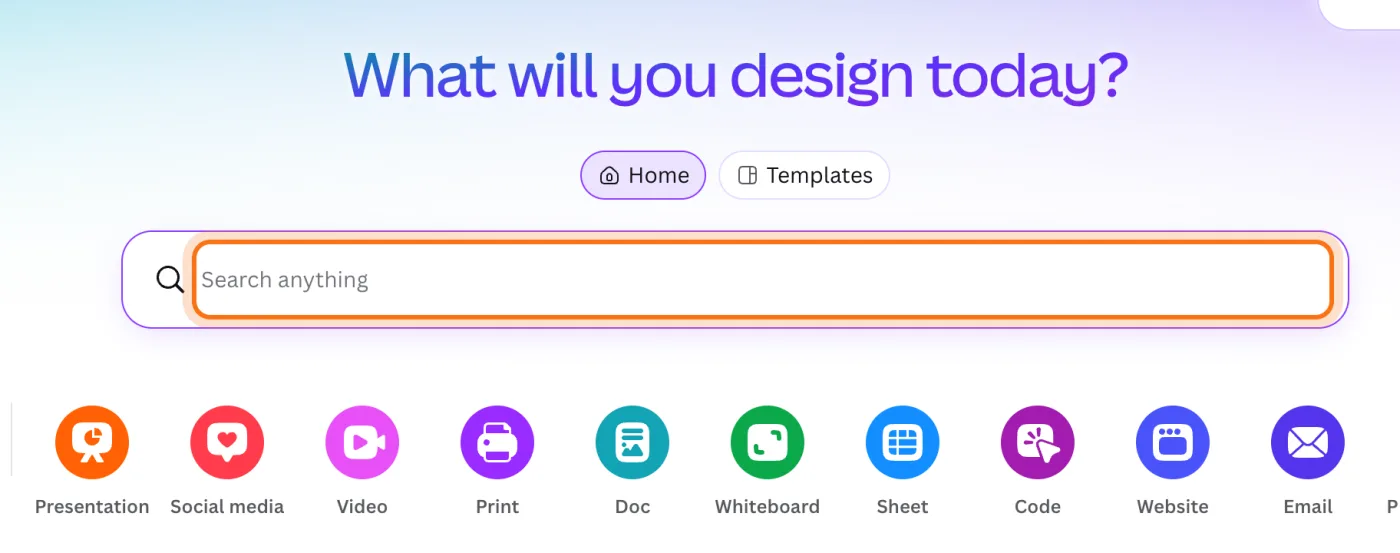
Go to canva.com and click "Sign up". Choose "Continue with Google", Facebook or email. Canva asks what you'll use it for, then shows "What will you design today?" with a search box and a row of design types under it.
Step 2: Search for what you're making
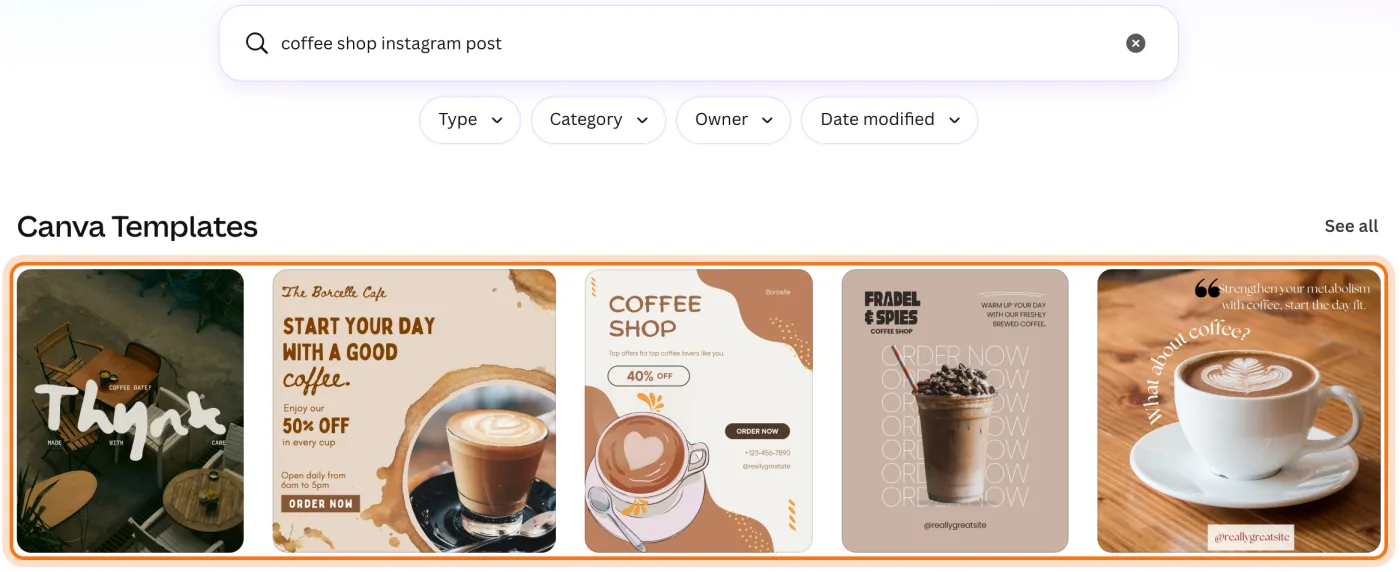
Type the kind of design and your kind of business, like "coffee shop instagram post", and press Enter. Canva shows matching templates. Look for one with a layout you like; the words and photos are easy to change.
Step 3: Pick a template and click "Customize this template"
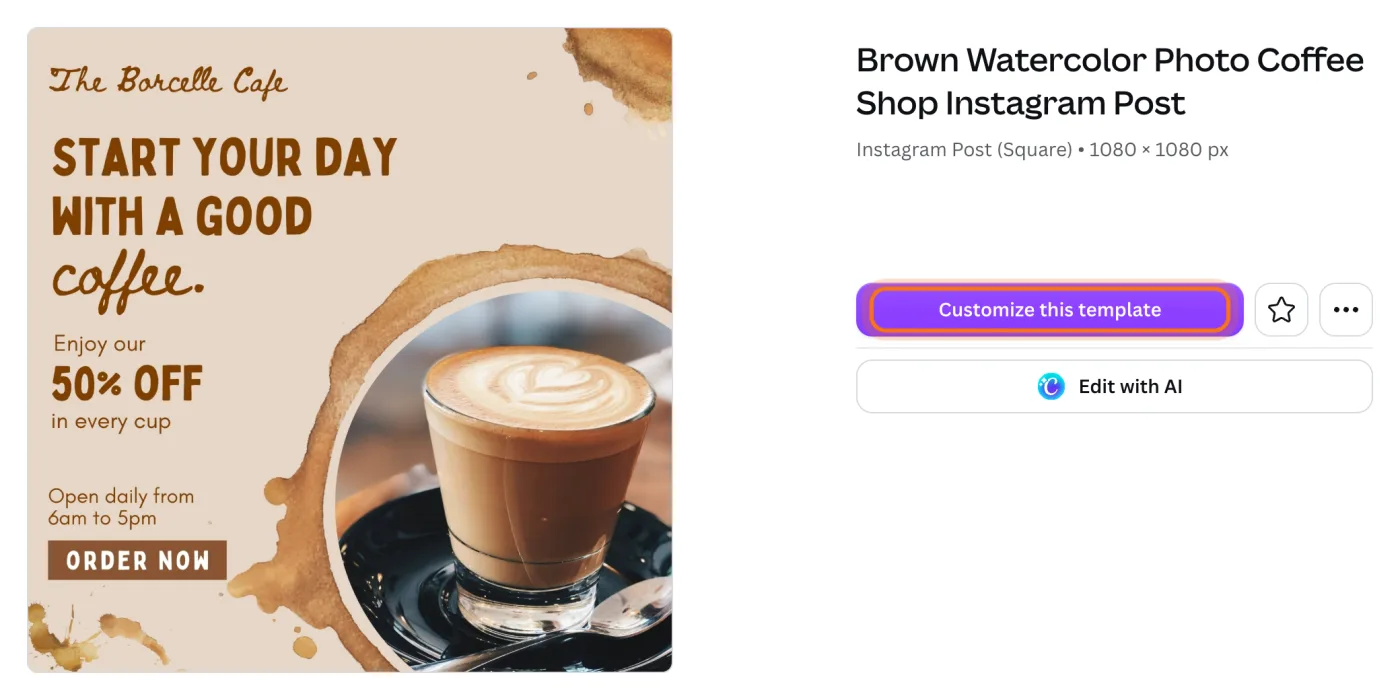
Click a template to see it bigger, with its size (here "Instagram Post (Square)", 1080 x 1080 px). "Customize this template" opens your own copy in the editor, in a new tab. The original stays as it was.
Step 4: Change the words
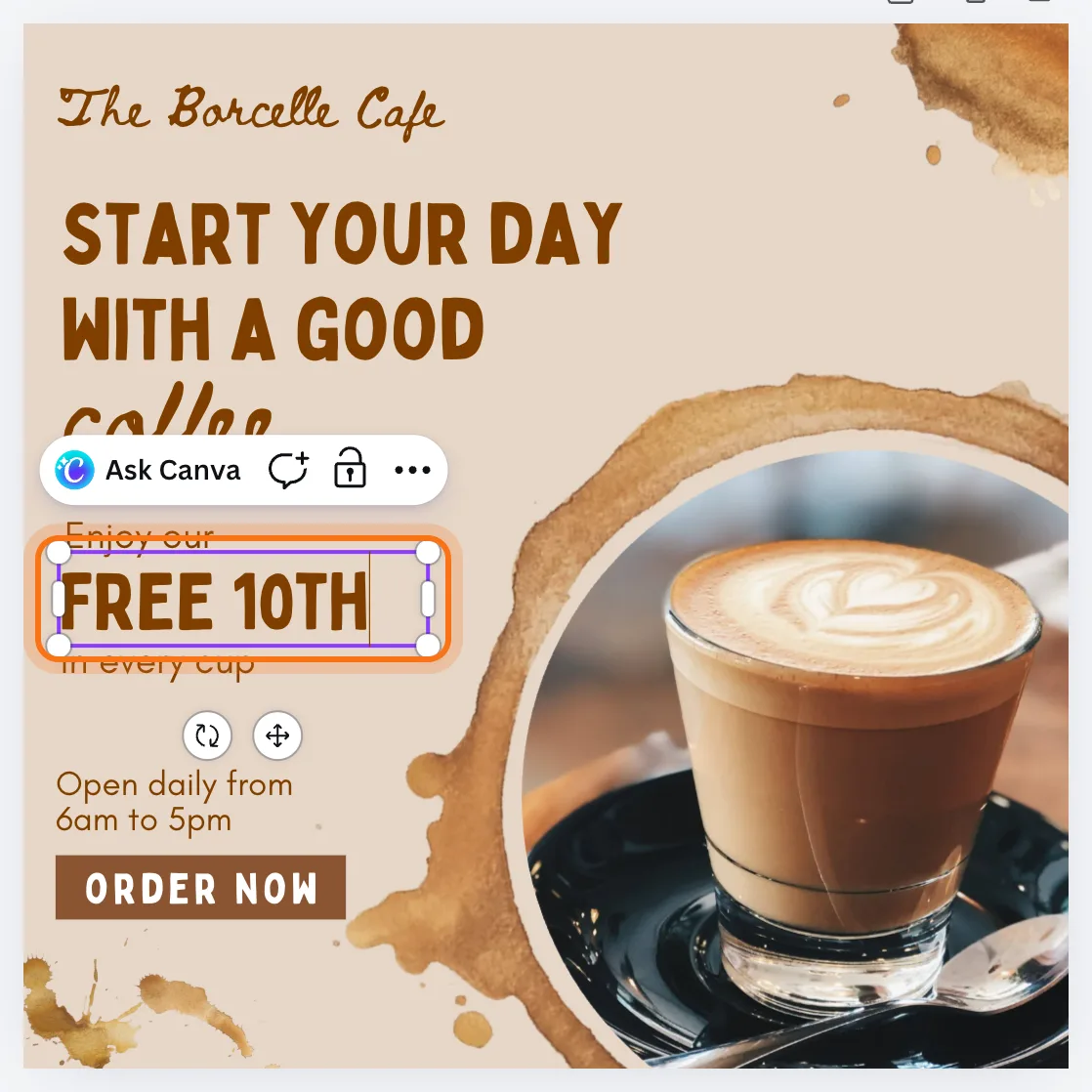
Double-click any text on the design and type your own. We changed "50% off" to "FREE 10th" for a loyalty card. Do the same for every line, then swap photos and colors if you like. Canva saves your changes as you go.
Step 5: Download it
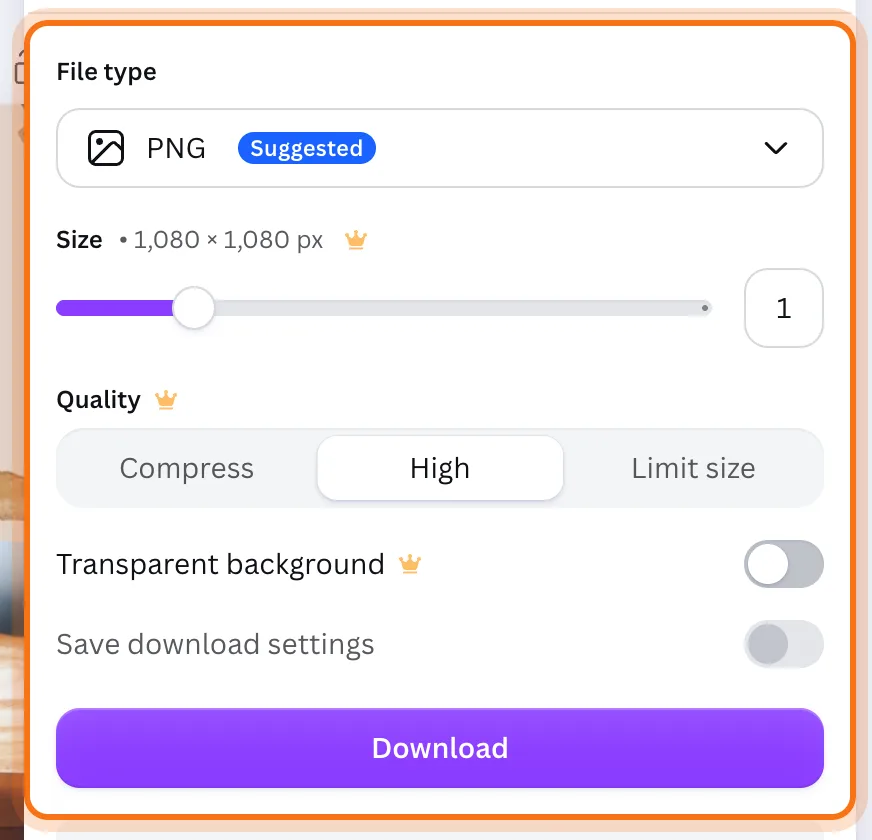
Click "Share" at the top right, then "Download". For a post like this, Canva suggests PNG. Click "Download" to save the file to your computer, ready to post.
Members
The rest of this guide is for members
Create a free account and every room in the academy opens for 30 days. No credit card needed.
In the rest of this guide
8 real jobs Canva does well, with prompts to copy
- Announce news on social media
- Make a flyer for an event
- Make a menu or a price list
- Make a business card
- Make a short presentation
- Make a short video for social media
- Make a sign for your window or counter
- Make a set of posts for the week
Buttons and settings worth knowing
- Elements: shapes, photos and more
- Add your own logo and photos
- Pick the right file type
- Share a link instead of a file
- Canva AI
- Projects: where your designs are
When Canva gets in your way, and how to fix it
- Something has a crown, or Canva offers a free trial
- The template still shows sample details
- Your text doesn't fit
- The file looks wrong where you use it
- You run out of AI uses
- People can't open your link
- You can't find a design
- You're not sure what's safe to upload
Where to go next
Good words make every design better, and AI can help with them.