What AI images are good for, in one minute
You describe a picture in plain words, and the AI draws it in a few seconds: a picture for a social post, a background for a flyer, an illustration for a presentation, a first idea to show a designer.
It doesn't search for an existing picture. It makes a new one from your description, so the description is everything. A vague request gets a generic picture. A clear one, with the subject, the style, the details and the shape, gets something you can use.
The free versions of Gemini and ChatGPT both make pictures, with a daily limit. The screenshots in this guide use Gemini at gemini.google.com, with one from ChatGPT.
Which tool to use for pictures
Gemini, ChatGPT and Canva can all make a picture from a description. The difference is what you want to do with it next.
Pick Gemini when
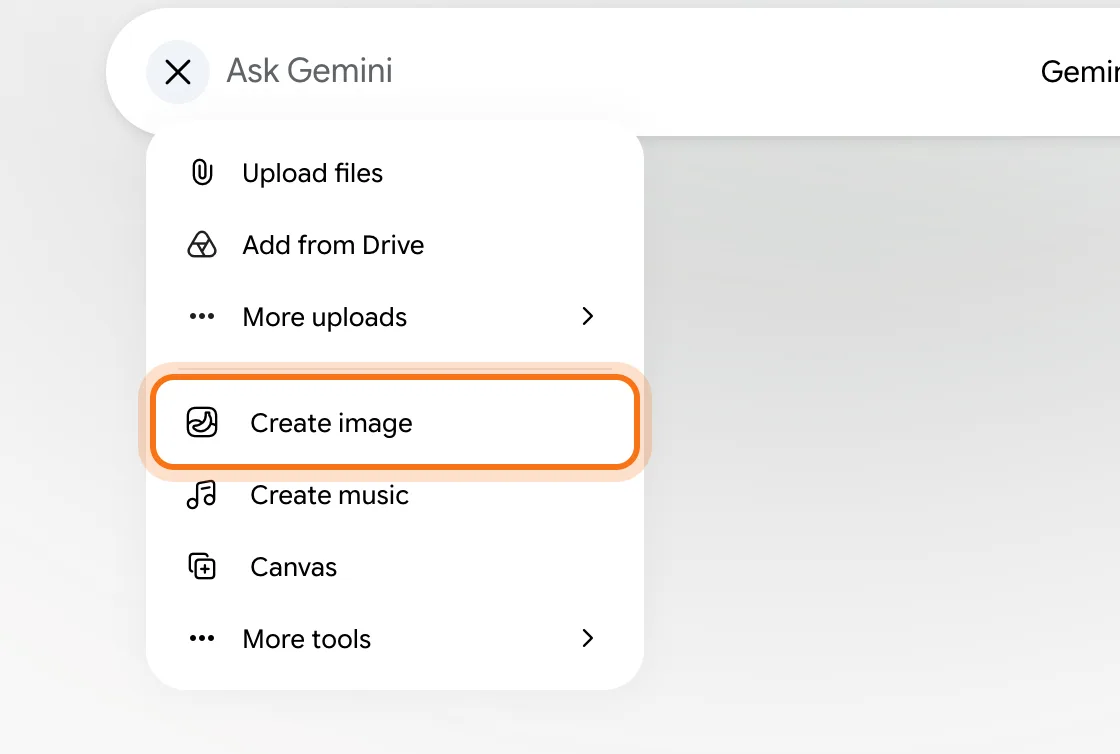
- You want to start free with the Google account you already have. Click + and choose "Create image".
- You need a particular shape, like tall for a phone story or wide for a website. Gemini's "Aspect ratio" button sits right under the box.
- You want to change the picture by asking. Reply in the same chat, "same picture, but brighter", and Gemini makes a new version.
Look at another tool when
ChatGPT: You already use ChatGPT. Ask for a picture in any chat, or open "Images" in the sidebar for ready-made styles. OpenAI says you can also select one area of a picture and describe the change for just that part.
Read the guideCanva: The picture is part of a design, like a flyer or a post with your text and logo. Canva has its own AI image tools, which Canva says come with limited use on free accounts.
Read the guide
Your first useful picture, in five steps
Here's the whole loop in Gemini, from an empty box to a picture saved on your computer. The example: a coffee shop that wants a warm picture for its social media.
Step 1: Open Gemini and choose "Create image"
Go to gemini.google.com and sign in with your Google account. Click + next to the box that says "Ask Gemini" and choose "Create image". You can also just start your message with "Create an image".
Step 2: Describe it in four parts
Write what you'd tell an illustrator: the subject (what's in the picture), the style (a photo, a flat illustration, a watercolor), the details (light, colors, the setting) and the shape (square, tall, wide). Add "no words in the image" unless you need text.
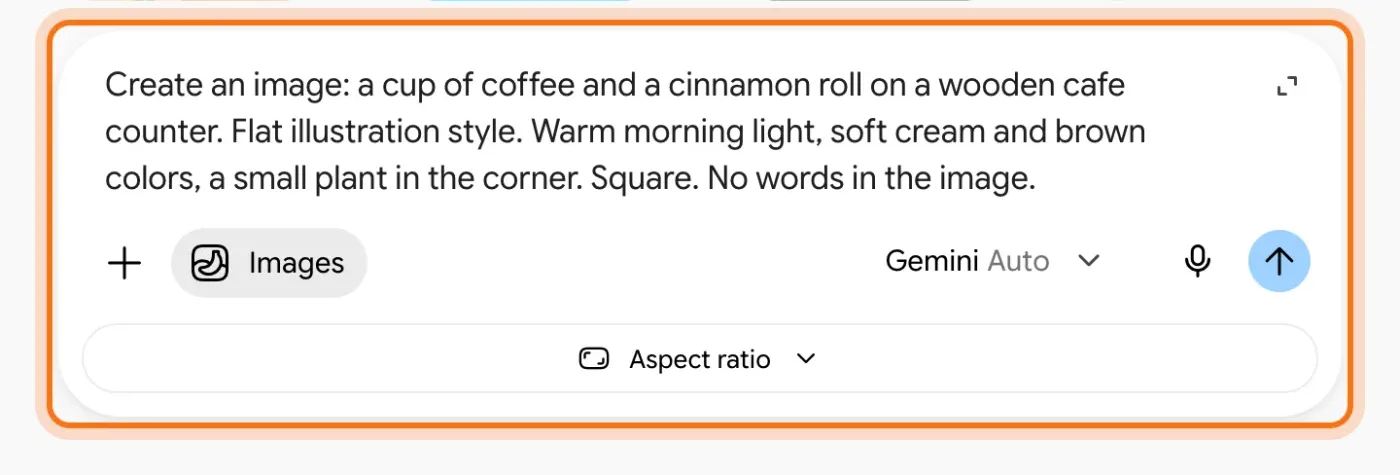
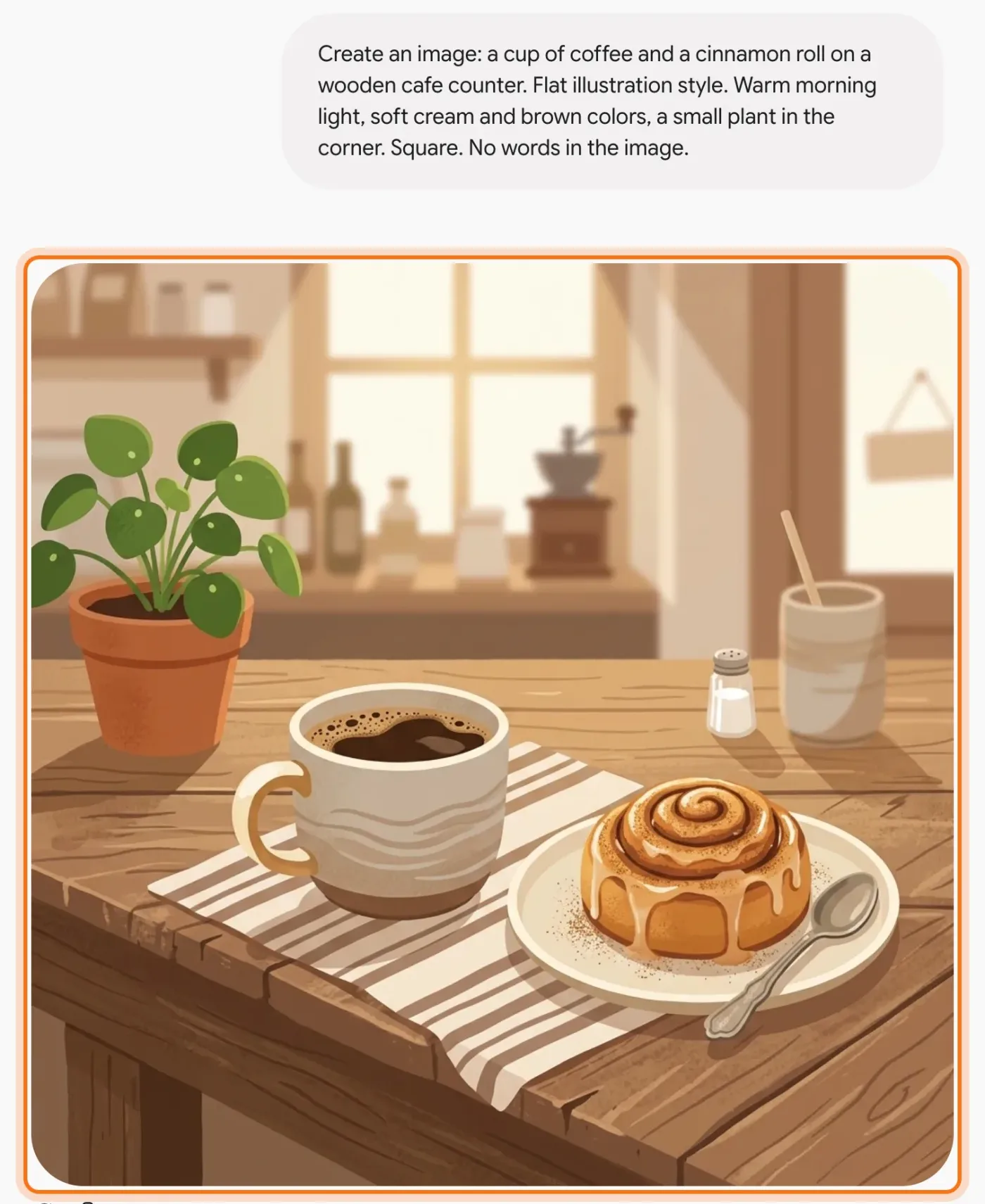
The example in the picture: a cup of coffee and a cinnamon roll on a wooden cafe counter, as a flat illustration in warm morning light.
Try this prompt
Create an image: [the subject]. [The style]. [The details: light, colors, setting]. [The shape: square, tall or wide]. No words in the image.Step 3: Send it, and look at it like a first draft
Press Enter. The picture appears under your message in a few seconds. Look at the whole thing, then the details: the shapes of objects, any hands or faces, and anything that looks a little off. It's a first draft, and the next step fixes most of what you don't like.
Step 4: Change one thing at a time, in the same chat
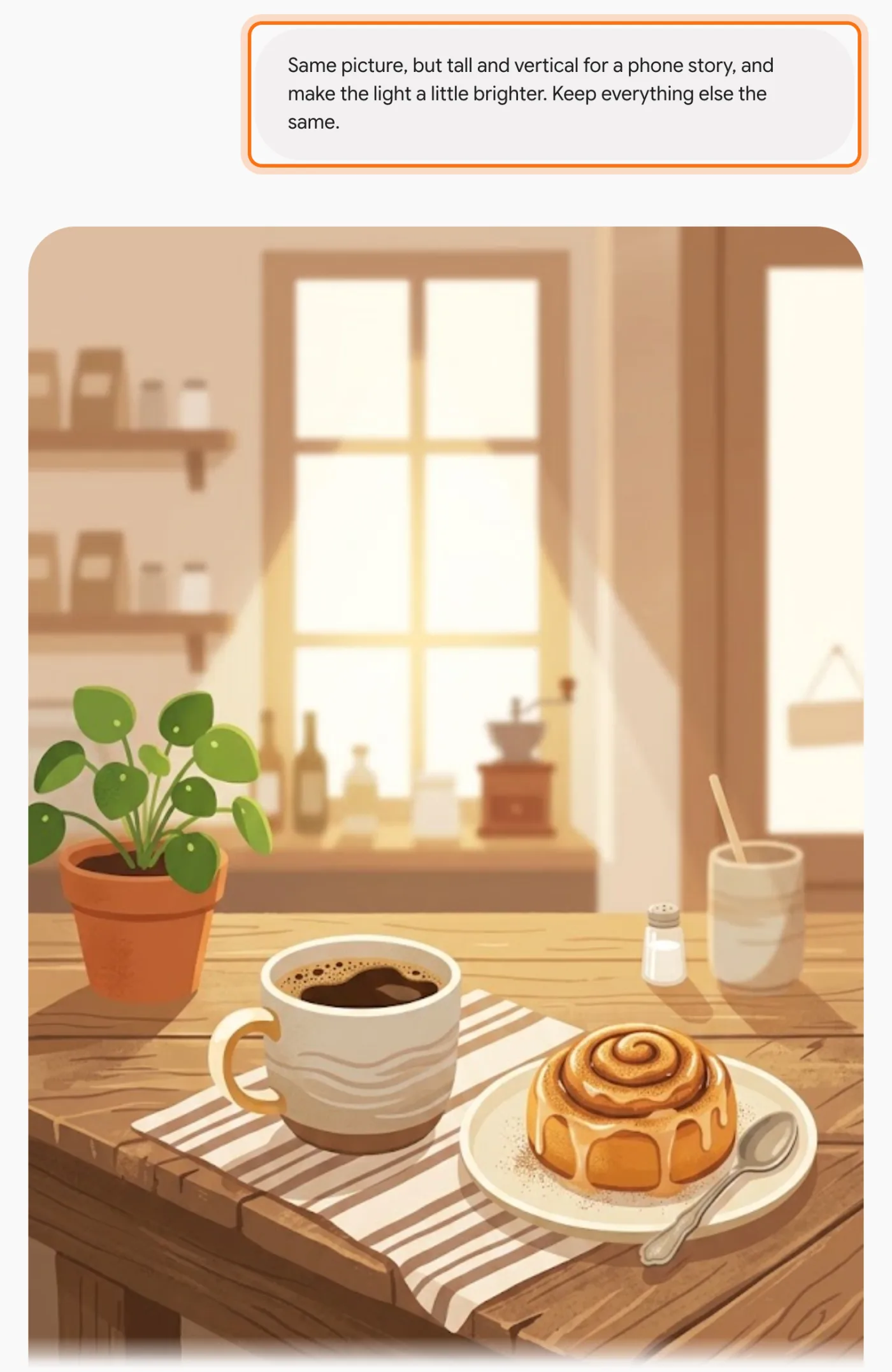
Don't start over. Reply with what to change and what to keep: "same picture, but tall for a phone story, and a little brighter". Gemini makes a new version from the one you have. Change one or two things per message, so you can tell what each request did.
Step 5: Download it
Point at the picture and click the download icon in its top right corner ("Download full size image"). Google says free accounts download at 1K resolution and Google AI plans at 2K. That's plenty for social media and slides. Look at it once more, full size, before you post it.
Members
The rest of this guide is for members
Create a free account and every room in the academy opens for 30 days. No credit card needed.
In the rest of this guide
8 real pictures a small business needs, with prompts to copy
- A picture for a social media post
- A flyer background, with room for your text
- A tall picture for a phone story
- A wide banner for your website or email
- Illustrations for a presentation
- A seasonal picture for a menu or a sign
- A first idea to show a designer
- A coloring page for a kids' event
Buttons and habits worth knowing
- Choose the shape before you send
- In ChatGPT: "Images" in the sidebar
- Keep a short list of style words
- Know that the picture is marked as AI-made
When the picture comes out wrong, and how to fix it
- The words in the picture are misspelled or garbled
- It looks generic, like a stock photo of nothing in particular
- Hands, faces or small objects look strange
- You asked for one change, and it redrew everything
- It's the wrong shape for where you'll post it
- It refuses to make the picture
- It says you've reached your limit for today
- Your pictures don't look like a set
Where to go next
A clear description is a good prompt in a different shape. These guides take it further.