What your camera can do with AI, in one minute
Your phone's camera can now answer questions. Take a picture of a plant, a label, a sign in another language or a light on your car's dashboard, and AI tells you what it is and what to do about it.
There are three easy ways to do it. Google Lens, in the Google app, Chrome or Safari, searches with a photo instead of words. ChatGPT and Gemini let you send a photo in a chat and ask about it like you'd ask a friend. And Gemini Live lets you point your camera and talk while it looks, free on Android and iPhone.
You don't need anything new: the apps you already have can do it. The pictures in this guide show these tools in a phone's browser, which looks like their apps, and the buttons have the same names.
Which one to use for what
All three understand photos well. The difference is what you want back: a search result, a conversation, or help while you look.
Use Google Lens when
- You want to know what something is: a plant, a bird, a building, a product on a shelf.
- You want to find where to buy it, or things that look like it.
- You need the words on a sign or a menu translated, or help with a math or science homework problem. Lens has buttons for both.
Use a chat when you want an explanation or next steps
ChatGPT: You want to talk it through: why a leaf is turning yellow, what to check first, what to do next. Tap + and choose "Camera" or "Photos", then ask your question.
Read the guideGemini: The same idea, with + and "Camera". And when your hands are busy, Gemini Live lets you show it things with your camera and just talk.
Read the guide
Your first photo search, in five steps
A real example: a houseplant you don't know the name of, and how often to water it. The pictures use Google Lens on a phone.
Step 1: Open Google and tap the Lens icon
On an iPhone, open the Google app, Chrome or Safari. On Android, open the Google app or Chrome. In the search bar, tap the Lens icon, the little camera on the right. Google's help calls it "Google Lens".
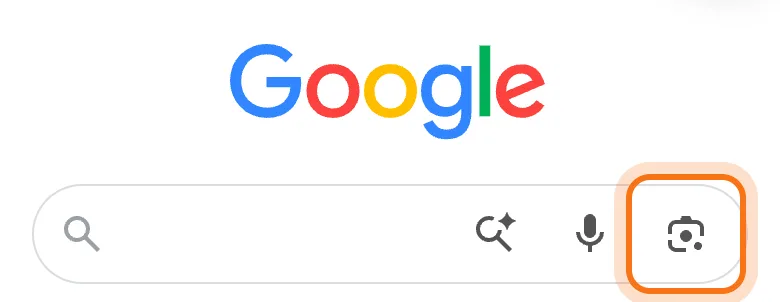
Step 2: Point your camera and tap Search
Point your camera at the thing and tap the round Search button. Hold the phone steady, in good light, close enough that the thing fills most of the screen. Already took the picture? Tap the photo icon next to the button and choose it from your photos instead.
Step 3: Read what Lens found
Your photo stays at the top, and the answer starts under "AI Overview": what it is, a few lines about it, and links to the pages it came from. Scroll down for photos that look like it and shops that sell it.
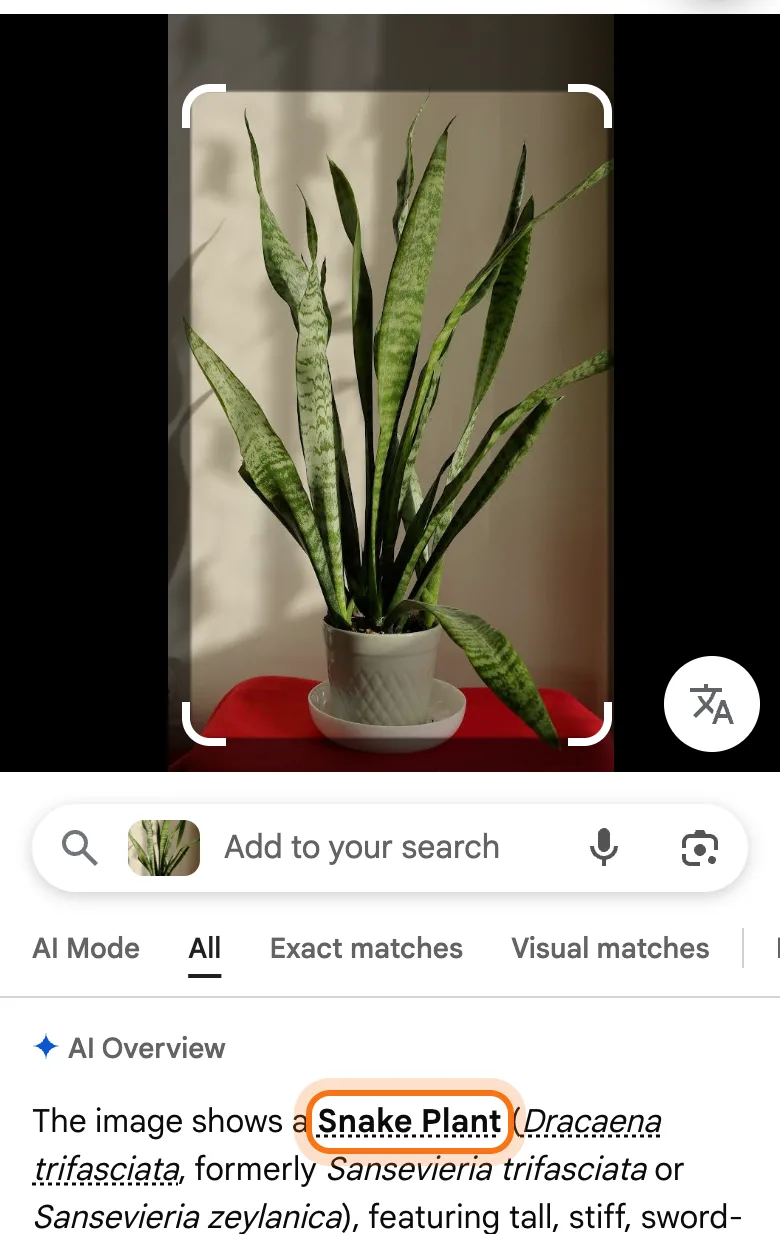
Step 4: Add your question
Tap the box that says "Add to your search". Your photo is already in it. Type your question in plain words, like "how often should I water it", and press Search on your keyboard.
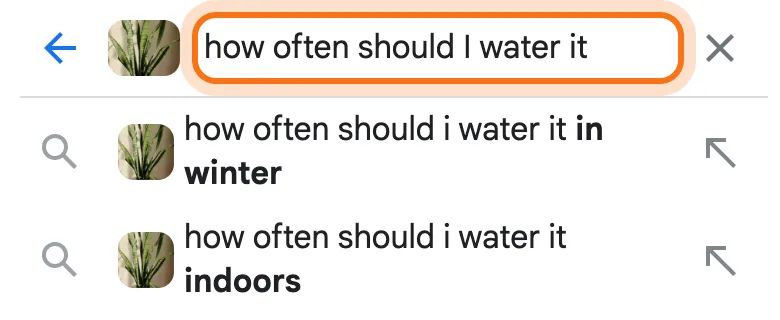
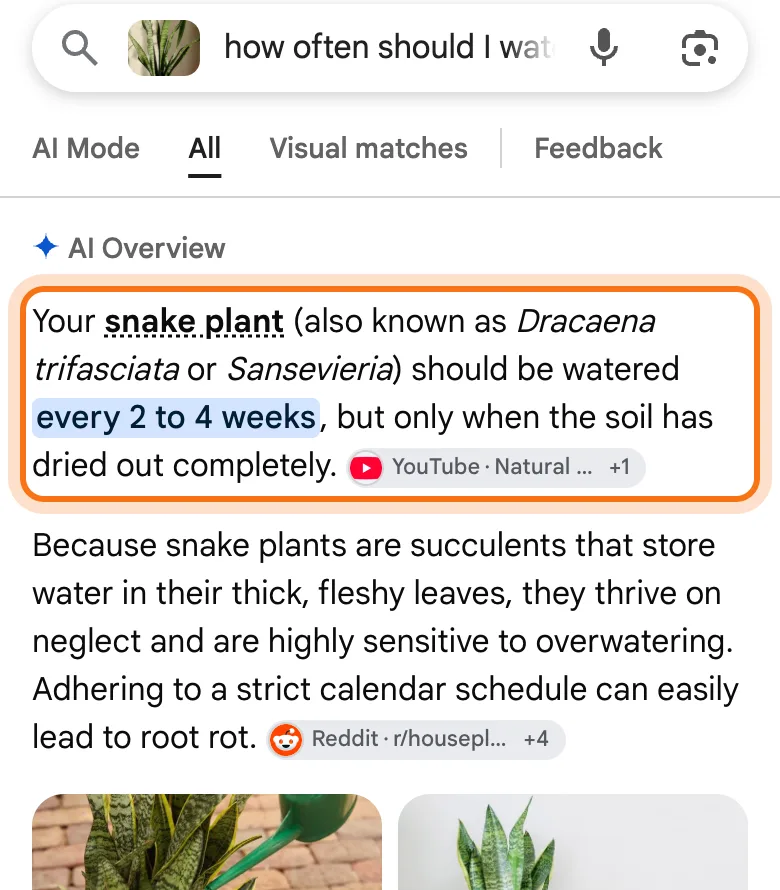
Step 5: Get an answer about your photo
Lens answers your question about that exact thing, with links to its sources. If something matters, like whether a plant is safe for your dog, open one of the links and check before you act.
Members
The rest of this guide is for members
Create a free account and every room in the academy opens for 30 days. No credit card needed.
In the rest of this guide
8 real jobs for your camera, with prompts to copy
- Keep a plant alive
- Understand a warning light in your car
- Translate a menu or a sign
- Read a care label or instructions
- Find the name of a broken part
- Help a child with homework, without just giving the answer
- Turn a whiteboard or handwritten notes into a clean list
- Compare two products in the store
Buttons and modes worth knowing
- ChatGPT: + then Camera
- ChatGPT: ask about the photo
- Gemini: + then Camera
- Gemini: ask about the photo
- Translate with Lens
- Gemini Live: show it, and talk
When something goes wrong, and how to fix it
- Lens searched the wrong thing in your photo
- The answer is vague, or says it can't read the text
- The AI sounded sure, and it was wrong
- The camera button doesn't open the camera
- ChatGPT or Gemini won't take another photo today
- Gemini Live stopped seeing through your camera
- You can't find the video button in ChatGPT
- There's something private in the picture
Where to go next
Your camera is one more way to ask. These guides help with the rest.