What this is, in one minute
Enhance Speech is a free tool from Adobe Podcast. You give it a recording of people talking, made with a phone across a room, with a fan running or an echo off bare walls. It takes out the noise and the echo and makes the voice sound as if it was recorded close to a good microphone. The words stay the same.
It's free with an Adobe account, and signing up asks for no credit card. On the free plan, Adobe's help says each file can be up to 30 minutes long (and up to 500 MB), and you can fix up to one hour of recordings a day. We used a new free account on 10/22, on a computer. Everything in this guide worked.
Our test recording was 47 seconds of a short talk, made bad on purpose with room echo, a fan and a hum. It came back in about 40 seconds. The noise in the pauses between sentences was gone (it dropped by about 30 dB, from a hiss you could hear to near silence), and the voice stayed just as loud.
Which way to use
Enhance Speech is for a recording of someone talking that's hard to listen to. Other guides cover the jobs around it.
Use Enhance Speech when
- You have a recording of a class, a talk, an interview or a family story, and the voice is buried in noise or echo.
- You can't record it again: the event is over, or the person isn't there.
- You have it as an audio file (MP3, WAV or M4A, for example) of up to 30 minutes.
Use something else when
Get AI meeting notes: You want the words written down and summed up, not a cleaner sound.
Read the guideMake AI videos: You want to make a new video, not fix the sound of one you have.
Read the guide
Fix your first recording, step by step
Our example: a 47-second talk to a garden club about tomatoes, recorded (as it sounds) by a phone on a table at the back of an empty hall.
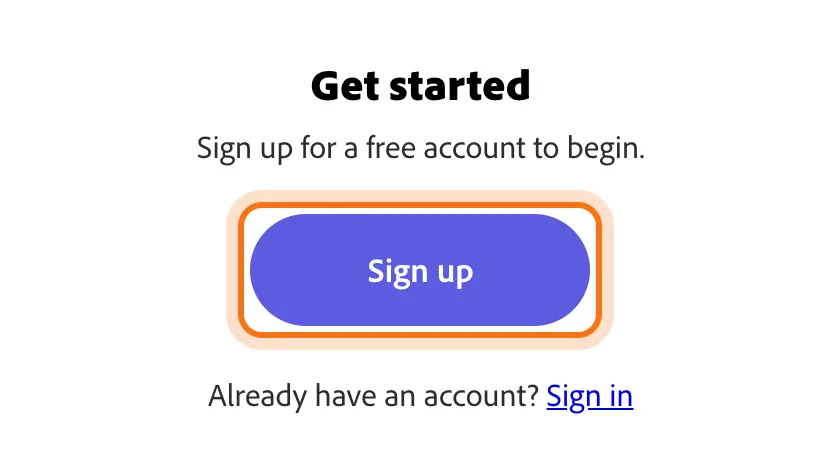
Step 1: Open Enhance Speech and click Sign up
Go to podcast.adobe.com/en/enhance. The page says "Sign up for a free account to begin." Click "Sign up". If you already have an Adobe account, click "Sign in" under it instead.
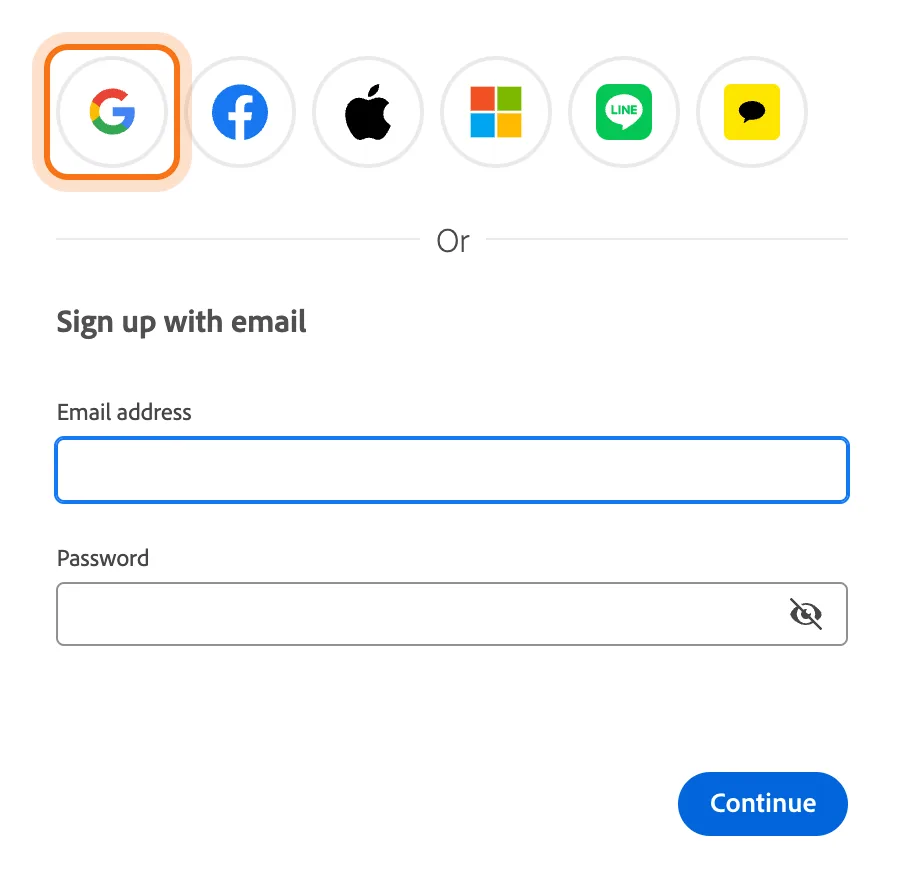
Step 2: Sign up with Google, or another way
Adobe's page offers Google, Facebook, Apple, Microsoft and two more, or an email and a password. We clicked Google and picked our account. Adobe then asked us to "complete your account": the month and year we were born, and the country. Then click "Create account". It didn't ask for a credit card. You land back on Enhance Speech, signed in.
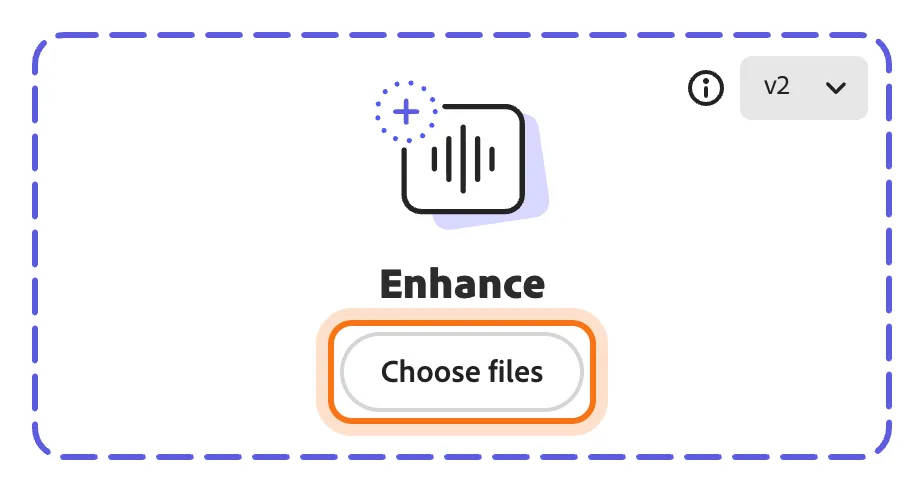
Step 3: Click Choose files and pick your recording
In the box that says "Enhance", click "Choose files" and pick the recording on your computer. The first time, there's already a file in the list under the box, Adobe's own sample video. Yours takes its place.
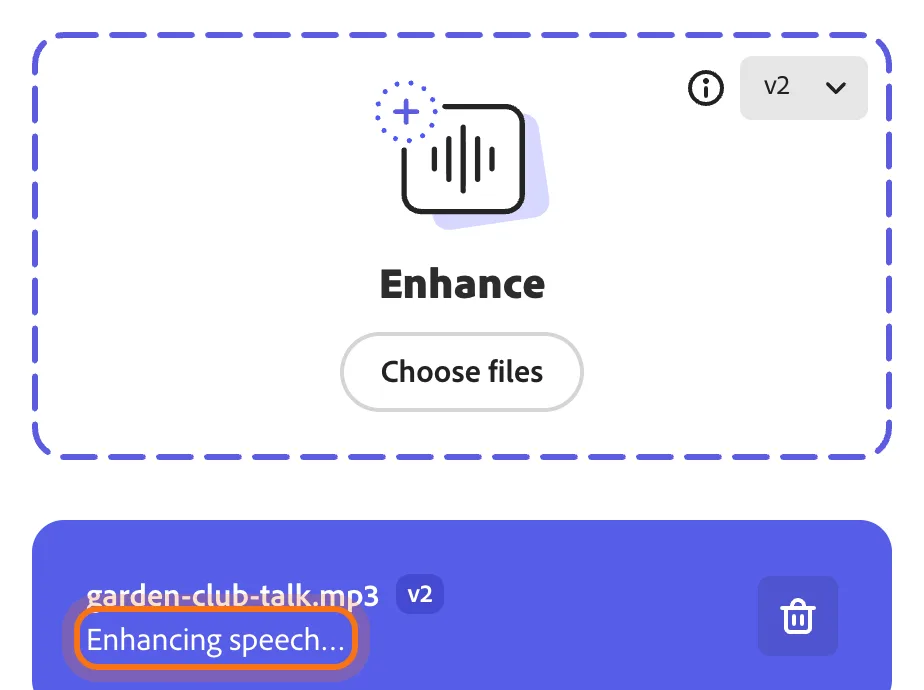
Step 4: Wait while it works
Your file shows up under the box with "Enhancing speech…" under its name. Don't close the page. Our 47-second recording was done in about 40 seconds. A longer one takes longer.
Step 5: Listen: switch between Original and Enhanced
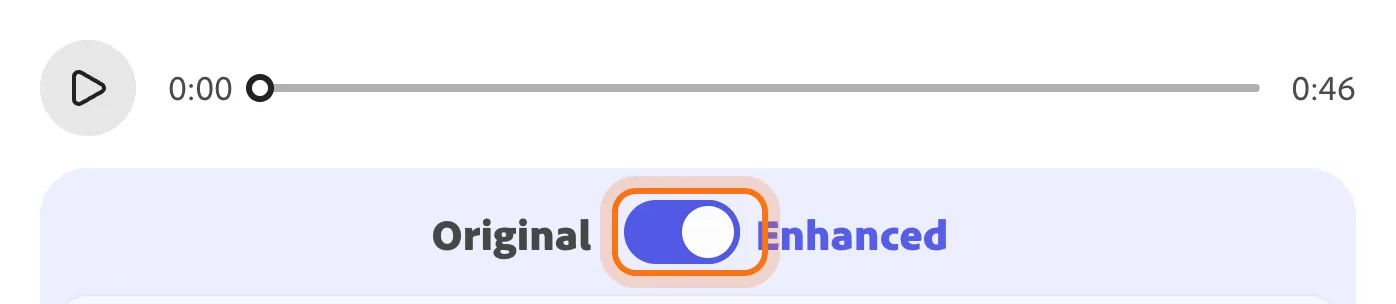
When it's done, a player shows up on the right. Press play, then flip the switch between "Original" and "Enhanced" while it plays. You hear the same moment before and after. Headphones help. On ours, the hiss and the echo in Original were gone in Enhanced.
Step 6: Click Download, right away
Click "Download" at the bottom of the page. The file downloads at once, no menu. Ours was "garden-club-talk-enhanced-v2.mp3" in the Downloads folder: an MP3, as long as the original. Download it before you leave the page: when we reloaded the page, our file was gone from the list.

Members
The rest of this guide is for members
Create a free account and every room in the academy opens for 30 days. No credit card needed.
In the rest of this guide
8 recordings worth fixing
- A class or a lecture
- A family story
- An interview
- A speech at an event
- Your voice for a video
- A meeting or a call you recorded
- An old tape you turned into a file
- A voice message or a voice note
More ways to use it
- Try the other version, v1
- See how much you've used today
- What's not on the free plan
- Get the words written out
- Which files work
- On your phone
- Record better next time
When something goes wrong, and how to fix it
- Your fixed file isn't on the page anymore
- It won't take another file
- The recording is longer than 30 minutes
- Your video file won't go in
- The voice sounds strange, like mumbling or another language
- The music in the background got very quiet
- The sliders don't move
- Adobe asks for your birth date when you sign up
Where to go next
Your recording sounds clear. These guides help with what's around it.