What AI meeting notes are, in one minute
AI meeting notes start from what was said: a recording or a transcript. The AI turns it into a short summary, the decisions, a list of who does what and by when, and the questions still open. You can then ask it for a follow-up email, or ask what someone said about a topic.
There are two ways to get them. Some meeting apps have a note taker built in, like "Take notes for me" in Google Meet. It needs certain paid plans and only works inside that app. The other way works with any meeting, even one around a table or on the phone: record it, then give the recording to an AI chat. With Gemini this works on a free account.
This guide shows the second way, step by step, and what to know about the built-in note takers.
Which way to use
Both give you notes. The difference is where the meeting happens and which plan you have.
Upload the recording to Gemini when
- The meeting is in person, on the phone, or in an app with no note taker.
- You use a free account. Google says the total audio can be up to 10 minutes without a Google AI plan, and up to 3 hours with Google AI Pro or Ultra.
- You want to ask follow-up questions about the meeting, in the same chat.
Use the note taker in your meeting app when
Google Meet: You use Google Meet and have Google AI Pro or Ultra, or an eligible Google Workspace plan. "Take notes for me" writes the notes during the call and saves them to a Google Doc.
Read the guideMicrosoft Teams: Your company uses Teams with a Teams Premium or Microsoft Copilot license. Microsoft calls it intelligent recap: AI meeting notes and recommended tasks after the meeting.
Read the guide
Your first meeting notes, in six steps
A real example: Dan, Mike and Sam run a small bike shop and have a short team meeting every week. The pictures use Gemini on a free account, in a temporary chat.
Step 1: Record the meeting
First tell everyone you're recording, and ask if it's okay. Then record with a voice recorder app on your phone, or save the recording from your meeting app. Put the phone in the middle of the table. When you give someone a task, say their name: "Mike, can you make the signs by Friday?" That's how the AI knows who does what.
Step 2: Open Gemini and upload the recording
Go to gemini.google.com and sign in. For a private meeting, start a temporary chat first: Gemini says temporary chats don't appear in your recent chats and aren't used to improve Google AI. Click "+" in the message box, then "Upload files", and choose the recording. Google says Gemini supports most file types; we used an MP3.
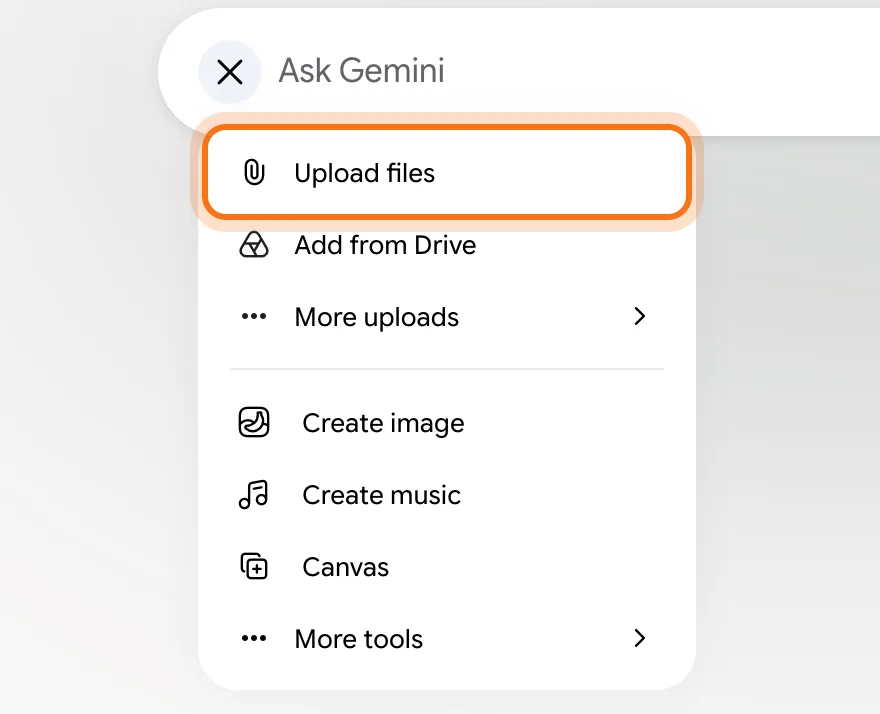
Step 3: Ask for the notes
The recording shows as a card in the message box. Write what you need, and say who was there and what each person does. Add "Use only what was said in the recording", so the notes don't fill gaps with guesses.
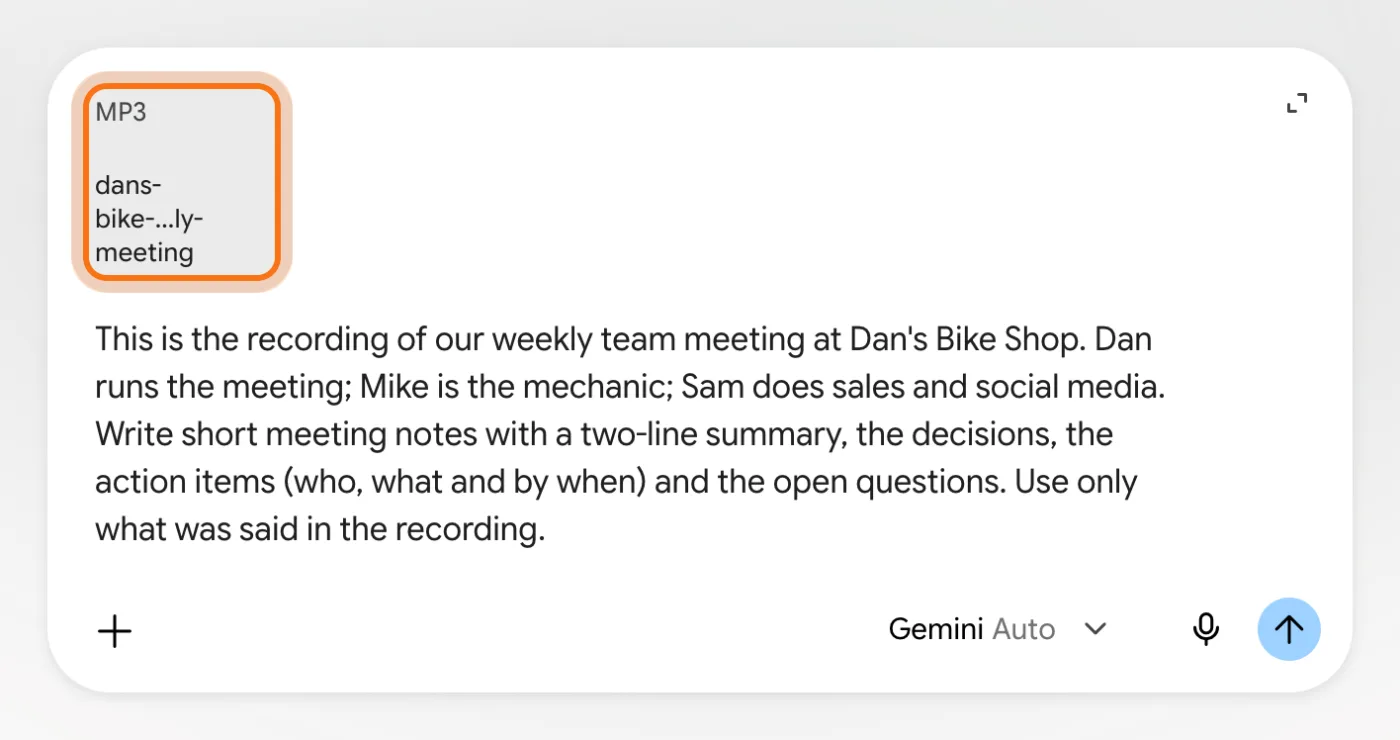
Try this prompt
This is the recording of our [weekly team meeting] at [business name]. [Name] runs the meeting; [name] is the [role]; [name] does [role]. Write short meeting notes with a two-line summary, the decisions, the action items (who, what and by when) and the open questions. Use only what was said in the recording.Step 4: Read the notes
Here Gemini wrote a summary, four decisions, six action items with names and days, and two open questions. Each line has a small "MP3" tag that points back to the recording. Read it once against what you remember, especially names, numbers and dates.
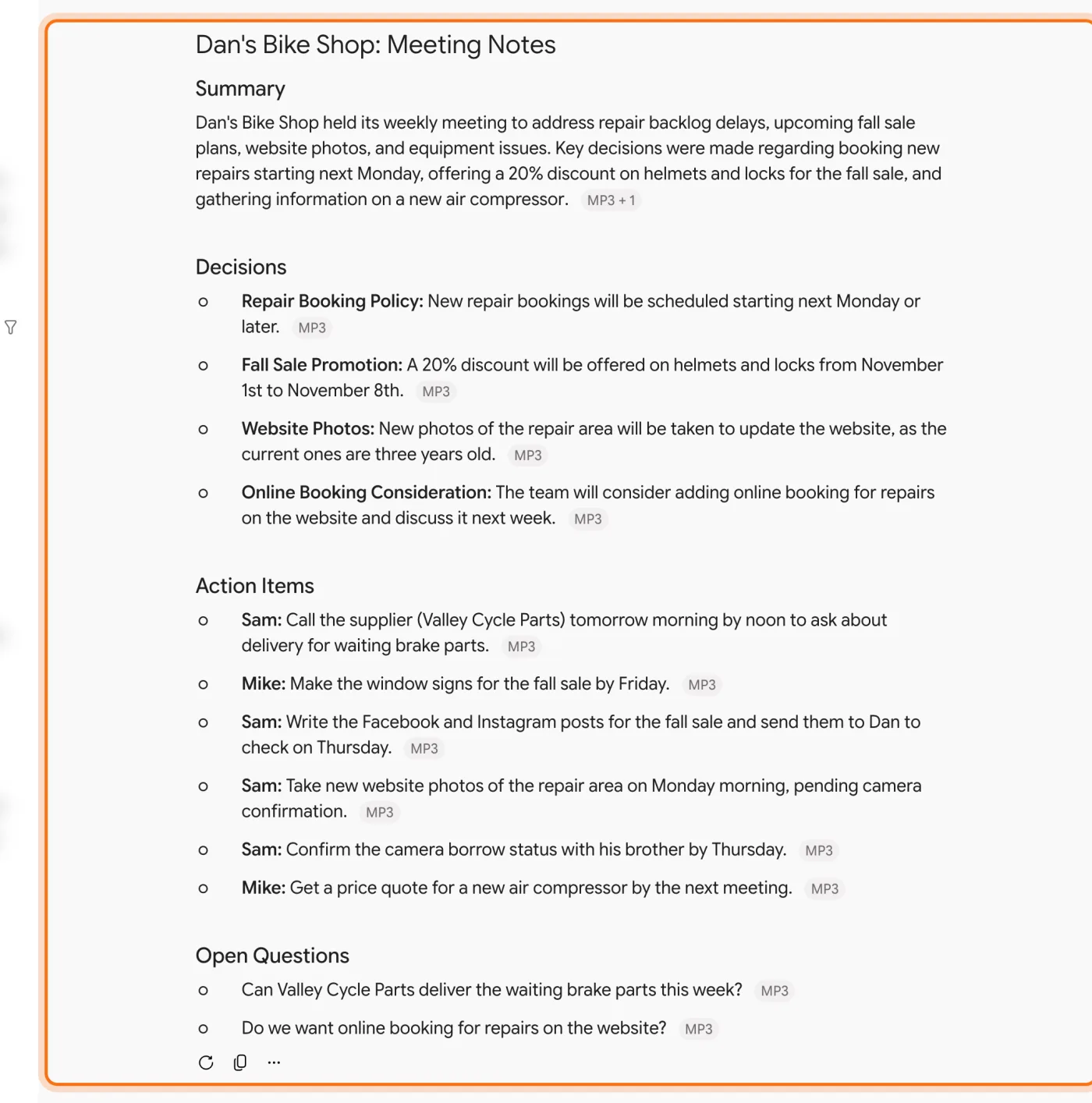
Step 5: Turn the notes into a follow-up email
In the same chat, ask for the email you'd send after the meeting. Gemini grouped the tasks by person and wrote it from Dan. Copy it into your email, check it, and send it yourself.
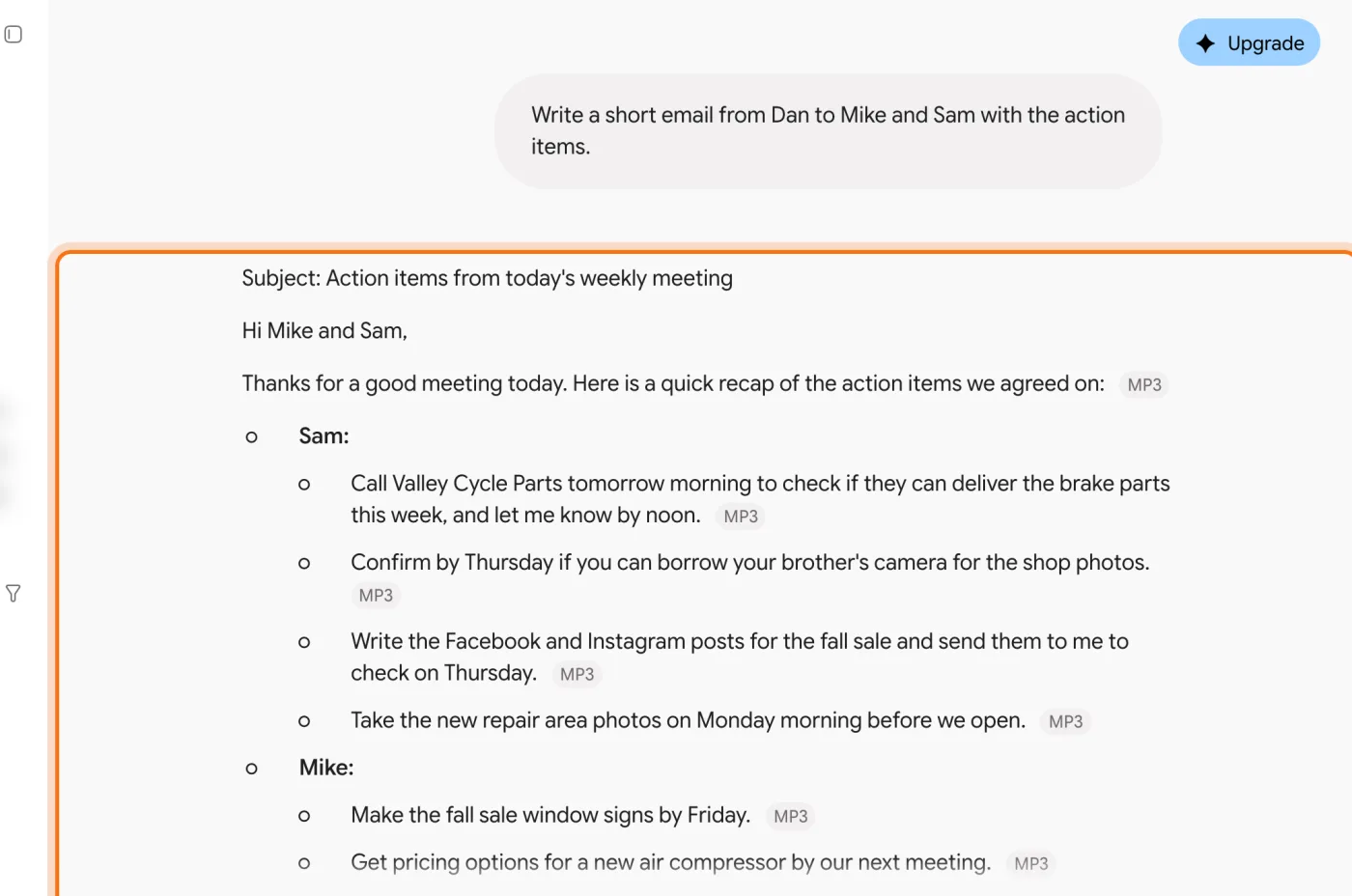
Try this prompt
Write a short email from [your name] to [names] with the action items.Step 6: Ask about anything that was said
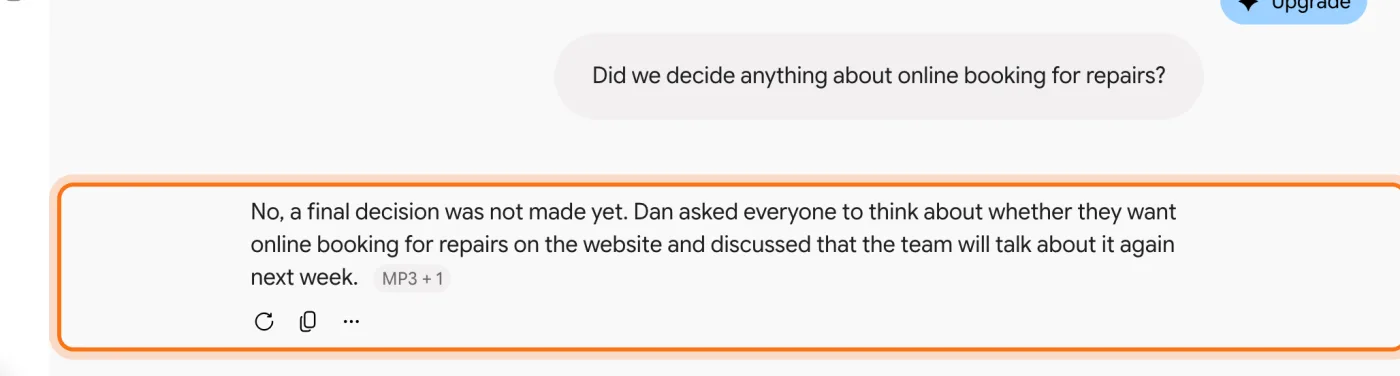
The recording stays in the chat, so you can ask questions about it. Here Gemini answered that no decision was made about online booking: it was left for next week. This is handy when someone asks "what did we agree on?"
Try this prompt
Did we decide anything about [topic]?
Members
The rest of this guide is for members
Create a free account and every room in the academy opens for 30 days. No credit card needed.
In the rest of this guide
8 kinds of meetings, with prompts to copy
- A weekly team meeting
- A call with a customer
- A call with a supplier
- Your own voice memo
- A class, webinar or training
- A job interview
- Formal minutes
- A meeting in another language
Settings and options worth knowing
- How long a recording can be
- Already have a transcript? Paste it
- Google Meet: "Take notes for me"
- Zoom: Meeting Summary
- Microsoft Teams: intelligent recap
- On your phone
When something goes wrong, and how to fix it
- The recording is too long
- The notes say "team member" instead of a name
- A decision or a detail is wrong
- It adds things nobody said
- The file won't upload, or Gemini can't read it
- Parts of the meeting are missing from the notes
- The meeting is private
- The notes come back in the wrong language
Where to go next
Notes are the start. These guides help with the follow-up.