What AI videos are good for, in one minute
AI video tools make short clips, a few seconds long, from a description or from a photo. They're good for a moving background, a product teaser, a mood shot for a social post, or a few seconds to open a longer video.
Like AI pictures, the result is a guess at what you described. Hands, faces, text and fast movement often come out strange, so you watch every clip to the end before you use it.
Some tools need a paid plan for video. For the pictures in this guide we used Grok's "Imagine" on a free account, on a computer; it made a 6-second clip in less than a minute. The same recipe works in other video tools.
Which tool to use for videos
Video is where the free plans differ the most. Here's what we found on free accounts.
Grok's "Imagine" is a good start when
- You want to try AI video for free: on our free account it made a 6-second clip with sound.
- You need a clip in a set shape: tall for Stories and Reels, wide for a website or YouTube.
- You'd like to start from a photo you already have, like your product or your shop.
Look at another tool when
Canva: You want to put your own clips, text and music together into a finished video, starting from a template.
Read the guideAI images: A still picture is enough. Pictures are quicker to make and easier to get right.
Read the guide
Your first useful clip, in five steps
Here's the whole loop in Grok, from an empty box to a file you can post. The example: a few seconds of latte art for a coffee shop's social media.
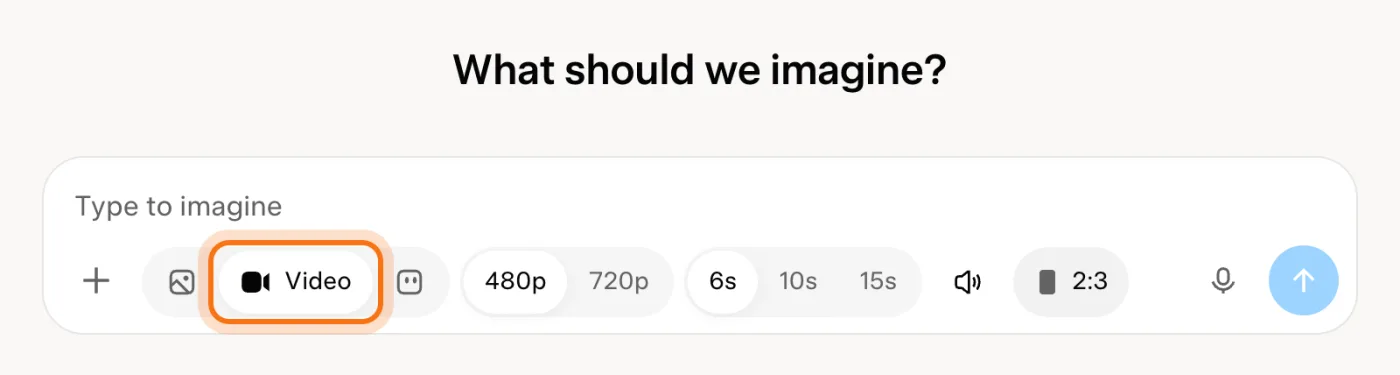
Step 1: Open Grok's "Imagine" and choose "Video"
Go to grok.com and sign in, then click "Imagine" in the sidebar. Under "What should we imagine?", switch the box from "Image" to "Video". The settings next to it change to video ones.
Step 2: Choose the shape before you send
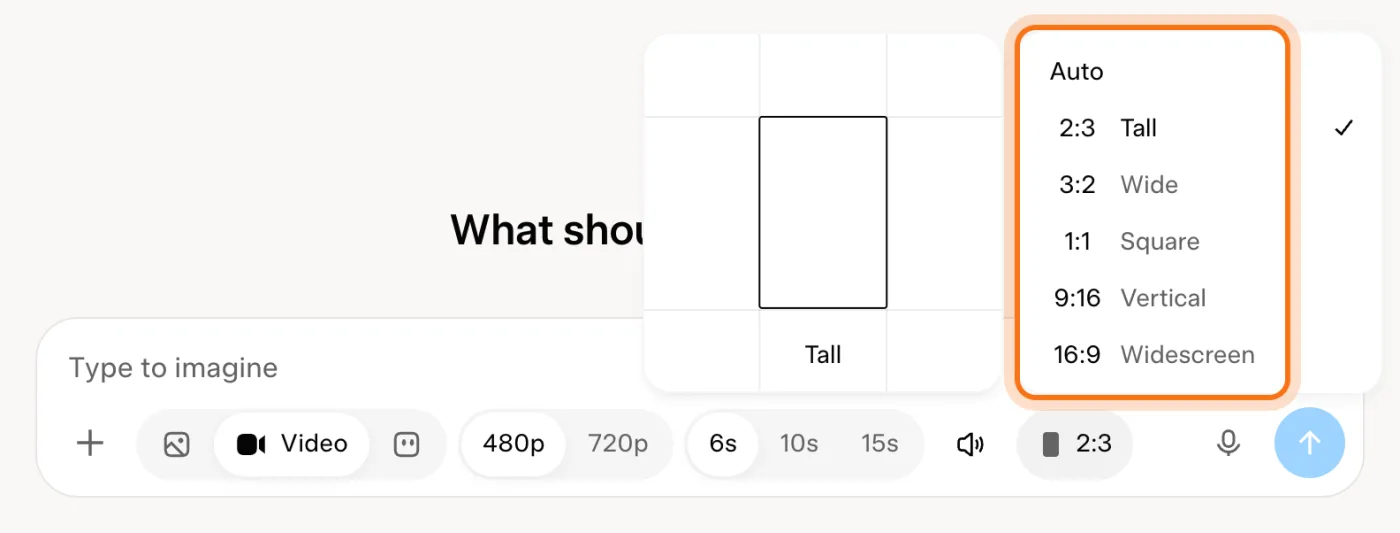
Click the shape button (it shows "2:3" at first). Pick 9:16 Vertical for Stories, Reels and TikTok, 16:9 Widescreen for a website or YouTube, or 1:1 Square for a feed post. Changing it later means making the clip again.
Step 3: Describe it in four parts
Say what's in the shot, what moves, where it is, and how the camera moves. Keep it to one simple action: a few seconds can't hold a story.
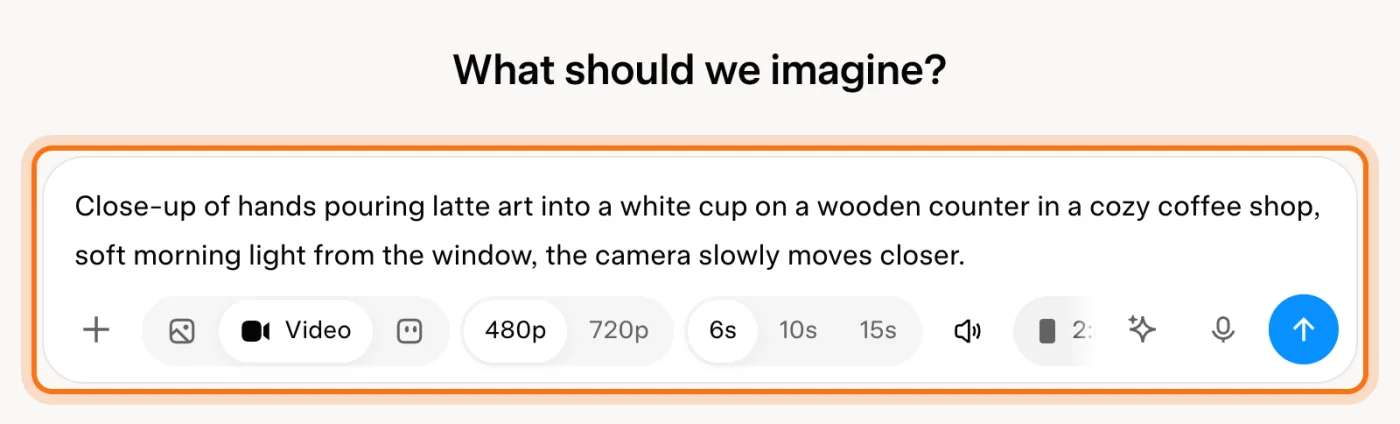
The example in the picture: hands pouring latte art into a white cup in a cozy coffee shop, morning light, the camera slowly moving closer.
Try this prompt
[What's in the shot] [doing what], in [where], [the light or mood], the camera [slowly moves closer / stays still / moves past].Step 4: Watch it to the end, like a first draft
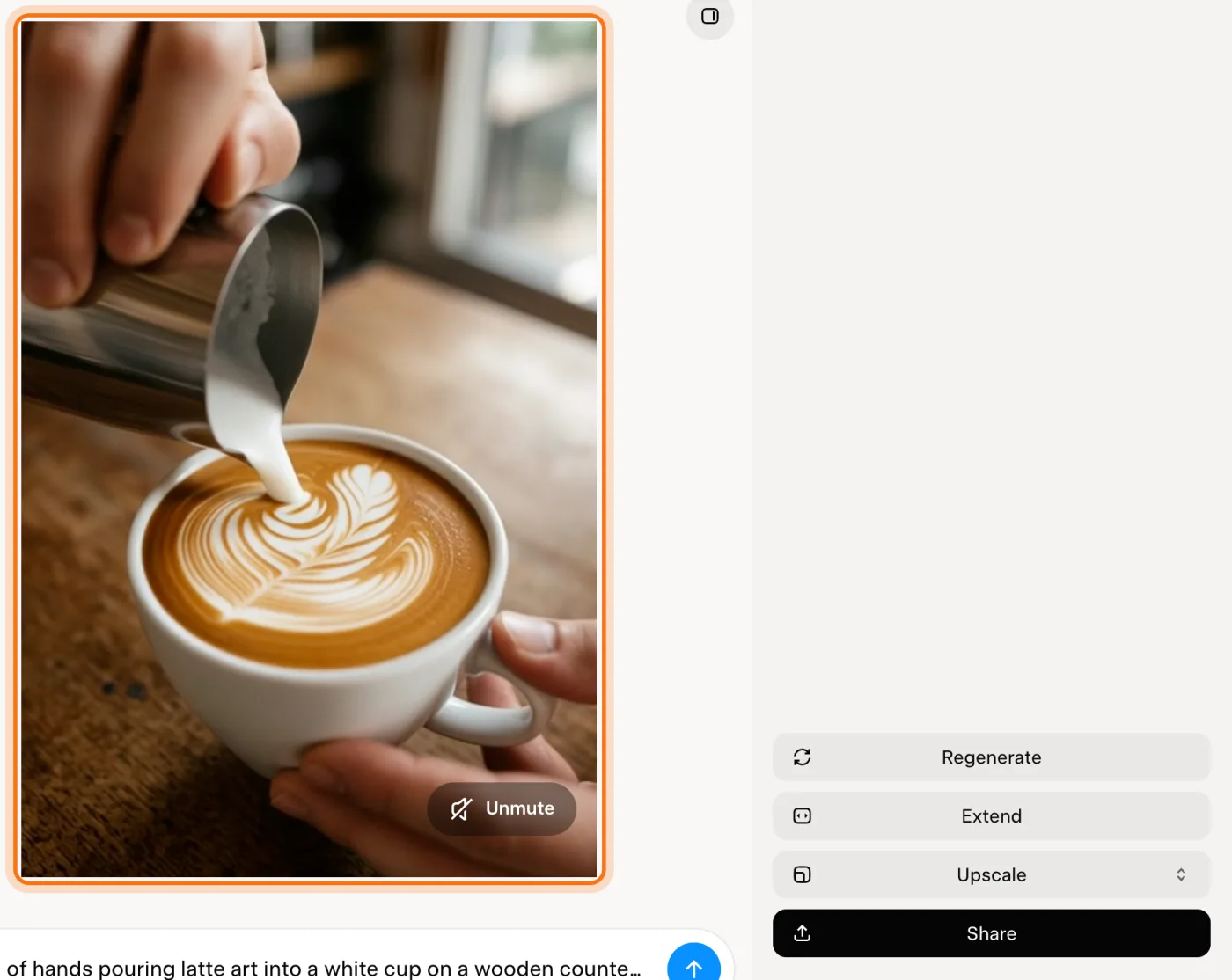
Send it, and the clip appears in less than a minute. Ours was 6 seconds, with sound ("Unmute" turns it on). Watch the whole clip: look at the hands, the faces and any text, and anything that bends or melts.
Step 5: Download it
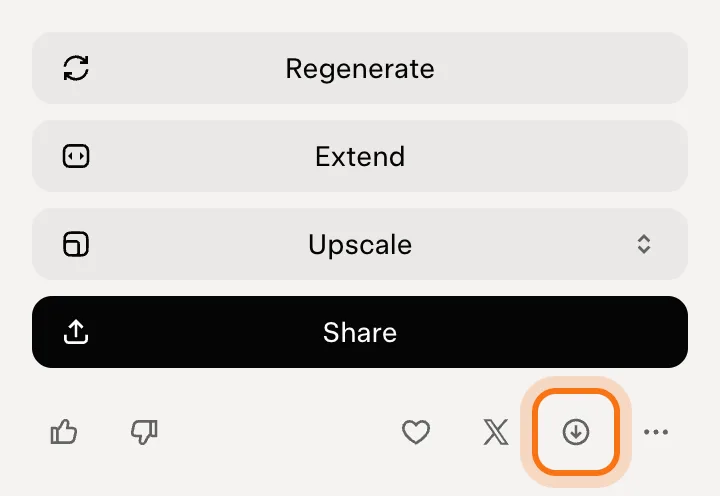
When it's right, click the download arrow under the buttons on the right. Not quite right? "Regenerate" makes a new version of the same request.
Members
The rest of this guide is for members
Create a free account and every room in the academy opens for 30 days. No credit card needed.
In the rest of this guide
8 real clips a small business can use, with prompts to copy
- A product teaser
- A calm background for your website
- A menu item that looks good
- A seasonal mood shot
- Bring your own photo to life
- An opening shot for a longer video
- A short loop for a screen in your shop
- A teaser for an event
Buttons and habits worth knowing
- Quality, length and sound
- Regenerate, Extend, Upscale
- Start from a photo, or choose the last frame
- Change one thing at a time
- Say it's AI when it matters
When the video comes out wrong, and how to fix it
- Hands, faces or bodies look strange
- Words in the video are garbled
- Too much happens, or nothing makes sense
- The clip is the wrong shape for the post
- The camera moves too fast
- It says you've reached a limit, or asks you to upgrade
- It looks fake next to your real photos
- You want a real person or a famous brand in it
Where to go next
A clear description makes better pictures and videos, in any tool.