What happens to what you type, in one minute
Everything you type or upload into ChatGPT, Gemini or Claude is sent to the company that runs it, so it can answer. Depending on your settings, it may also be saved, used to train future models, and sometimes read by trained reviewers. Google says it plainly: "Please don't enter confidential information that you wouldn't want a reviewer to see."
So keep a short never list: passwords and login codes, full card and bank account numbers, Social Security numbers, other people's health details, customer lists, and confidential business files. If a name or a number doesn't change the answer, leave it out or swap it for a placeholder like [Customer].
That's not a reason to avoid AI. It's a reason for a few calm habits, and the answers stay just as good. This guide shows the habits, and the real settings in ChatGPT, Gemini and Claude, checked against each company's own help pages.
Which tool and which mode for sensitive work
ChatGPT, Gemini and Claude all have a private chat mode and a switch for training. For sensitive work, the mode and the account you use matter more than the brand you pick.
Use a temporary or incognito chat when
- It's a one-off question with something personal in it, like a letter from your doctor or a question about a debt. The chat stays out of your history and isn't used to train the models.
- You're on a shared computer and don't want the chat waiting in the sidebar for the next person.
- You want an answer that doesn't lean on what the tool knows about you. Claude's incognito chats don't use its memory, and Gemini's temporary chats aren't personalized. ChatGPT's temporary chat can still use your memory.
For work, the account matters more than the tool
Gemini: Your company runs on Google Workspace. Google says chats in a work account aren't reviewed by people or used to train its models outside your organization without permission. Your administrator sets the rules there.
Read the guideChatGPT: Your team uses ChatGPT Business or Enterprise. OpenAI says it doesn't train on data from those plans by default.
Read the guide
Your first safe chat, in five steps
A real job, done the safe way: answering a customer without sending their details. The pictures use ChatGPT. Gemini and Claude work the same way, and their settings come later in this guide.
Step 1: Open a temporary chat
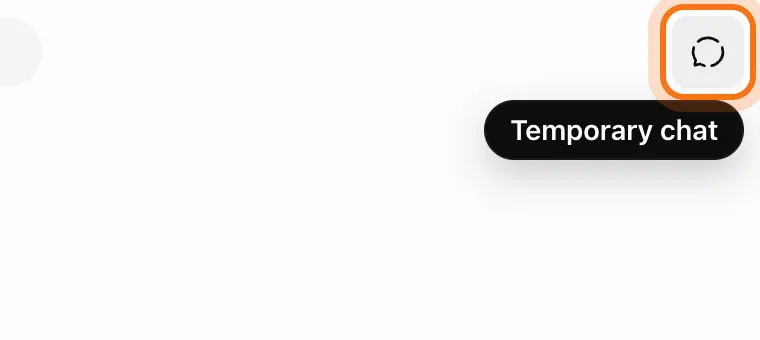
Go to chatgpt.com, sign in, and click the "Temporary chat" icon at the top right before you type anything. OpenAI says temporary chats don't appear in your history and aren't used to improve its models. Gemini has the same thing, called "Temporary chat", and Claude has an incognito chat behind the ghost icon.
Step 2: Swap the real details for placeholders
Write your request the normal way, but put a placeholder wherever a personal detail would go: [Customer], [Order number], [Address], [Amount]. Ask the AI to keep them. The answer is just as good, because it never needed the real name.
![The ChatGPT message box with a request that uses placeholders like [Customer] and [Order number].](/guides/v2/how-to-keep-your-data-safe-with-ai/02-placeholders.webp)
The example in the picture: a flower shop answering a customer whose birthday arrangement had the wrong name on the card.
Try this prompt
A customer, [Customer], wrote: "[paste the message, with names and numbers swapped for placeholders]". Write a short, kind reply that [what you want to happen]. Keep every placeholder in square brackets exactly as it is.Step 3: Send it, and check the placeholders came back
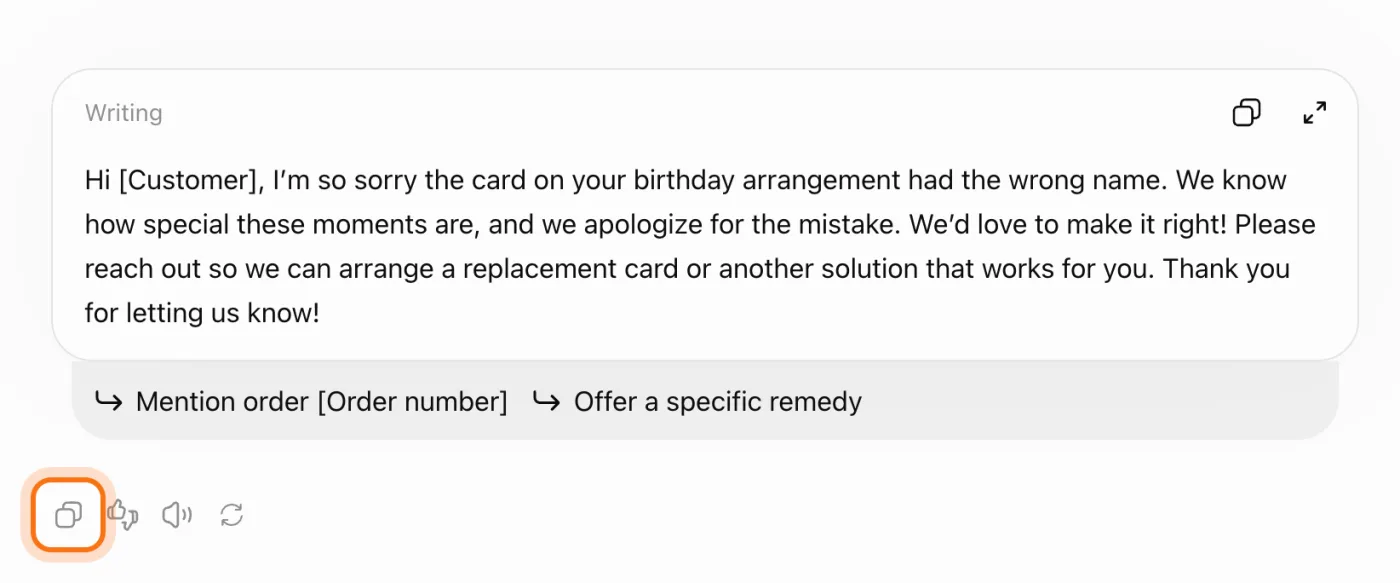
Press Enter. The reply comes in a "Writing" block, and it should still say [Customer] wherever the name goes. If the AI made up a name instead, reply: "Keep the placeholders exactly as I wrote them."
![ChatGPT's reply in a "Writing" block, starting "Hi [Customer]", marked.](/guides/v2/how-to-keep-your-data-safe-with-ai/03-answer.webp)
Step 4: Copy it, and put the real details back outside the chat
Click the copy icon under the answer and paste the reply into your email or text app. Put the real name and order number back there. The personal details never went to the AI.
Step 5: Check the training switch, once
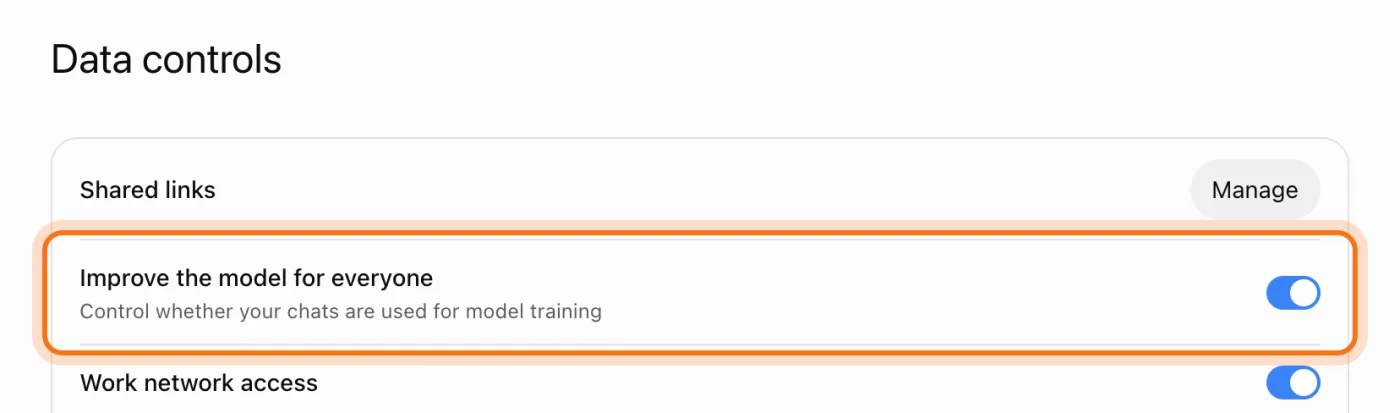
For your regular chats, open the menu with your name at the bottom left, then "Settings", then "Data controls". The switch "Improve the model for everyone" decides whether your chats are used to train OpenAI's models. OpenAI says it's on by default for personal accounts. Switch it off if you prefer, and new chats won't be used for training. They still stay in your history until you delete them.
Members
The rest of this guide is for members
Create a free account and every room in the academy opens for 30 days. No credit card needed.
In the rest of this guide
8 real jobs, done safely, with prompts to copy
- Answer a customer complaint without their details
- Get spreadsheet help without uploading your customer list
- Understand a contract or lease without the personal parts
- Ask about a medical letter, without your name on it
- Write a one-page AI policy for your team
- Check what a new AI tool keeps, before you trust it
- Clean up old chats
- Share an answer, not the whole chat
Settings and habits worth knowing
- Gemini: "Keep activity"
- Claude: "Help improve our AI models"
- Claude: incognito chat
- Don't rate the answer on a sensitive chat
When something goes wrong, and how to fix it
- You pasted something you shouldn't have
- You asked the AI to take the names out of a document
- ChatGPT's temporary chat still knew things about you
- You turned training off, but your chats are still there
- Gemini stopped working with your Google apps after you turned off "Keep activity"
- You connected an app and aren't sure what the AI can see
- You can't change a privacy setting on your work account
- An email or ad says it's from ChatGPT, Gemini or Claude and asks you to sign in or pay
Where to go next
Safe habits make every other AI job easier. These guides put them to work.