AI voice, in one minute
AI voice means two things. You can talk to an AI instead of typing, and it can talk back. And you can turn written text into a natural-sounding voice, for a video, a voicemail greeting or a lesson.
Talking is often faster than typing, and it works when your hands are busy: after a job, on a walk, while you cook. It's also a good way to practice a conversation before you have it for real, like a price talk or a job interview.
The free versions of ChatGPT, Gemini and Claude all have a microphone, and ChatGPT and Claude can hold a spoken conversation on a computer. The screenshots in this guide are from all three, plus ElevenLabs, a voice studio.
Which tool to use for voice
For talking to an AI, use the chat you already like. For a voice recording you'll publish, a voice studio gives you more control.
Pick ChatGPT when
- You want a spoken back-and-forth on your computer. The round "Start Voice" button next to the box starts it, and ChatGPT talks back.
- You want to dictate a long request and fix it before sending. The microphone ("Dictate") turns your words into text in the box.
- You want to hear an answer instead of reading it. "Read aloud" sits under each answer.
Look at another tool when
Gemini: You talk mostly on your phone. Google says Gemini Live, its spoken conversation, is in the Gemini app on your phone, not on the website. On a computer, Gemini has dictation and can read an answer out loud.
Read the guideElevenLabs: You need a voice recording: narration for a video, a course, a phone greeting. You type the text, pick a voice from a library, and download the audio. It's free to start, with rules for free accounts.
Read the guide
Talk to AI and hear it back, in five steps
Here's each way to use voice, from the simplest to the most natural. The pictures are ChatGPT and Gemini on a computer. The first time, your browser asks to use the microphone: click "Allow".
Step 1: Speak your request instead of typing it
In ChatGPT, click the microphone ("Dictate") next to the box and talk the way you'd explain it to a coworker. Click it again when you're done. Your words appear as text in the box, so you can fix a name or a number before you send.

Step 2: Have a spoken conversation
The round button next to the microphone ("Start Voice") starts a conversation out loud: you talk, ChatGPT answers in a voice, and you can answer back. It's in a regular chat; a temporary chat doesn't show it. Free accounts get a limited amount of voice.

Step 3: Hear an answer read out loud
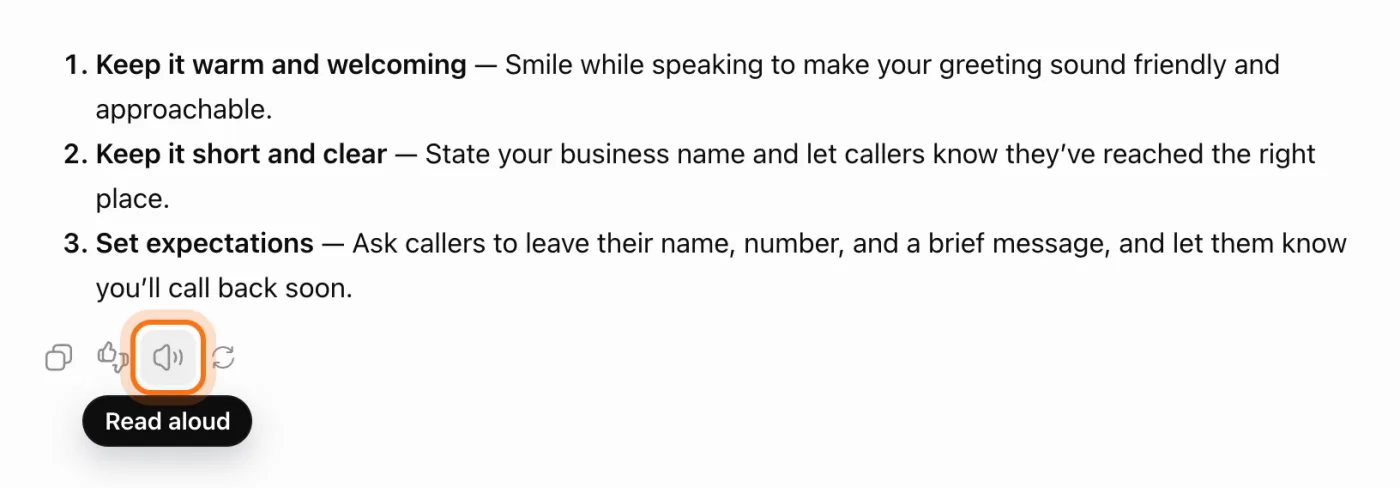
Under any answer, click the speaker icon ("Read aloud") and ChatGPT reads it to you. It's useful for a long answer, and for hearing how a greeting or a script sounds before you record it yourself.
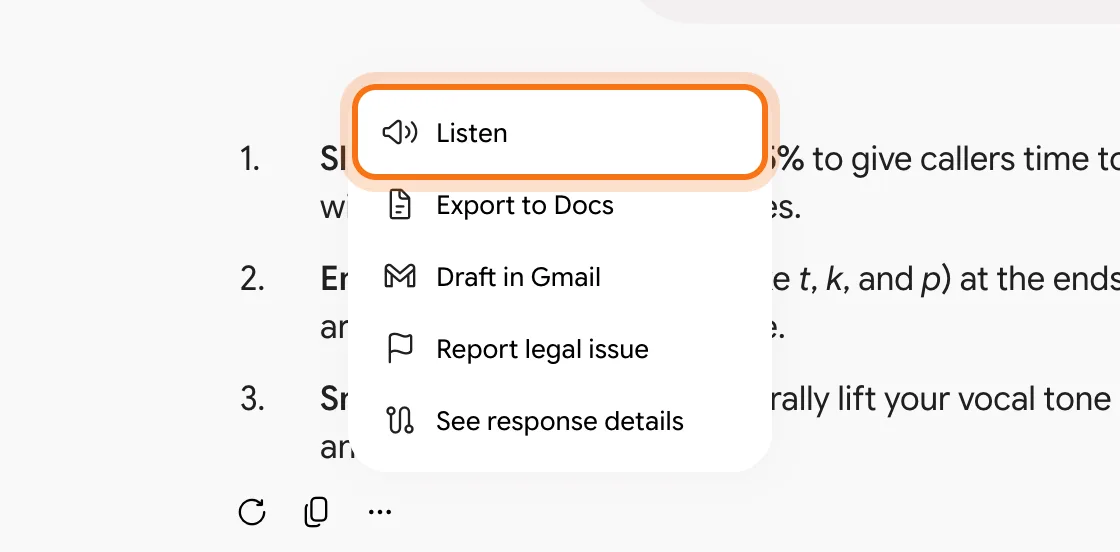
Step 4: In Gemini: three dots, then "Listen"
Gemini reads answers out loud too. Click the three dots under an answer and choose "Listen". To speak your question, use the microphone in the Gemini box, like in ChatGPT.
Step 5: On your phone: a voice conversation anywhere
The ChatGPT and Gemini phone apps hold spoken conversations too. In the Gemini app, Google says you tap the Live icon and start talking. Use it on a walk or after a job, and keep your eyes on the road when you drive.
Members
The rest of this guide is for members
Create a free account and every room in the academy opens for 30 days. No credit card needed.
In the rest of this guide
8 real ways to use AI voice, with prompts to copy
- Practice a hard phone call
- Write and test your voicemail greeting
- Dictate your notes after a job
- Think out loud on a walk
- Practice a language with your customers' words
- Rehearse an interview or a pitch
- Turn a spoken ramble into a talk
- Write a script for a narrated video
Buttons and tools worth knowing
- Gemini's microphone, and its shortcut
- Claude: dictation and voice mode
- Narration: pick a voice, then type your text
- Know the rules for free narration
When voice doesn't work, and how to fix it
- The microphone doesn't work
- You can't find the voice conversation button
- It writes the wrong words: names, brands, numbers
- In a conversation, it jumps in before you finish
- The spoken answers are too long
- It says you've used up your voice time
- You want a recording in someone else's voice
- You're not sure what happens to what you say
Where to go next
Voice is one more way to work with AI. These guides go further.