What this is, in one minute
Storybook is a ready-made helper inside Gemini, Google's AI. Google calls these helpers "Gems", and this one is marked "Experiment". You write a few sentences about a child: their name, their age, what they love and what the story should be about. A minute or two later, Gemini gives you a picture book of about 10 pages. It writes the story, draws every picture, opens the book next to the chat and can read it aloud.
It's free. We used a free Google account on 10/21, on a computer, and everything in this guide worked. Google says you need to be 18 or older, and that Storybook works in more than 45 languages. Reading aloud works in fewer languages.
One thing to know first: on 10/21, Gemini's Gems page said "Gems will become skills starting Nov 17, 2026". Storybook is a Gem, so the way in may look different after that date. The book itself should work the same way.
Which way to use
Storybook makes a whole book: a story with pages, a picture on every page and a voice that reads it. Other guides cover the jobs around it.
Use Storybook when
- You want a gift about one child: their name, the thing they love, a small adventure.
- A child is nervous about something coming up, like the dentist, a first day of school or a new baby, and you want them to see it go well first.
- You want a short book for an adult, like a funny story for a friend's retirement.
Use something else when
Create images with AI: You want one picture, like a card or a poster, not a whole book.
Read the guideMake a song with AI: You want a gift you can hear: a real song with their name in it, made in Gemini too.
Read the guide
Your first picture book, step by step
Our example: a grandfather who wants a book for his 6-year-old grandson Noah. Noah loves dinosaurs and is learning to ride his bike without training wheels.
Step 1: Find Storybook on the Gems page
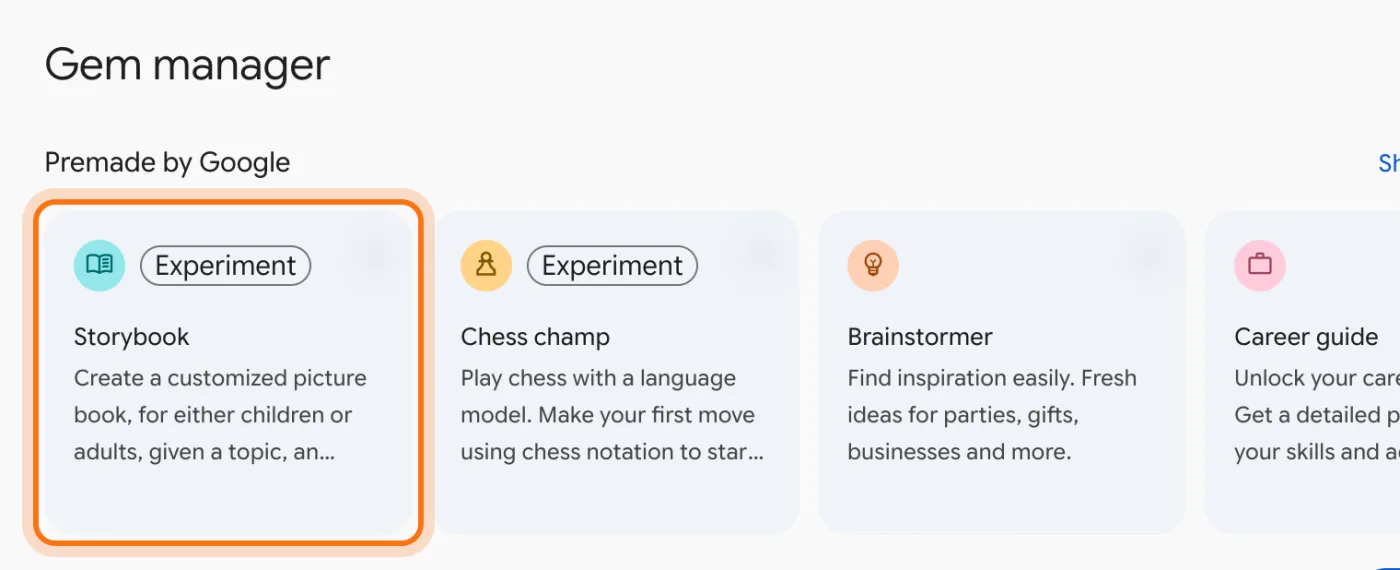
Go to gemini.google.com and sign in with your personal Google account. Storybook isn't in the menu on the left, so open the Gems page: type gemini.google.com/gems/view in the address bar. Under "Gem manager" and "Premade by Google", click the "Storybook" card. You can also go straight there with gemini.google.com/gem/storybook.
Step 2: This is Storybook
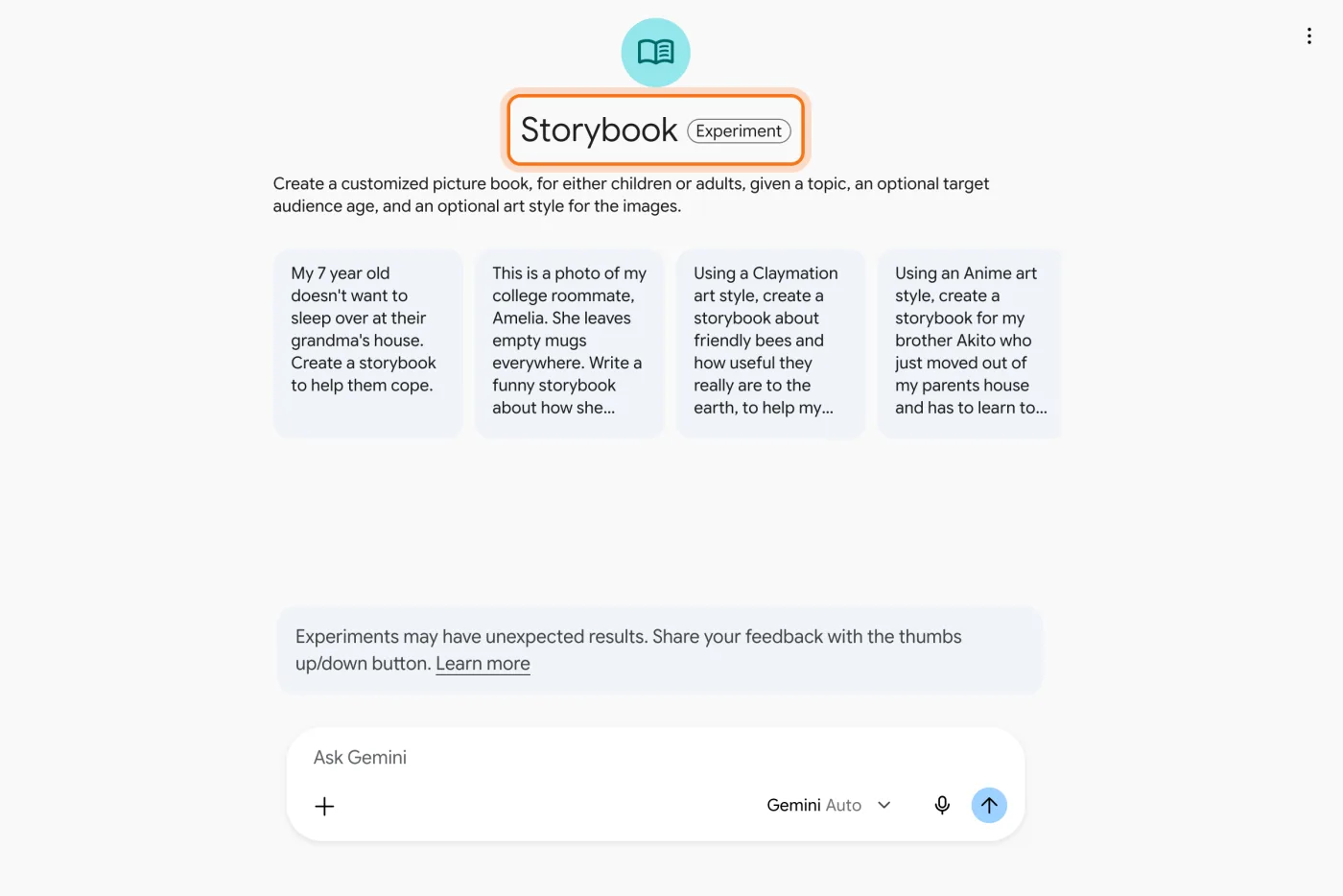
The page says "Storybook" with an "Experiment" label, and under it: "Create a customized picture book, for either children or adults". The four cards are Google's examples. Click one to see how it works, or write your own in the box at the bottom. Books you make later show up on this page under "Recent", so you can open them again.
Step 3: Describe the child, the story and the style
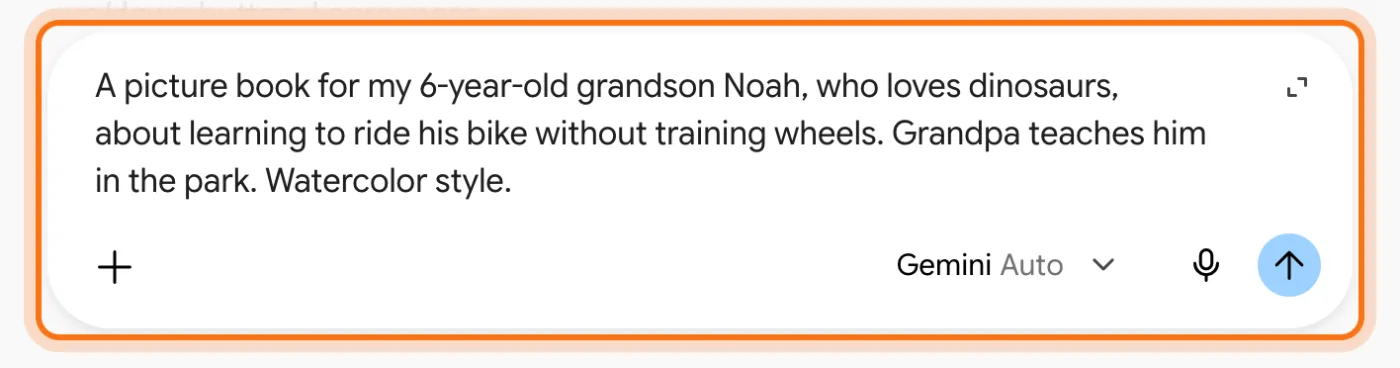
In one or two sentences, write who the book is for (name and age), something they love, what happens in the story, and an art style. If you want certain people in it, name them, like "Grandpa teaches him". Otherwise Gemini picks the other characters itself. Then press Enter.
Step 4: Wait a minute or two, and the book opens
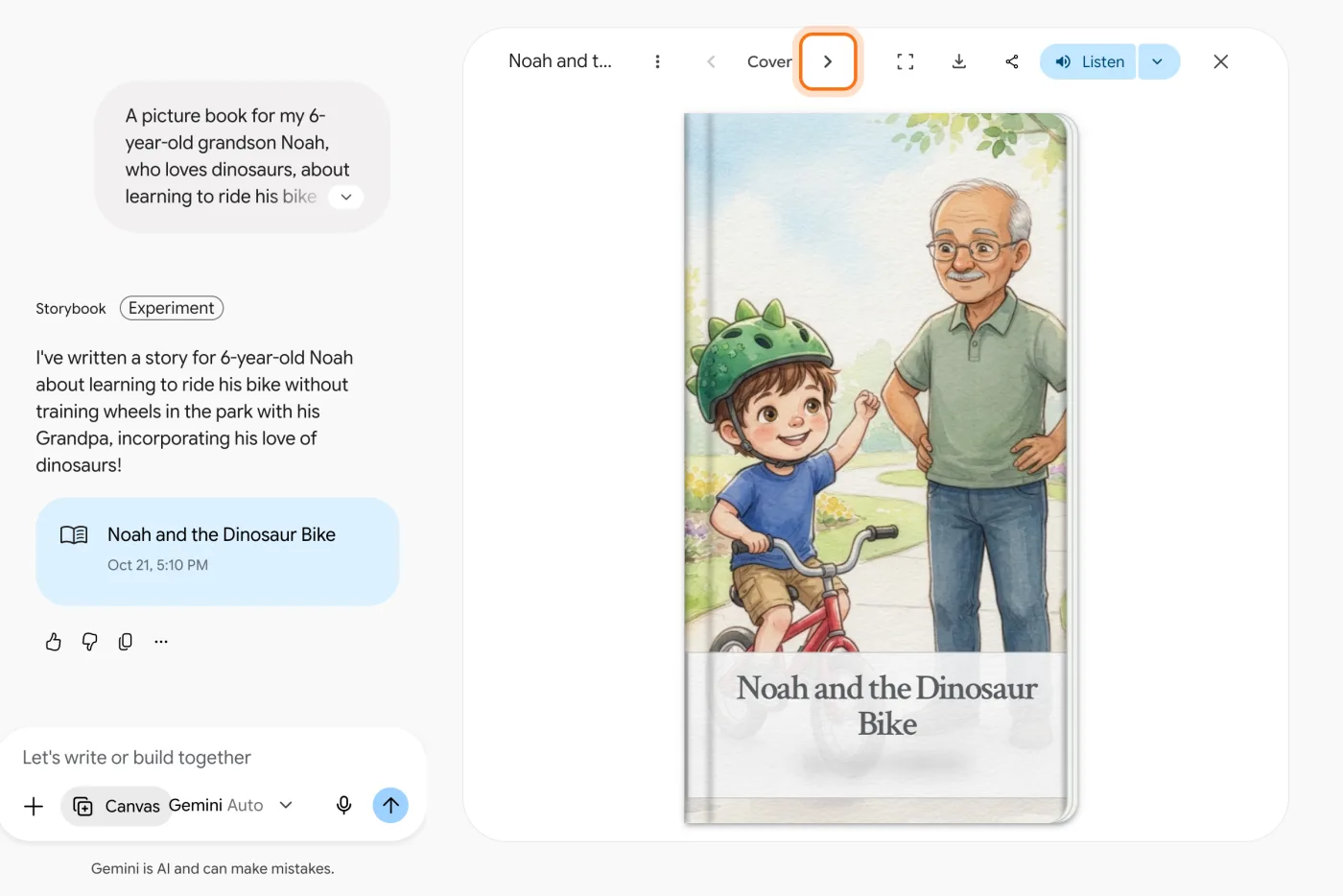
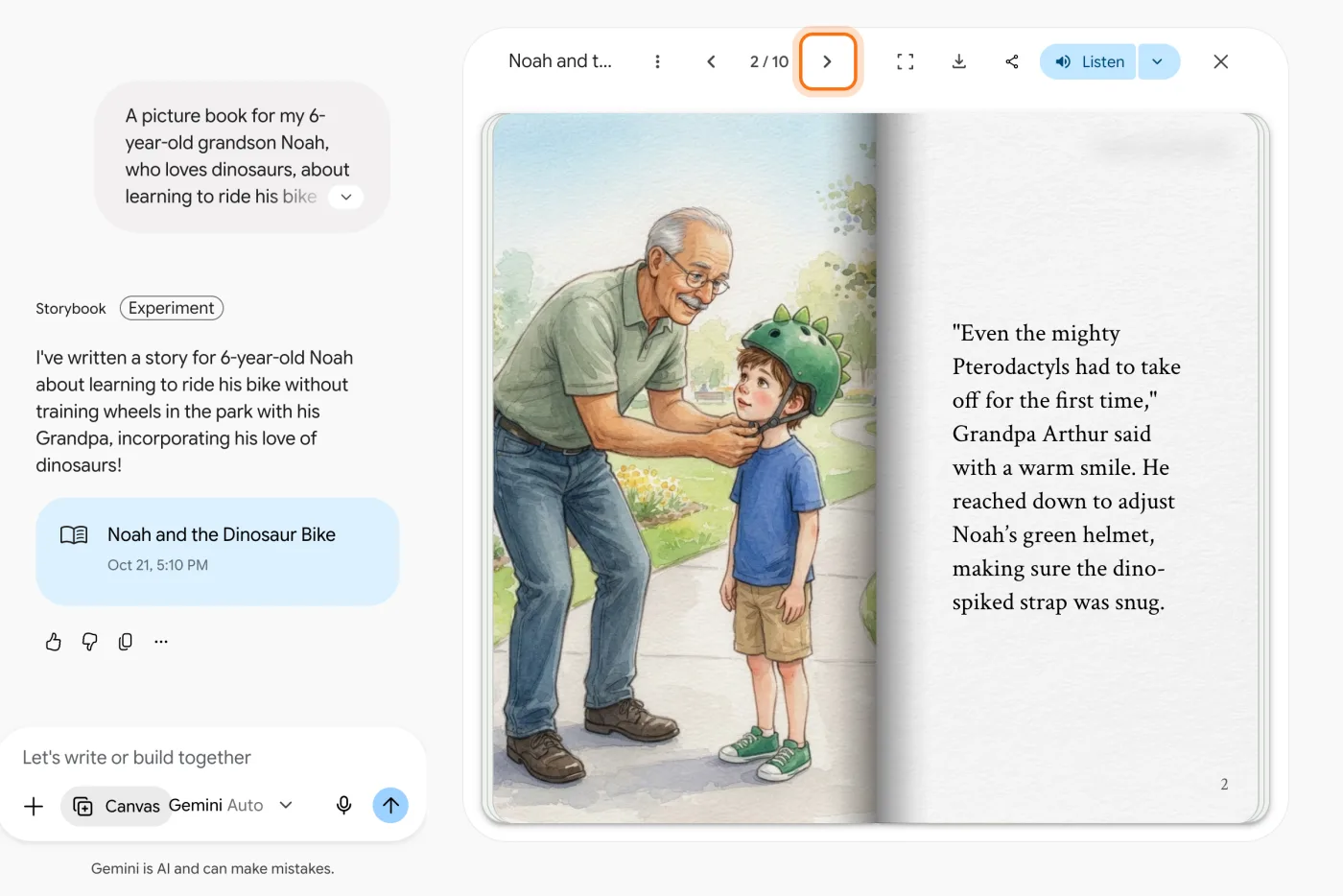
Gemini works on it for a minute or two. Leave the tab open. Then the book opens on the right, on its cover, with a title Gemini chose. Ours was "Noah and the Dinosaur Bike", with Noah in a green dinosaur helmet and his grandpa next to him. The chat on the left says what Gemini made, and the card under it opens the book again later.
Step 5: Turn the pages with the arrow at the top
Click the arrow pointing right, at the top of the book, to turn the page. The arrow pointing left goes back. Between them you'll see where you are, like "2 / 10". Each page has a picture on the left and the story on the right. Ours had 10 pages, and Grandpa got a name, Arthur.
Members
The rest of this guide is for members
Create a free account and every room in the academy opens for 30 days. No credit card needed.
In the rest of this guide
8 picture books to make, with prompts to copy
- A book where they're the hero
- Before a big day
- A new baby in the family
- Moving to a new home
- A calm bedtime story
- The family pet's adventure
- A book for an adult
- A book in another language
More ways to use it
- Listen, and pick the voice
- Jump to the start or the end
- Download it as a PDF to print
- Share a link with the family
- Ask for changes, and go back if you liked it better
When something goes wrong, and how to fix it
- Gemini says "I'm having a hard time fulfilling your request" or "Sorry, something went wrong"
- You can't find Storybook
- You got one picture with all the pages on it, not a book
- A change comes back with "I encountered an error doing what you asked"
- A page shows an error instead of a picture
- The cover has your name as the author
- The PDF is too big to send
- Storybook doesn't work for a teenager's account, or you can't share from a work account
Where to go next
Gemini made the book. These guides help with what's around it.