What Grok is, in one minute
Grok is an AI assistant made by xAI. You write to it the way you'd write to a helpful coworker, and it writes back: ideas for a slow week, a reply to a customer, a short explanation, an answer from the web with its sources.
Like every AI chat, it writes the most likely answer, so it's strong at writing and brainstorming, and you still check any fact that matters. When it searches the web, it shows the sources it used, so checking is quick.
You can start free at grok.com. We made a free account with "Sign up with Google" for the pictures in this guide, on a computer.
When to pick Grok, and when another tool fits better
Grok, ChatGPT, Gemini and Claude can all write, explain and answer questions. The differences are in the extras and in the way you like to work.
Pick Grok when
- You want a quick answer about something current, with the sources listed under it.
- You want a chat that leaves no trace in your history. The "Private" button at the top starts one, and Grok says it won't be used to train models.
- You'd like a few ready next steps. Under each answer, Grok suggests follow-up questions you can click.
Look at another tool when
ChatGPT: You want one place for most everyday jobs, including files, images and voice, with a long list of guides and help.
Read the guidePerplexity: Research is the main job, and you want every sentence tied to its source.
Read the guide
Your first useful answer, in five steps
Here's the whole loop, from opening Grok to an answer you can use. The example: a coffee shop looking for ideas for a slow afternoon.
Step 1: Open grok.com and sign up
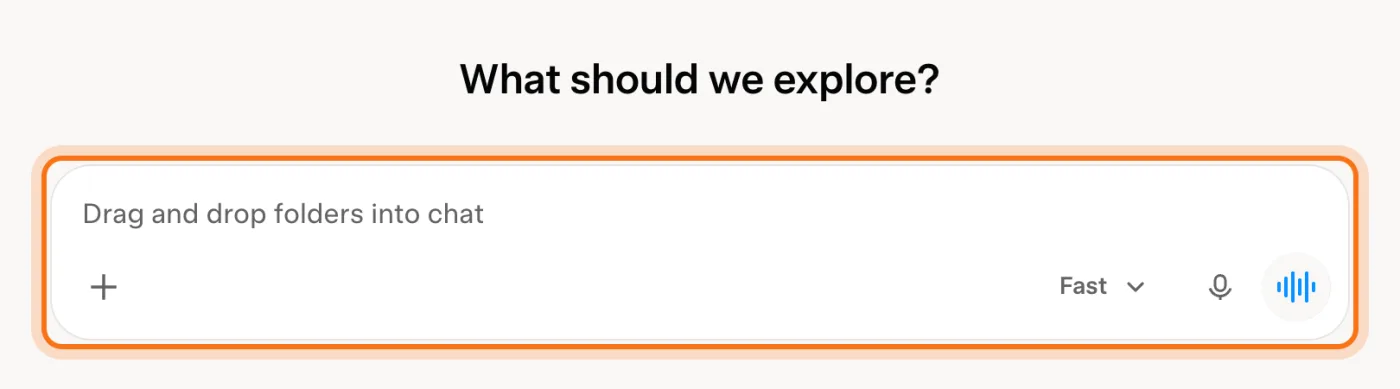
Go to grok.com. Click "Sign up", and choose how to sign in: X, email, Apple, Google or GitHub. The first time you chat, Grok asks for the year you were born, once. Then you land on "What should we explore?" and the message box.
Step 2: Start a Private chat, if you'd like
Click "Private" at the top right before you type. Grok shows "This chat won't appear in your history and will not be used to train models." Use it for anything personal, or just to practice.

Step 3: Ask for one job, with the details that matter
Write what you need the way you'd brief a coworker: who you are, what you want, and how long. One clear job per message works best. Press Enter or click the arrow.
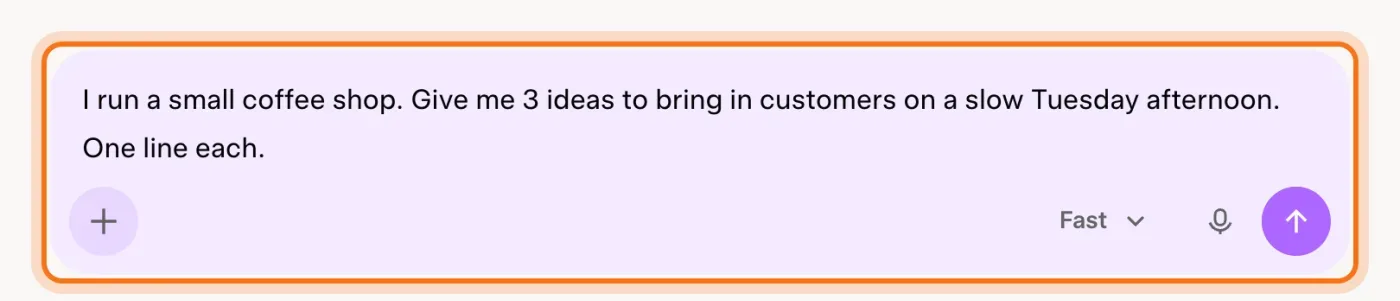
The example in the picture: a small coffee shop asking for ideas to bring in customers on a slow Tuesday afternoon.
Try this prompt
I run [your business]. Give me [how many] ideas to [your goal]. [How long: one line each].Step 4: Read the answer like a first draft
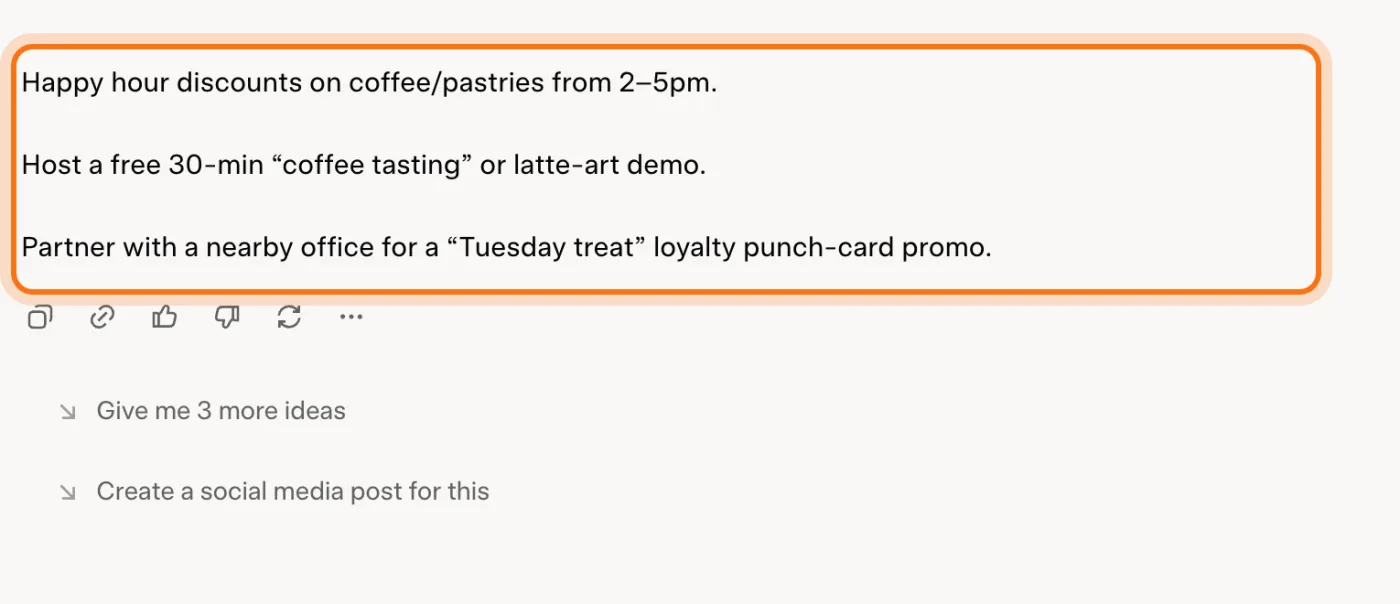
The answer appears under your message. Read it like a draft from a new employee: often useful, sometimes off. Under it are buttons to copy, share, rate or redo the answer, and suggested follow-up questions you can click.
Step 5: Fix it in the same chat
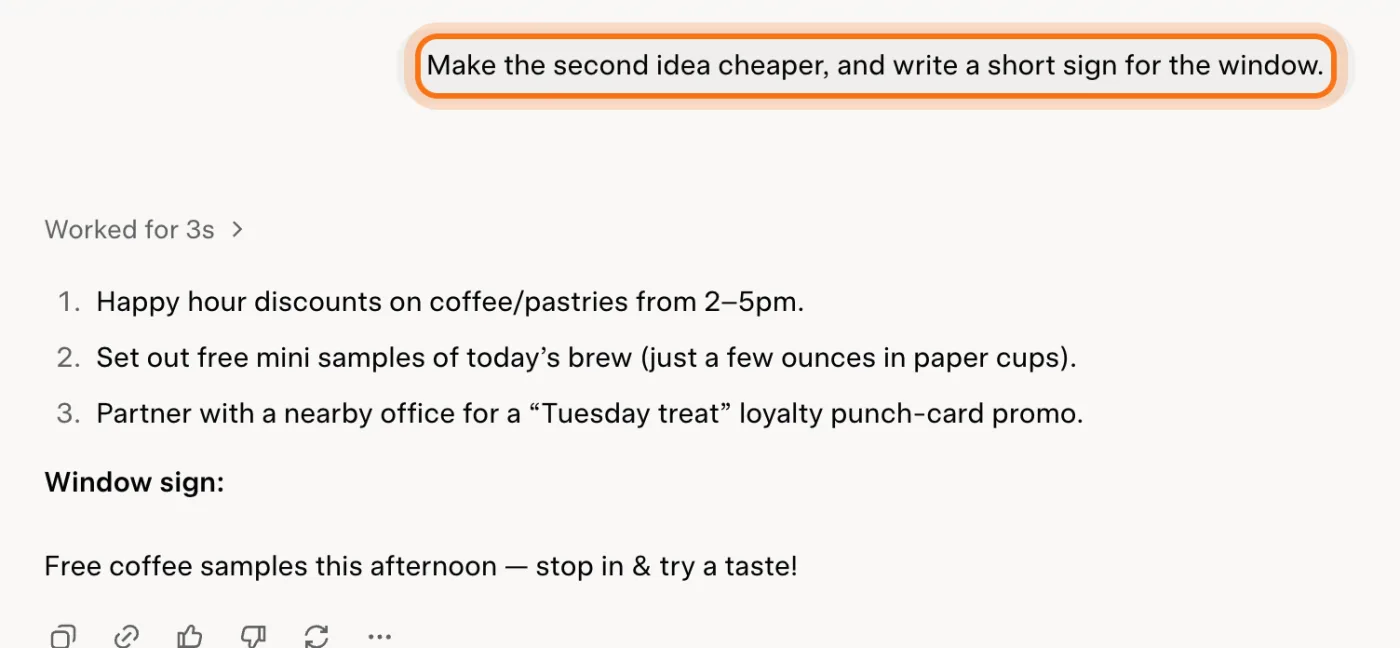
Not quite right? Don't start over. Say what to change: "cheaper", "shorter", "write the sign for the window". Grok remembers everything earlier in the chat.
Members
The rest of this guide is for members
Create a free account and every room in the academy opens for 30 days. No credit card needed.
In the rest of this guide
8 real jobs Grok does well, with prompts to copy
- Get ideas for a slow week
- Get a current answer, with sources
- Answer a customer message
- Write a social post
- Explain something confusing
- Turn a messy list into a plan
- Compare two options
- Practice a hard conversation
Buttons and settings worth knowing
- Answers with sources
- The mode menu
- The + menu: files, projects, skills, connectors
- Talk instead of typing
When Grok gets it wrong, and how to fix it
- It states a fact that's wrong
- The answer is generic
- It asks for your birth year
- A plans window pops up
- It says you've reached a limit
- The answer is too long or too formal
- You don't want a chat in your history
- You're not sure what's safe to paste
Where to go next
Two habits make every AI tool better: clear requests, and checking what matters.