What this is, in one minute
Tally is a free tool for making online forms: a sign-up sheet, an RSVP, a short survey. Its AI, called Tally AI, builds the form for you. You describe what you need in one sentence, the way you'd say it out loud, and every question shows up, each of the right kind: a box for the email, buttons for a choice, a list to pick from.
Tally's help says the AI is "available on all plans, including the free plan. No upgrade or credit card required." The free plan has no limit on forms or answers. We made a new free account on 10/22, with Google, on a computer. Everything in this guide worked.
Our form took between 10 and 14 seconds to build. A change asked for in words took under 10. Then you publish it, copy its link, and send the link to anyone. Their answers collect in one table you can download.
Which way to use
Tally AI is for collecting the same details from many people. Other guides cover the jobs around it.
Use Tally AI when
- You need the same details from a group: who's coming, which shift, what size, any questions.
- You're tired of counting replies by hand in a group chat or an email thread.
- You want a link to send, and every answer in one table.
Use something else when
Analyze a spreadsheet with AI: You already have the answers in a file and want them counted and summed up.
Read the guideWrite emails with AI: You want to write to people, not collect answers from them.
Read the guide
Make your first form, step by step
Our example: a sign-up form for volunteers for a Saturday cleanup at the park.
Step 1: Make a free Tally account
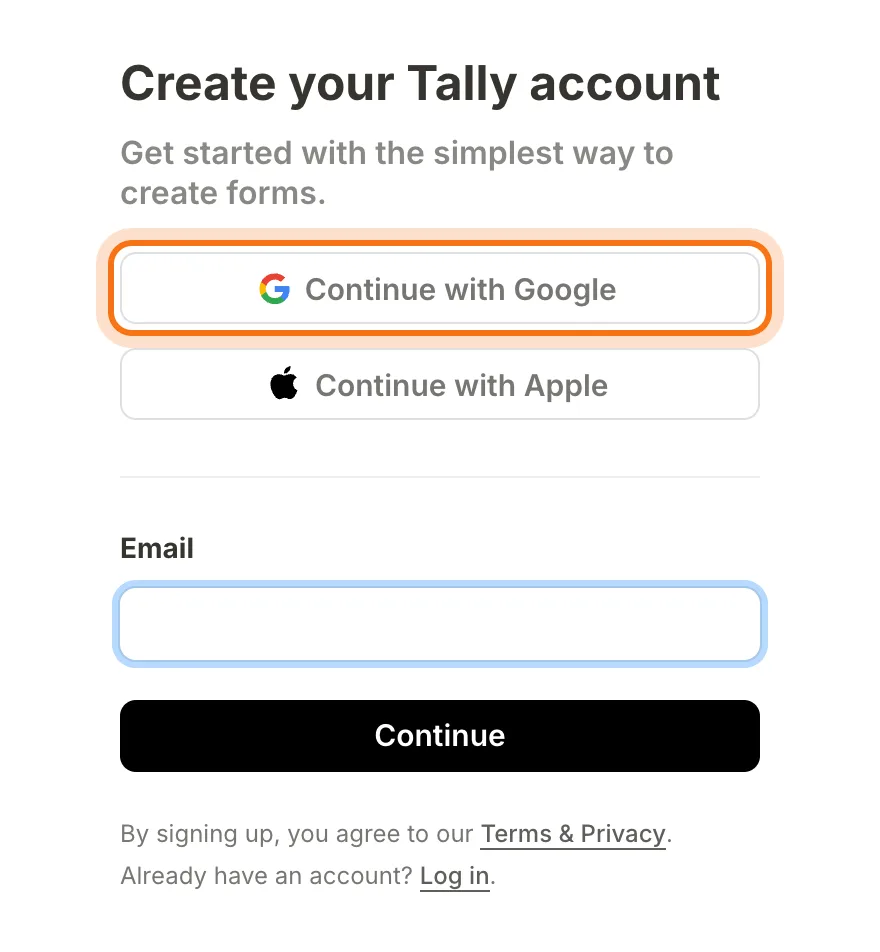
Go to tally.so/signup. Click "Continue with Google" and pick your account. You can also use Apple, or an email. Tally then asks two questions: what kind of work you do and how you found Tally. You don't have to answer them. Click "Take me to Tally". It didn't ask for a credit card.
Step 2: Click New form
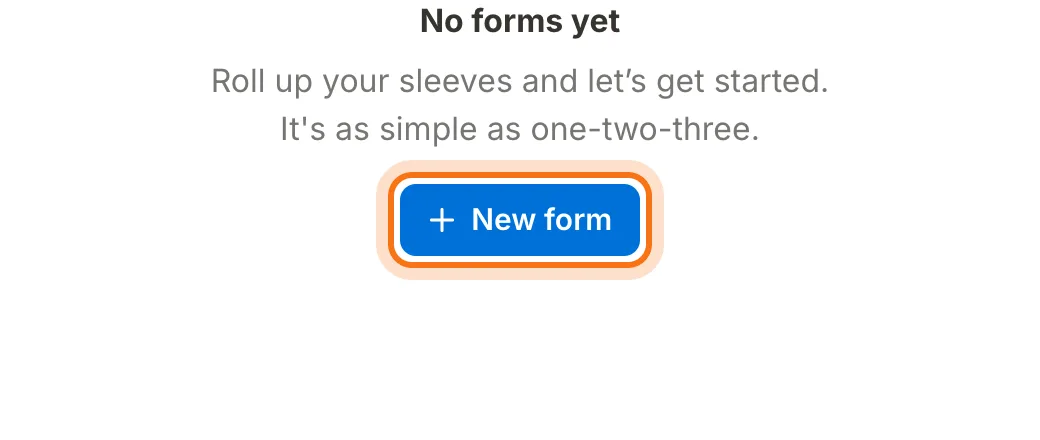
You land on your Home page. It says "No forms yet". Click "New form". (Once you have forms, the button is at the top right.)
Step 3: Click Create with AI
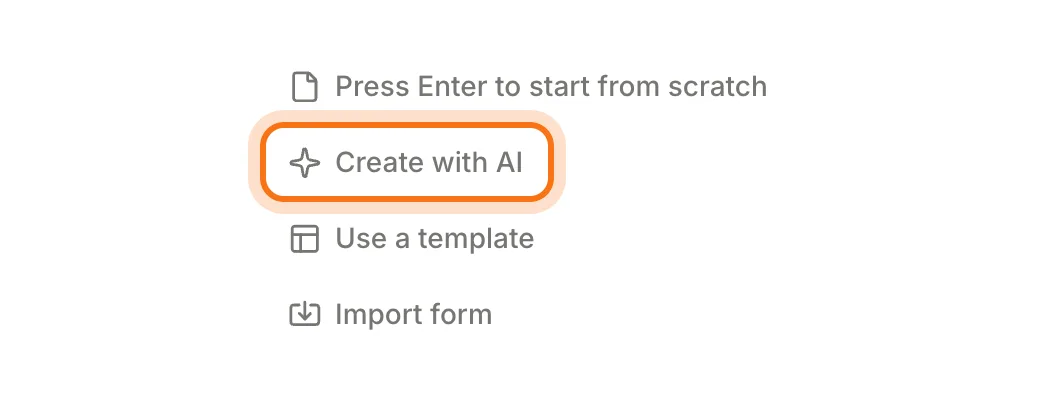
A blank form opens, with four choices: start from scratch, "Create with AI", use a template, or import a form. Click "Create with AI". A chat panel called "Ask Tally" opens on the right.
Step 4: Describe the form in one sentence
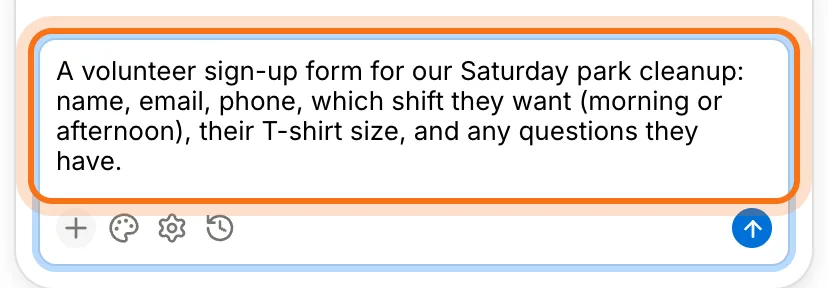
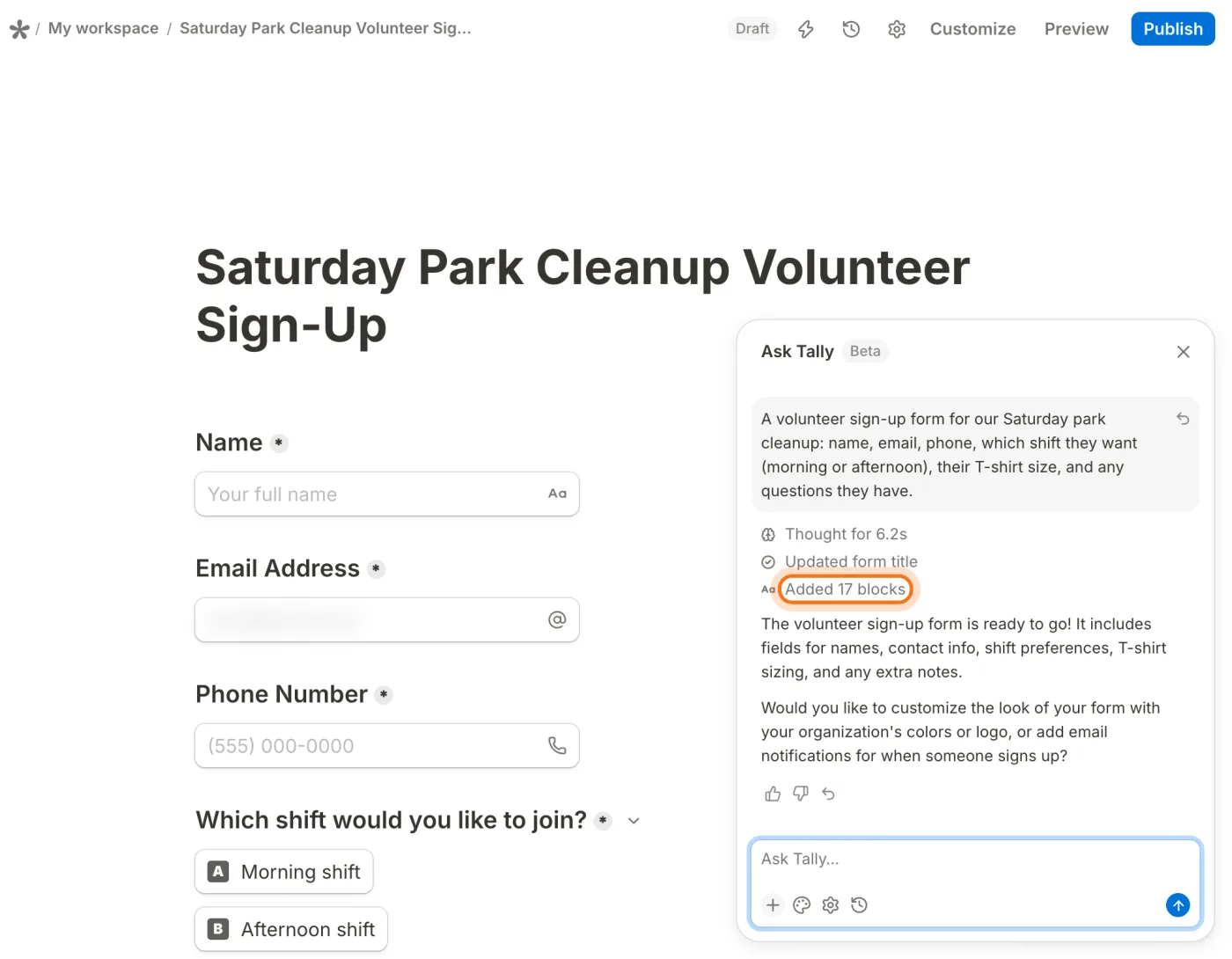
Click in the box that says "Ask Tally…" and write what the form is for and every detail you need from people. Ours: "A volunteer sign-up form for our Saturday park cleanup: name, email, phone, which shift they want (morning or afternoon), their T-shirt size, and any questions they have." Then press Enter, or click the blue arrow.
Try this prompt
A volunteer sign-up form for our [Saturday park cleanup]: name, email, phone, which shift they want ([morning or afternoon]), their T-shirt size, and any questions they have.Step 5: Watch it build the form
In about 10 seconds the form fills in on the left. Tally gives it a title and makes every question: a box for the name, one for the email, one for the phone, buttons for the shift, a choice of sizes and a box for questions. In the panel it says what it did (ours: "Added 17 blocks") and asks if you want more. Read the form through: Tally can add details you didn't ask for. In one of our tries it put times on the shifts that we never gave it.
Step 6: Ask for a change in plain words
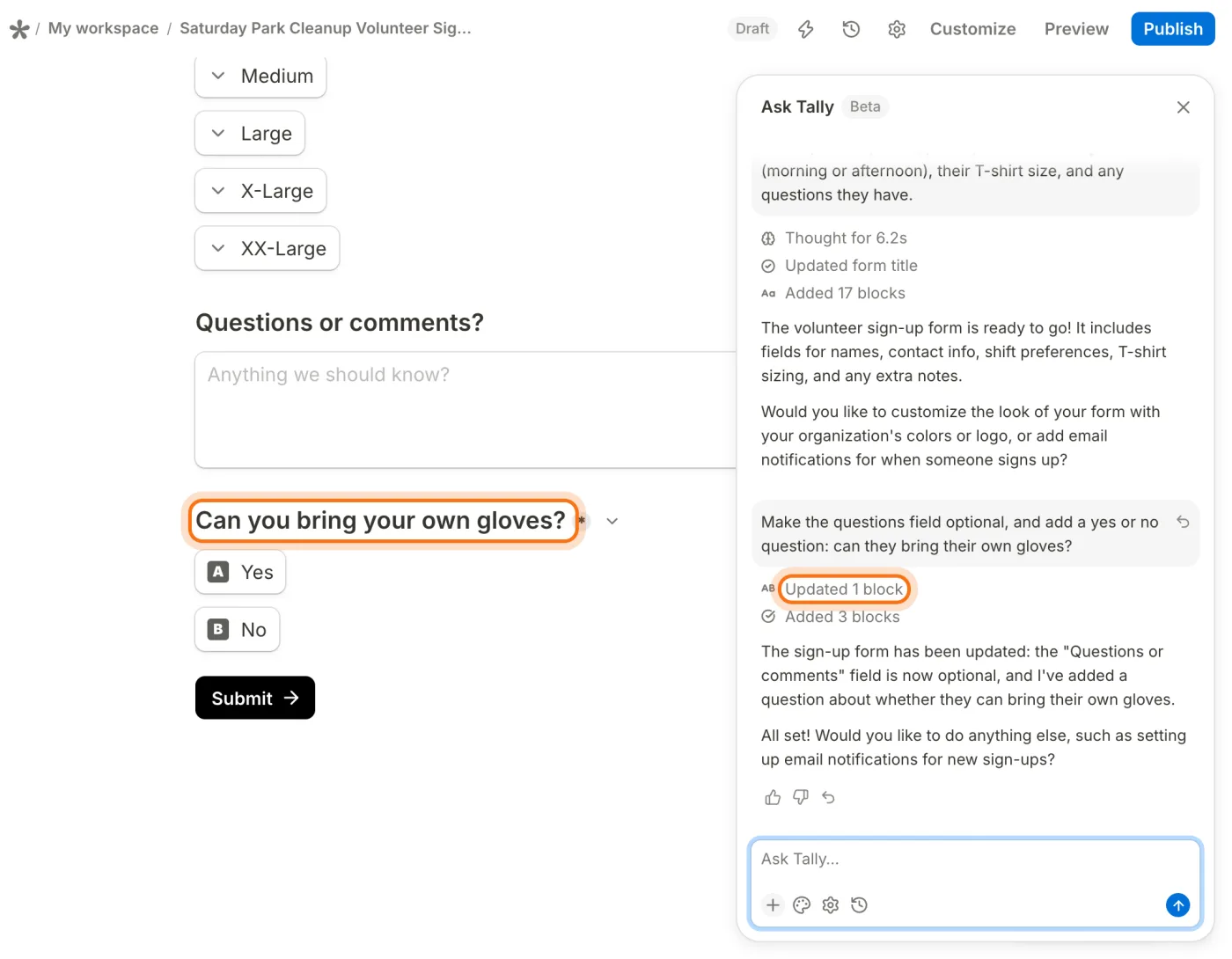
Every question came out required, with a little star. We wanted the last one to be optional, and one question more. So we wrote in the same box: "Make the questions field optional, and add a yes or no question: can they bring their own gloves?" In a few seconds the star was gone and the new question was at the end. Ask for one change, or several, the same way.
Try this prompt
Make the [questions] field optional, and add a yes or no question: [can they bring their own gloves?]Step 7: Try it with Preview
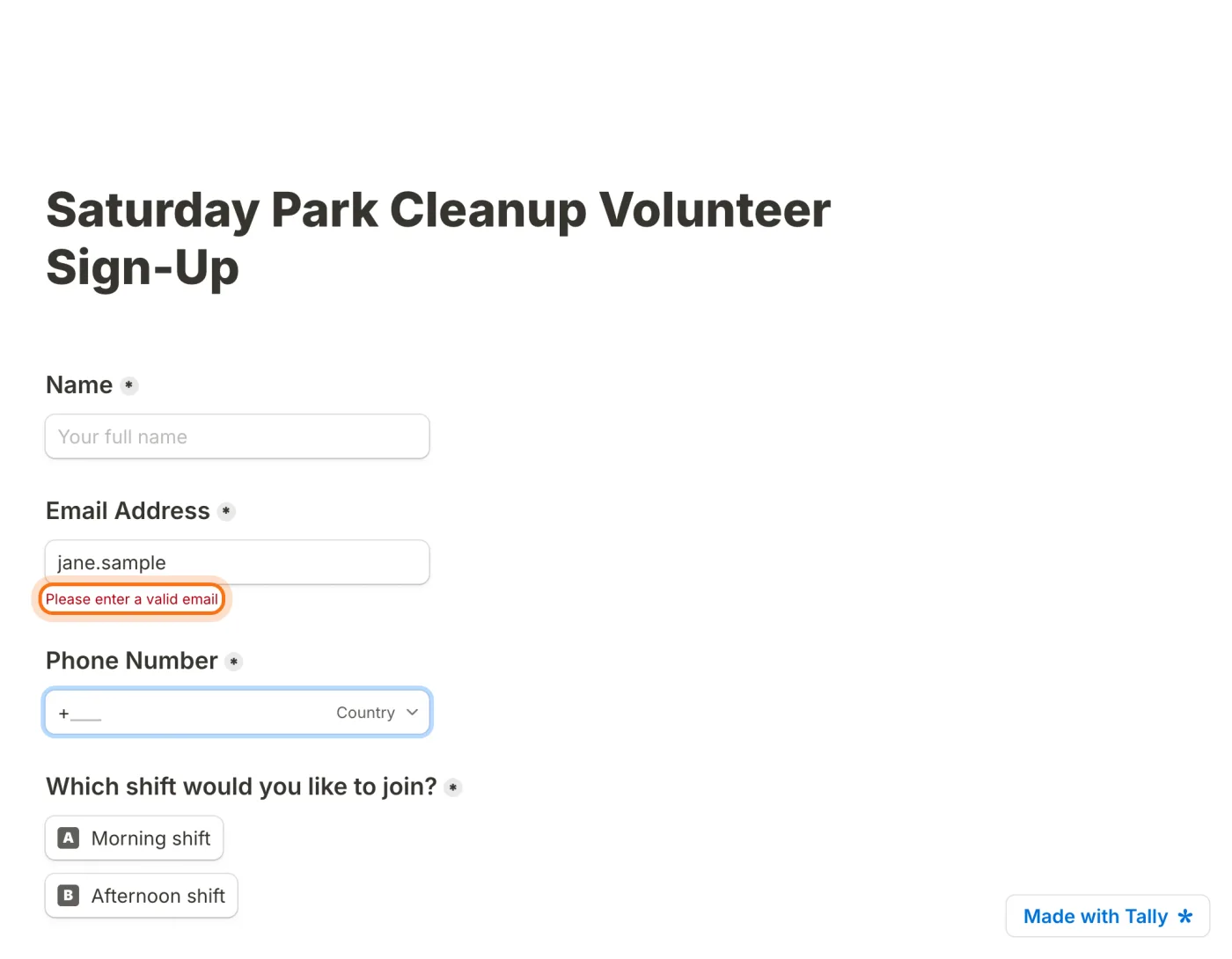
Click "Preview" at the top right. You see the form the way people will, and you can fill it in. We typed an email without the @ part and Tally said "Please enter a valid email". The email box checks itself, and so does the phone box. Click "Back to editor" when you're done. Nothing you type in Preview is sent.
Step 8: Click Publish
Until now the form is a "Draft", and nobody else can open it. Click the blue "Publish" button at the top right.

Step 9: Copy the link and send it
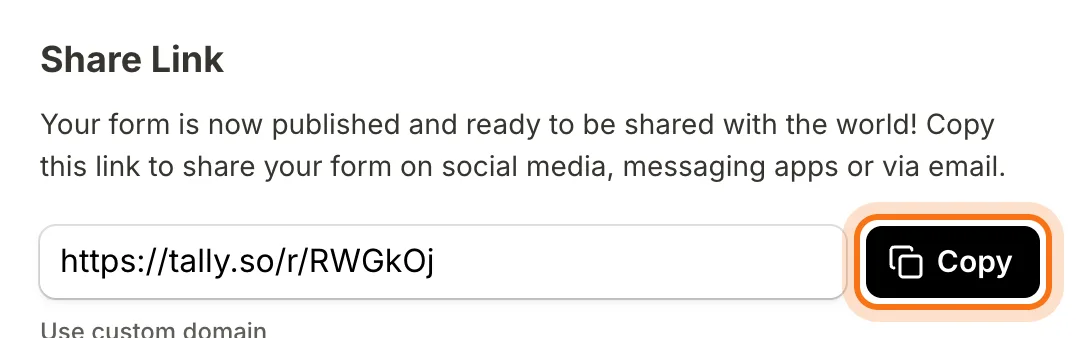
The Share page opens: "Your form is now published and ready to be shared with the world!" Under it is the form's link, starting with tally.so/r/. Click "Copy" and paste the link in a message, a group chat or an email. Anyone with the link can fill in the form, without an account.
Members
The rest of this guide is for members
Create a free account and every room in the academy opens for 30 days. No credit card needed.
In the rest of this guide
8 forms to make, with prompts to copy
- An RSVP for a family event
- A potluck or a meal sign-up
- A class or a workshop registration
- Feedback after an event
- An order form for a small business
- A new client form
- A carpool or a ride sign-up
- A quick survey for a group
More ways to use it
- See the answers, and download them
- What people see if they skip a question
- What the free plan includes
- Undo a change
- Change the form later
- Turn a paper form into an online one
- Get an email on every answer
- Stop taking answers
- In another language
When something goes wrong, and how to fix it
- Every question is required
- The form has details you never gave
- The same sentence gives a different form
- People say the link doesn't open the form
- Someone says the form won't send
- "Made with Tally" shows on the form
- You deleted a form and want it back, or want it gone for good
Where to go next
Your form is out and the answers are coming in. These guides help with what's around it.