What AI does for your email, in one minute
AI is good at the part of email that takes the longest: finding the words. You tell it a few facts, who it's to, what happened and what you want, and it writes a draft. You read it, fix it, and send it yourself.
It helps most with the emails you put off: a reply to an unhappy customer, a reminder about an unpaid invoice, a polite no. It stays calm and polite, even on a day when you're not.
It only knows what you tell it. When a fact is missing, it may fill the gap with one that sounds likely, like a date or a discount. So you give it the real facts, and you read every draft before it goes out. The pictures in this guide use ChatGPT at chatgpt.com, plus one Gemini shortcut for Gmail. The same recipe works in Claude.
Which AI tool to use for email
Gemini, ChatGPT and Claude all write good emails. The real difference is what happens after the draft is written, and which one fits the way you already work.
Pick Gemini when
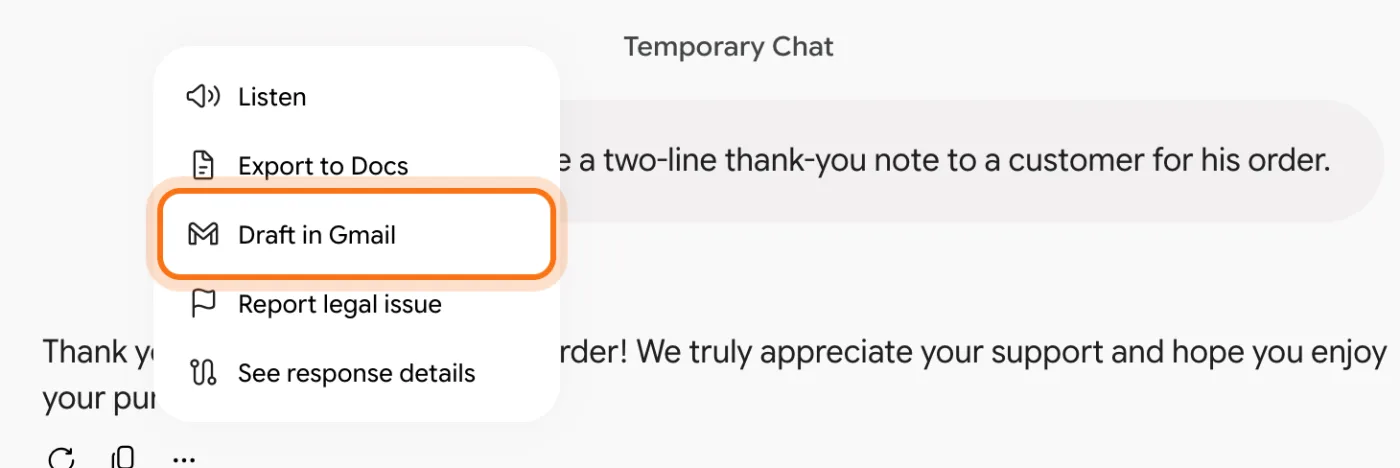
- You use Gmail. Under Gemini's answer, the three dots offer "Draft in Gmail", which puts the email into a new Gmail draft for you to check and send.
- You'd rather write right inside Gmail. Gmail's own "Help me write", made with Gemini, drafts an email in the compose window. Google offers it free on personal accounts in the US, in supported languages.
- The email is long, like a letter or a newsletter, and you want to work on it as a document first. "Export to Docs" saves the answer as a new Google Doc.
Look at another tool when
ChatGPT: You already use ChatGPT, or you send email from Outlook or another app. Write it there, copy it, and paste it into your email. Under some answers, ChatGPT suggests a change you can click.
Read the guideClaude: You want a long or delicate letter as a document you can open and edit beside the chat. Claude makes those on its free plan.
Read the guide
The one-minute recipe, in five steps
Here's the whole loop, shown in ChatGPT, from an empty box to an email ready to send. It works the same way in Gemini and Claude, and the last step shows Gemini's shortcut to Gmail.
Step 1: Tell it the four facts
Open your AI tool, here chatgpt.com, and click the box that says "Ask ChatGPT". Write four things: who the email is to, what happened, what you want to happen, and the tone and length. Real facts in, a real email out.
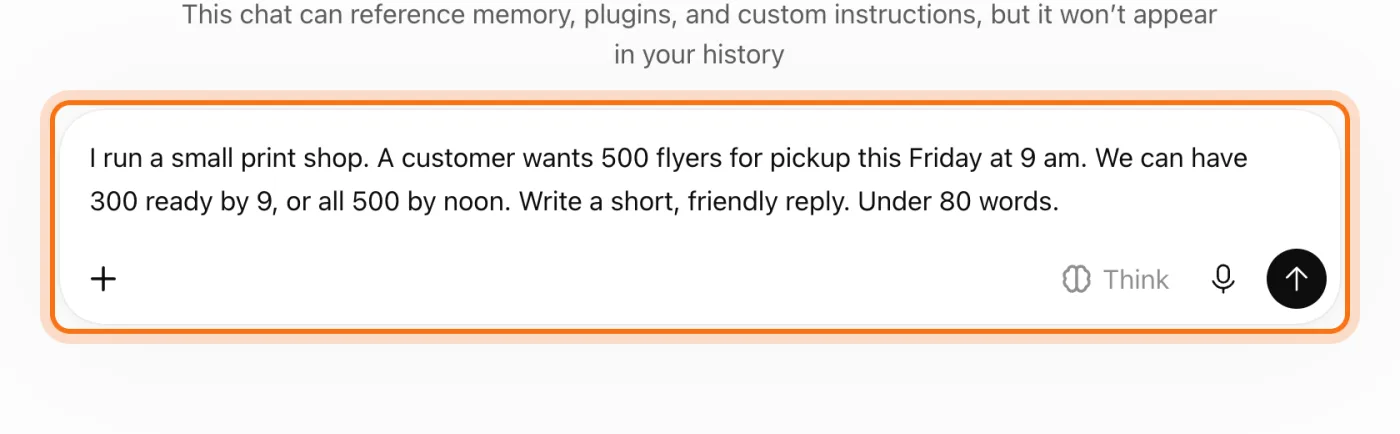
The example in the picture: a print shop answering a customer who wants 500 flyers by 9 on Friday, when only 300 can be ready by then.
Try this prompt
Write an email to [who]. What happened: [the facts]. What I want: [what should happen next]. Tone: [friendly / firm but polite]. Under [number] words.Step 2: Replying? Paste their email under the facts
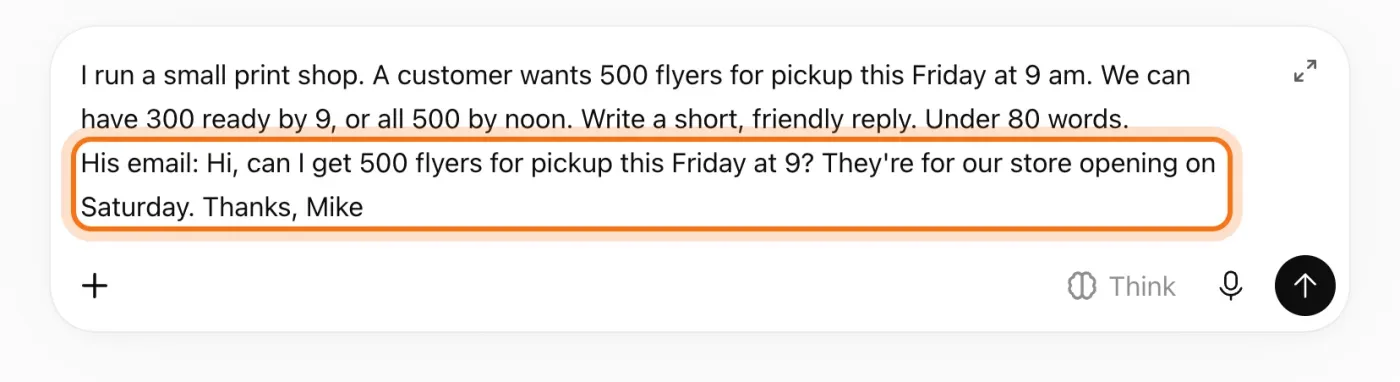
Copy the email you're answering and paste it at the end, after a line like "His email:". Now ChatGPT answers what he actually asked, in his own words, not your summary of it.
Step 3: Send it, then fix it in the same chat
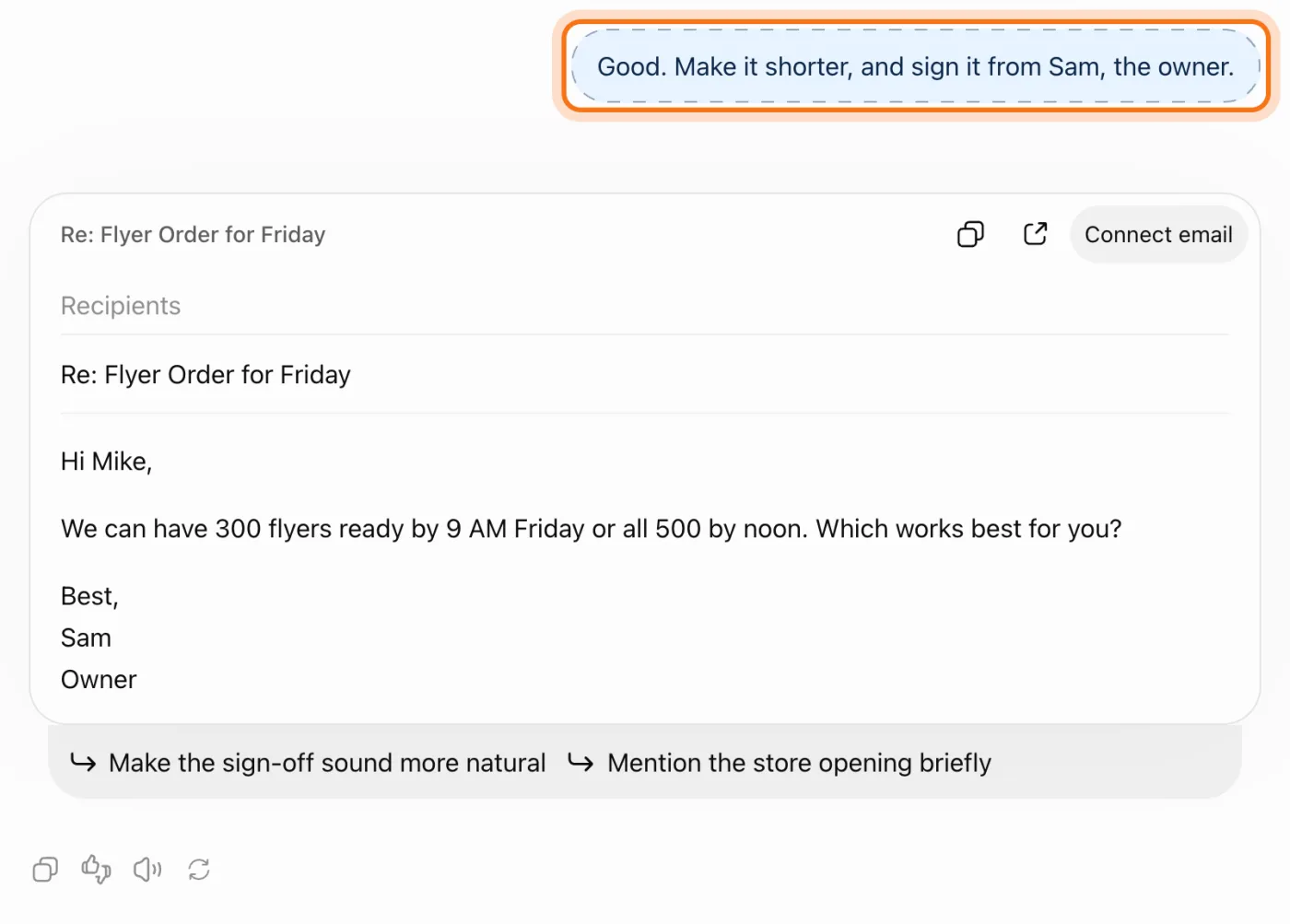
Press Enter or click the arrow, and read the draft. Not quite right? Don't start over. Reply with what to change: "shorter", "warmer", "sign it from Sam". ChatGPT remembers the whole chat, so you never repeat the details.
Step 4: Read it before you send it
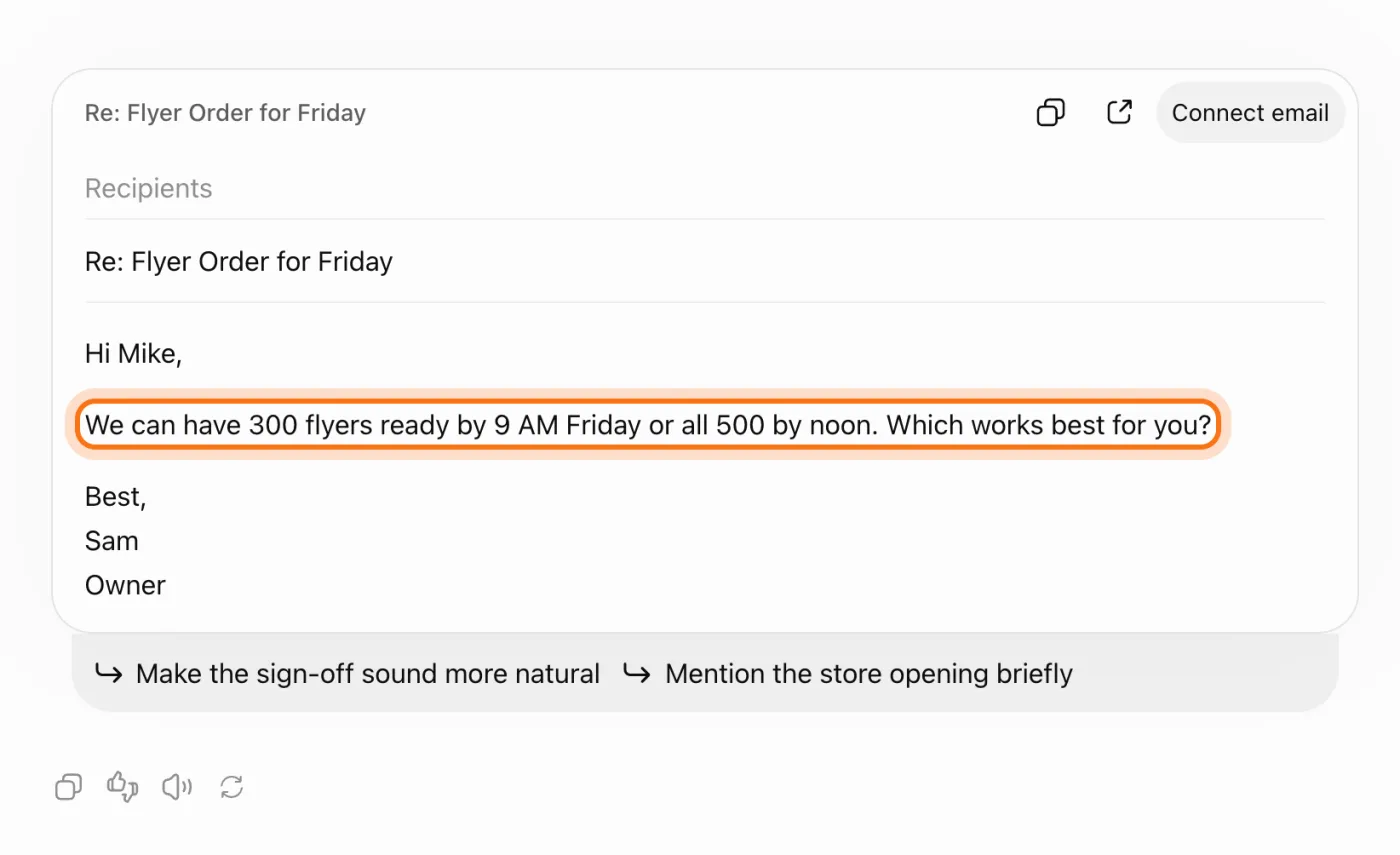
Read the draft once, slowly. Check every name, day, time, amount and promise against what you actually said. AI sometimes adds a detail you never gave it, like a discount or a deadline, and it sounds just as sure about it as about the rest. When it's right, click the copy icon on the draft and paste it into your email.
Step 5: On Gmail? Let Gemini make the draft
Gemini has a shortcut for Gmail. Write the email there the same way, then click the three dots under the answer and choose "Draft in Gmail". Google says this creates a new draft email in your Gmail. It needs a Gmail account, and you need to be signed in to Gemini. Open the draft, check who it's going to, and send it yourself.
Members
The rest of this guide is for members
Create a free account and every room in the academy opens for 30 days. No credit card needed.
In the rest of this guide
8 emails a small business writes every week, with prompts to copy
- Reply to an unhappy customer
- Chase an unpaid invoice, politely
- Say no without losing the customer
- Follow up after a quote
- Welcome a new client
- Move an appointment
- Say thank you after a job
- Send your team a clear update
Four habits that make every email better
- Ask for subject lines, and pick one
- In ChatGPT, click a suggested change
- Use a temporary chat for customer emails
- Say the facts out loud
When the email comes out wrong, and how to fix it
- It sounds robotic, not like you
- It's too long
- It added a detail you never gave it
- The tone is off: too stiff, too sweet, too many exclamation marks
- It missed what they actually asked
- You're not sure what's safe to paste
- It mixes in details from your other chats
- Gmail doesn't show "Help me write"
Where to go next
Good emails come from two habits: clear requests, and a careful read before you send. These guides go deeper.