What AI can do with your spreadsheet, in one minute
You can upload an Excel or CSV file to ChatGPT, Gemini or Claude and ask questions about it in plain words: which product sells best, how each month went, what looks unusual. You don't need to know a single formula.
Behind the scenes, the AI writes and runs a small program that reads your file, so the totals come from your actual rows, not from a guess. It can also draw a chart, write the Excel formula you need, and point out problems in the data.
Two habits keep it safe and right. Take customer names, emails and account numbers out before you upload. And check the numbers that matter: ask the AI to show its work, or add up one column yourself.
Which tool to use
All three read spreadsheets well on their free plans, with usage limits. Pick the one you already use. These are the small differences.
Use ChatGPT when
- You want quick answers in tables you can read right in the chat, and charts drawn for you on request.
- You want to keep asking follow-up questions about the same file, like a conversation.
- You need an Excel formula explained step by step: where to put it and what each part does.
Choose another tool when
Gemini: Your files live in Google Drive. Gemini can add them straight from Drive, and its charts have an "Edit" button to change the type or the labels.
Read the guideClaude: You want a careful explanation of a pattern, or a new Excel file back. Anthropic says Claude can create Excel files with working formulas on every plan, Free included.
Read the guide
Your first spreadsheet question, in five steps
A real example: Dan runs a bike shop and has six months of weekly sales in Excel. The pictures use ChatGPT on a free account.
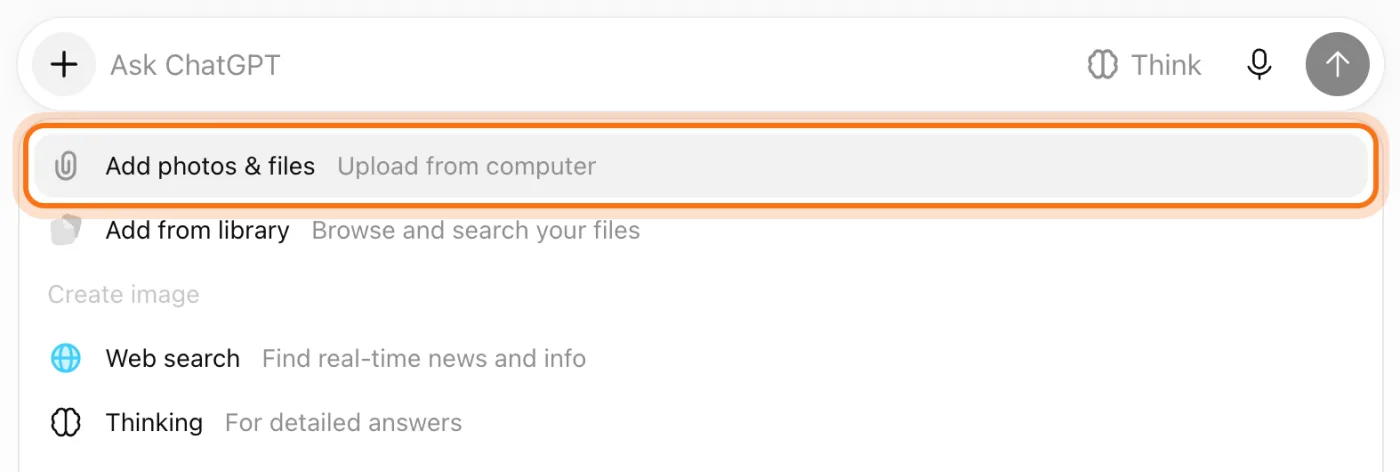
Step 1: Click + and choose "Add photos & files"
Go to chatgpt.com and sign in. Click + at the left of the message box, then "Add photos & files", and pick your Excel or CSV file. OpenAI lists .xls, .xlsx and .csv among the files ChatGPT can analyze.
Step 2: Say what the file is, and ask your question
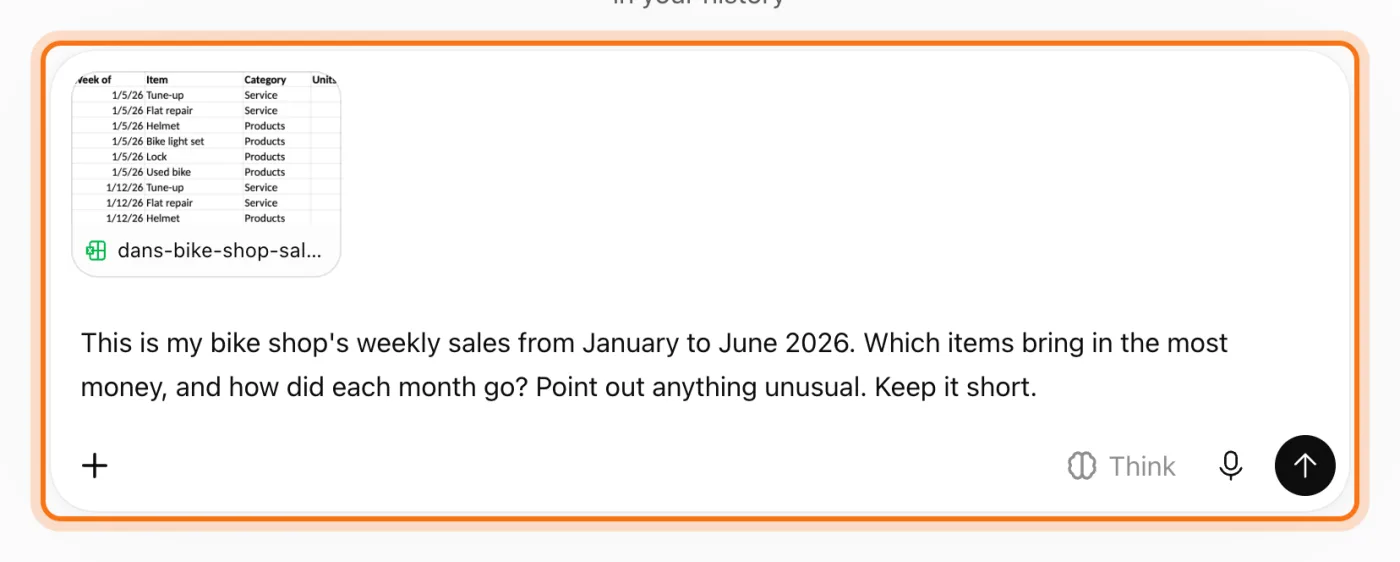
The file appears in the message box as a card with a small preview. In one or two sentences, say what the file is and what you want to know. Asking for anything unusual is a good habit: it's often the most useful part of the answer.
Try this prompt
This is my [business]'s [weekly / monthly] sales from [start] to [end]. Which items bring in the most money, and how did each month go? Point out anything unusual. Keep it short.Step 3: Read the answer
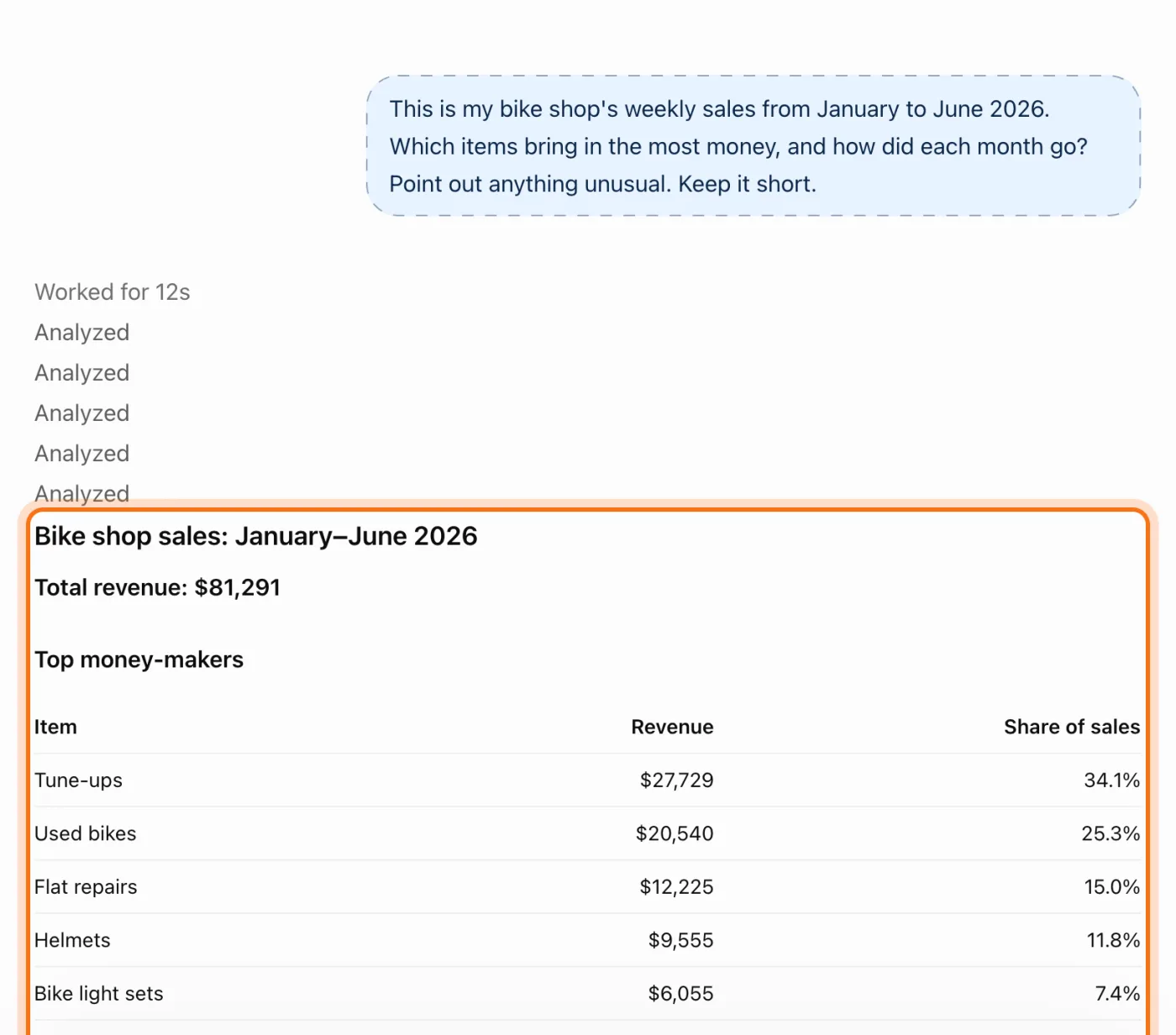
You'll see "Analyzed" while ChatGPT works through the file. Then the answer comes in plain words and tables: the total, the top items with their share of sales, and how each month went. In Dan's file, the totals matched his own spreadsheet to the dollar.
Step 4: Ask for a chart
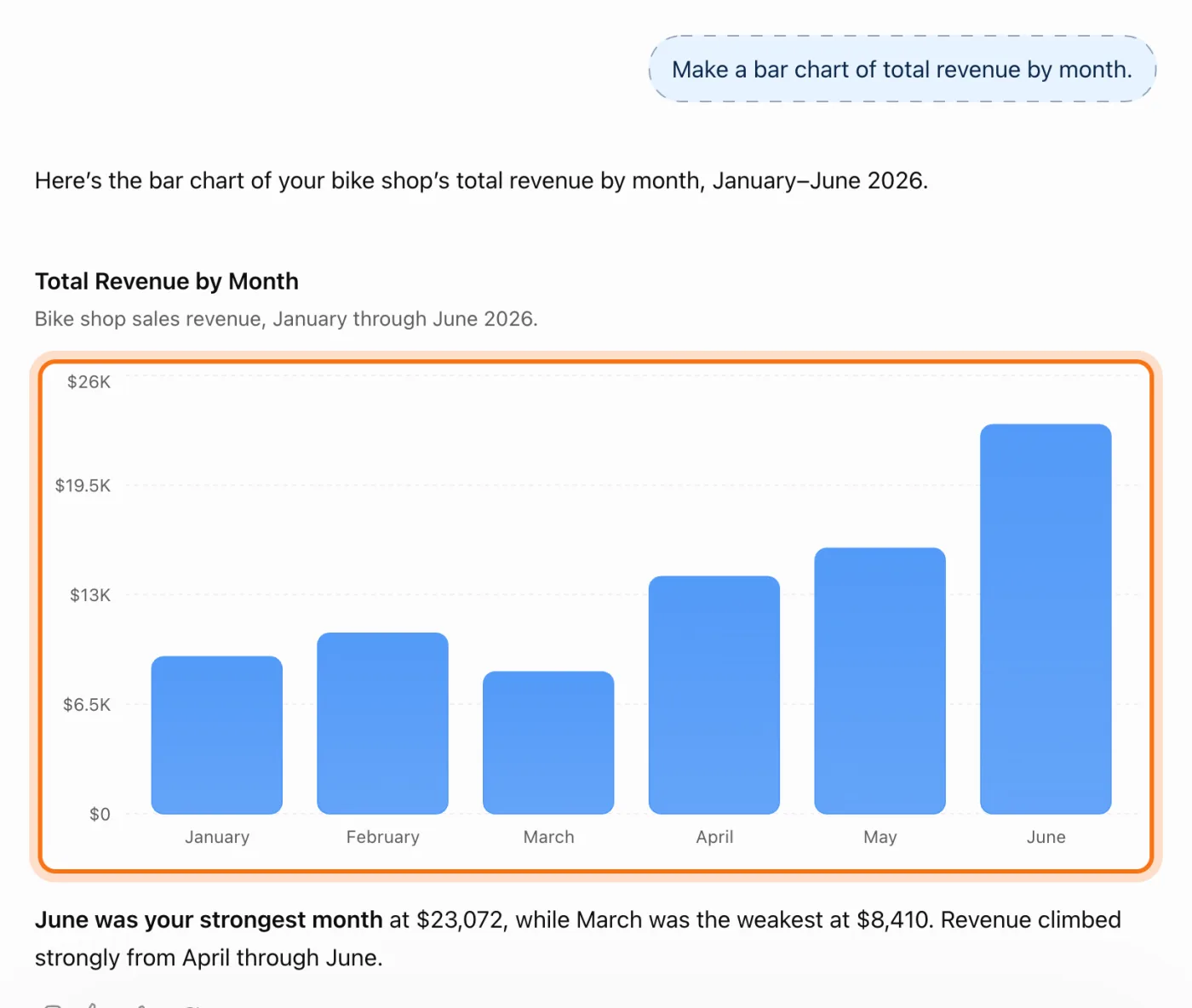
One sentence is enough. Say what goes on the chart and how: by month, by item, as bars or a line. A picture shows in a second what a table hides, like a weak month in the middle of a good season.
Try this prompt
Make a bar chart of total revenue by month.Step 5: Check the numbers that matter
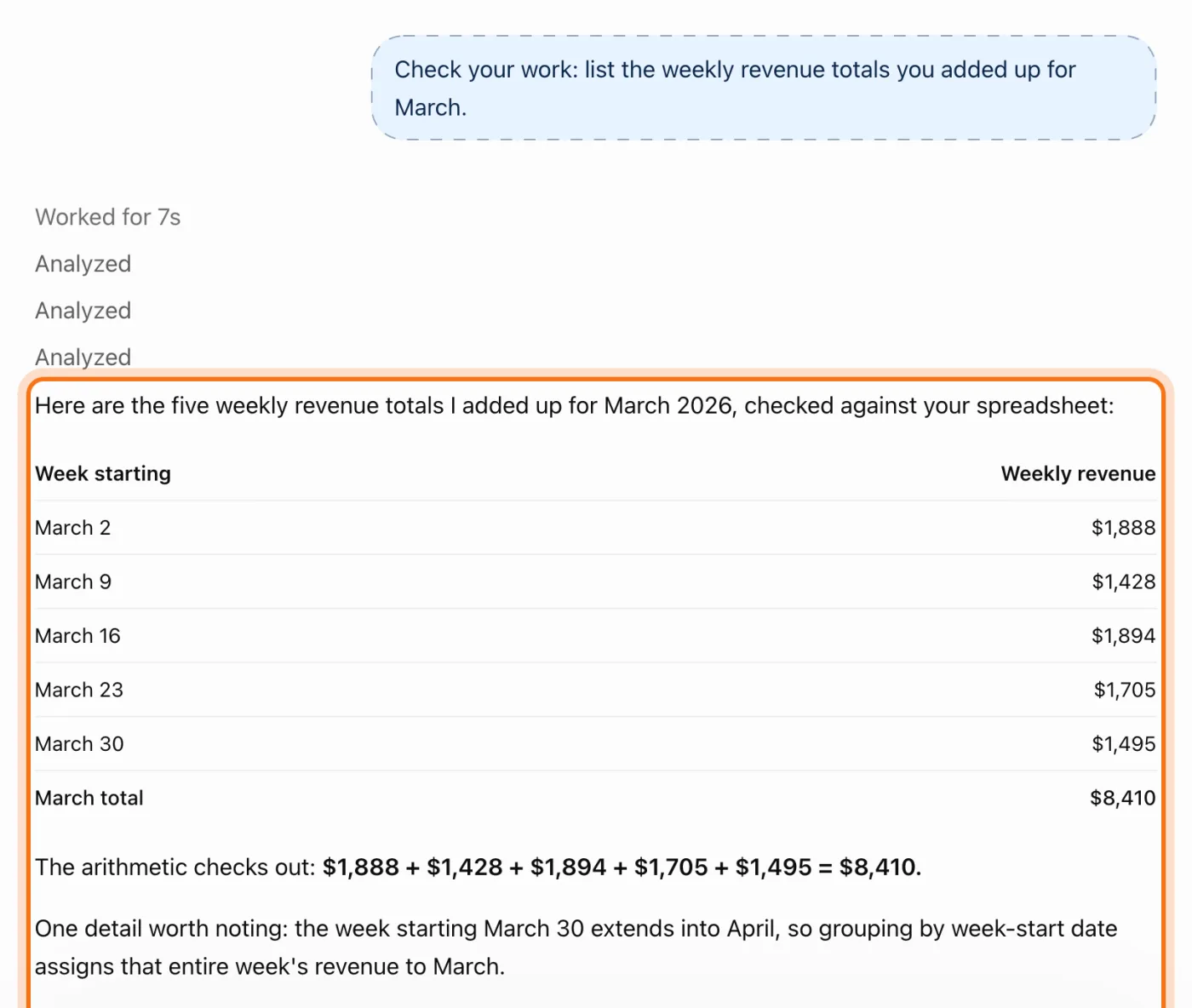
Before you act on a number, ask the AI to show how it got it. Here ChatGPT listed the five weeks it added up for March, and the sum was right. It also noted that a week starting on March 30 counts as March.
Try this prompt
Check your work: list the [weekly / daily] totals you added up for [the number that matters].
Members
The rest of this guide is for members
Create a free account and every room in the academy opens for 30 days. No credit card needed.
In the rest of this guide
8 real jobs for a spreadsheet, with prompts to copy
- Find your best and worst sellers
- See the trend, month by month
- Clean up a messy list
- Get the formula you need
- Compare two periods
- Check your budget against what you spent
- Spot mistakes before your accountant does
- Turn the numbers into a short update
Buttons and features worth knowing
- Gemini: + then "Upload files"
- Gemini: a chart from your file
- Claude: upload the file and ask
- A formula, ready to paste
When something goes wrong, and how to fix it
- The answer talks about things that aren't in your file
- You get "Something went wrong" or "I'm having a hard time"
- A good answer has one wrong line in the middle
- One month looks great, but it isn't really
- Numbers or dates come out wrong
- The file is too big to upload
- It stops after a few files today
- The file has customer names or account numbers
Where to go next
Spreadsheets are one kind of file. These guides help with the rest of the job.