What this is, in one minute
AI Mode is the chat inside Google Search. You can now connect it to a few apps, and YouTube Music is one of them. You describe the music you want in plain words, like you'd tell a friend, and AI Mode builds the playlist in YouTube Music for you: a name, the songs, and buttons to save it or play it.
It's free. We used a free Google account and free YouTube Music on 10/20, on a computer, and everything in this guide worked. Google says the connected apps in AI Mode are in the U.S., in English, for now. On ours, the same request in Spanish got a list of songs and no YouTube Music card, so ask in English.
One thing to know first: a new playlist doesn't stay on its own. The card says when it expires (on ours, about 8 hours later), unless you save it to your library, which takes one click.
Which way to use
AI Mode with YouTube Music is the quickest way to go from "I want music for this" to a playlist you can play. Other guides cover the jobs around it.
Use AI Mode when
- You know the mood or the moment, like a party, a long drive or a quiet morning, but not the songs.
- You want the songs saved as a real playlist, not a list of names to look up one by one.
- You listen on YouTube Music, or you're happy to start there. A free account is enough.
Use something else when
Use a plugin in ChatGPT: You listen on Spotify. ChatGPT has a Spotify plugin, and this guide shows how to add a plugin and use it in a chat.
Read the guideFind videos with Gemini: You want YouTube videos, not music: Gemini finds them and sums them up for you.
Read the guide
Your first playlist, step by step
Our example: Dan, who runs a small bike repair shop, wants easy background music for the shop.
Step 1: Ask for the playlist, and name YouTube Music
Go to google.com/ai (or search on Google and click "AI Mode" at the top), and sign in with your Google account. In the "Ask anything" box, say what the music is for, how many songs, and end with "on YouTube Music". Press Enter.
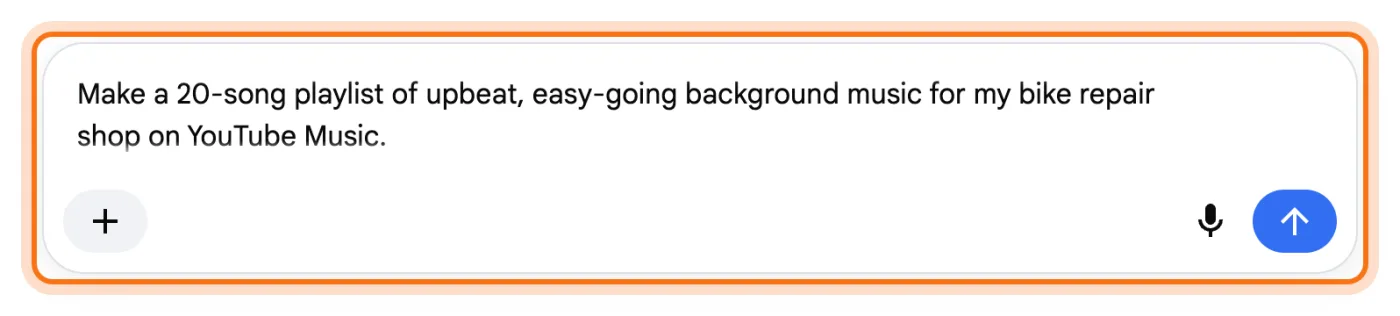
Step 2: The first time only: click Continue
The first time, AI Mode writes a list of songs and asks you to link your streaming provider. Under it, a card shows "YouTube Music" with a "Continue" button. Click "Continue". On ours, that was all: no other screen, and AI Mode went on by itself. After that, it goes straight to YouTube Music every time.
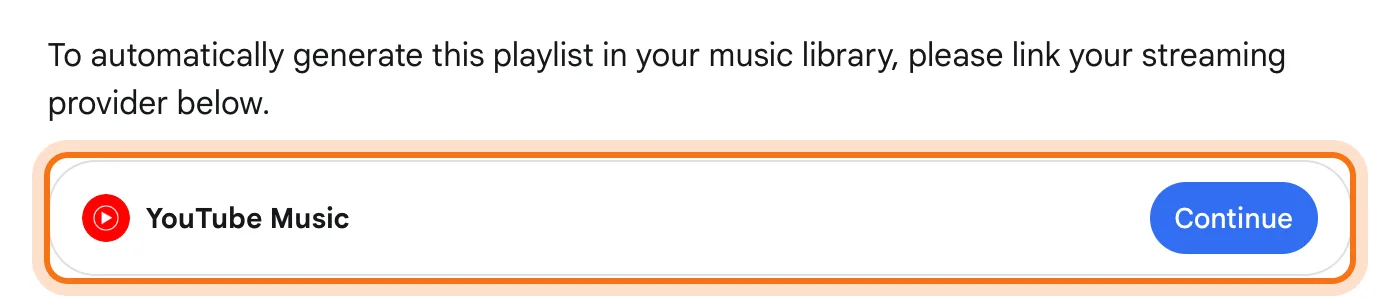
Step 3: Your playlist arrives as a card
AI Mode answers with a "YouTube Music" card: the playlist's name, how many songs and how long it plays, then the first five songs. Click "View all" to see every song. Ours was "Bike Shop Vibes", 20 songs, 1 hour and 10 minutes.
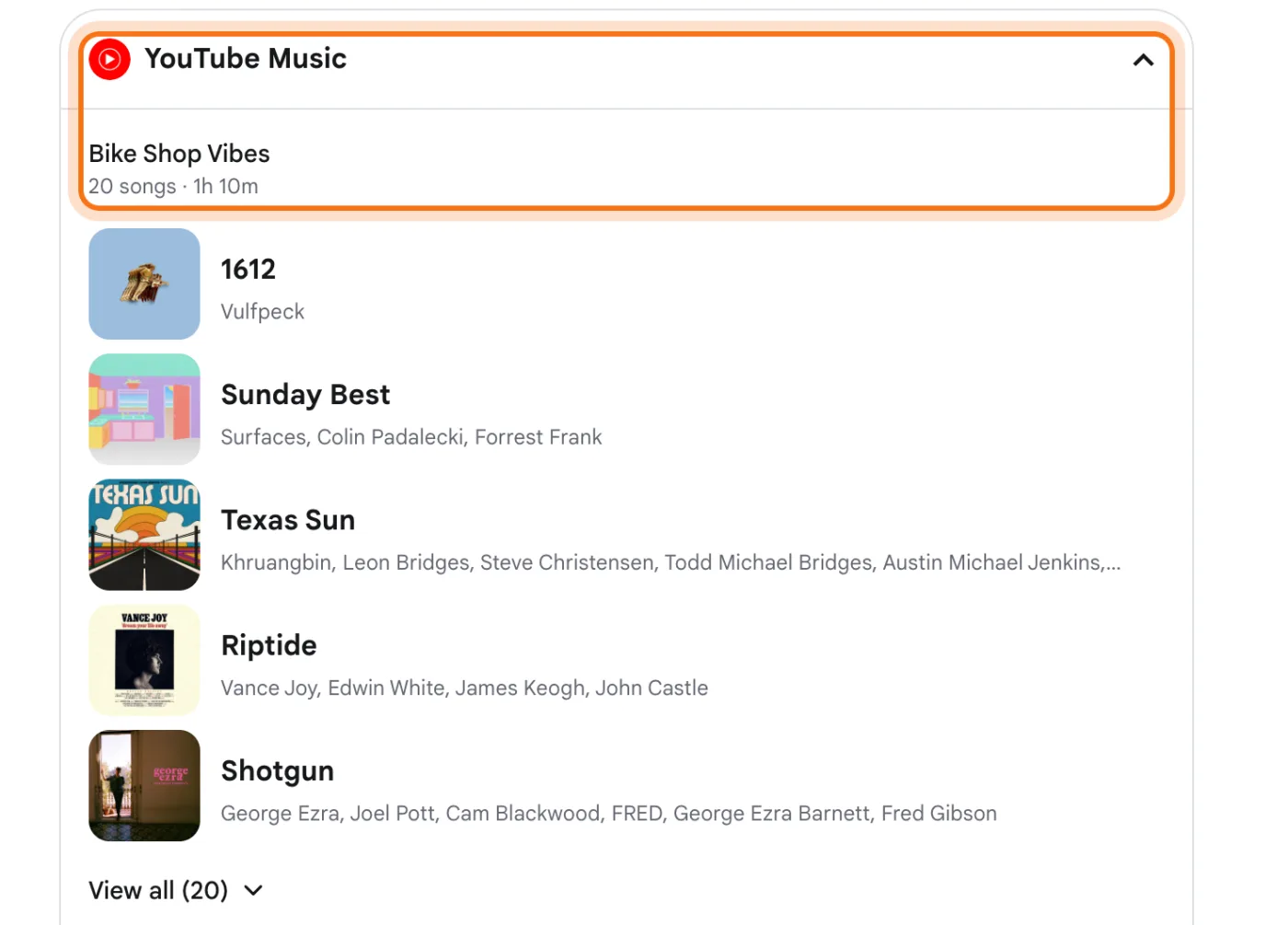
Step 4: Not quite right? Ask for a new version
Type the change in the same chat, the way you'd say it: "Make it calmer, with 15 songs." AI Mode makes a new playlist, with a new name, in a new card. The first one stays in the chat above it, so you can still pick it instead.
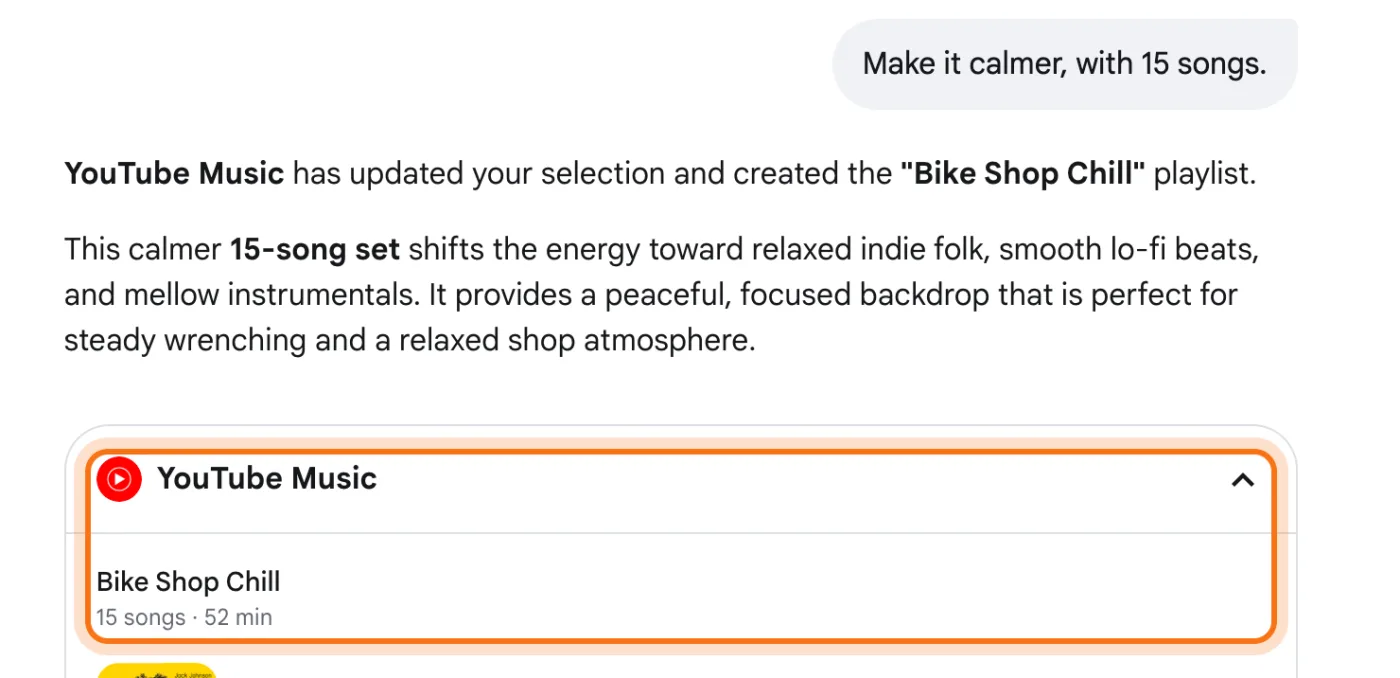
Step 5: Save it before it expires
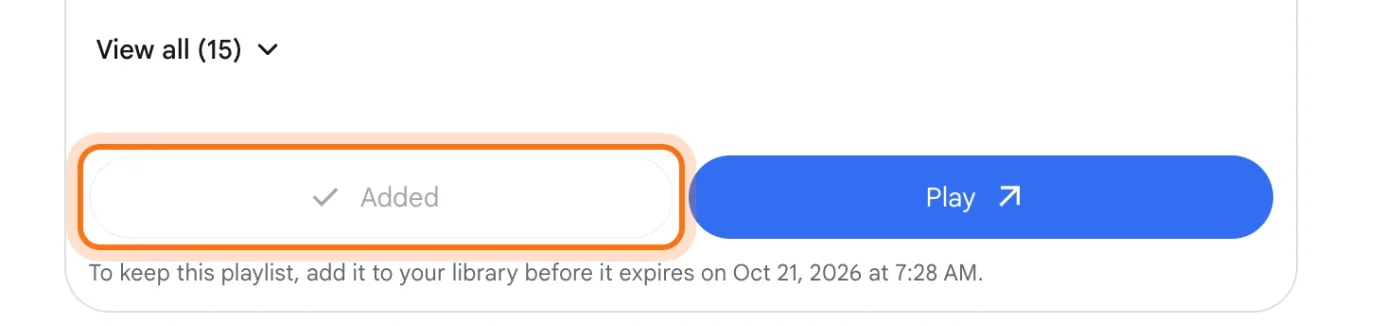
Under the songs, click "Add to library". The button turns into "Added". Don't skip this: the line under the buttons says when the playlist expires unless it's in your library. We made ours late in the evening, and it said 7:28 the next morning.
Step 6: Find it in YouTube Music
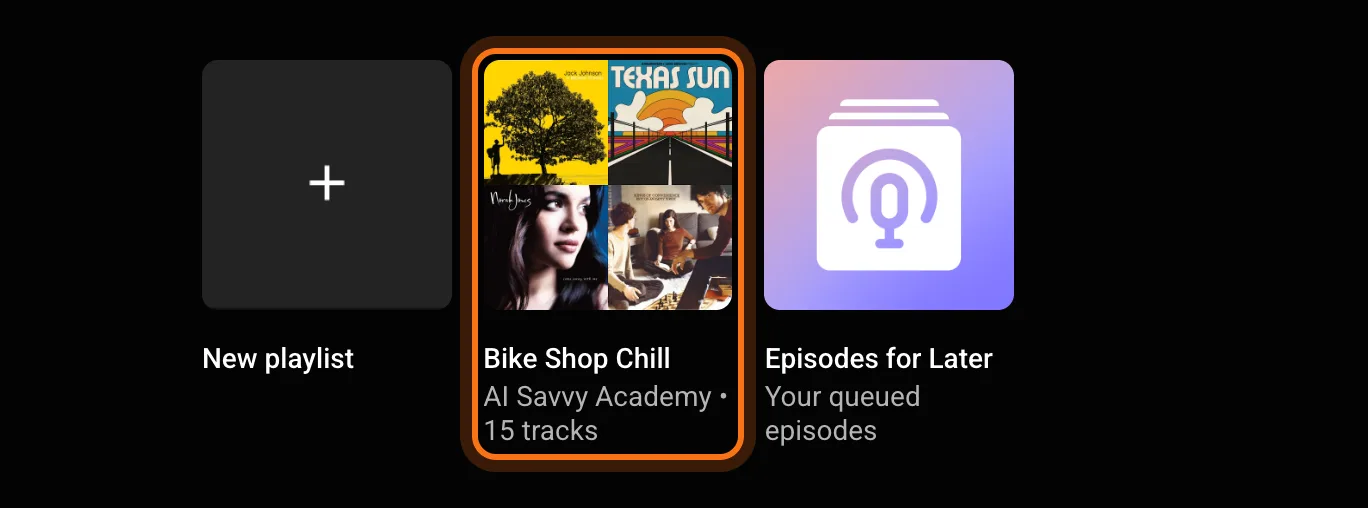
Open music.youtube.com (or the YouTube Music app) and click "Library", then "Playlists". The playlist is there under the name AI Mode gave it, with your account's name and the number of tracks under it.
Step 7: Press play
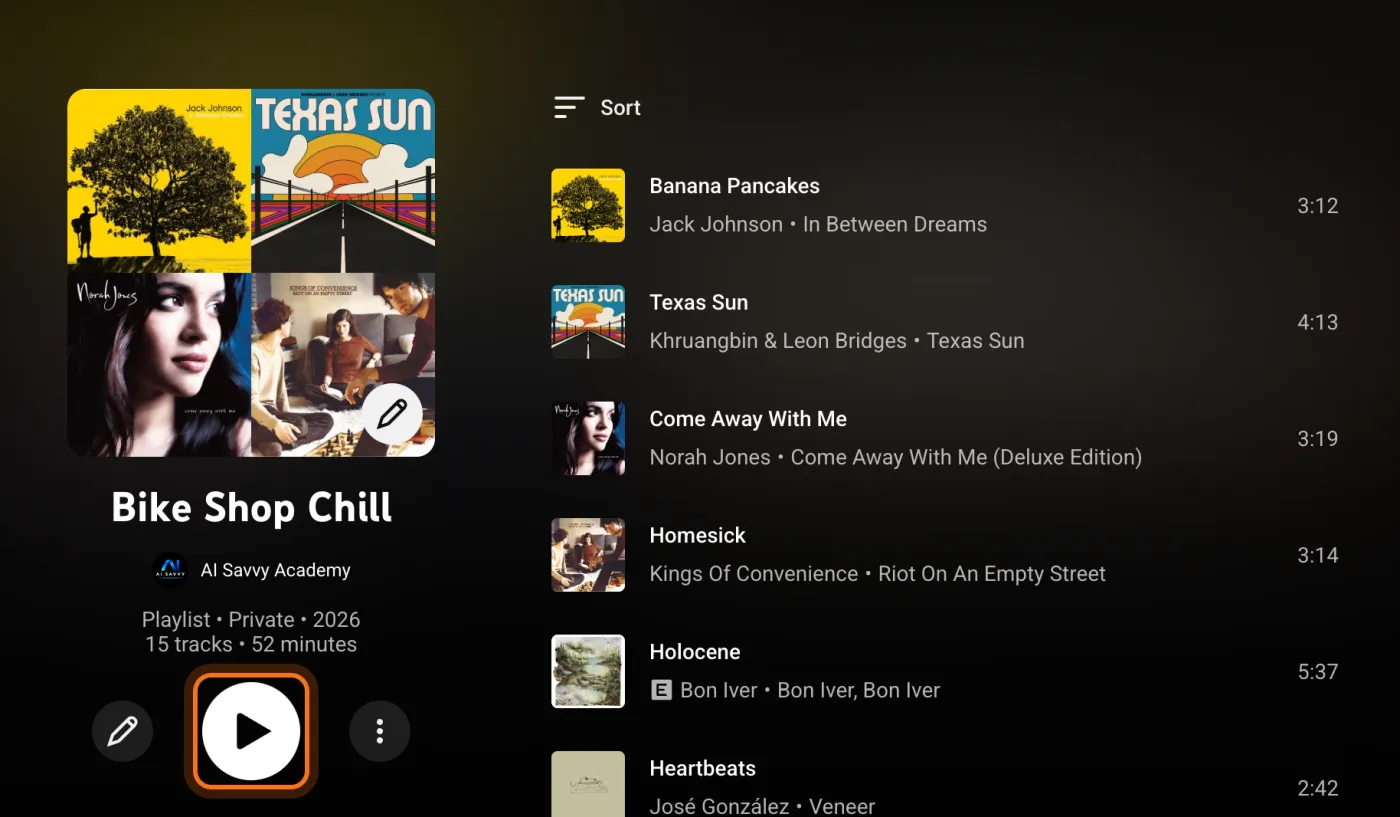
Click the playlist to open it, then the big play button under its name. Its page also shows that it's private (only you see it) and the full list of songs, which you can sort, change or add to.
Members
The rest of this guide is for members
Create a free account and every room in the academy opens for 30 days. No credit card needed.
In the rest of this guide
8 playlists to make, with prompts to copy
- Background music for work
- A family party
- A long drive
- Music to focus
- A walk or a workout
- Songs from someone's year
- More like a singer you love
- A quiet evening
More ways to use it
- Play it right away
- Change it in YouTube Music
- Share it
- On your phone
- Find the chat again, or delete it
When something goes wrong, and how to fix it
- AI Mode writes a list of songs, but there's no card
- Changing one song doesn't work
- The playlist is gone
- A window asks to connect Gmail, Calendar, Drive and Photos
- AI Mode never offers YouTube Music
Where to go next
AI Mode made the playlist. These guides help with what's around it.