What Gemini does with Maps and YouTube, in one minute
Gemini is Google's AI, and it can use two other Google apps while it answers: Google Maps and YouTube. Ask about places, and you get cards with the rating and the opening hours, and a map you can open. Ask for a video, and you get real YouTube videos, and a summary of one if you want it.
It works on a free Google account. On ours (checked 10/20, on a computer), the place cards, the map, a route, the video cards and a video summary all showed up in a normal chat. You don't connect anything: Google says Gemini uses the public information in Maps and YouTube on its own.
It needs two things. Google says Keep Activity must be on, which means your chats are saved, so it doesn't work in a temporary chat: there, the same questions got a plain text answer. And Google says some of the Maps features are for people 18 and over, with a personal Google account, asking in English.
Which way to use
Gemini with Maps and YouTube is the fastest way when the answer is a place, a route or a video. Other guides cover the jobs around it.
Use Gemini with Maps and YouTube when
- You want a few good places nearby, with ratings and hours, in one answer.
- You need a route, and want to see it on a map before you go.
- You want a how-to video, or the steps of a long video without watching all of it.
Use something else when
Work with many videos and files: You want to ask about several videos, PDFs and notes together in Gemini Notebook, and get answers only from them.
Read the guideAsk about what's in front of you: You're looking at a sign, a menu or a broken part, and want to point your phone at it.
Read the guide
Your first search with Maps and YouTube, step by step
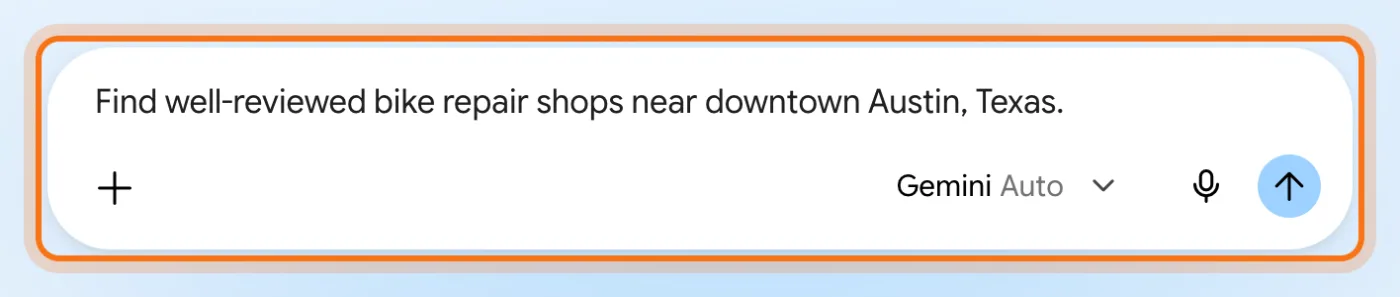
A real example: Dan, who runs a small bike repair shop, is in Austin, Texas. He wants to see the well-reviewed bike shops around downtown, a bike route across town, and a short video for customers who get a flat tire. The pictures use Gemini on a free account, on a computer.
Step 1: Open a normal chat and ask
Go to gemini.google.com and sign in with your Google account. Click "New chat". Use a normal chat, not a temporary one. Type what you're looking for and where, in plain words, and press Enter.
Step 2: Read the place cards
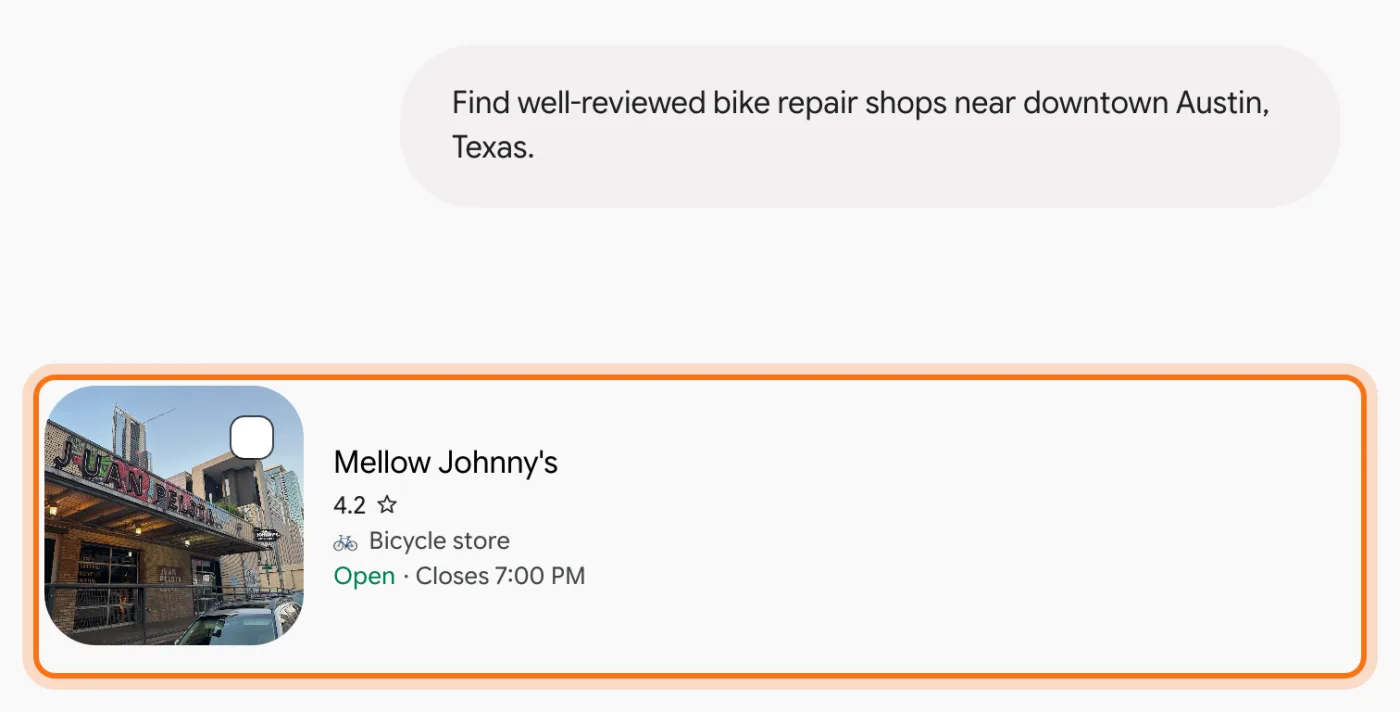
Gemini answers with a card for each place: a photo, the rating, what kind of place it is, and if it's open now and until when. Under each card, a few lines on what reviewers say.
Step 3: Click a place to see more
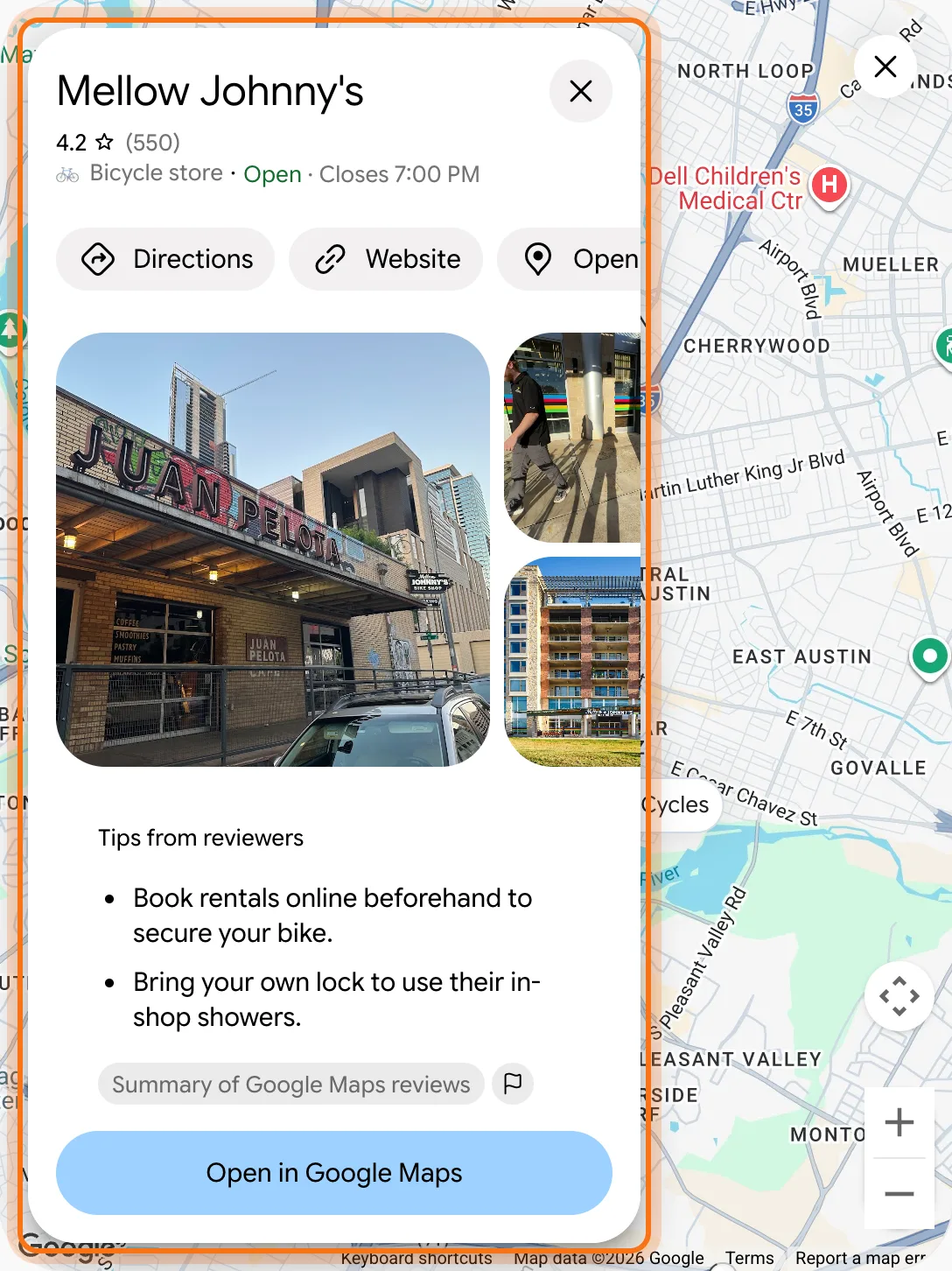
Click the name of a place in the answer. A map opens on the right with the place's details: Directions, Website, photos, what people say in reviews, and "Open in Google Maps" to see it in Maps itself.
Step 4: Ask for a route
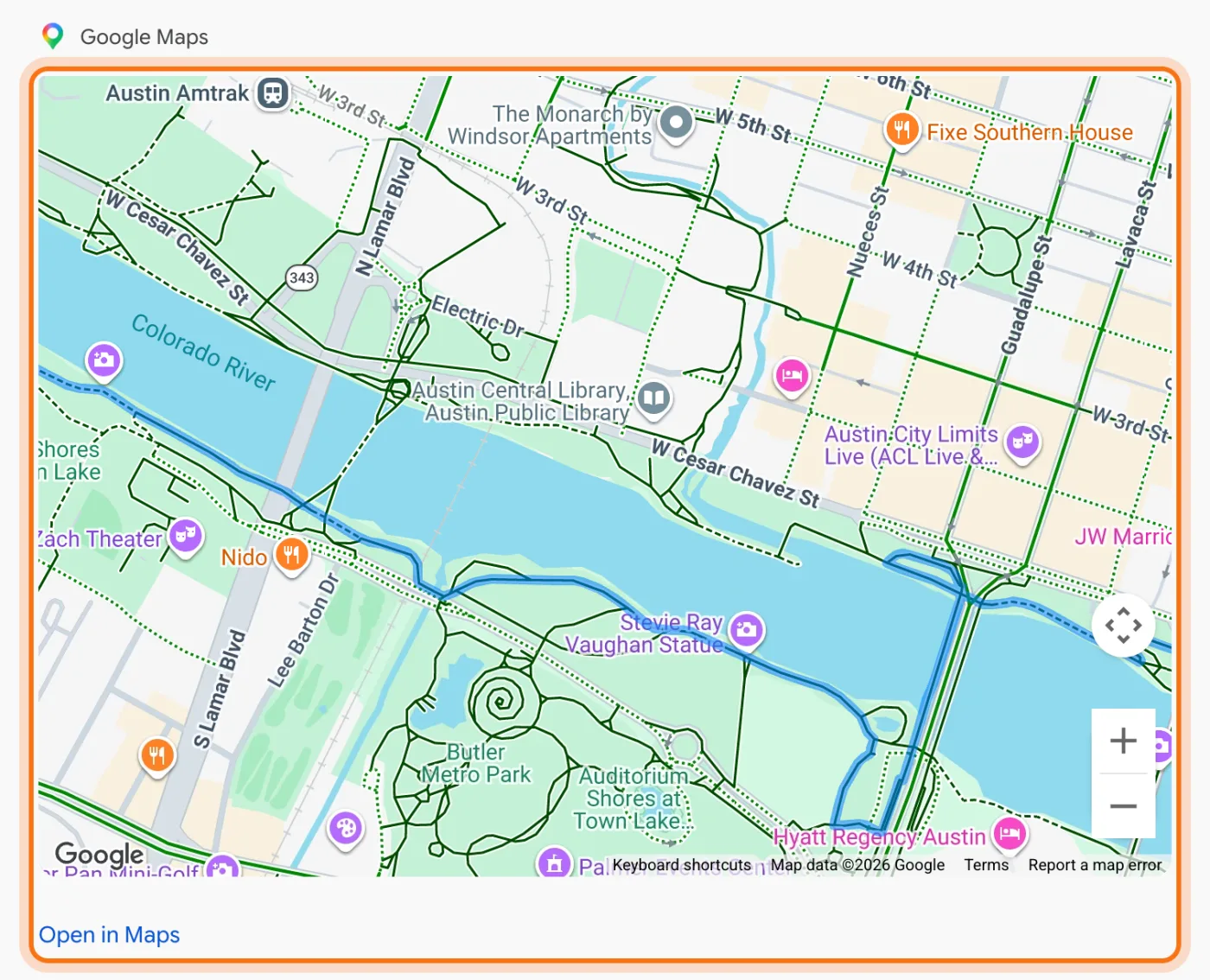
In a new chat, ask for directions, and say how you're going: on foot, by car or by bike. Gemini shows the route on a map, and under it the distance and the time. Click "Open in Maps" to follow it in Google Maps.
Step 5: Ask for a video
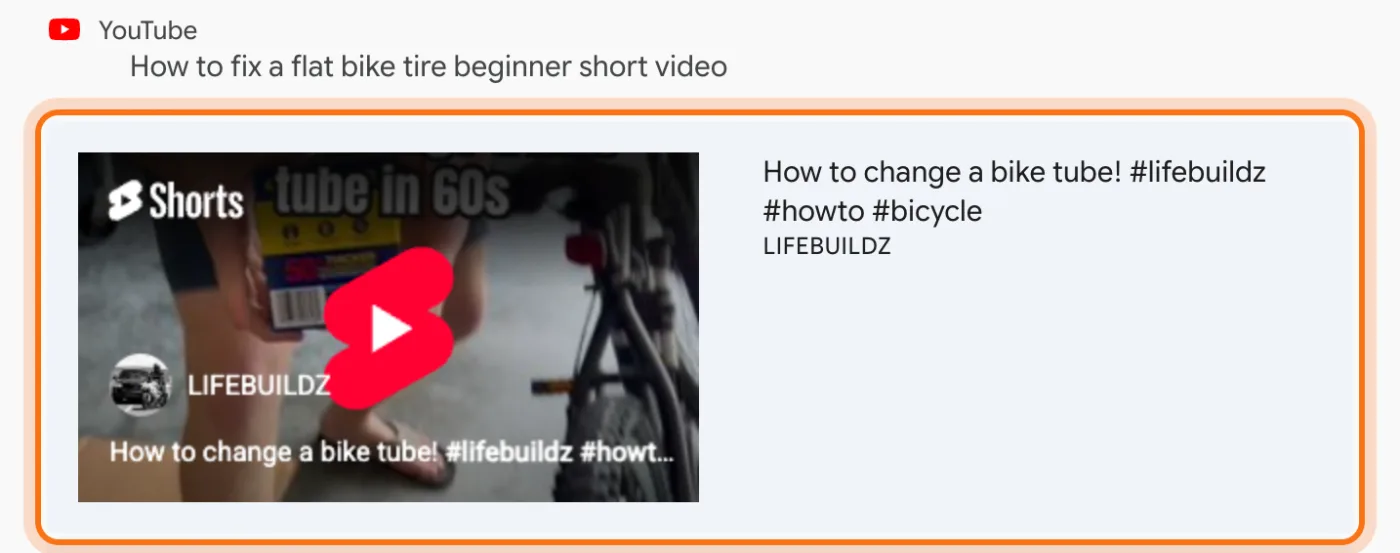
Ask for a video on YouTube, and say what kind: short, for beginners, in Spanish. Gemini shows YouTube videos with a picture, the channel and a few words on what's in them. Click one to watch it on YouTube.
Step 6: Get the steps without watching
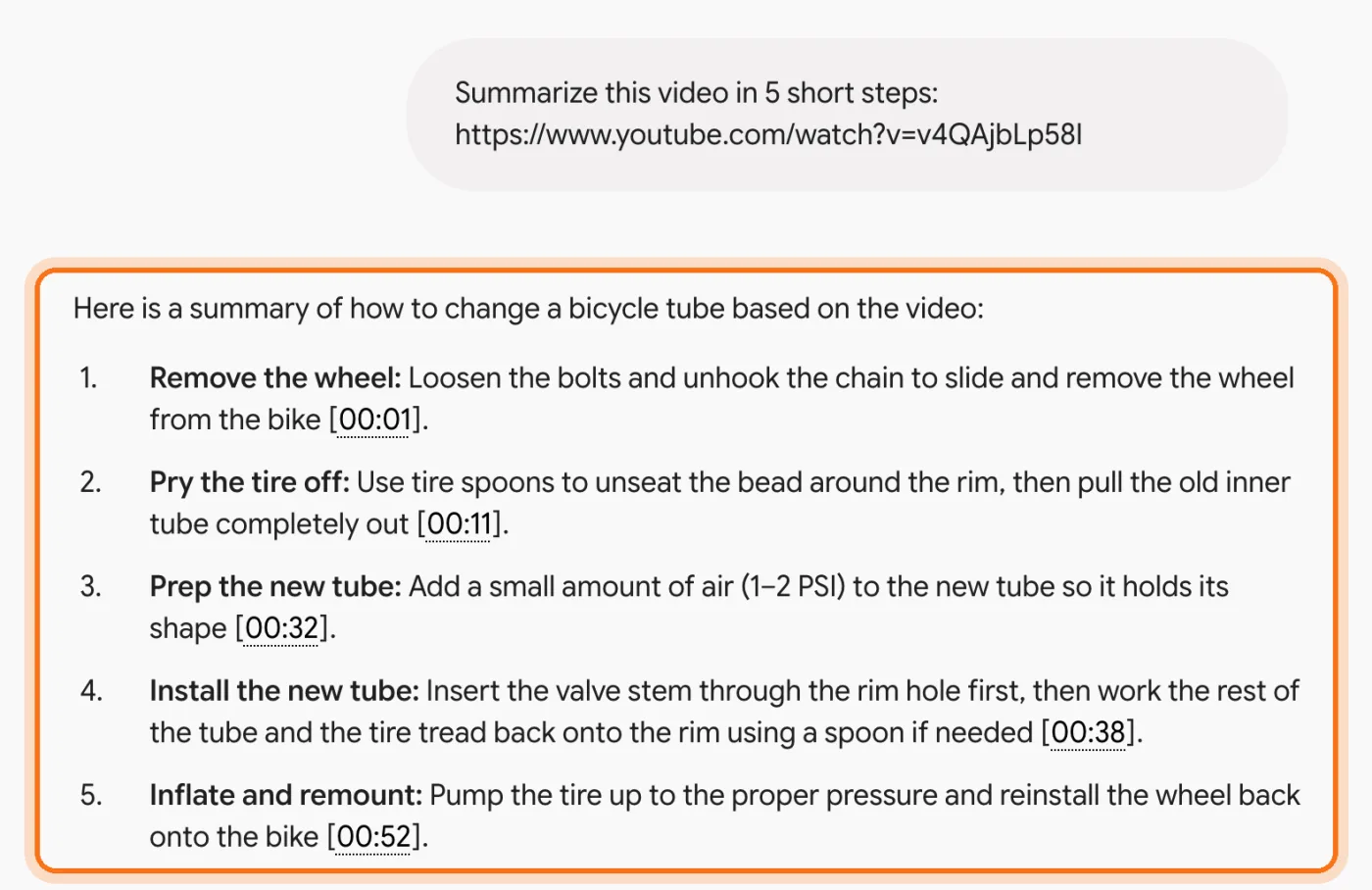
Paste a YouTube link and say what you need, like "Summarize this video in 5 short steps". Gemini answers from the video itself, with the minute of each step, so you can jump to it.
Members
The rest of this guide is for members
Create a free account and every room in the academy opens for 30 days. No credit card needed.
In the rest of this guide
8 things to ask, with prompts to copy
- Good places nearby
- Open on a day, at a time
- Compare a few places
- A route on foot, by bike or by car
- A few stops in one trip
- A how-to video
- The steps from a video
- A question about a video
More ways to use it
- Ask a question after the answer
- What Connected Apps is
- Not in a temporary chat
- On your phone
- What it can't do
When something goes wrong, and how to fix it
- You get only text, with no map and no video cards
- Typing @ doesn't offer Maps or YouTube
- A detail in the answer is wrong
- Gemini answers "Something went wrong"
- You can't find the chat to delete it
Where to go next
Gemini finds the place or the video. These guides help with what's around it.