What a plugin is, in one minute
A plugin connects ChatGPT to another service, like Booking.com, Canva or Spotify. Once it's installed, you can ask ChatGPT to use that service in the chat, and the answer comes back with the service's own results: real hotels, a map, cards you can click.
OpenAI's help pages call them apps; in ChatGPT's sidebar they're under Plugins. OpenAI says very old versions of the phone app may still say Apps.
Many plugins install on a free account. Gmail, Google Drive and Google Calendar are different: on our free account each one showed only "Upgrade to Plus". OpenAI says what you can use depends on the app, your plan, your region and your device.
Which way to use
A plugin is worth it when the answer has to come from a service: live prices, real places, your own designs or files. Other guides cover the jobs around it.
Use a plugin when
- You want live results from a service, like hotels, flights or products, without leaving the chat.
- You already use a service, and you want ChatGPT to work with it.
- You want to compare options in one place before you go to the service to book or buy.
Use something else when
Connect apps so things happen on their own: You want a new email or form to start a job by itself, without asking in a chat each time. That's Zapier or Make.
Read the guideSet up ChatGPT itself first: You want ChatGPT to know your business: memory, custom instructions and projects.
Read the guide
Your first plugin, step by step
A real example: Dan, who runs a small bike shop, is going to a trade show in Chicago and needs a hotel near the convention center. He adds Booking.com to ChatGPT and asks for three options. The pictures use ChatGPT on a free account, on a computer.
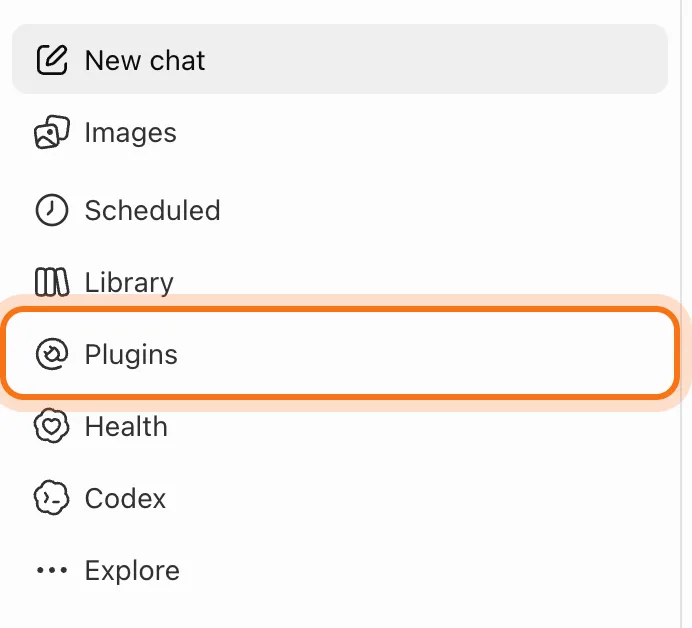
Step 1: Open Plugins
Go to chatgpt.com and sign in; a free account works. In the sidebar on the left, click "Plugins". You can also get there from Settings, under Plugins.
Step 2: Find the plugin you want
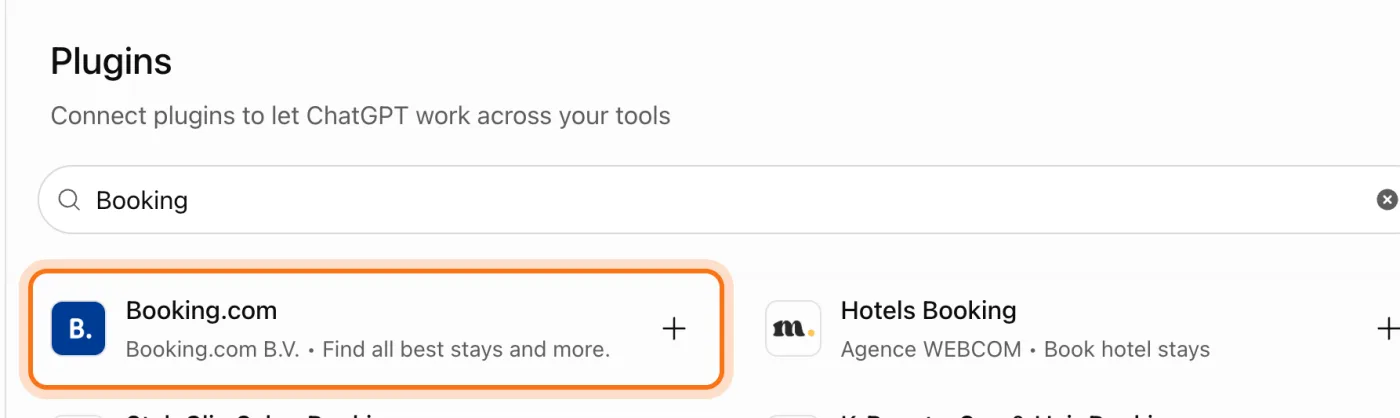
The Plugins page lists them by kind: Popular, Travel, Small Business, Productivity and more. Type the name in "Search plugins" and click it. Check the line under the name: it says who made it. Here it's Booking.com B.V., the company itself.
Step 3: Click Install plugin
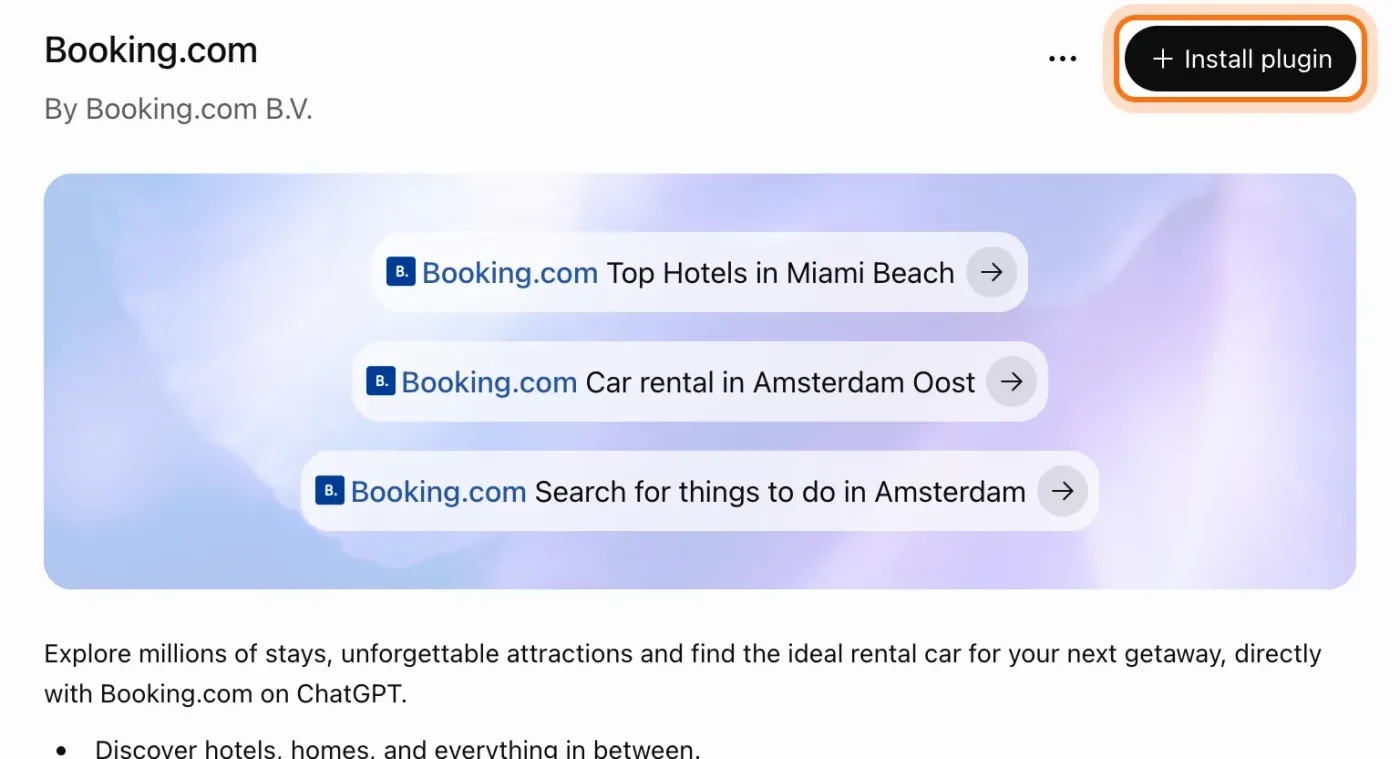
The plugin's page shows what it does and a few sample requests. Read it, then click "Install plugin" at the top right.
Step 4: Choose how to connect
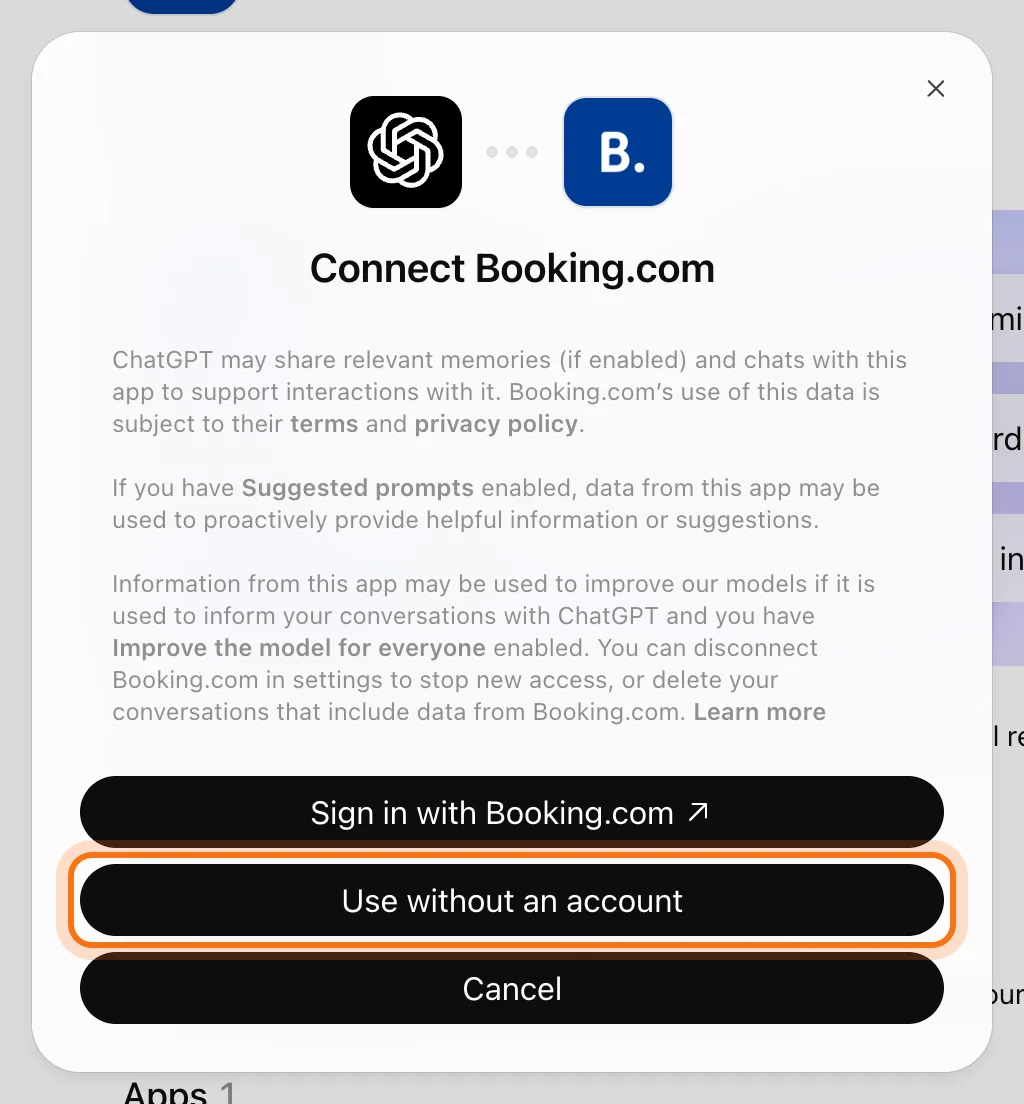
A window says what ChatGPT may share with the plugin: relevant chats, and your memories if Memory is on. Booking.com offers "Sign in with Booking.com" or "Use without an account". Dan picked "Use without an account": nothing to sign in to, and he can still search. Other plugins may ask you to sign in to your account with that service.
Step 5: Call the plugin in a chat
Start a new chat, type @ and the first letters of the plugin's name, then click it. You can also click + next to the message box and type the name. The plugin's name now sits at the start of your message. On our free account, plugins didn't show in a temporary chat, so use a normal chat.

Step 6: Ask for what you need
Write the request after the plugin's name: the place, the dates, how many people, and what matters to you. Picking a plugin may also add one of its sample requests to the box; delete it before you type yours.
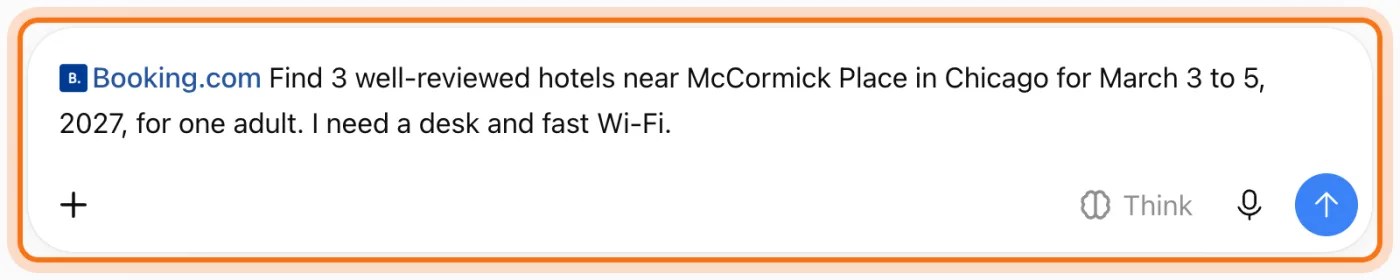
Try this prompt
Find 3 well-reviewed hotels near [place] in [city] for [dates], for [how many people]. I need [what matters to you].Step 7: See the results from the service
The line "Opened ... on Booking.com" shows the plugin was used. Under it are Booking.com's own results: a map of the hotels with prices, and cards with the rating and the number of reviews. The arrow at the right of the cards shows more hotels.
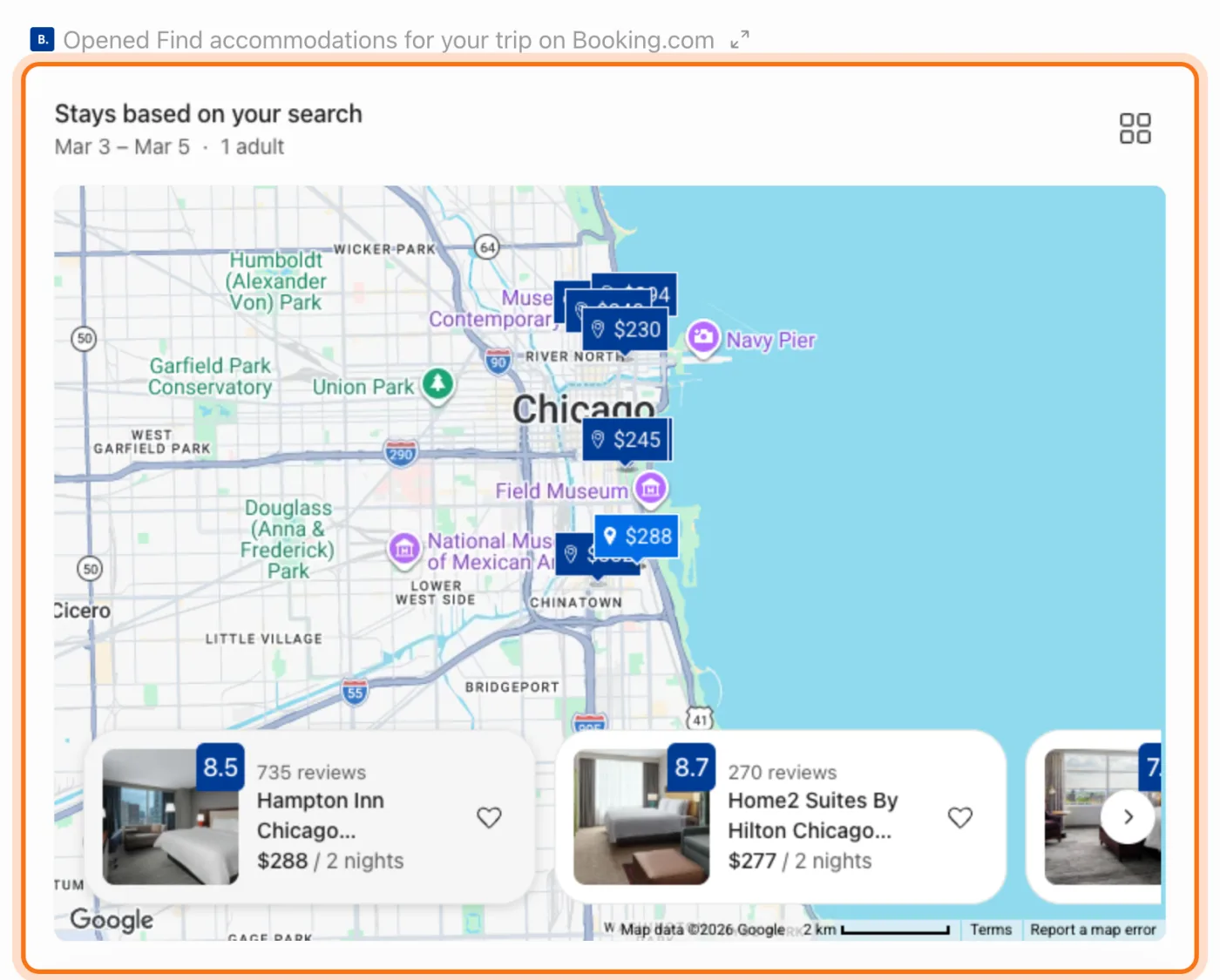
Step 8: Read ChatGPT's picks, then book on the site
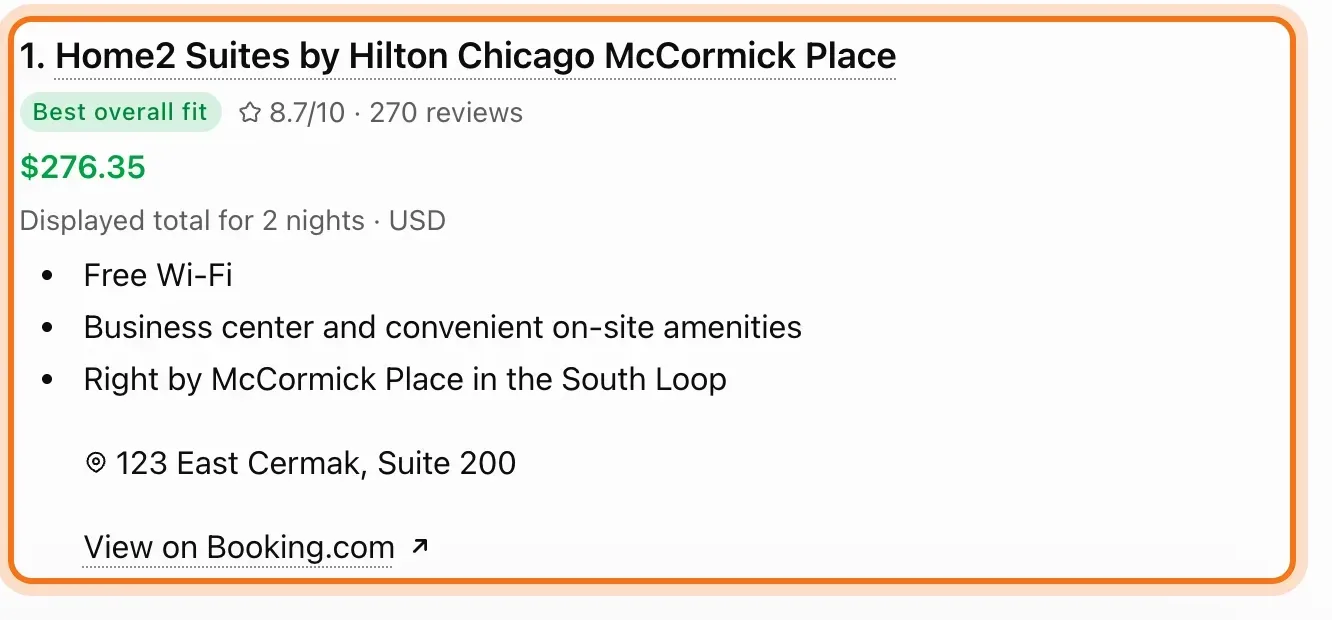
Under the cards, ChatGPT compares the hotels in its own words: why each one fits, and what to check. Here it warned that Booking.com lists Wi-Fi, but that doesn't promise a fast connection, and that not every room type has a desk. To book, click "View on Booking.com": the booking itself happens on Booking.com's site, not in ChatGPT.
Step 9: Remove a plugin you don't need
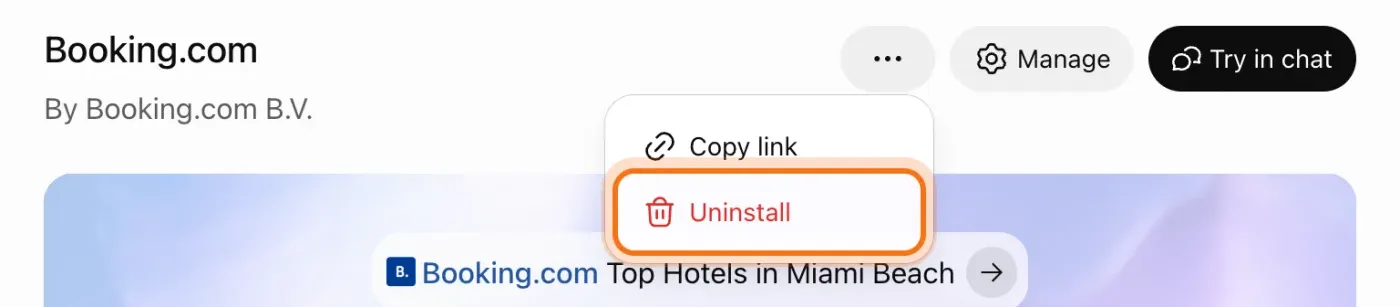
Open the plugin's page again (Plugins in the sidebar), click the three dots next to Manage, and click "Uninstall". The plugin's chats stay in your history until you delete them.
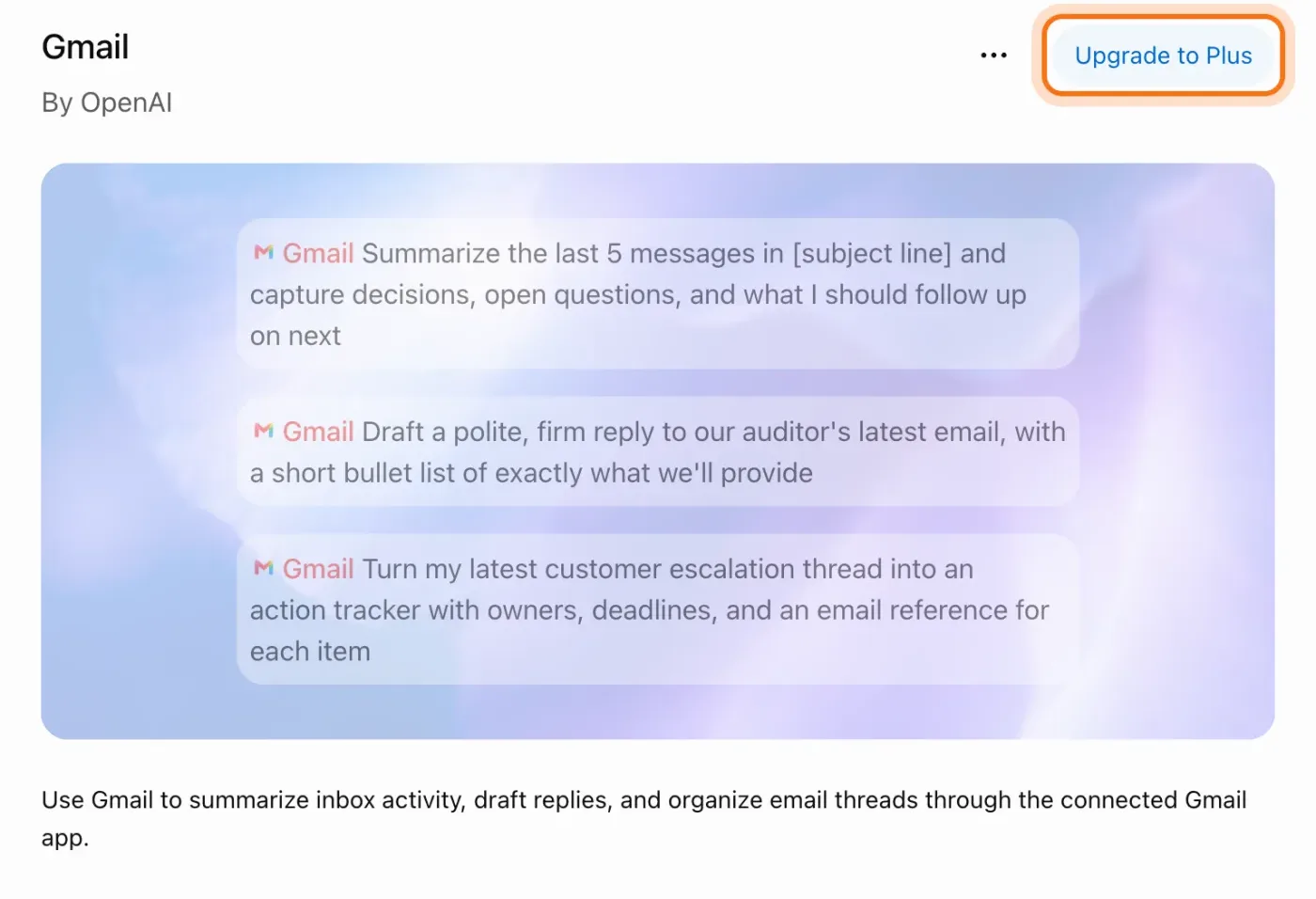
Step 10: Gmail, Google Drive and Google Calendar need Plus
The plugins for your own email, files and calendar are on the same page, but on our free account each one showed "Upgrade to Plus" instead of Install. With a paid plan, they let ChatGPT find a file, sum up an email thread or plan your day from your calendar.
Members
The rest of this guide is for members
Create a free account and every room in the academy opens for 30 days. No credit card needed.
In the rest of this guide
8 plugins to try, with prompts to copy
- Booking.com: a hotel for a work trip
- Skyscanner: flights for a trip
- Expedia: plan the whole trip
- Canva: a flyer or a post
- Adobe: fix a photo
- Dropbox: find a file
- Todoist: turn a plan into tasks
- Consensus: what research says
Settings and options worth knowing
- What a plugin can see
- When ChatGPT asks first
- See and manage what you installed
- Training
- Limits
When something goes wrong, and how to fix it
- The plugin isn't in the @ list
- The plugin says "Upgrade to Plus"
- Your message starts with a request you didn't write
- ChatGPT answered, but not from the plugin
- A detail you asked for isn't confirmed
- The price changed when you went to book
- The plugin asks you to sign in
- You're not sure what the plugin can see
Where to go next
Plugins are one way to make ChatGPT work with your other tools. These guides help with the rest.