What AI does for your posts, in one minute
You tell the AI your news and the facts, and it writes the words: a short headline for the picture and a caption to post under it. Then you put the headline on a ready-made design in Canva, download it, and post the picture with the caption. The AI writes; you check every fact and post it yourself.
Each tool does what it's good at. An AI chat writes words in your tone in seconds, and a Canva template makes the picture look designed without you designing it. Both work on a free account.
Any AI chat can write the words. The pictures use ChatGPT and Canva.
Which way to use
All of these make a good post. The difference is how much you want to do in one place.
Use ChatGPT for the words and a Canva template for the picture when
- You post a few times a week and want each post to look designed.
- You want the words in your own tone, with only the facts you give.
- You want the same news in different words for Instagram and Facebook.
Another way fits better when
All in Canva, with Canva AI: You want one tool to write and design. Canva AI can start a social media post from a request; on a free account, AI uses are limited each month.
Read the guideA new picture made by AI: You need a picture you don't have, like an illustration of your product, not a layout with your words.
Read the guide
Your first post, in seven steps
A real example: Dan runs a small bike shop and now fixes flat tires while you wait. The pictures use ChatGPT, in a temporary chat, and Canva, both on free accounts.
Step 1: Open ChatGPT and start a temporary chat
Go to chatgpt.com and sign in; a free account works. Click the "Temporary chat" icon at the top right. ChatGPT says temporary chats don't appear in your chat history and aren't used to improve its models.
Step 2: Give the news and ask for two parts
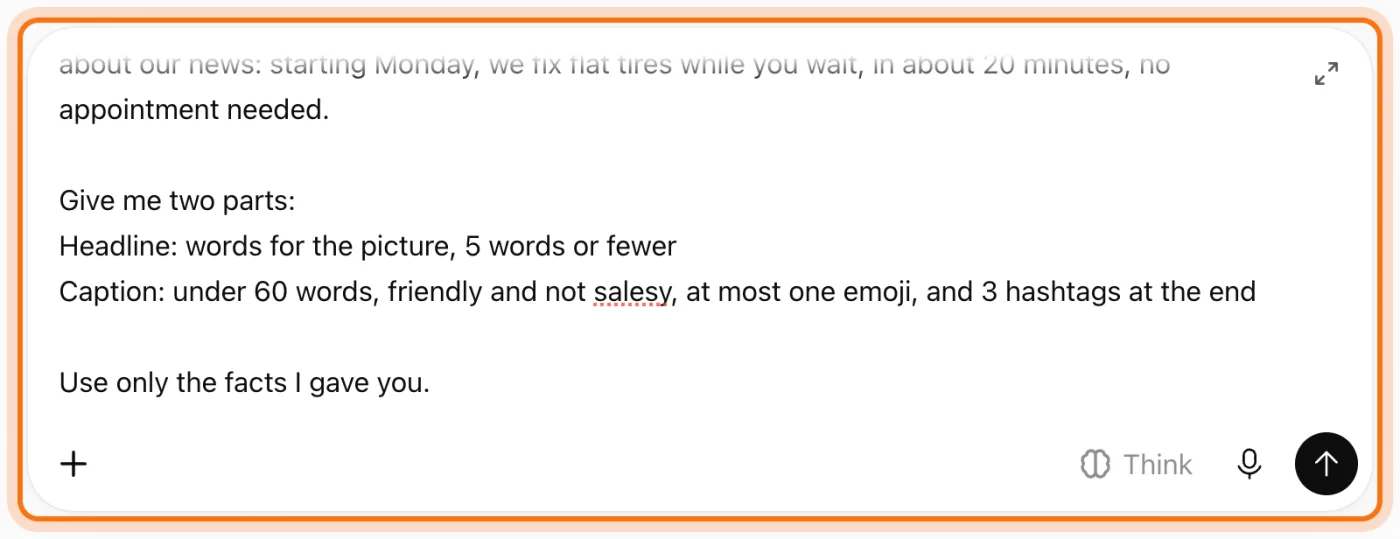
Write who the post is for and the facts: what's new, when it starts, and anything people need to know. Ask for two parts: a headline of 5 words or fewer for the picture, and a caption with a word limit, a tone and hashtags. End with "Use only the facts I gave you", so the AI doesn't add a price or a date you never said.
Try this prompt
You write social media posts for [business], a [kind of business]. Write an Instagram post about our news: [the news, with the day it starts and the details]. Give me two parts: Headline: words for the picture, 5 words or fewer. Caption: under 60 words, friendly and not salesy, at most one emoji, and 3 hashtags at the end. Use only the facts I gave you.Step 3: Read the headline and the caption
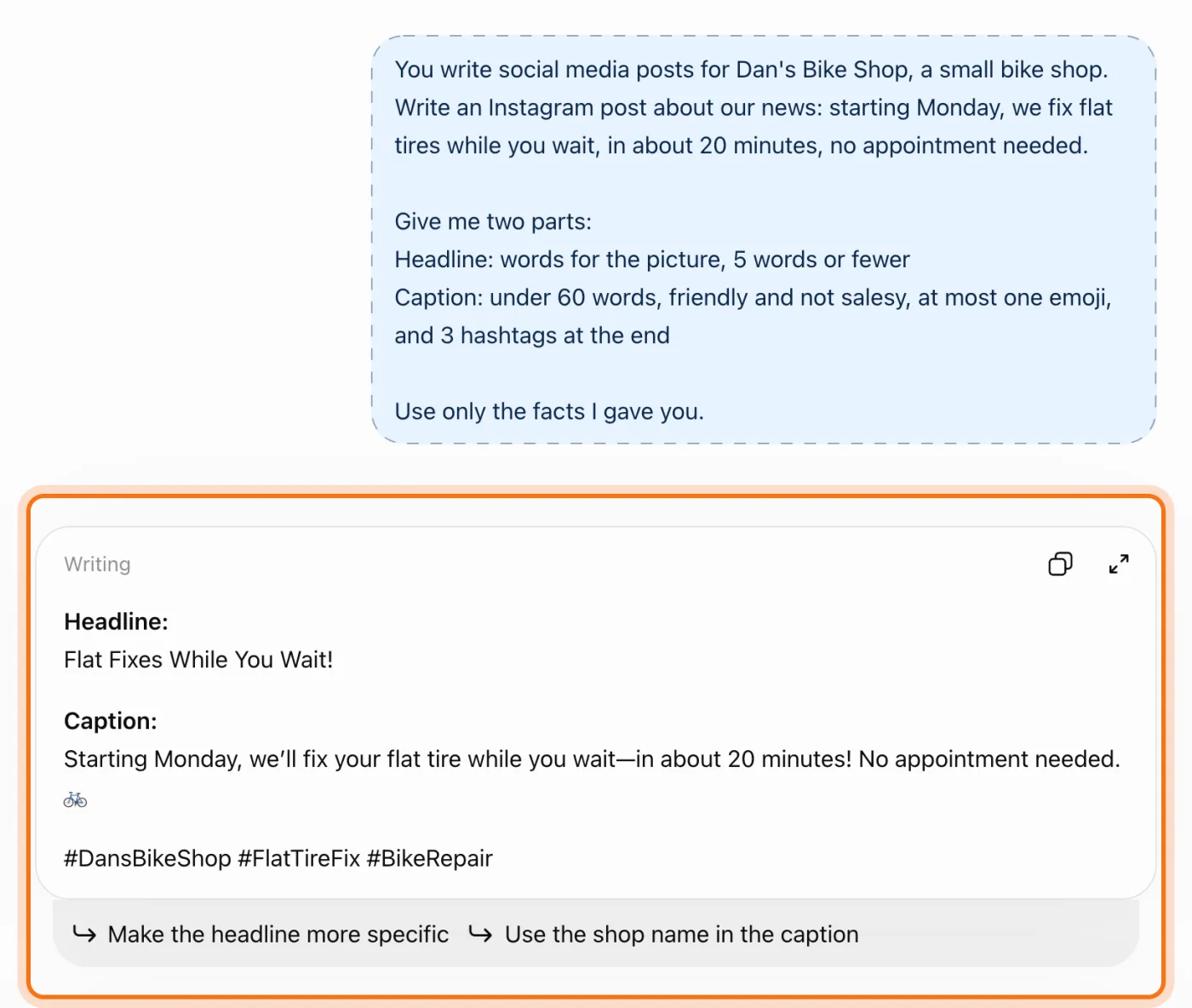
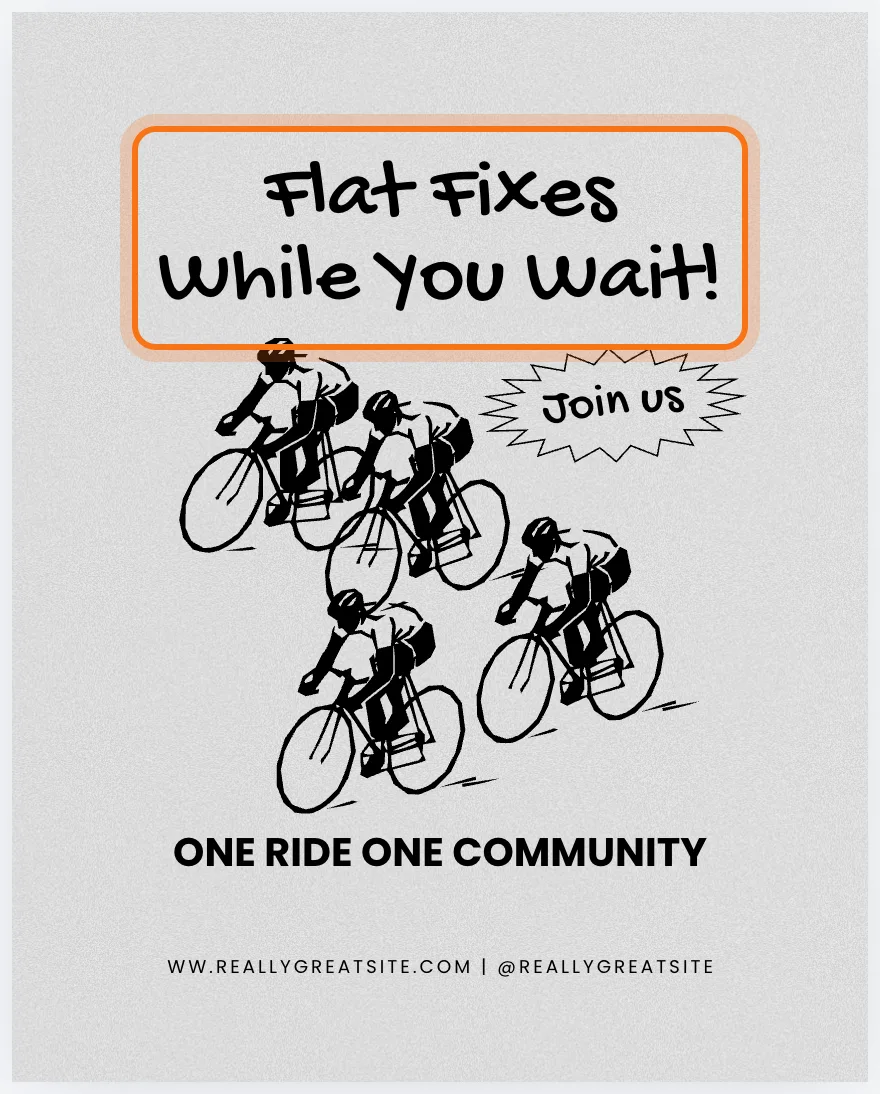
ChatGPT gave the headline "Flat Fixes While You Wait!" and a caption of about 20 words, with one emoji and the 3 hashtags. It kept to the facts: Monday, about 20 minutes, no appointment. Read it as if you were the customer. If a word isn't yours, say what to change in the same chat.
Step 4: Ask for a version for each place
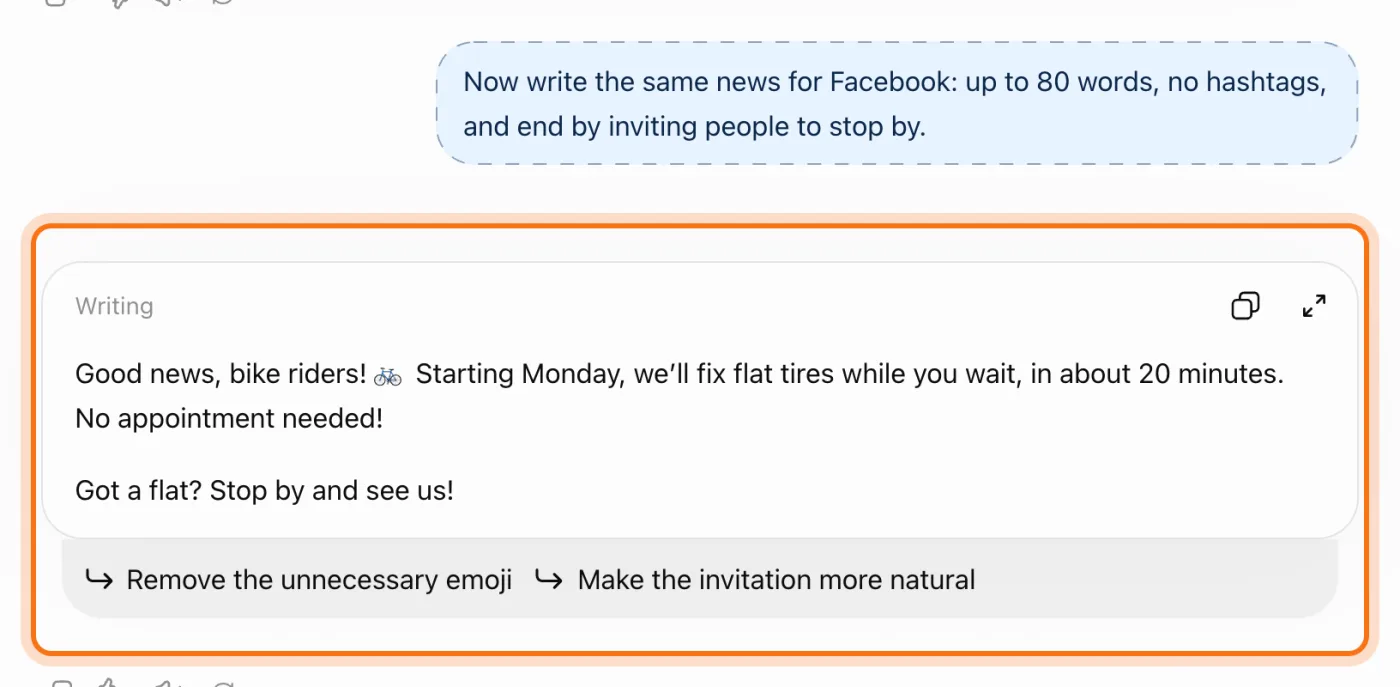
People read Facebook differently from Instagram, so ask for a version in the same chat: a word limit, no hashtags, and what you want people to do. ChatGPT kept the same facts and ended with "Stop by and see us!". The headline stays the same for both, so you make one picture.
Try this prompt
Now write the same news for Facebook: up to 80 words, no hashtags, and end by inviting people to [what you want them to do].Step 5: Find a template in Canva
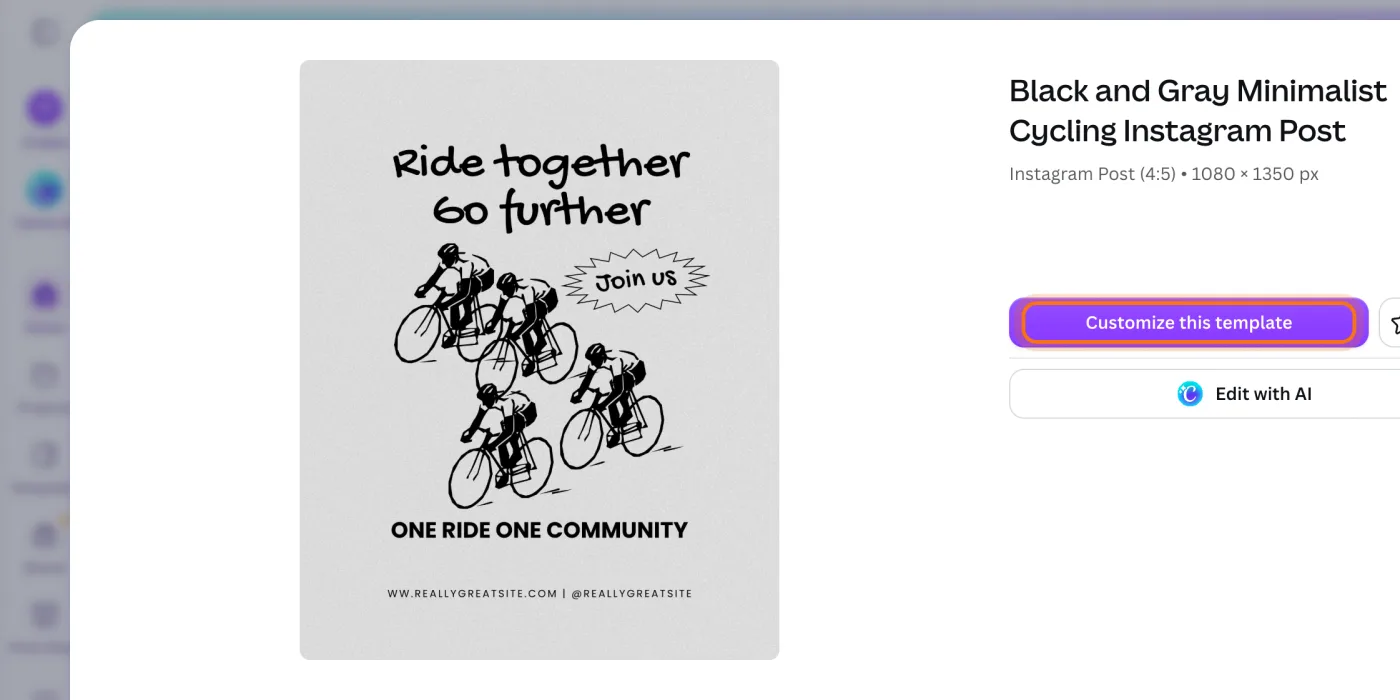
Go to canva.com and sign in; a free account works. Search for the kind of post and what you do, like "bike shop instagram post", and click a template you like. Under its name Canva shows the size, here "Instagram Post (4:5)". Pick one without a crown, then click "Customize this template". Canva opens it as your own design.
Step 6: Put the headline on the picture
Double-click the template's big text, select it all, and type your headline. If it runs onto the picture, lower the font size in the toolbar at the top, or drag a corner of the text box. The other words, like the made-up website at the bottom, are sample text: click each one and type yours, or delete it.
Step 7: Download it and post it with the caption
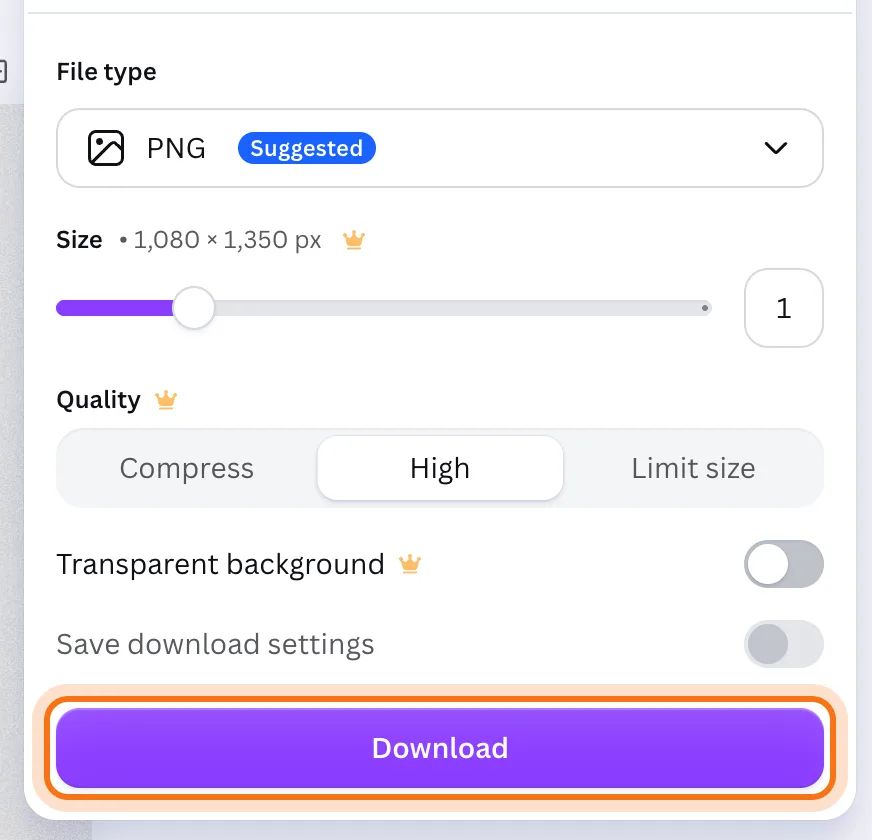
Click "Share", then "Download". PNG is the suggested file type and the size is the post's own, 1,080 × 1,350. Click "Download" and the picture goes to your computer. Options with a crown are for paid plans; you don't need them. Then post the picture on Instagram or Facebook yourself and paste the caption under it.
Members
The rest of this guide is for members
Create a free account and every room in the academy opens for 30 days. No credit card needed.
In the rest of this guide
8 posts a small business needs, with prompts to copy
- Something new: a product, a service, new hours
- An event or a sale
- A week of posts at once
- A useful tip for your customers
- A thank-you for a great review
- Meet the team
- Holiday hours or a closure
- The same news for three places
Settings and options worth knowing
- Make the words sound like you
- Add your logo and photos
- Start from the right size
- Send it to your phone, or share a link
- Canva AI
- Your design is saved
When something goes wrong, and how to fix it
- The caption sounds like an ad
- It adds facts you didn't give
- The headline doesn't fit the picture
- The template still shows sample text
- Something has a crown, or Canva offers a free trial
- Every post starts the same way
- The hashtags look random or too long
- You're not sure you can use a photo or a name
Where to go next
Posts are one part of talking with customers. These guides help with the rest.