What a scheduled task is, in one minute
A scheduled task is a request ChatGPT runs again on its own, on a schedule you choose: a reminder, a weekly list of ideas, a daily roundup of news on a topic. You ask once, and the answer comes back by itself, in the same chat.
It works on a free account. On ours (checked 10/19), "Scheduled" was in the sidebar and a task was ready in under a minute. OpenAI says Free allows up to 3 active tasks, each running at most once a day, in a time window like Morning or Night. An exact time, or a task that runs every hour, needs a paid plan.
Tasks don't work in a temporary chat: there, ChatGPT told us it can't schedule anything from that chat. OpenAI says they don't work in voice chats or in GPTs either.
Which way to use
A scheduled task is worth it when you'd ask ChatGPT the same thing again and again. Other guides cover the jobs around it.
Use a scheduled task when
- You ask ChatGPT for the same kind of thing every week, like post ideas or a plan.
- You want a reminder, once or on repeat, with a short note on what to do.
- You want to follow a topic, like news in your industry, without searching for it yourself.
Use something else when
Connect apps so things happen on their own: You want a new email or form to start a job in another app, like adding a row to a sheet. That's Zapier or Make.
Read the guideMake the post itself: You have the idea, and now you need the caption and the picture, ready to publish.
Read the guide
Your first scheduled task, step by step
A real example: Dan, who runs a small bike repair shop, wants 3 Instagram post ideas every Monday morning, without asking for them each week. The pictures use ChatGPT on a free account, on a computer.
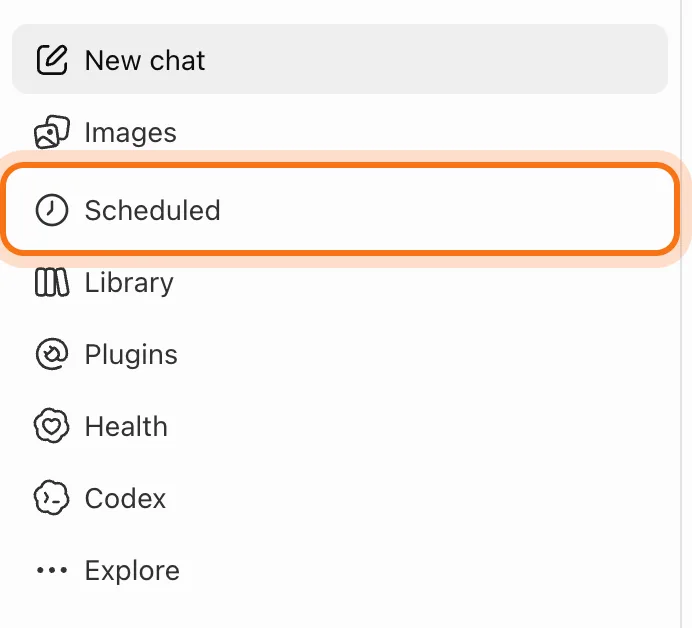
Step 1: Open Scheduled
Go to chatgpt.com and sign in; a free account works. In the sidebar on the left, click "Scheduled".
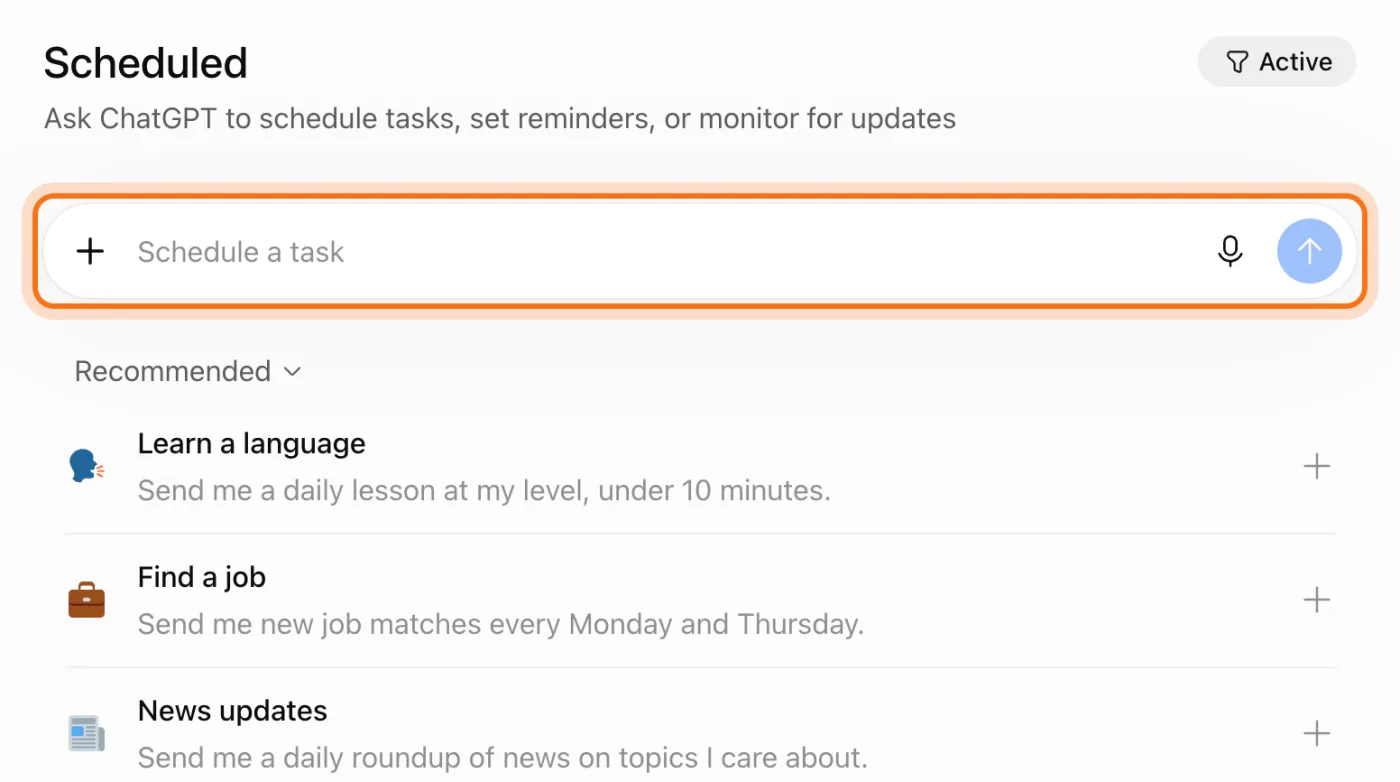
Step 2: Find the box at the top
The Scheduled page has its own message box, "Schedule a task". Under it, Recommended lists ready ideas, like a daily language lesson or new job matches twice a week, if you want somewhere to start.
Step 3: Say what you want, and when
Write it like a normal message: what ChatGPT should send you, how often, and the part of the day. Add who it's for, so the answer fits. Then press Enter.
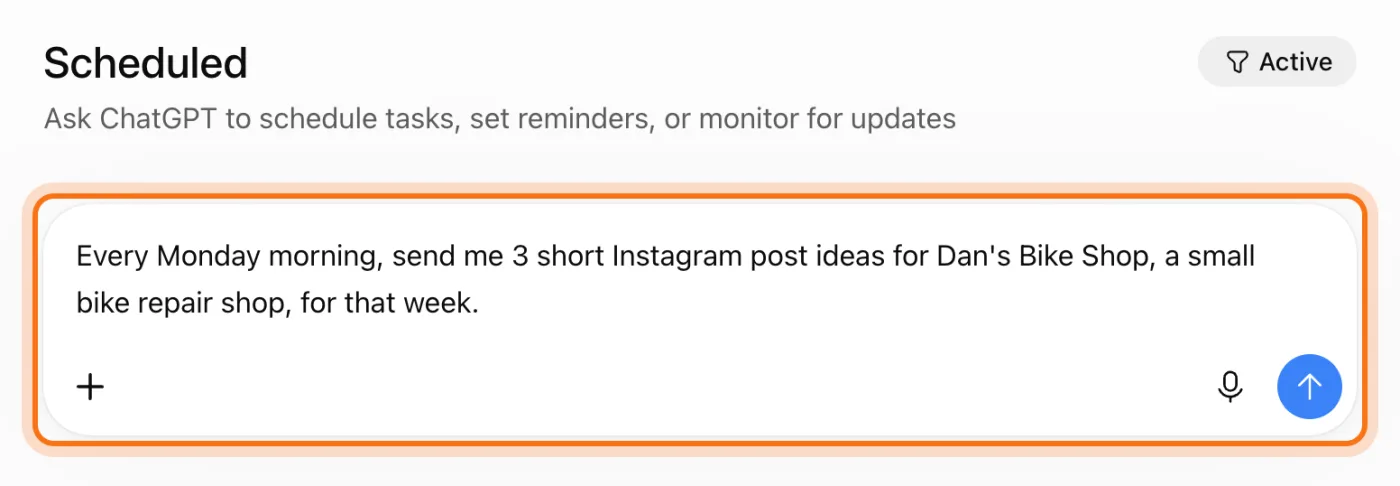
Try this prompt
Every [day] [morning, afternoon or evening], send me [what you want] for [your business], a [kind of business].Step 4: Check the card under the answer
ChatGPT opens a chat and answers. In our tries it also wrote a first set of ideas right away. Under the answer, a card shows the task's name, which ChatGPT picks, and its schedule. Here the card said "Mondays at 8:00 AM", but on a free account the time is a window: the task's own settings said Morning.
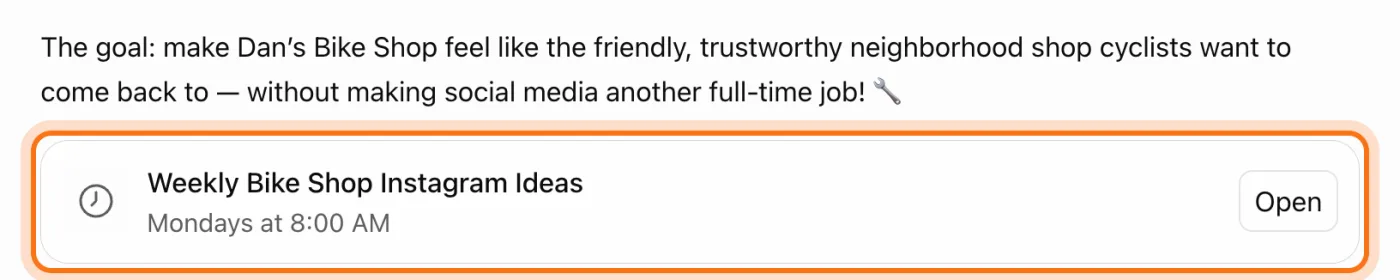
Step 5: Open the task and read its instructions
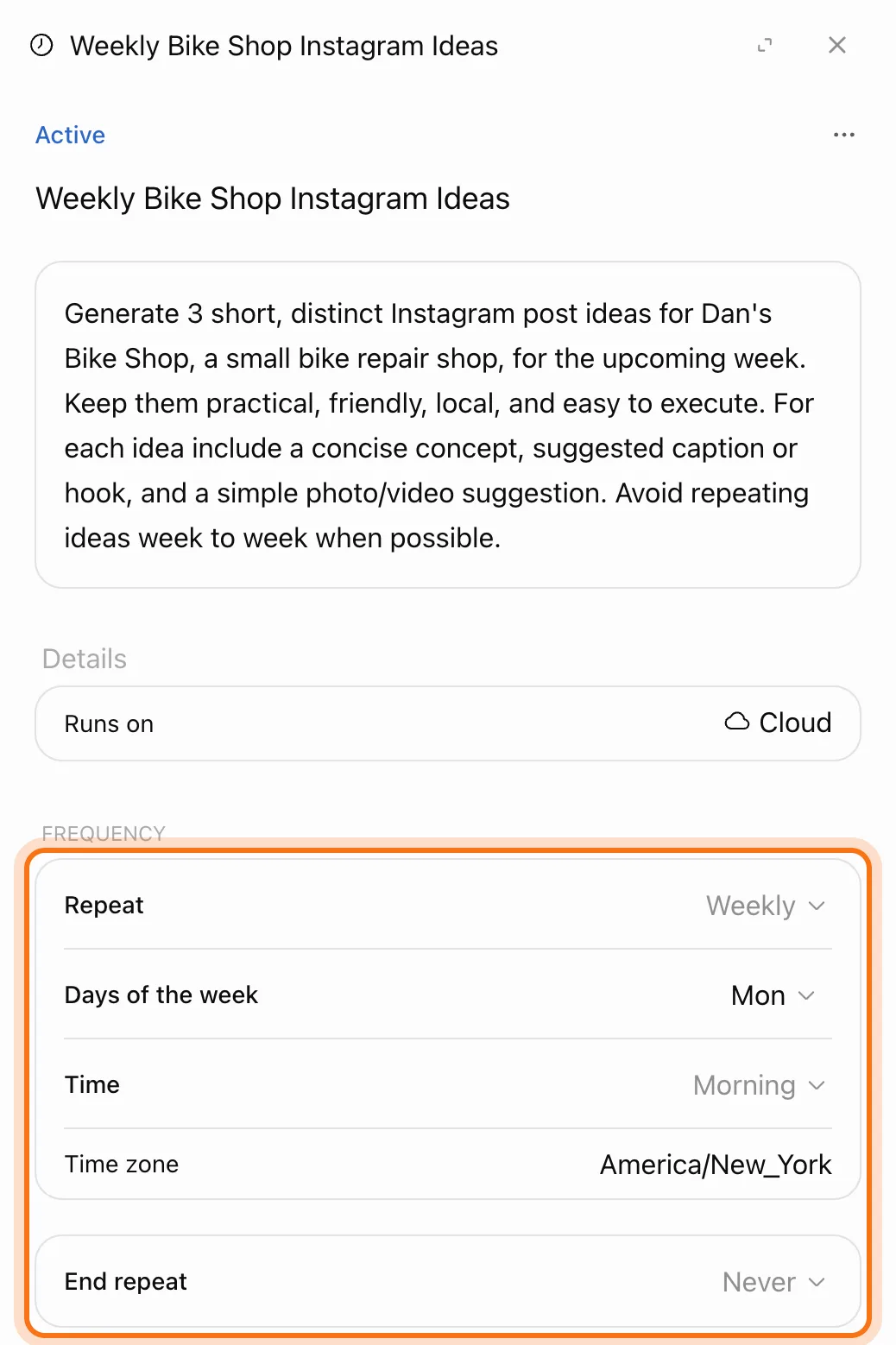
Click "Open" on the card. A panel opens at the right. The box at the top is what ChatGPT will do each time, in its own words, written from your message. Read it once. Under Frequency are the schedule settings: Repeat, Days of the week, Time and End repeat.
Step 6: See it on the Scheduled page
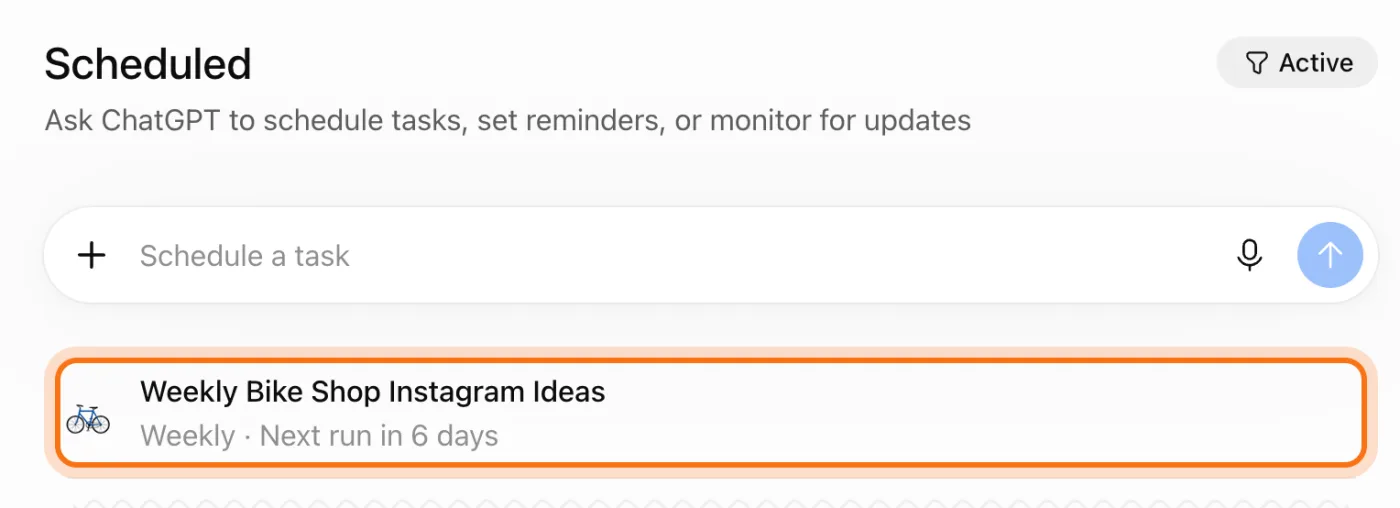
Back on Scheduled, the task is in the list, with how often it runs and when it runs next. Every task you make lands here, so this is the one place to check them all.
Step 7: Change when it runs
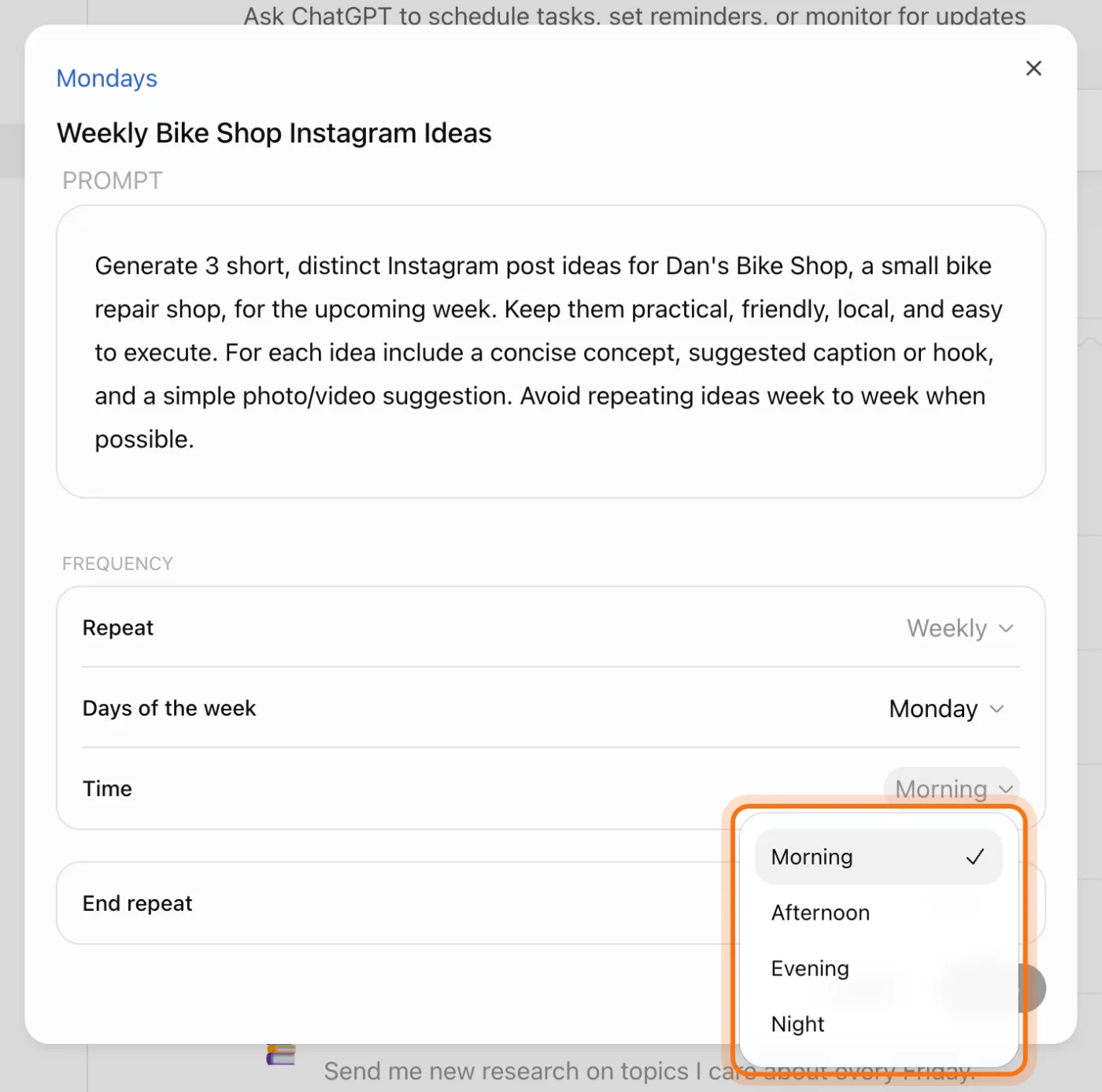
Hold the mouse over the task and click the pencil. In the window, Repeat can be Daily, Weekdays, Weekly or Monthly. On a free account, Time is Morning, Afternoon, Evening or Night, not an exact hour. End repeat is Never or a date. Click Save when you're done.
Step 8: Run it now, share it or pause it
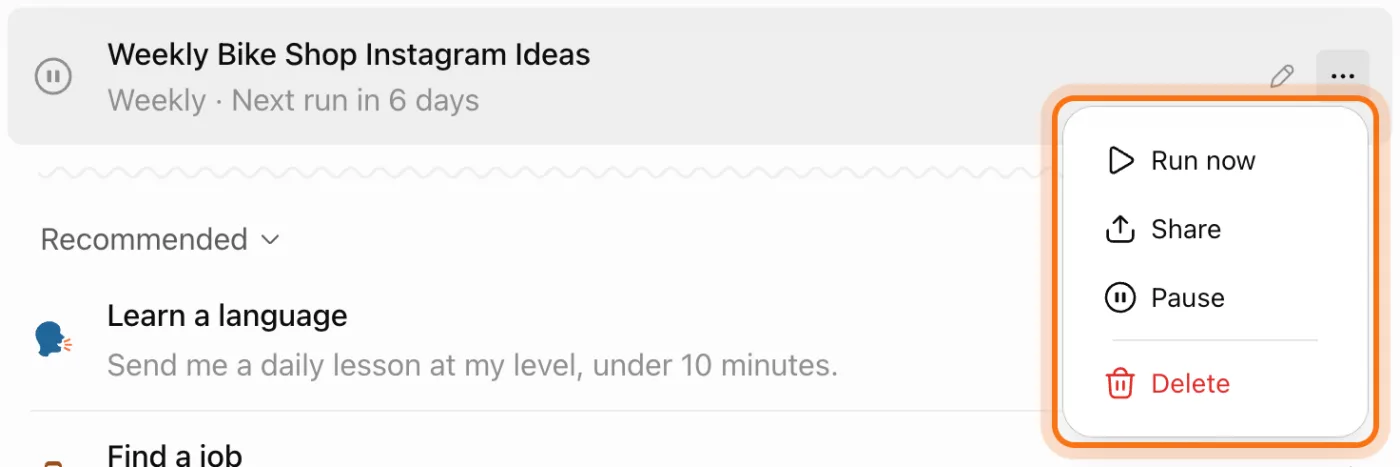
Click the three dots next to the task. "Run now" runs it right away, so you don't wait for the next run. "Share" makes a link someone else can use to make their own copy. "Pause" stops it without losing it; a paused task gets a Resume button to start it again.
Step 9: Choose how you hear about it
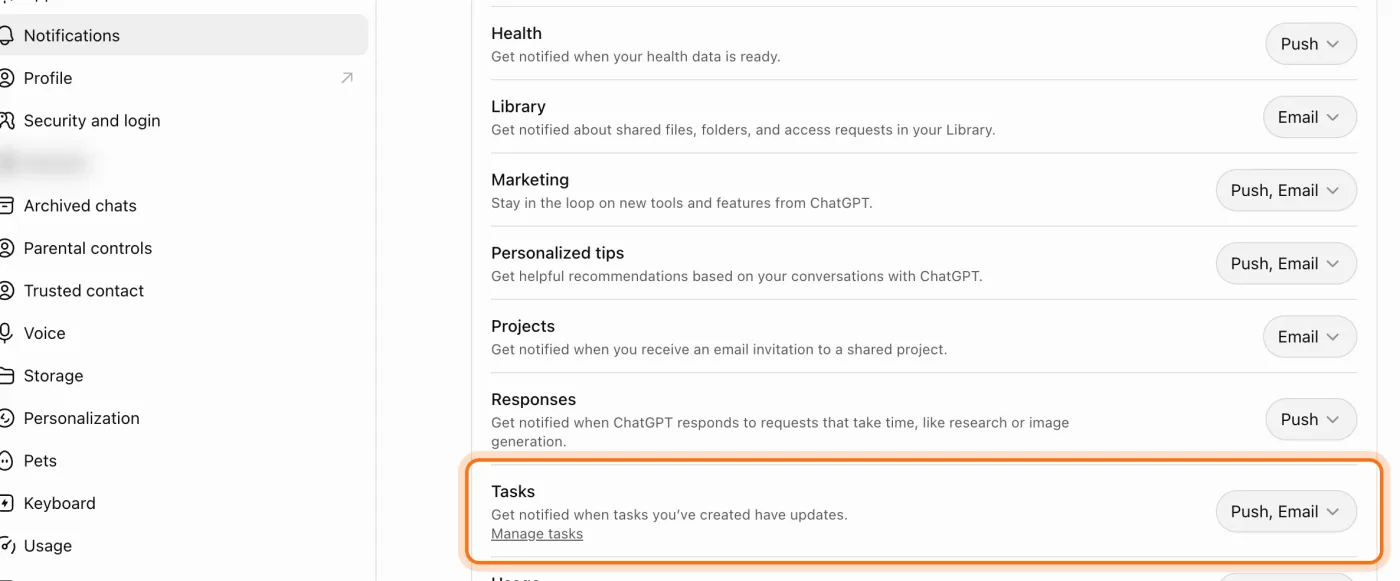
Click your name at the bottom left, then Settings, then Notifications. Next to Tasks, choose Push, Email, or both. On our account it was already on both. "Manage tasks" under it takes you back to Scheduled.
Step 10: Delete a task you don't need
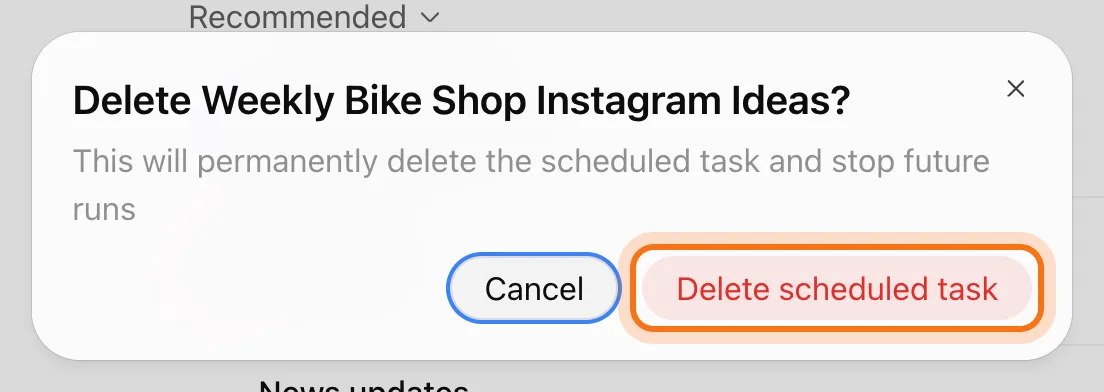
Click the three dots next to the task, then "Delete", then "Delete scheduled task". It stops for good. The chat it came from stays in your history; delete that on its own if you want.
Members
The rest of this guide is for members
Create a free account and every room in the academy opens for 30 days. No credit card needed.
In the rest of this guide
8 tasks to set up, with prompts to copy
- Post ideas every week
- A short news roundup on your field
- Keep an eye on competitors
- A one-time reminder
- A monthly to-do
- Holidays and local events coming up
- A little learning every day
- One idea to bring customers back
Settings and limits worth knowing
- How many tasks you can have
- How often, and at what time
- Notifications on your phone
- What a shared task includes
- Why a task may pause by itself
- Tasks inside a project
- Tasks that start from an email or a message
When something goes wrong, and how to fix it
- ChatGPT answered, but no task was made
- You can't pick an exact time
- ChatGPT won't make another task
- A task says Paused, and you didn't pause it
- The task ran, but nothing told you
- The task isn't quite what you asked for
- A task won't start from a voice chat or a GPT
- A result has a mistake in it
Where to go next
A scheduled task brings the idea to you. These guides help you do something with it.