What automation tools do, in one minute
Zapier and Make connect the apps you already use, so a repeating job happens on its own: when something happens in one app, they do something in another. For example, when an email with an attachment arrives in Gmail, save the attachment to Google Drive.
Both now have an AI helper that drafts the automation from one sentence: Copilot in Zapier, Maia in Make. It picks the apps and the steps; you check them, connect your accounts, test, and decide when it runs.
Both start free: Zapier's help says its free plan gives 100 tasks a month for automations with one trigger and one action, and Make's pricing page says its free plan gives 1,000 credits a month. We made free accounts with "Sign up with Google" for the pictures in this guide, on a computer, and connected no apps.
When an automation tool fits, and when something else does
An automation is a rule that runs every time, without you. If the job happens once, an AI chat is usually enough.
Pick Zapier or Make when
- The same small job happens again and again: copying, saving, notifying, adding a row.
- The job moves information between two apps you already use, like Gmail, Google Drive, Sheets or a form.
- You'd like the AI to draft the steps, and you'll check them before anything runs.
Look at another tool when
An AI chat: You need something written, sorted or summarized once, not every time it happens.
Read the guideClaude Cowork: You want an AI to do a longer job with files on your computer, while you watch.
Read the guide
Your first automation in Zapier, in five steps
Here's the whole loop, from one sentence to an automation that's ready to test. The example: save every email attachment from Gmail to a folder in Google Drive.
Step 1: Open zapier.com and sign up
Go to zapier.com and click "Sign up". Choose "Sign up with Google" or an email. After a few questions about your role and your company, you land on "What would you like to automate?" with the Copilot box. A new account also gets a 14-day trial of the paid features; it ends by itself.
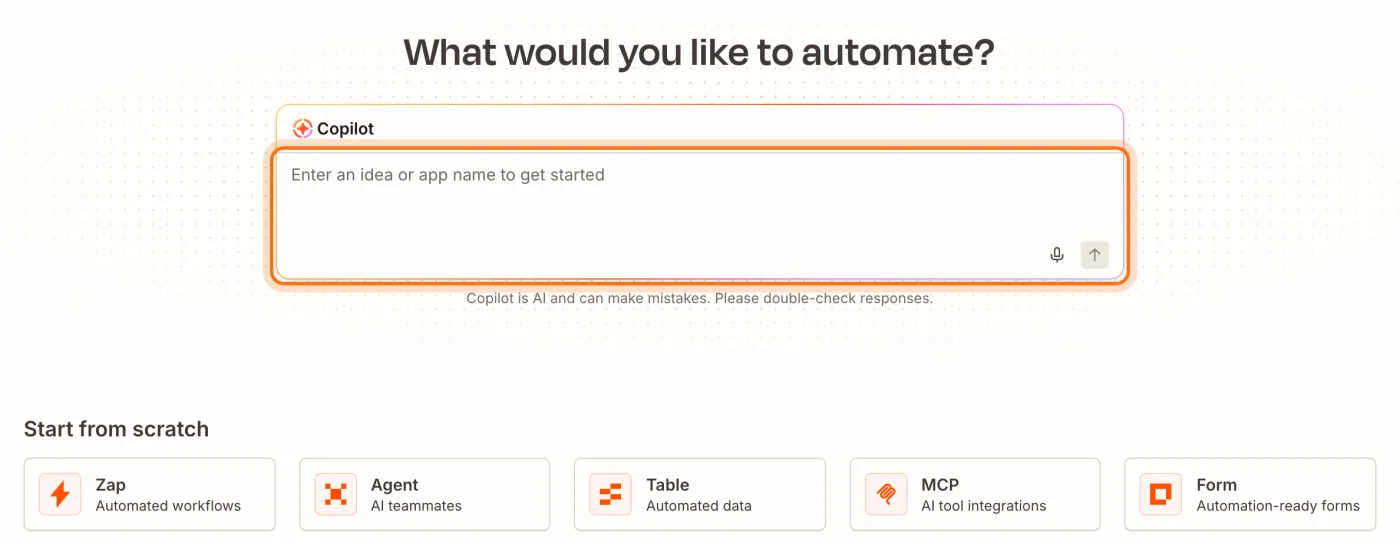
Step 2: Describe the job in one sentence
Say when it should happen and what should happen then, and name both apps. Press Enter or click the arrow.
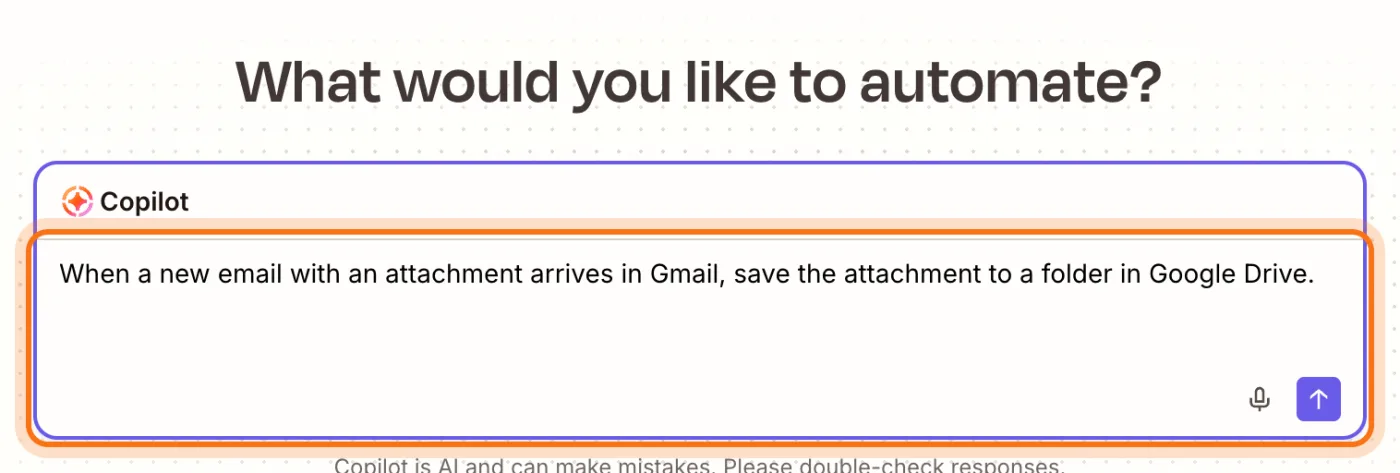
The example in the picture: when a new email with an attachment arrives in Gmail, save the attachment to a folder in Google Drive.
Try this prompt
When [something happens] in [app], [do something] in [other app].Step 3: Check the steps Copilot drafts
In a few seconds Copilot shows the automation, called a Zap: a trigger (here Gmail, "New Attachment") and an action (Google Drive, "Upload File"). Read them: is that the right app, and the right event? "Swap app" changes one. Then click "Continue with Zap Editor".
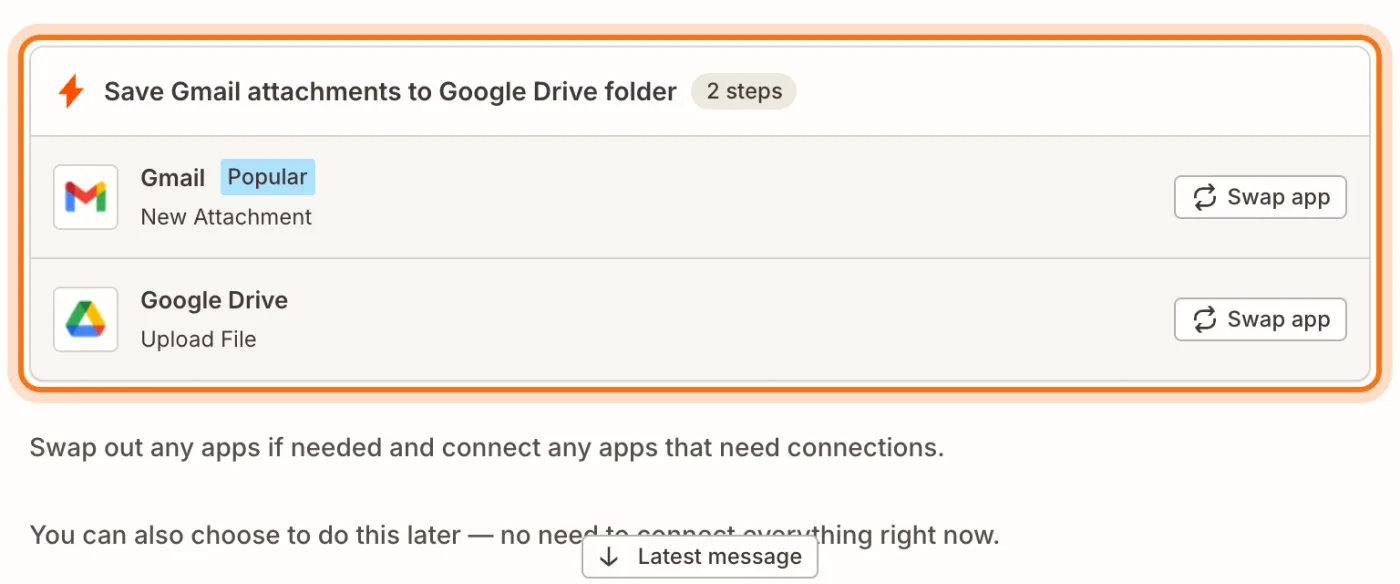
Step 4: See the Zap in the editor
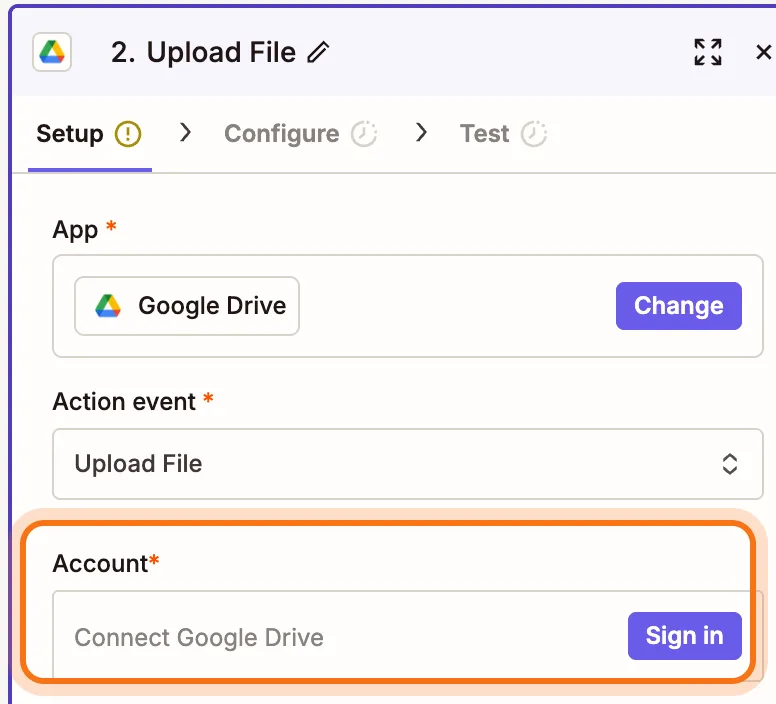
The editor shows the Zap as a draft, one card per step: "1. New Attachment" and "2. Upload File". A yellow mark on a step means it still needs something from you, usually an account. Nothing runs while it's a draft.
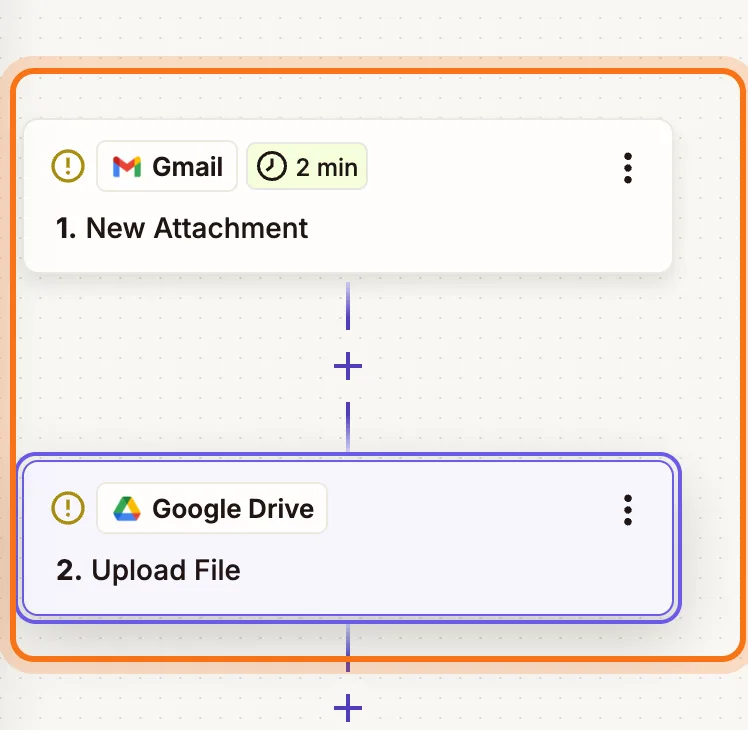
Step 5: Connect your accounts, then test
Click a step. Under "Account", "Sign in" connects that app to Zapier; you choose what it may do. Then set the details, like which folder, and use "Test" to try the step with a real example before you publish.
Members
The rest of this guide is for members
Create a free account and every room in the academy opens for 30 days. No credit card needed.
In the rest of this guide
8 real jobs to automate, with sentences to copy
- Save email attachments to a folder
- Put every form answer in a spreadsheet
- Get told about a new lead right away
- Send a thank-you after a purchase
- Summarize long emails with AI
- Add bookings to your calendar
- Turn starred emails into tasks
- A weekly reminder with a list
Buttons and settings worth knowing
- Test run, then Publish
- The same job in Make: Maia writes a plan
- Make shows the scenario as a picture
- Make asks for each connection
- What the free plans include
When an automation goes wrong, and how to fix it
- The AI picked the wrong app or the wrong event
- Nothing happens
- It runs on more than you wanted
- You're afraid it will send something wrong
- You run out of tasks or credits
- A Zap stopped working after two weeks
- A step says it can't connect
- You're not sure what's safe to connect
Where to go next
Clear requests and careful checking matter even more when a job runs on its own.