What "Try on" does, in one minute
When you ask ChatGPT to show you a piece of clothing, it answers with product cards: a photo, the name, the store. Open one, click "Try on", and ChatGPT makes a picture of you wearing that exact item, from a photo of your face and a full-length photo of you. The first time takes a few clicks. After that, your photos are saved, and each new item is one click.
It works on a free account. On ours (checked 10/22), the button was there for clothes, also in a Temporary chat. Each try-on is a picture made with ChatGPT Images, so it counts toward the free account's image limit.
It shows the look, not the size. OpenAI says the picture may not show the item or you exactly, and does not promise how it will fit. Use it to decide what you like, then check the store's size chart and return policy before you buy.
Which way to use
"Try on" is for things you're about to buy online. For a photo you already have, or a picture made up from scratch, there are better tools.
Use "Try on" when
- You're shopping online for clothes or accessories, and want to see how it looks on you, not on the model.
- You're torn between two or three items, or two colors, and want to see them side by side on you.
- You want to rule out what doesn't suit you before you order, and save a return.
Use something else when
Change a photo you already have: You have a photo and want to fix it, change the background or remove something. That's editing a photo.
Read the guideMake a picture from words: You want a new picture of anything, not a real product on you. Describe it and ChatGPT draws it.
Read the guide
Your first try-on, step by step
A real example: a men's rain jacket for spring walks. The pictures use ChatGPT on a free account, on a computer, in a Temporary chat. The "you" is a free stock photo of a model (from Pexels), not a real customer. We blurred every price. Nothing was bought. On the day we made this guide (10/22) the free account had used up its pictures, so the two pictures of the try-on itself are from our earlier test of the same account (10/06), with a navy blazer.
Step 1: Ask for the item
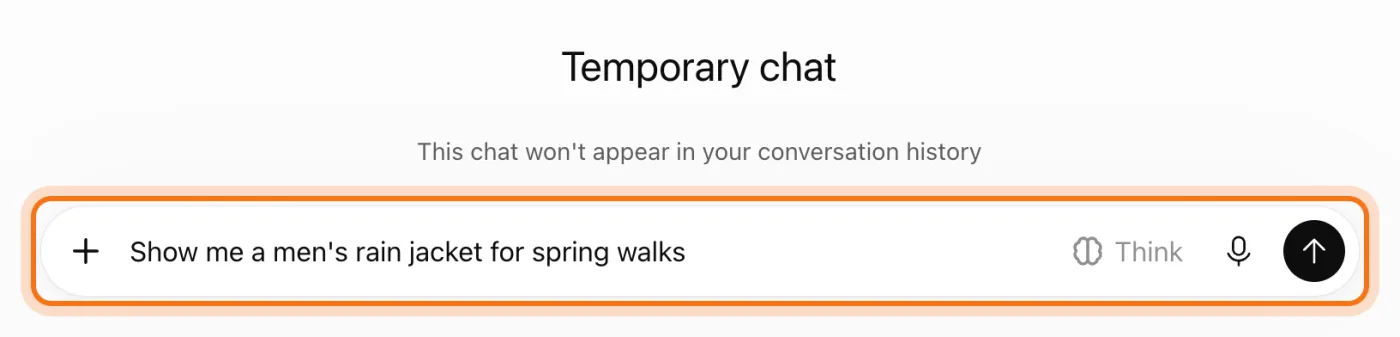
Go to chatgpt.com and sign in; a free account works. Type what you're looking for, the way you'd ask a friend in a store: "Show me a men's rain jacket for spring walks". Say men's or women's, and what it's for. Then press Enter. We used a Temporary chat (the "Temporary chat" button at the top right), so the chat doesn't stay in the history.
Step 2: Click the name of an item you like
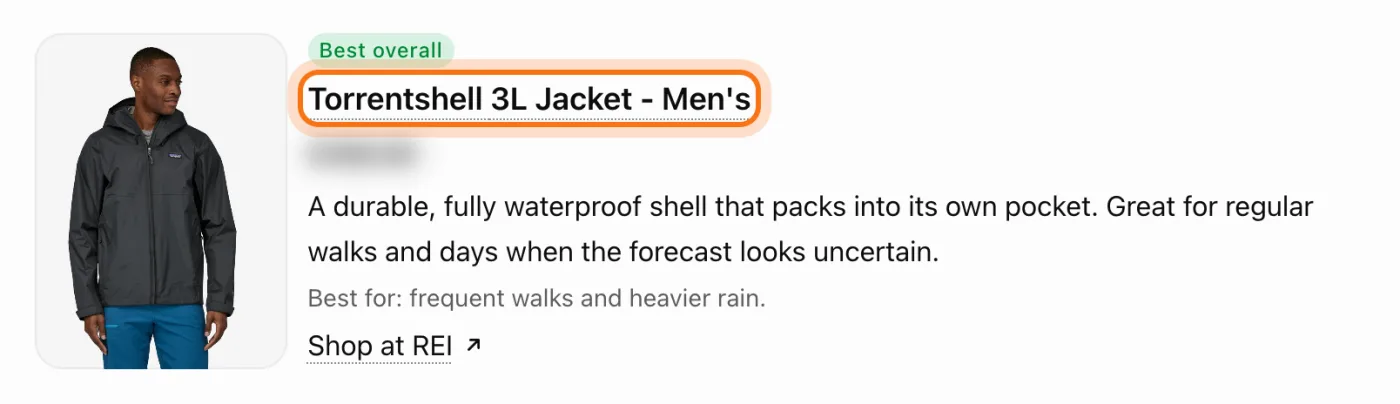
ChatGPT answers with a few product cards: a photo, the name, a short note, the rating and the store. Click the item's name (it's underlined), not "Shop at": "Shop at" takes you to the store's site. In our test, holding the mouse over the photo did not show "Try on". The name is the way in.
Step 3: Click "Try on"
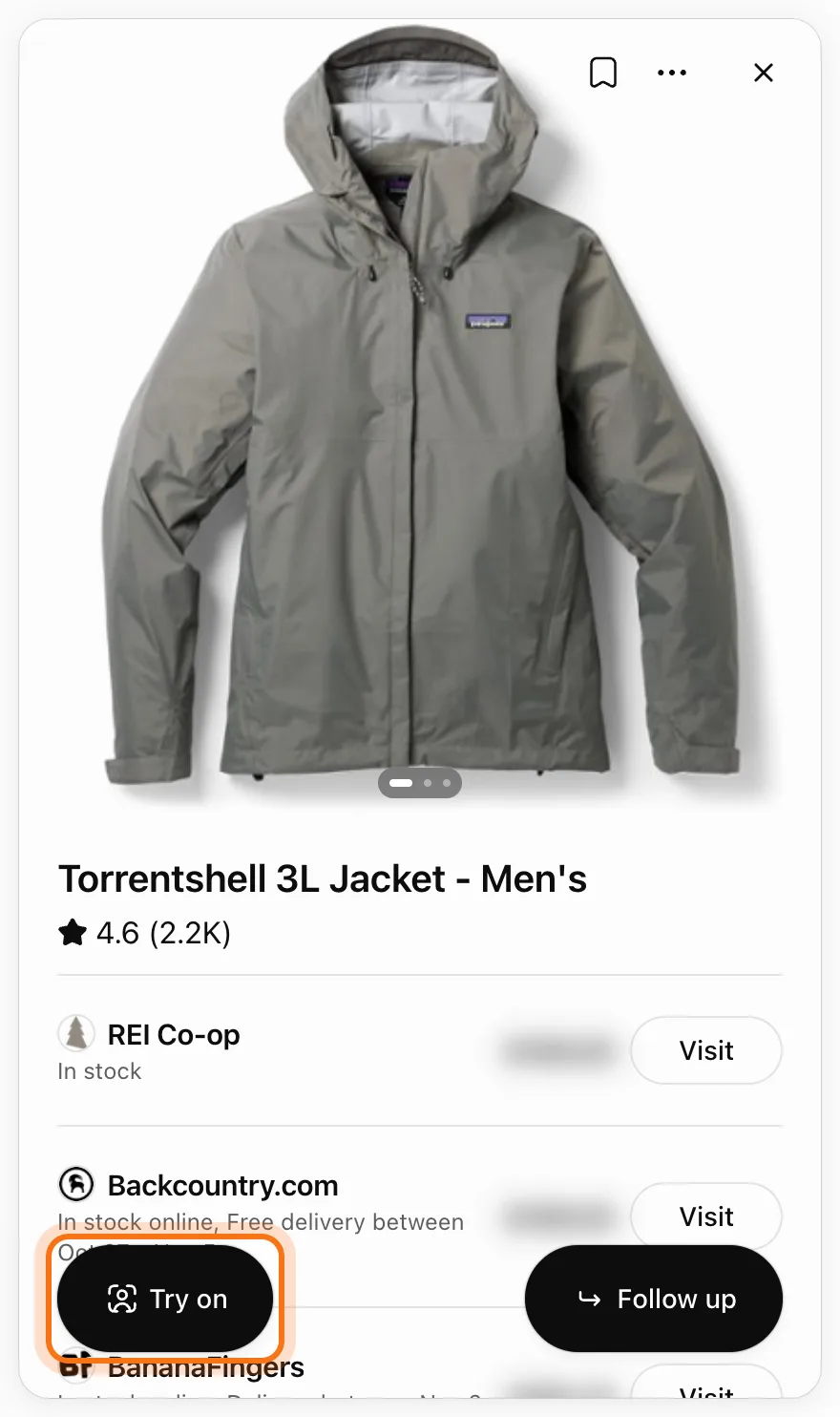
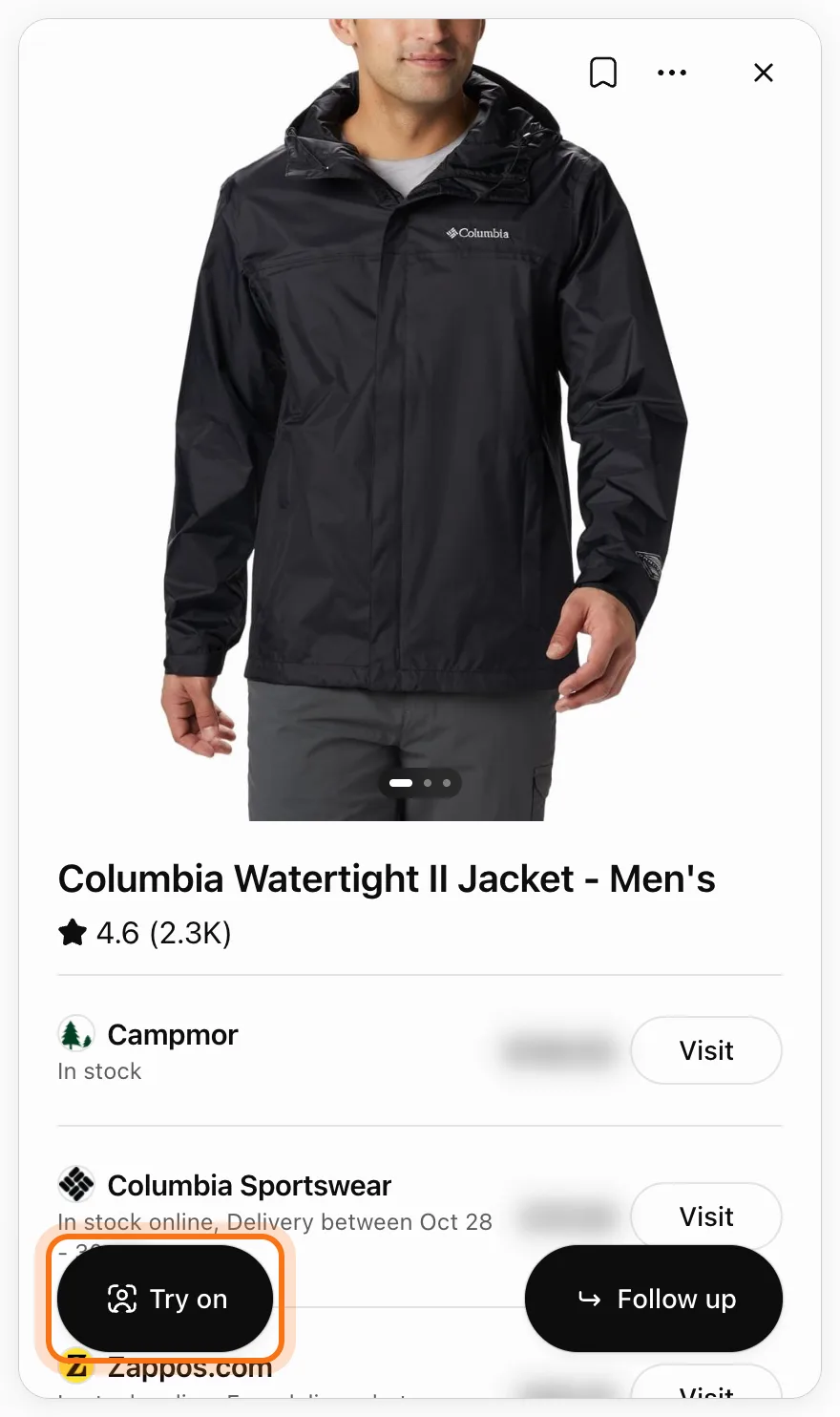
A panel opens on the right with the item: more photos, the stores that sell it, and "What to know", a summary of reviews. At the bottom are two black buttons. Click "Try on". ("Follow up" is for questions about the item, like "Is it warm enough for March?")
Step 4: Add a photo of your face
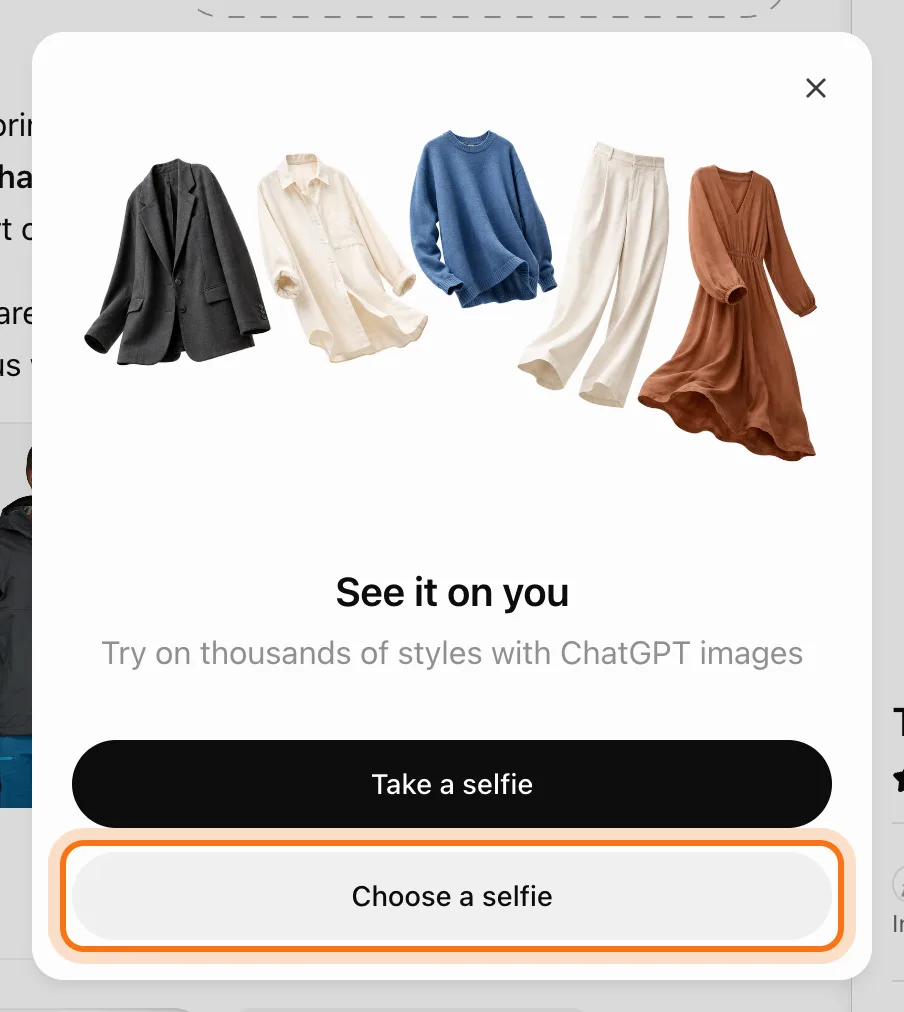
The first time, a window called "See it on you" opens. Click "Take a selfie" to use the camera, or "Choose a selfie" to pick a photo you have. Use a clear photo, facing the camera, in good light, with nothing over your face. We chose a photo.
Step 5: Add a full-length photo too
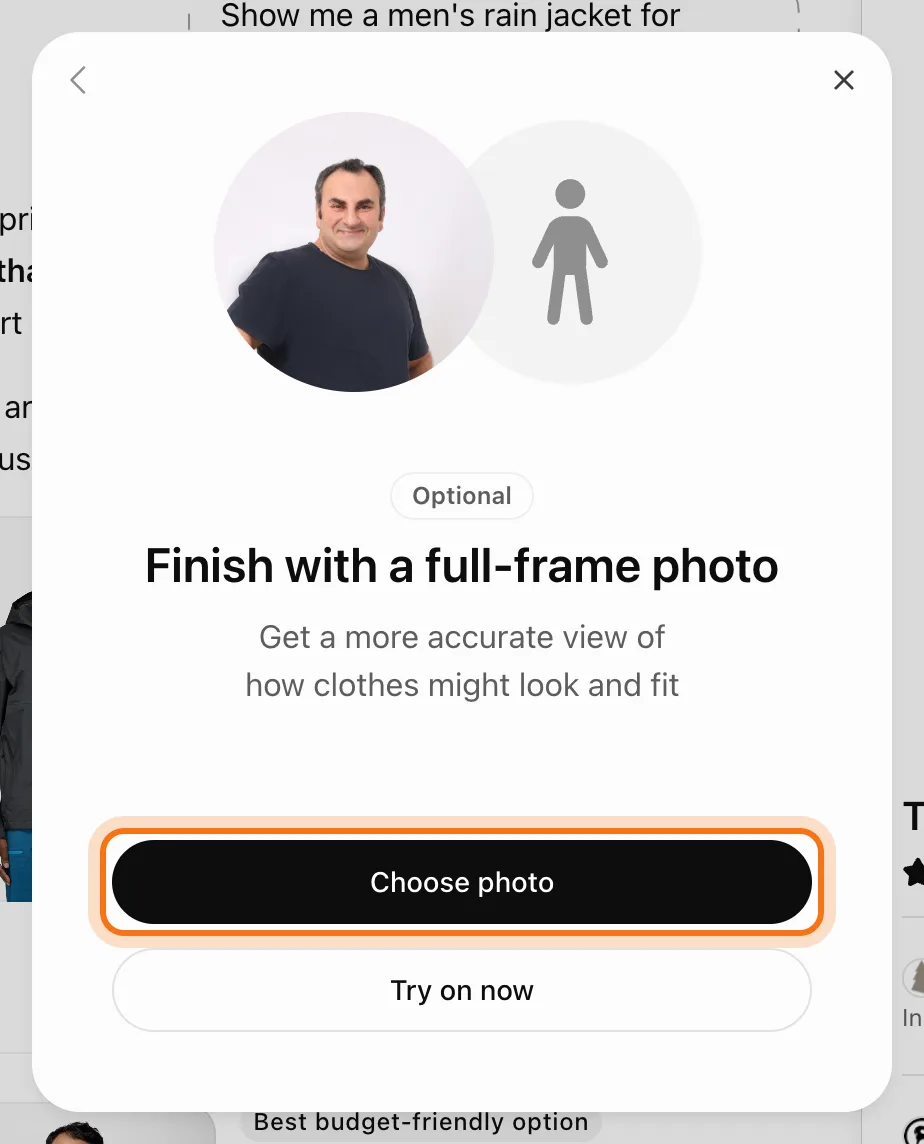
Next comes "Finish with a full-frame photo", with a small "Optional" tag. Add it anyway: click "Choose photo" and pick a photo of yourself standing, from head to feet. ChatGPT says it gives "a more accurate view of how clothes might look and fit". A small green note then says "Photos saved for future try-ons".
Step 6: Wait while it makes the picture
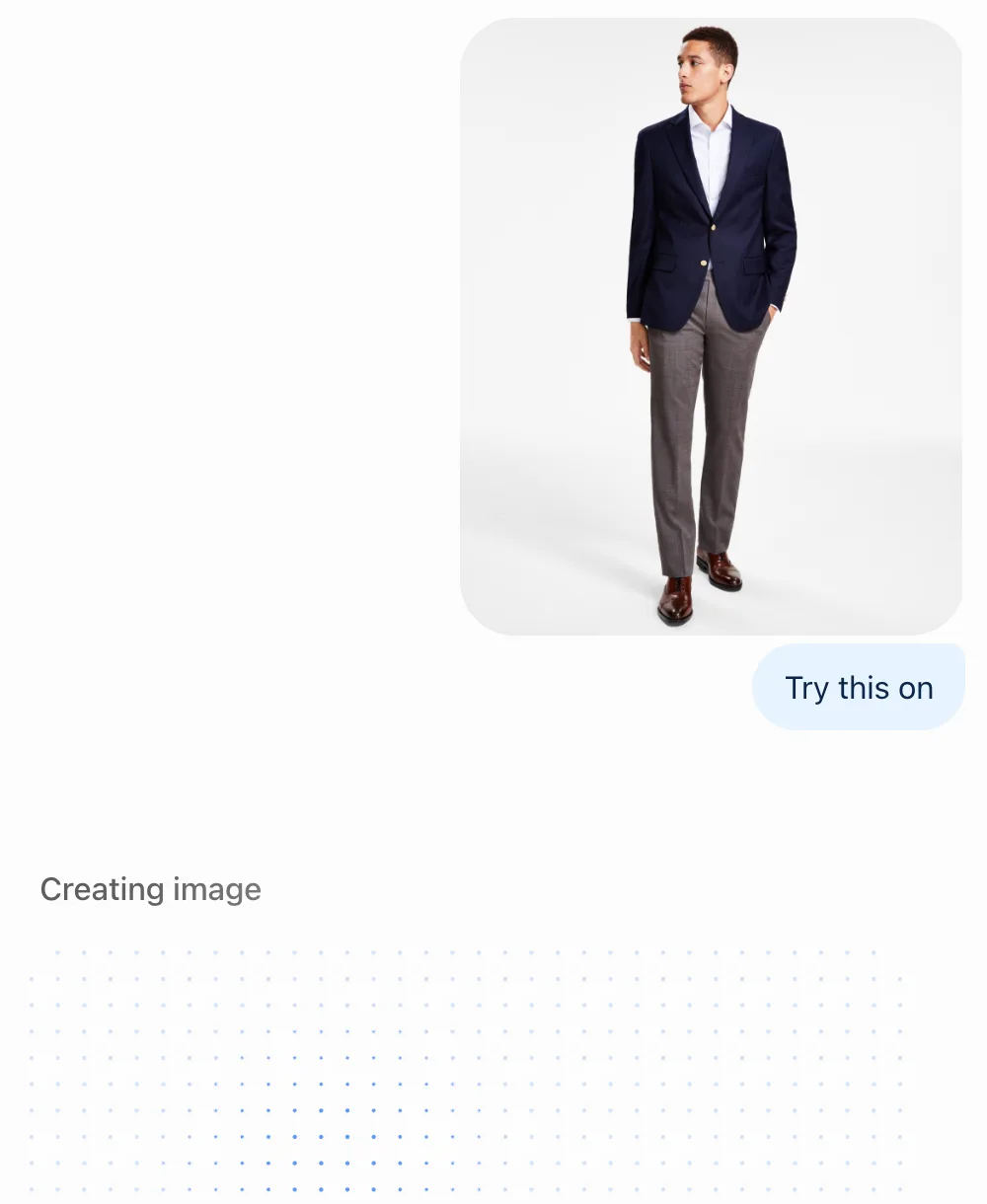
The chat shows "Try this on" with the store's photo of the item, then "Creating image". It takes about half a minute. There's nothing to click. (This picture and the next one are from our test on 10/06, with a navy blazer: on 10/22 the free account had hit its image limit.)
Step 7: See it on you
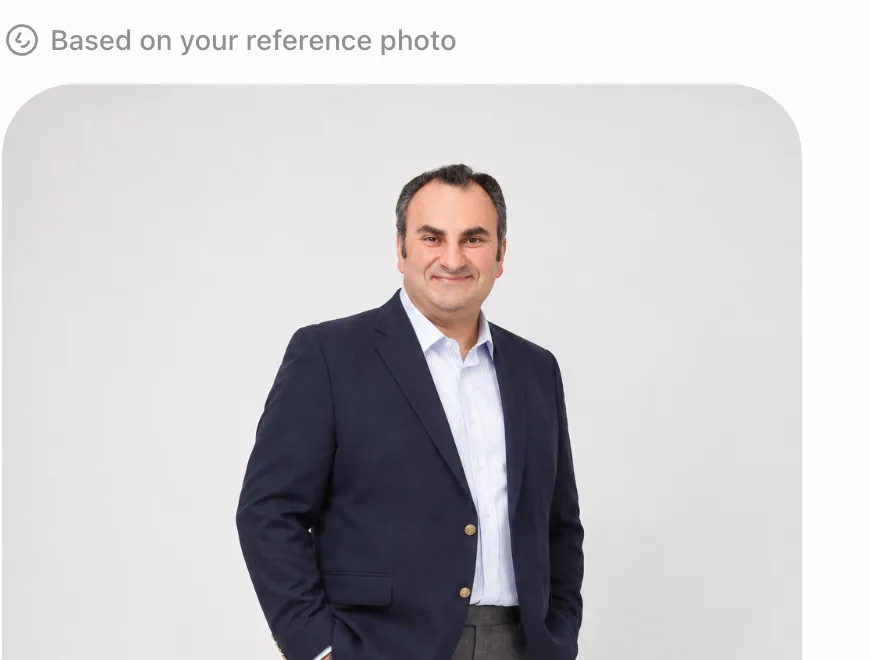
The picture appears under "Based on your reference photo": the person in your photos, wearing the item. In our test, the man from the stock photo, in the navy blazer. Look at the color and the length on you. Then go back to the card and decide: "Shop at" or "Visit" for the store, or try another one.
Step 8: The next item is one click
Click the name of another card, then "Try on" in its panel. This time no window opens: your two photos are saved, and ChatGPT goes straight to the picture. Each new picture lands under the last one in the same chat, so you can scroll to compare them on you. Want another color? Ask in the chat, for example "Show me this jacket in dark green", and try that one on.
Step 9: Where your photos are kept
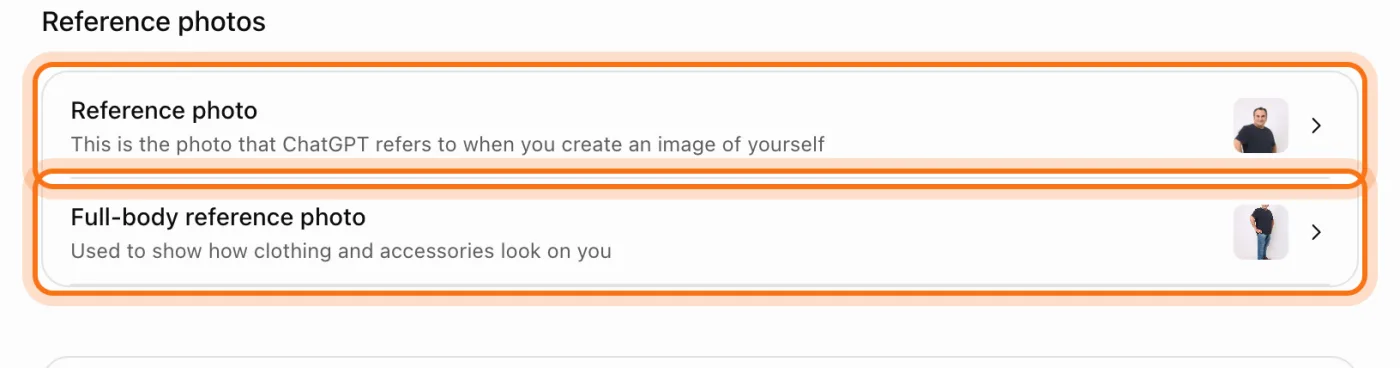
Your two photos stay in your account until you remove them, also after a Temporary chat. To see them: click your name at the bottom left, then "Settings", then "Personalization", and scroll to "Reference photos". There are two rows: "Reference photo" (your face) and "Full-body reference photo".
Step 10: Change or remove a photo
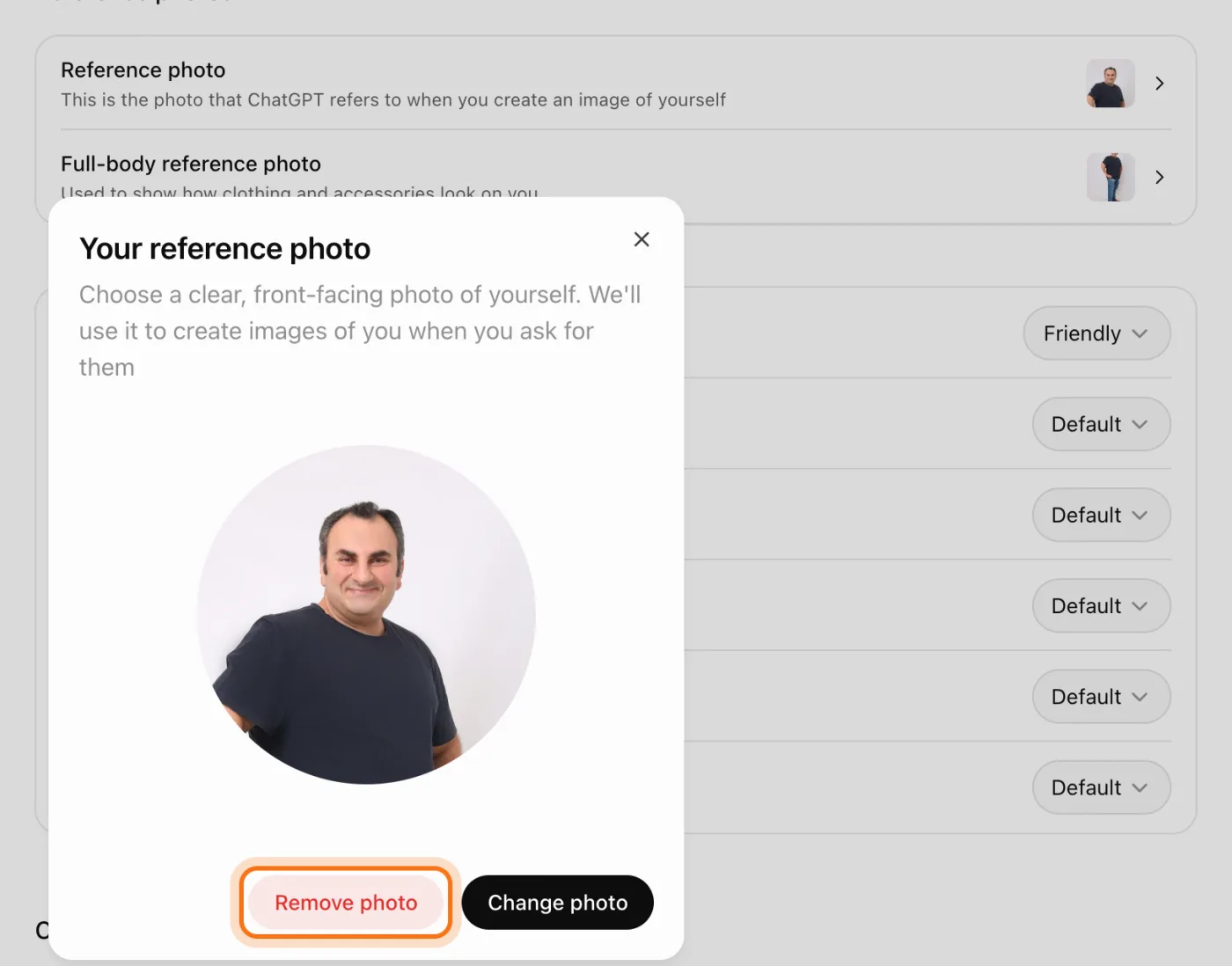
Click a row. A window shows the photo with two buttons: "Change photo" to put in a better one, and "Remove photo". Note what the face photo is for: "We'll use it to create images of you when you ask for them". It's used for any picture of you, not only try-ons.
Step 11: Confirm
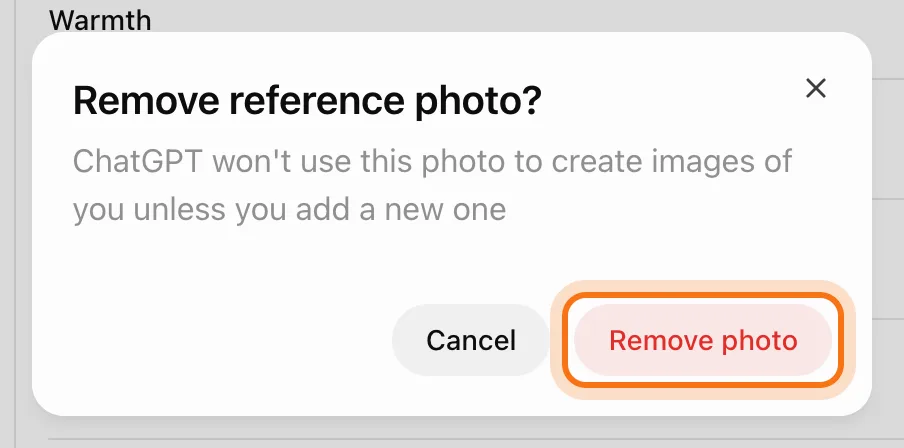
ChatGPT asks once more: "Remove reference photo?" Click "Remove photo". Do the same for the other row. The next time you click "Try on", it asks for photos again, as on the first time.
Members
The rest of this guide is for members
Create a free account and every room in the academy opens for 30 days. No credit card needed.
In the rest of this guide
8 things to try on, with requests to copy
- A jacket for every day
- An outfit for a family event
- A job interview
- A winter coat
- Glasses or sunglasses
- Shoes for walking
- A hat
- An item you found yourself
Settings and limits worth knowing
- Free accounts have an image limit
- Your face photo is used for more than try-ons
- A Temporary chat still saves the photos
- Save an item for later
- Prices and stores
- On the phone, too
When something goes wrong, and how to fix it
- You can't find the "Try on" button
- ChatGPT answers with text, and no product cards
- "Couldn't create your try-on" or "You've hit your limit"
- The try-on fails with only your face photo
- The person in the picture doesn't look like you
- It looked good in the picture, but doesn't fit
- You want your photos off ChatGPT
Where to go next
You've seen it on you. These guides help you do more with pictures and keep your data safe.