What Gemini Live is, in one minute
Gemini Live is a spoken conversation with Gemini, Google's AI assistant. You talk, it answers out loud, and you can cut in at any moment, like a phone call with a helpful friend.
It can also see. Turn on your camera and Gemini looks at what you point it at. Share your screen and it sees the app or web page you have open, so you can ask about it without copying anything.
Live is in the Gemini app for Android and iPhone. Google's help says it isn't in the Gemini website yet. Google made Live with the camera and screen sharing free for everyone on Android and iPhone.
Which way to use
Live is best when talking is easier than typing, or when Gemini needs to see something.
Use Gemini Live when
- Your hands are busy, like fixing something, cooking or walking.
- It's easier to show than to explain: point the camera, or share your screen.
- You want to think out loud and keep going back and forth.
Use another way when
Voice in any AI app: You want to dictate a message or hear an answer read aloud, in ChatGPT, Gemini or Claude, on a phone or a computer.
Read the guideOne photo and a question: You only need to ask about one thing once, like a plant, a label or a warning light. Take a photo and ask in a chat.
Read the guide
Your first Gemini Live chat, in eight steps
A real example: Dan runs a small bike shop. He plans an event out loud, shows Gemini a customer's bike, and asks about two tires on a parts website. The pictures show the Gemini app on an iPhone; on Android the buttons are the same.
Step 1: Open the Gemini app and tap Live
Open the Gemini app and sign in with your Google Account. At the bottom, next to the microphone, tap the Live button (the sound wave). You can also swipe left. The first time, follow the screens Gemini shows you, and allow the microphone.
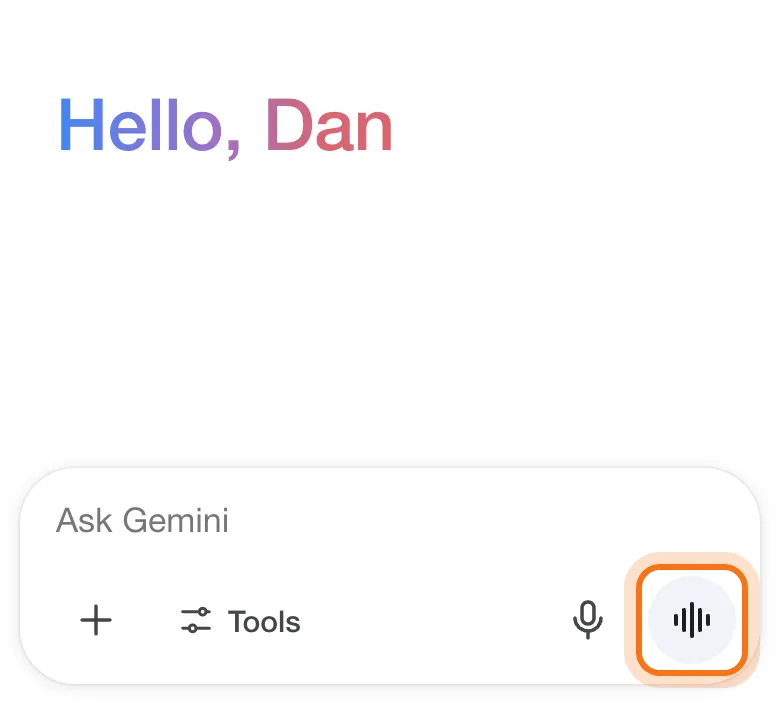
Screens recreated for clarity; your app may look slightly different.
Step 2: Start talking
Just talk, the way you'd talk to a person. Gemini answers out loud. If it goes the wrong way, start talking and it stops to listen. To read along, tap the captions button at the top right: what you said shows at the top and Gemini's answer under it.
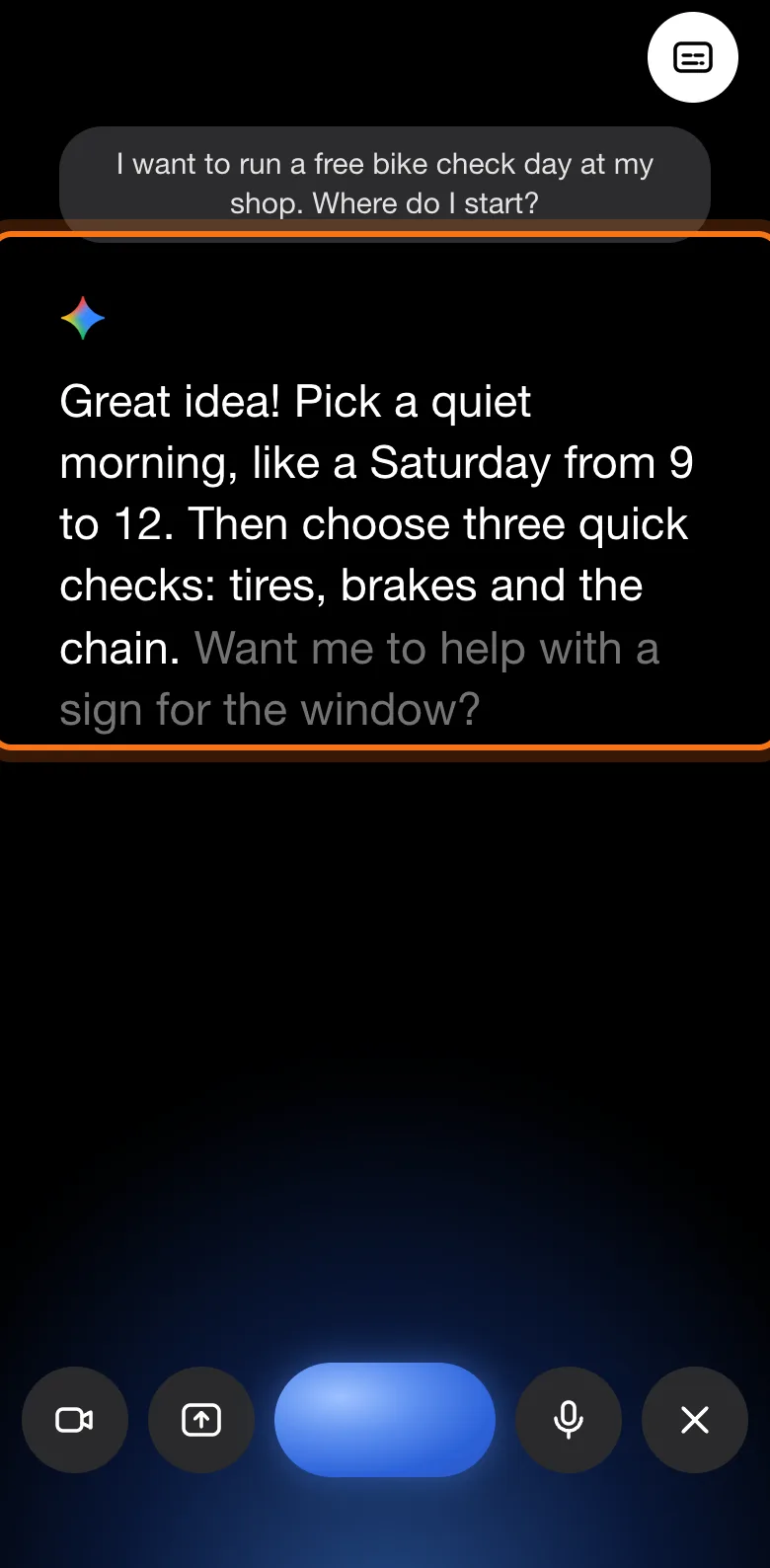
Try this prompt
I want to [what you're planning]. Where do I start?Step 3: Tap the camera button to show it something
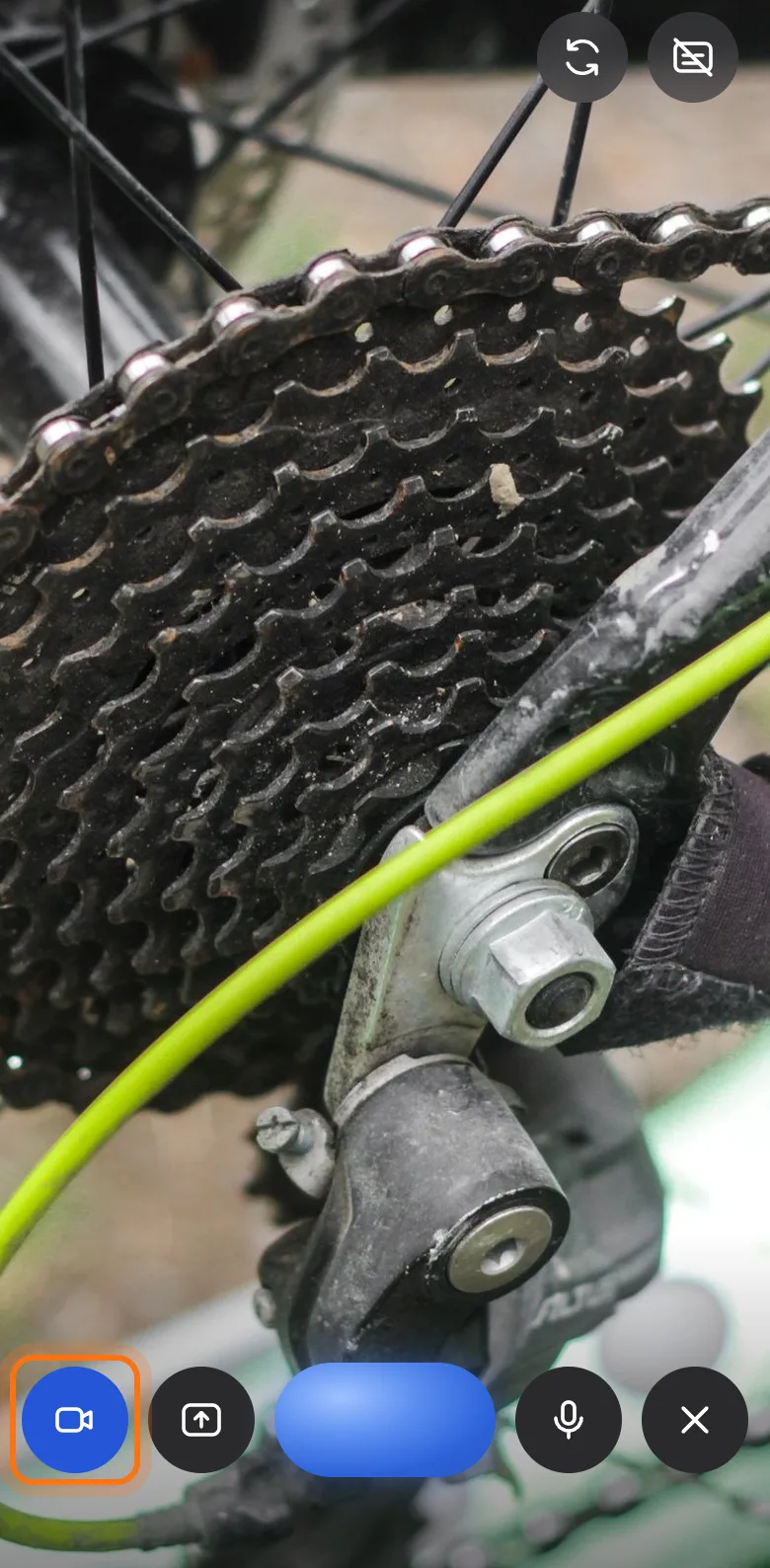
Tap the camera button, the first of the round buttons at the bottom. It turns blue and the camera fills the screen. Point it at what you want to ask about. To use the camera on your side of the phone, tap the switch-camera button at the top right.
Step 4: Ask about what it sees
Keep the camera still for a second and ask your question out loud. Dan asked why a customer's chain skips, and Gemini named the part it saw and the first thing to check. If the answer doesn't fit, move closer, add light, or ask "What do you see?" to check it's looking at the right thing.
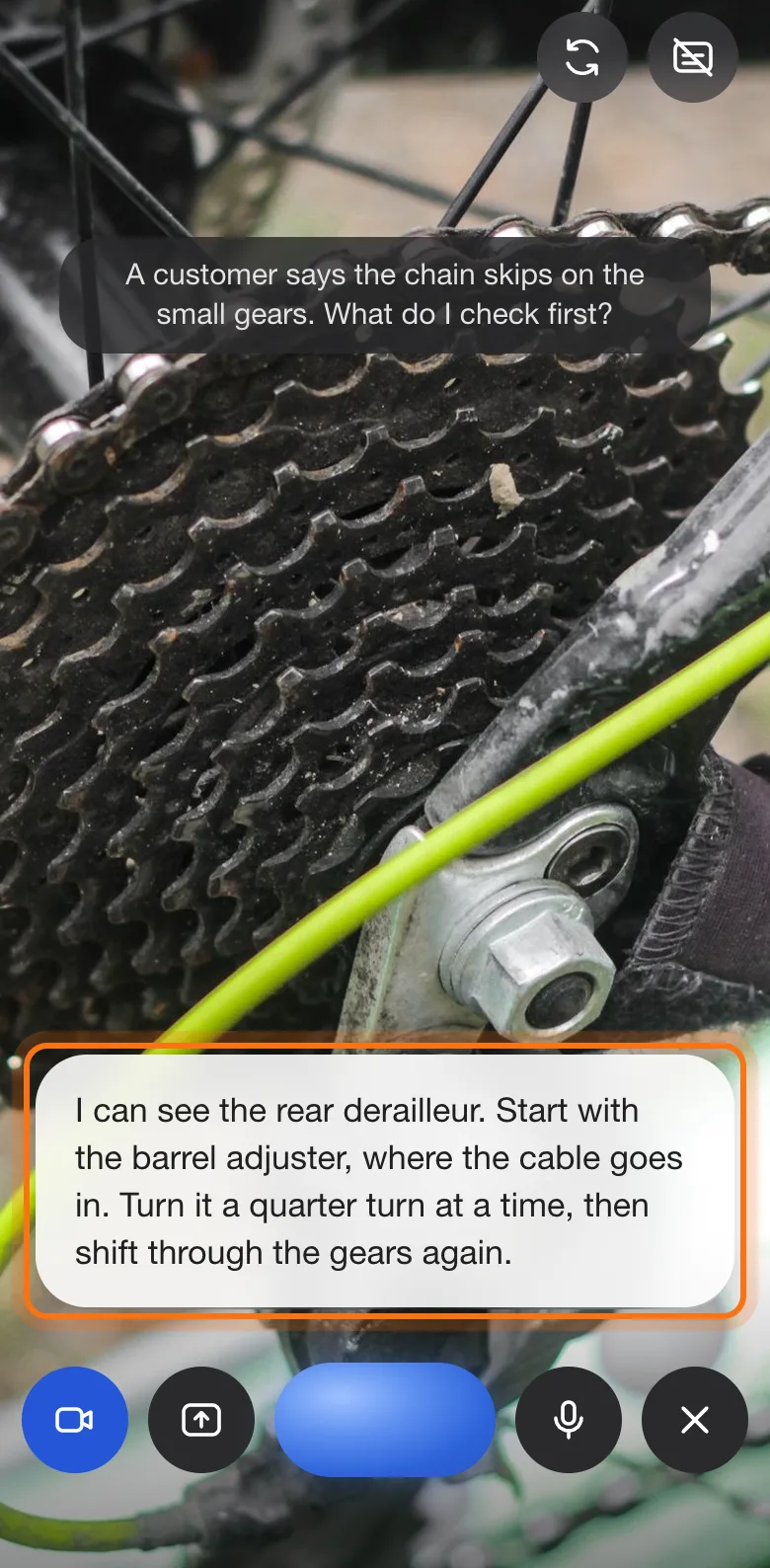
Try this prompt
What is this, and what should I check first?Step 5: Share your screen
Tap the share-screen button, the second one at the bottom. Your phone asks you to confirm: on an iPhone, tap Start Broadcast. Google's help says notifications for Gemini Live must be on for screen sharing. Everything on your screen is shared from now on, including messages that pop up.
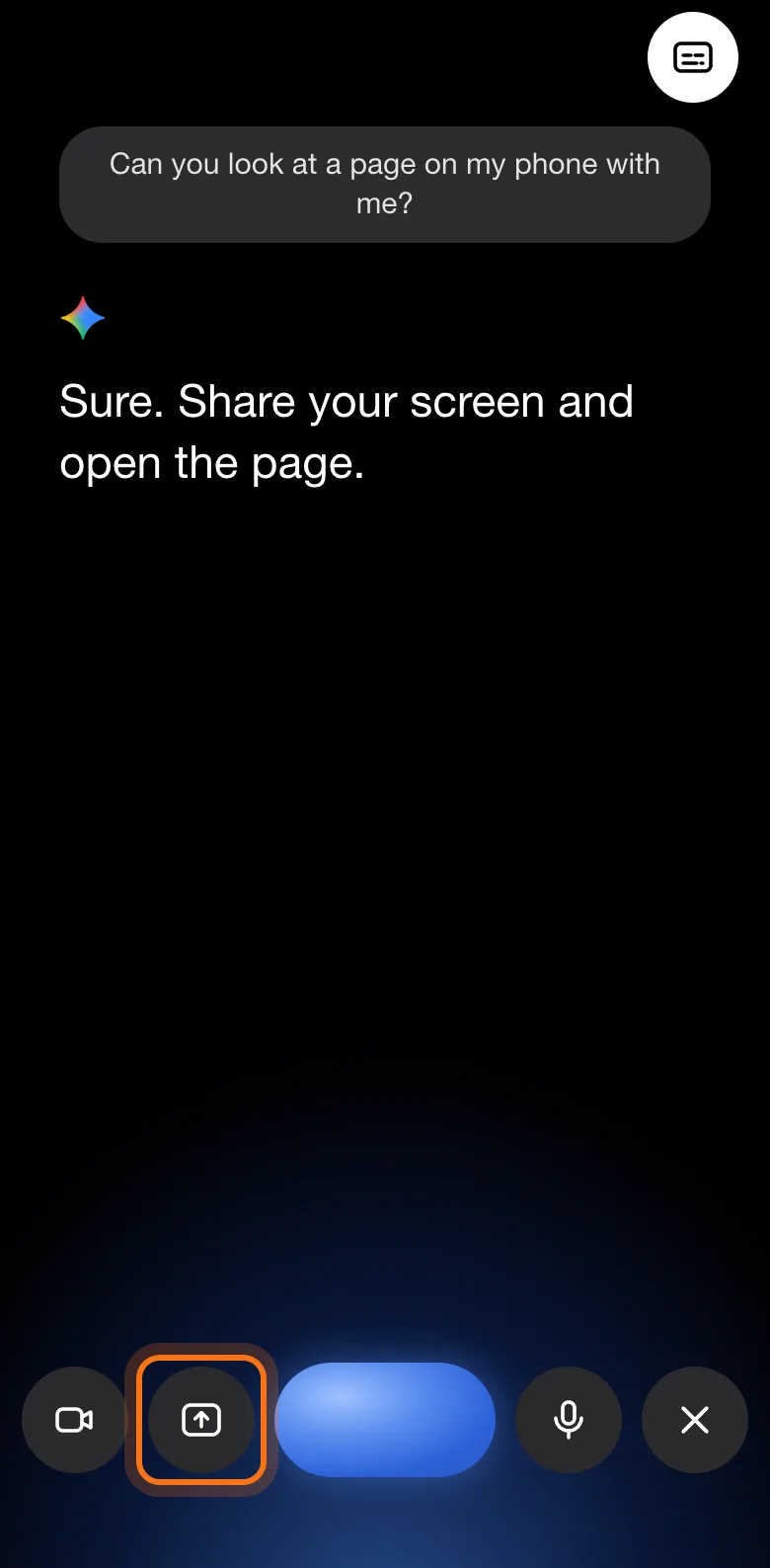
Step 6: Open the app or page and ask about it
Go to the app or web page and keep talking: Gemini sees what's on your screen as you scroll. Dan opened two tires on a parts website and asked which is better for city riding. On an iPhone, the time at the top turns red while the screen is shared.
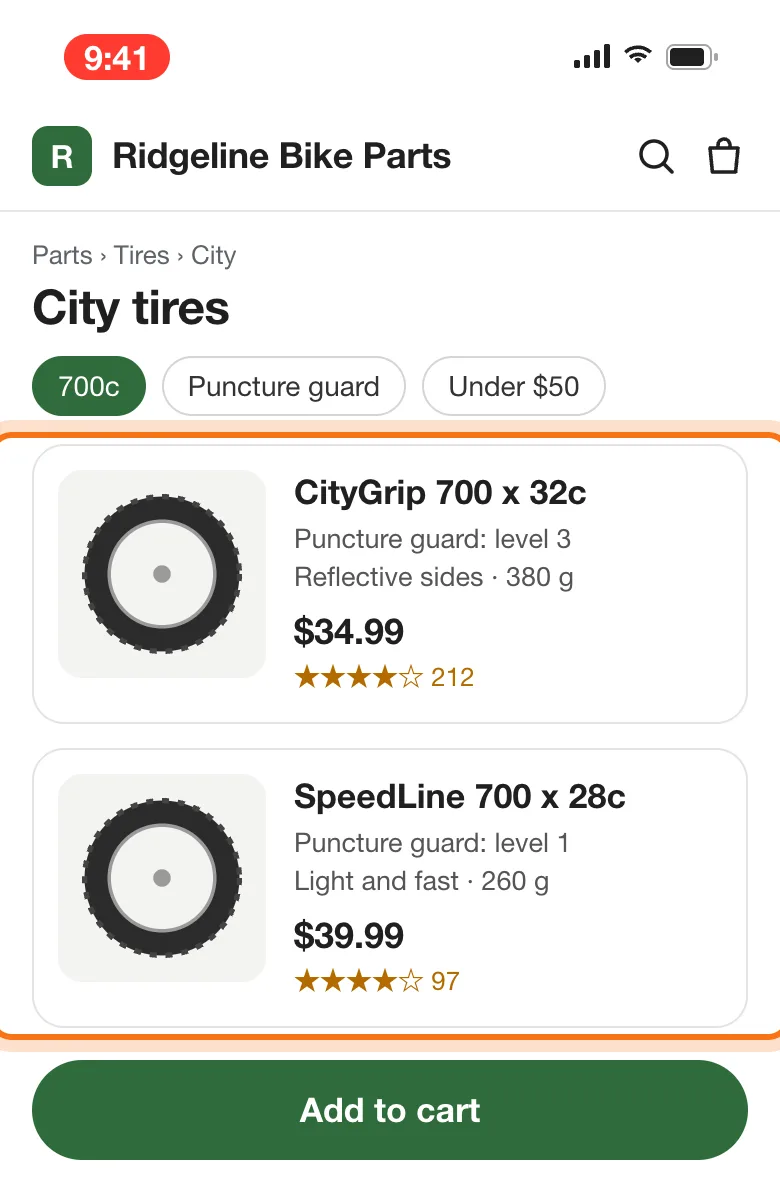
Try this prompt
Which of these two is better for [what you need], and why?Step 7: Tap End when you're done
Back in the Gemini app, tap the X button at the bottom right to end Live. You can also swipe right. The microphone button next to it mutes you without ending the chat, and the camera and share-screen buttons turn those off again.
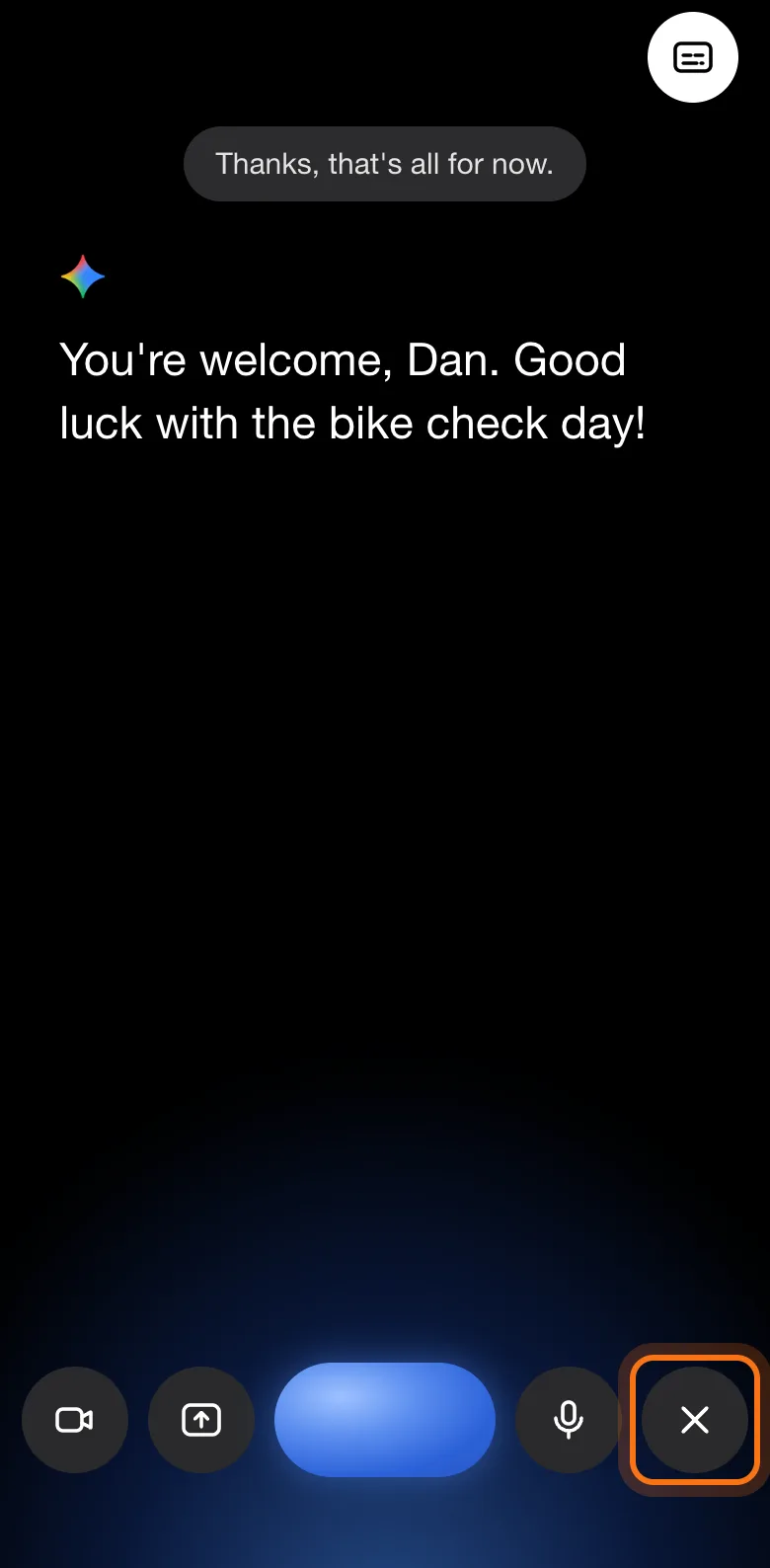
Step 8: Read the conversation as text
When you end Live, the whole conversation shows as text in a regular Gemini chat. You can copy from it, or type a follow-up. To pick up where you left off, open the chat and tap Live again.
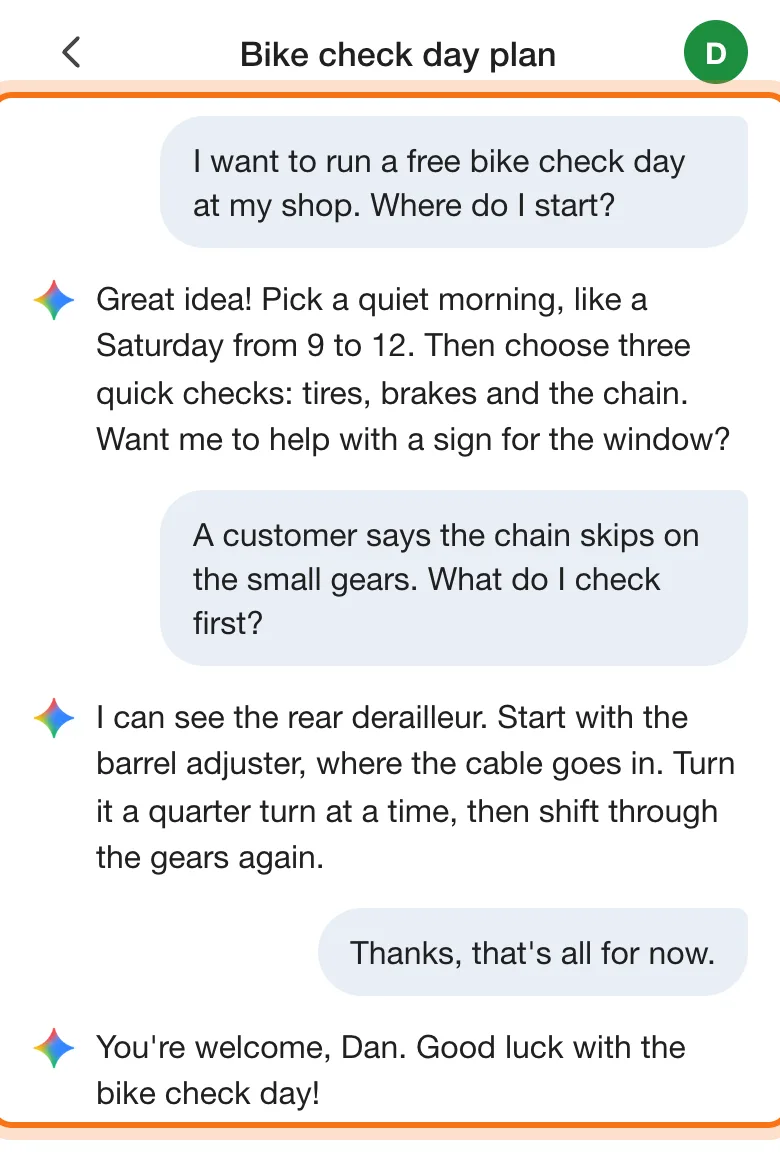
Members
The rest of this guide is for members
Create a free account and every room in the academy opens for 30 days. No credit card needed.
In the rest of this guide
8 everyday uses, with things to say
- Fix something at home
- Dinner from your fridge
- Read a label or a sign in another language
- Get through a confusing form
- Compare before you buy
- Find a setting on your phone
- Practice a hard conversation
- Think out loud on a walk
Settings and options worth knowing
- Stop sharing your screen
- When the camera turns off
- Interrupting Gemini
- Pick up an old Live chat
- On Android: share your screen from anywhere
- On a computer: Gemini in Chrome
- What Google keeps
- Who can use it
When something goes wrong, and how to fix it
- I don't see the Live button
- Gemini stopped seeing through the camera
- Screen sharing won't start, or stops
- Gemini keeps stopping in the middle
- It describes the wrong thing
- The answer sounds sure but is wrong
- I shared something I didn't mean to
- I can't find what Gemini said
Where to go next
Live is one way to work with Gemini. These guides help you get more from it.