What a project is, in one minute
A project is a folder in ChatGPT for one thing you're working on: a party, a move, a job search, a small business. It holds the chats about it, the files you add, and instructions you write once. Every new chat you start inside the project already knows them, so you stop explaining the same background again and again.
It works on a free account. On ours (checked 10/22), "Projects" was in the sidebar and a project was ready in a few seconds. OpenAI says Free allows up to 5 files in a project.
On a free account, ChatGPT can't read your Gmail: on ours, the Gmail plugin said "Upgrade to Plus". A project is the free way to keep the details of one thing in one place, and to bring them into every chat about it.
Which way to use
A project is worth it when you'll come back to the same subject more than once. For a one-off question, a normal chat is enough.
Use a project when
- You keep starting chats about the same thing, and keep retyping the same details.
- You have a file or two that ChatGPT should look at every time, like a list or a plan.
- You want your chats about one thing together, not lost in the long list in the sidebar.
Use something else when
Teach ChatGPT about you, for every chat: You want every chat, not just one project's, to know your business or how you like answers. That's custom instructions.
Read the guideAsk about one document, once: You have one file and a few questions about it, and you won't need it again. Attach it to a normal chat.
Read the guide
Your first project, step by step
A real example: planning a 70th birthday party for Dad. The party's details go in once, the guest list goes in as a file, and then every chat about the party starts already knowing them. The pictures use ChatGPT on a free account, on a computer. The family and the guest list are made up.
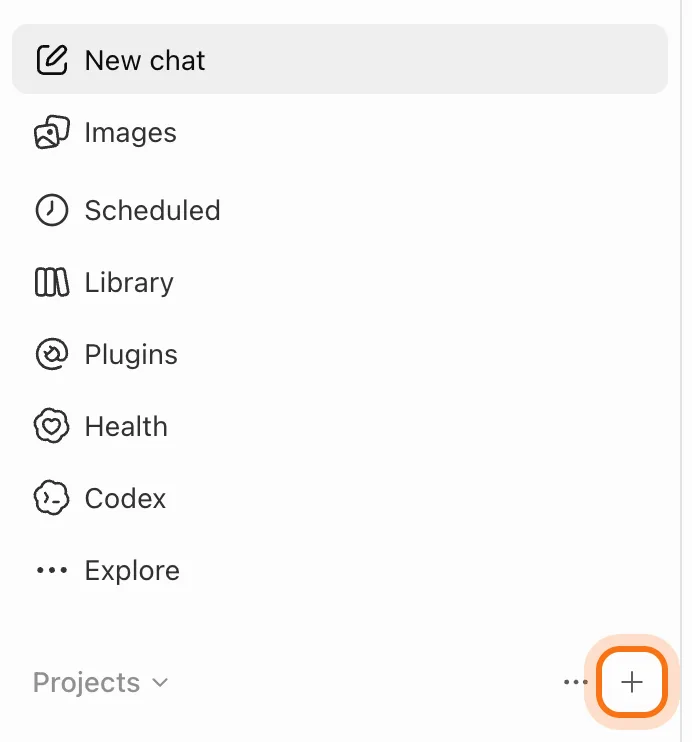
Step 1: Find Projects in the sidebar
Go to chatgpt.com and sign in; a free account works. In the sidebar on the left, find "Projects". Hold the mouse over it, and click the "+" that shows up at its right.
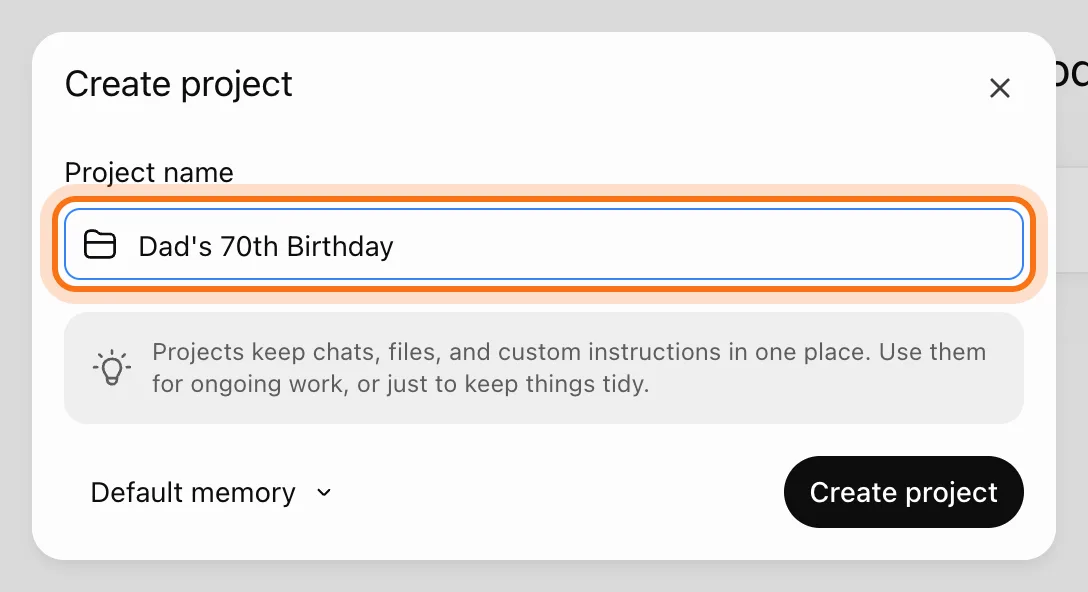
Step 2: Give it a name
A "Create project" window opens. Type a name you'll recognize later. Name it after the thing, not the first question: "Dad's 70th Birthday", not "Food ideas".
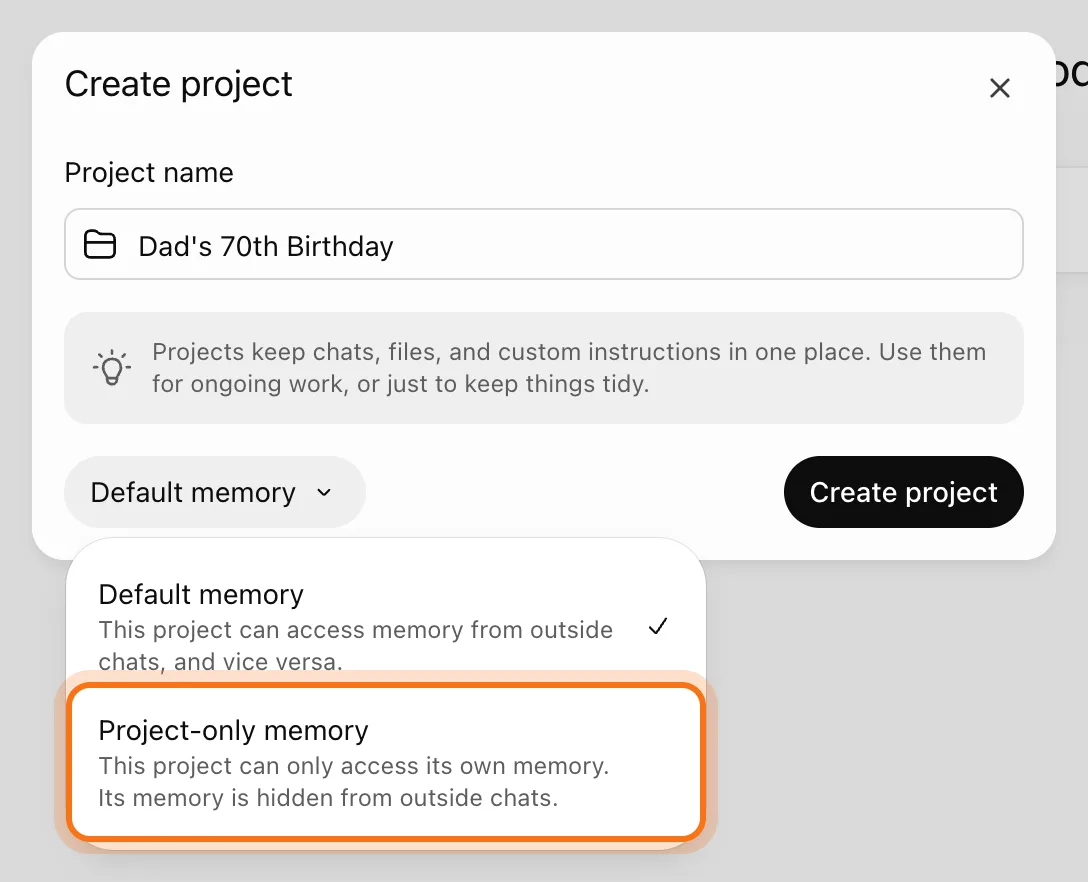
Step 3: Choose what it remembers
Click "Default memory" for the two choices. With Default memory, the project can use what ChatGPT remembers from your other chats, and the other way around. With Project-only memory, it uses only its own chats and files, and keeps them out of the rest. We picked Project-only, so nothing from other chats mixes in. Then click "Create project". You can change this later in the project's settings.
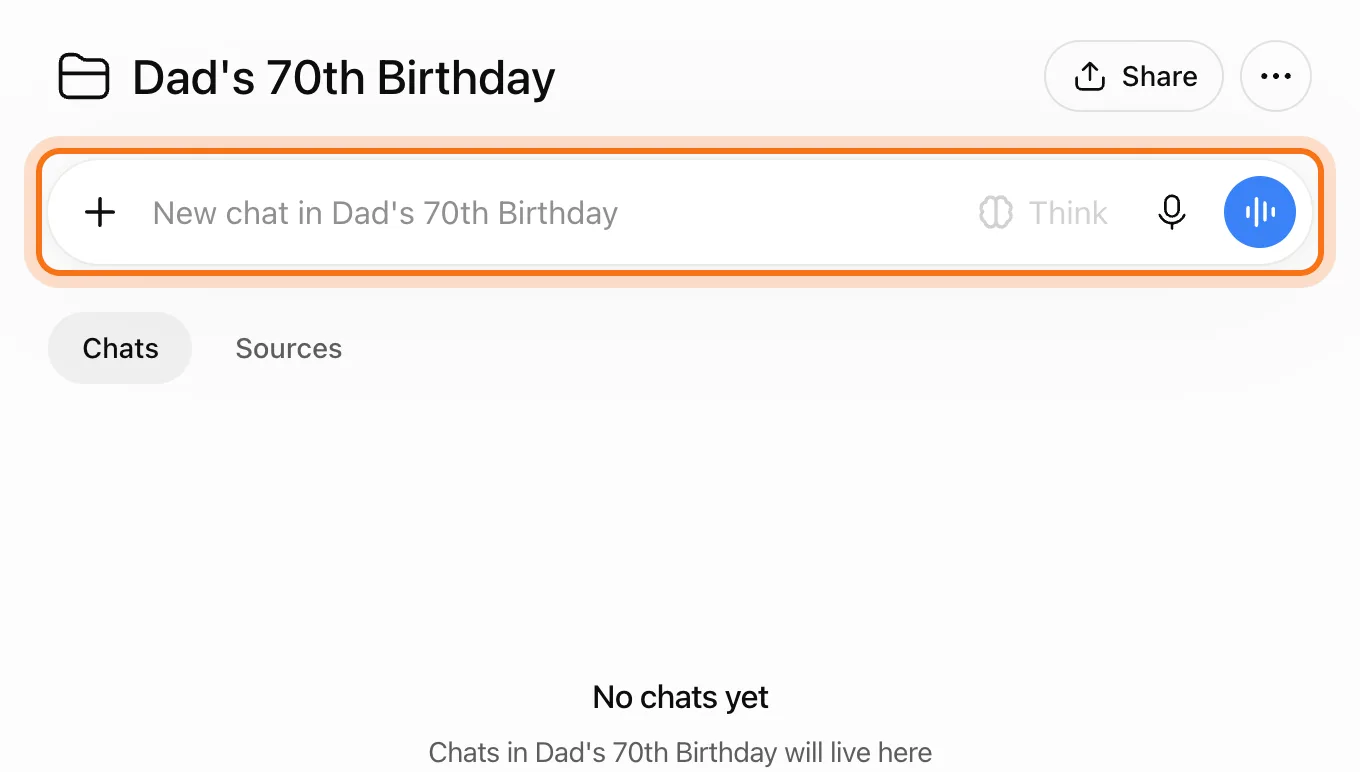
Step 4: Meet the project's page
The project opens on its own page. At the top is its own message box, "New chat in" and the project's name: a chat started here lives in the project. Under it, "Chats" lists the project's chats, and "Sources" holds its files. The project also shows in the sidebar, under Projects.
Step 5: Write the instructions once
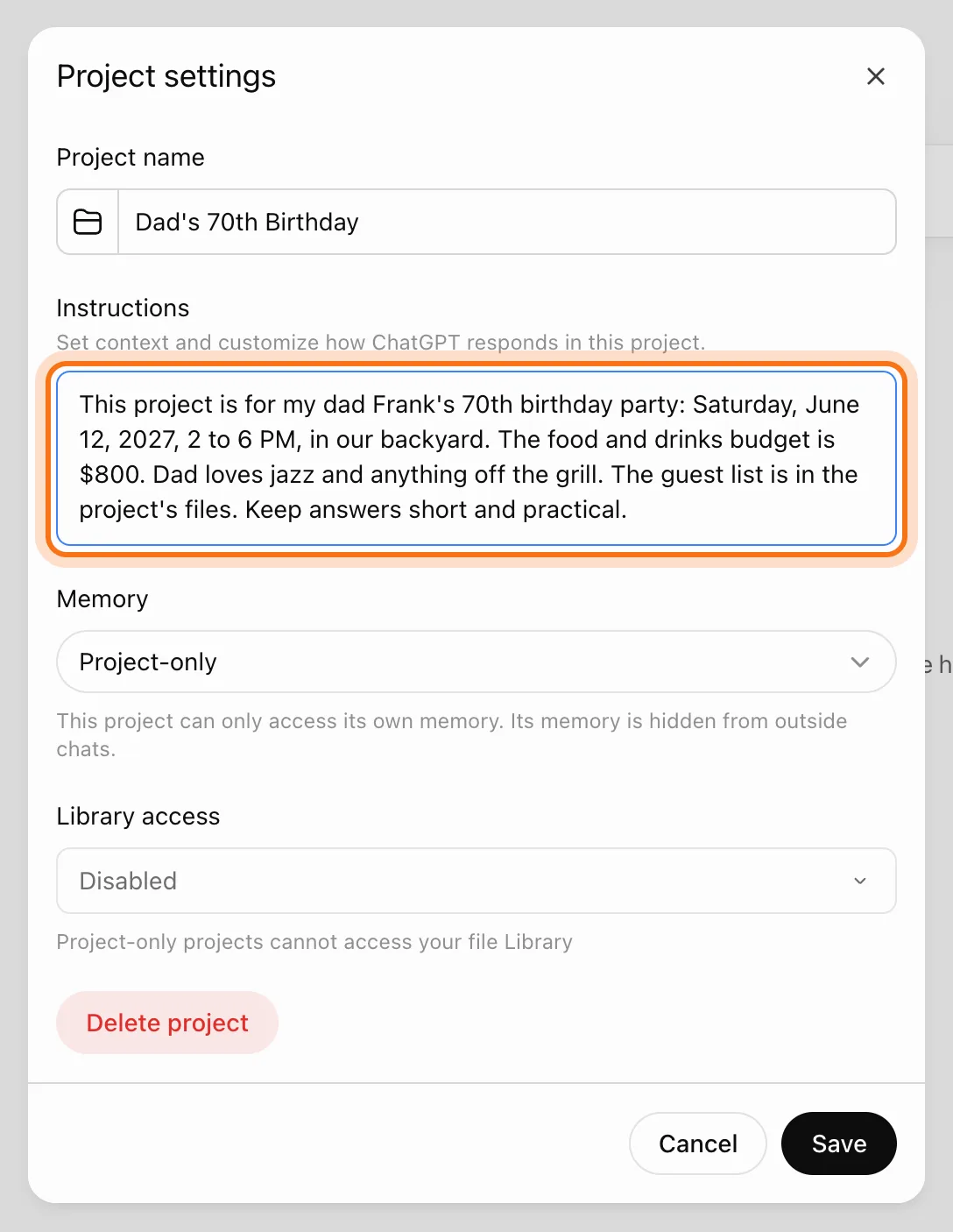
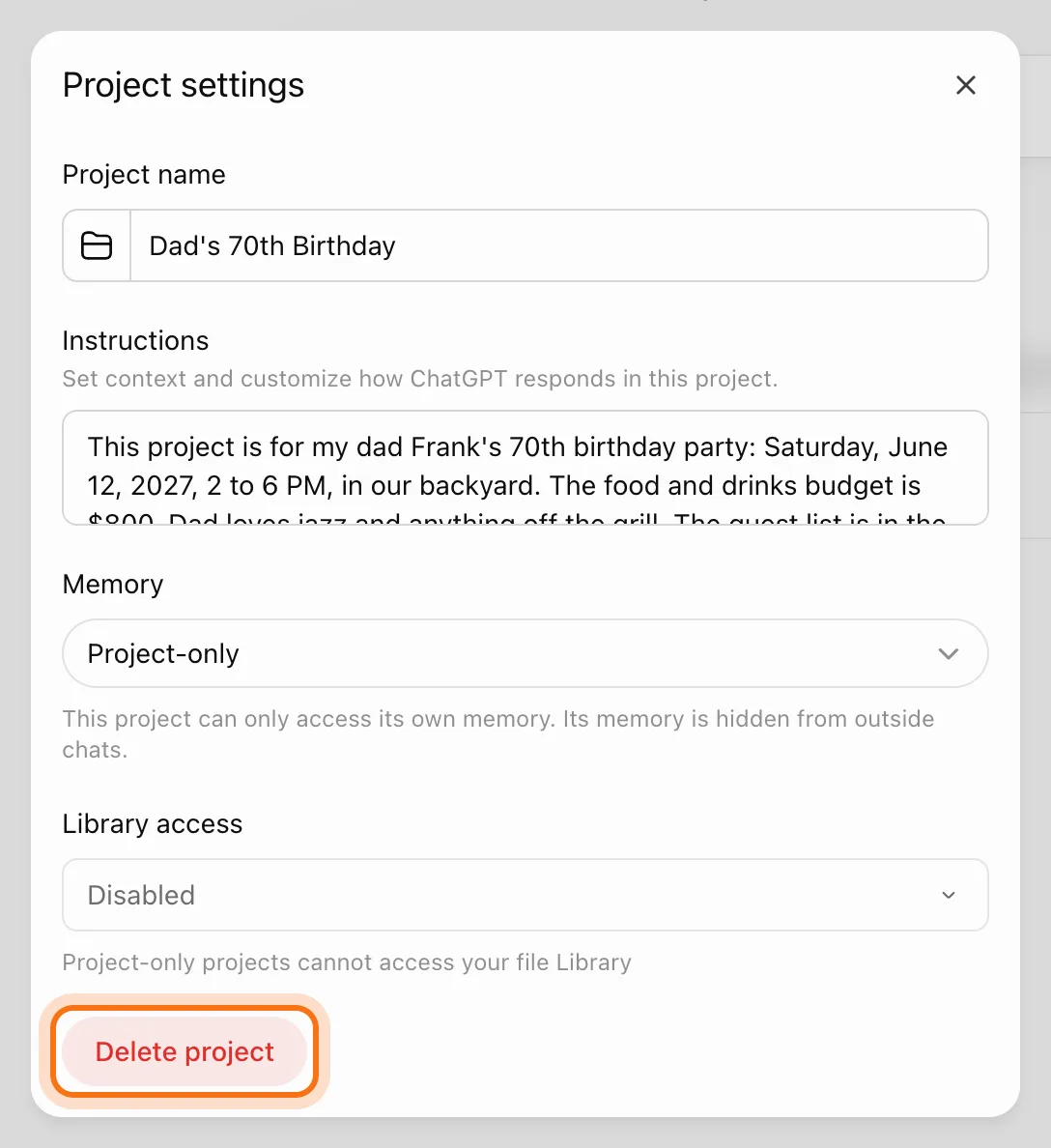
Click the three dots at the top right, then "Project settings". In "Instructions", write what every chat should know: the facts, and how you want answers. Click "Save". OpenAI says these instructions apply only inside the project, and there they take the place of your general custom instructions.
Try this prompt
This project is for [what it's about]: [the date, the place, the key facts]. The budget is [amount]. [Anything ChatGPT should keep in mind.] Keep answers short and practical.Step 6: Add a file to Sources
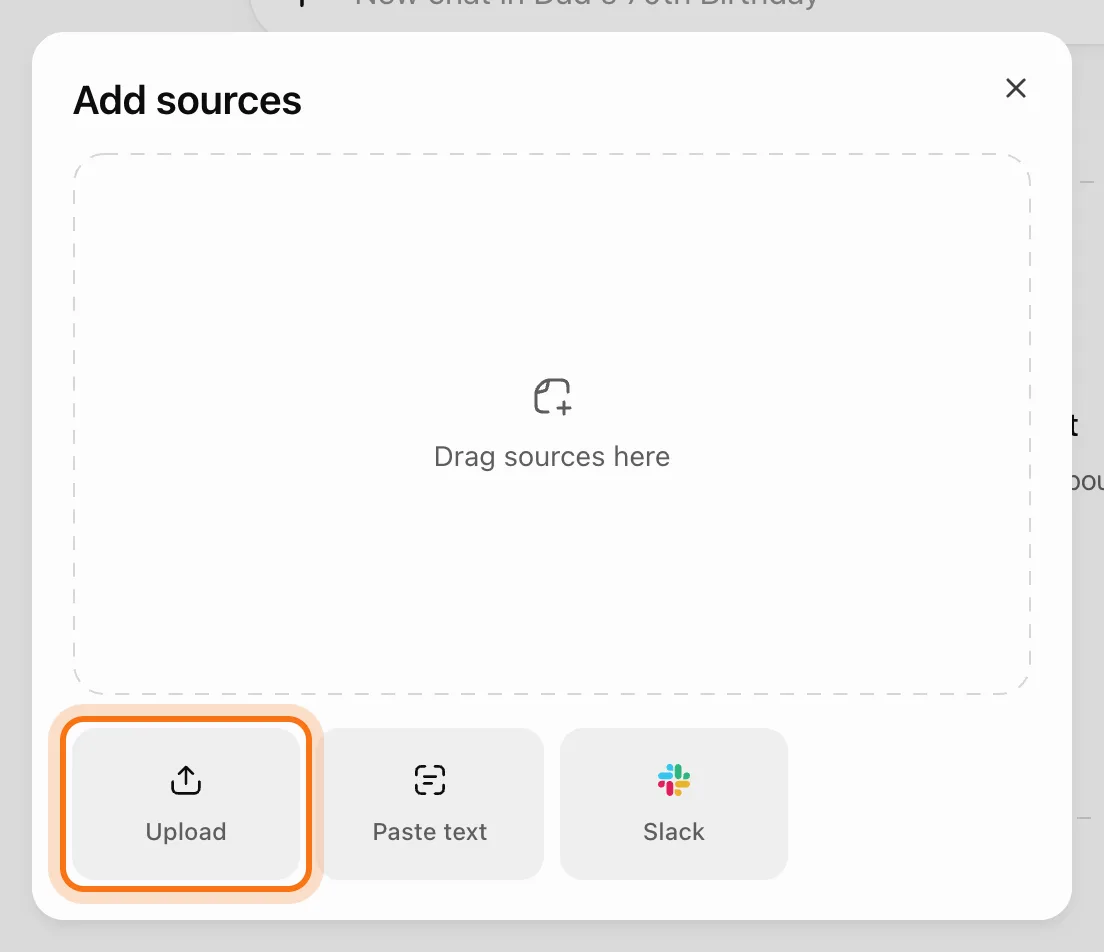
Click "Sources", then "Add sources". A window opens: drag a file in, or click "Upload" and pick it. "Paste text" works too, if what you have is in an email or a note. Use "Add sources" on the project page, not the "+" in the message box: when our file went in through the message box, the project didn't keep it.
Step 7: Check the file is there
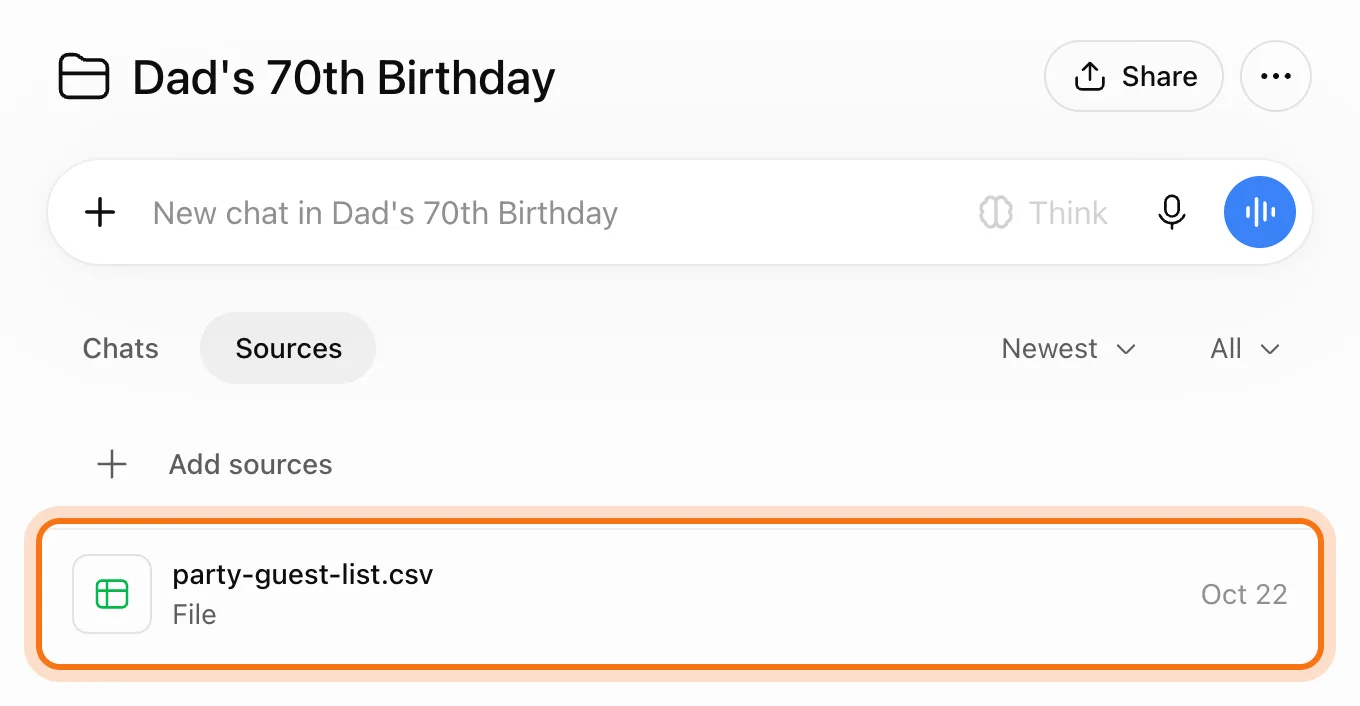
The file shows in the Sources list, with the day you added it. Ours was the guest list, a small spreadsheet: who's coming, adults and kids, and a food note. Click a file in the list to look at it, download it or delete it.
Step 8: Ask without explaining
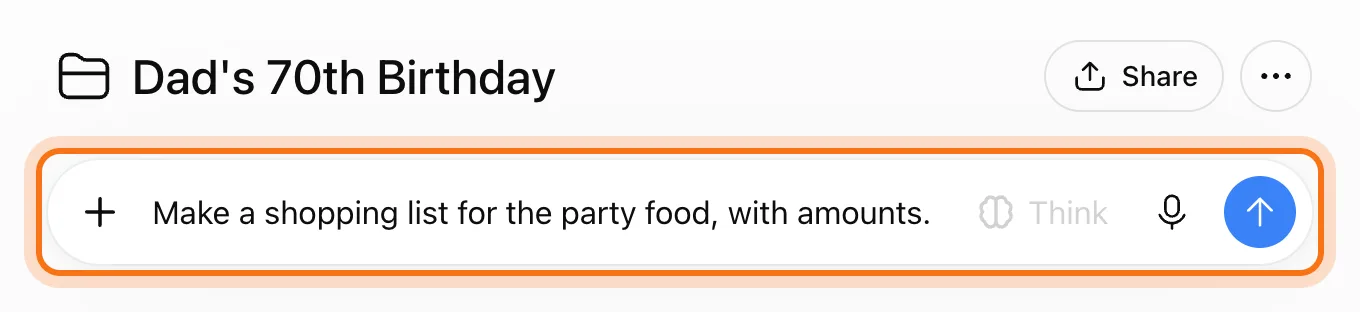
Click the project's own message box and ask, as if ChatGPT already knew the whole story, because now it does. Don't repeat the date, the budget or the guests. Press Enter.
Try this prompt
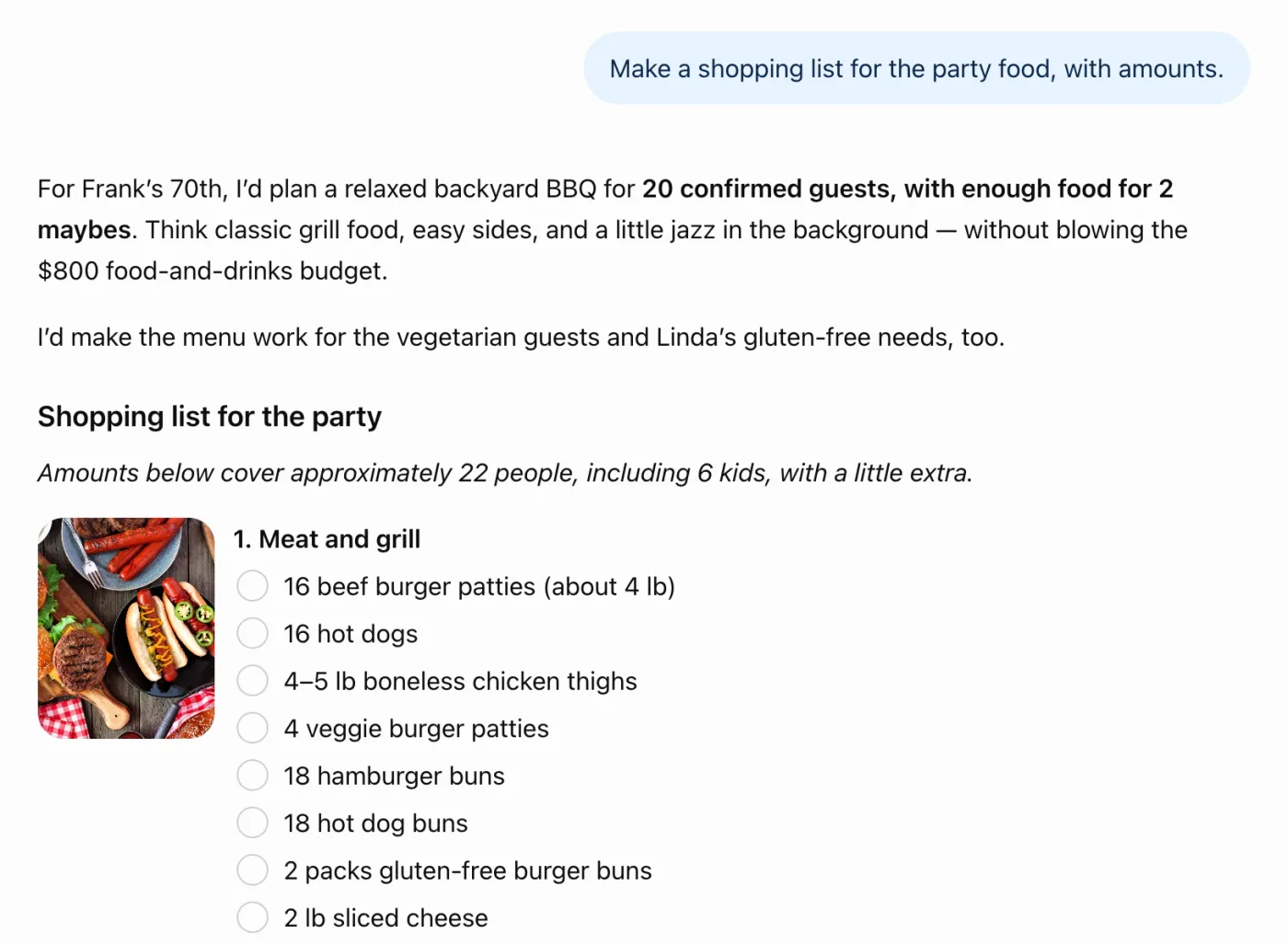
Make a shopping list for the party food, with amounts.Step 9: See it use the details
The answer used everything in the project. From the instructions: Frank, the backyard, grilled food, jazz and the $800 budget. From the file: 20 confirmed guests and 2 maybes, 6 of them kids, the vegetarian guests and Linda's gluten-free buns. We checked the counts against the list, and they were right. Still check numbers yourself before you shop.
Step 10: Find the chat in the project
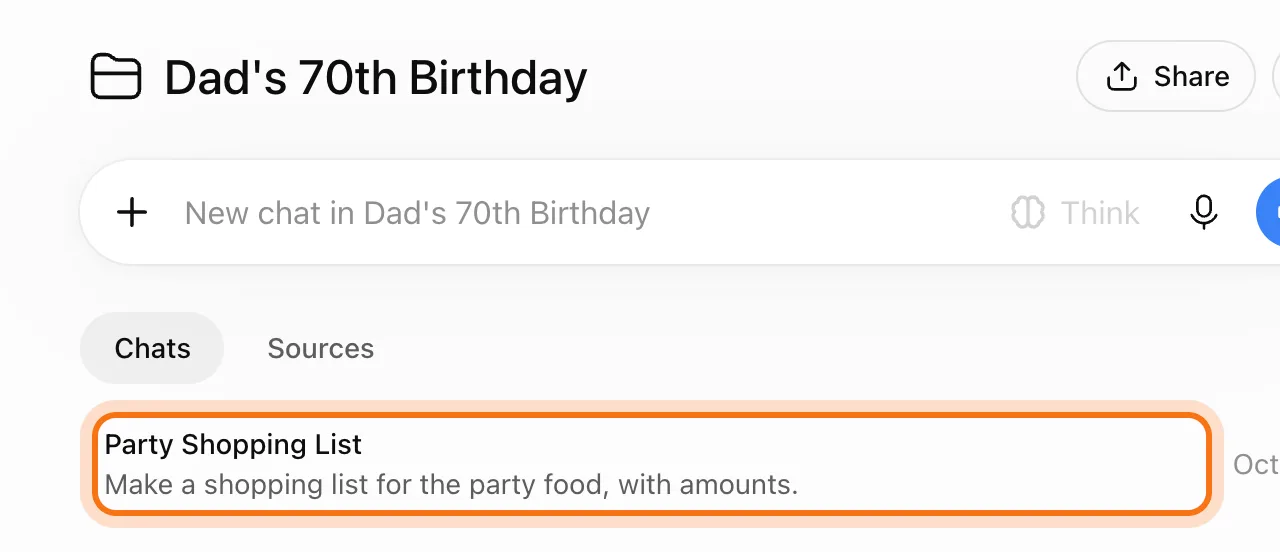
Click the project's name in the sidebar, or go back to its page. Under "Chats" is the new chat, with the name ChatGPT gave it and your first message under the name. Every chat in the project lands here.
Step 11: Start a second chat
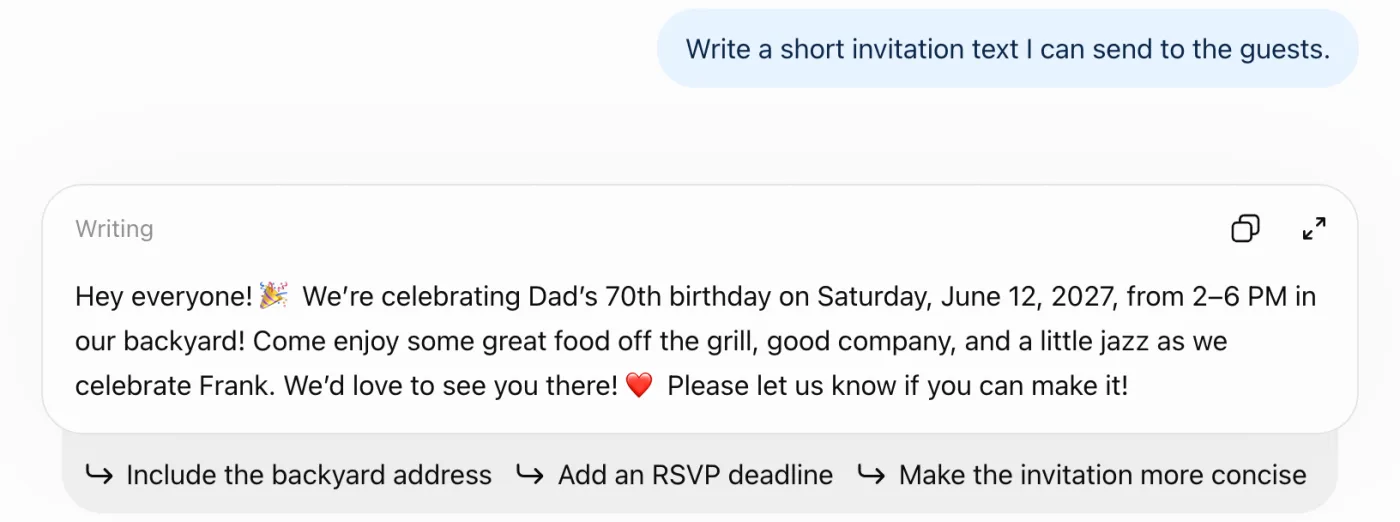
From the project's page, start another chat about something else. It starts with the same instructions and files. Our second chat asked only for an invitation, and the text had the date, the hours, the backyard, the grill and the jazz in it.
Try this prompt
Write a short invitation text I can send to the guests.Step 12: Move an old chat in
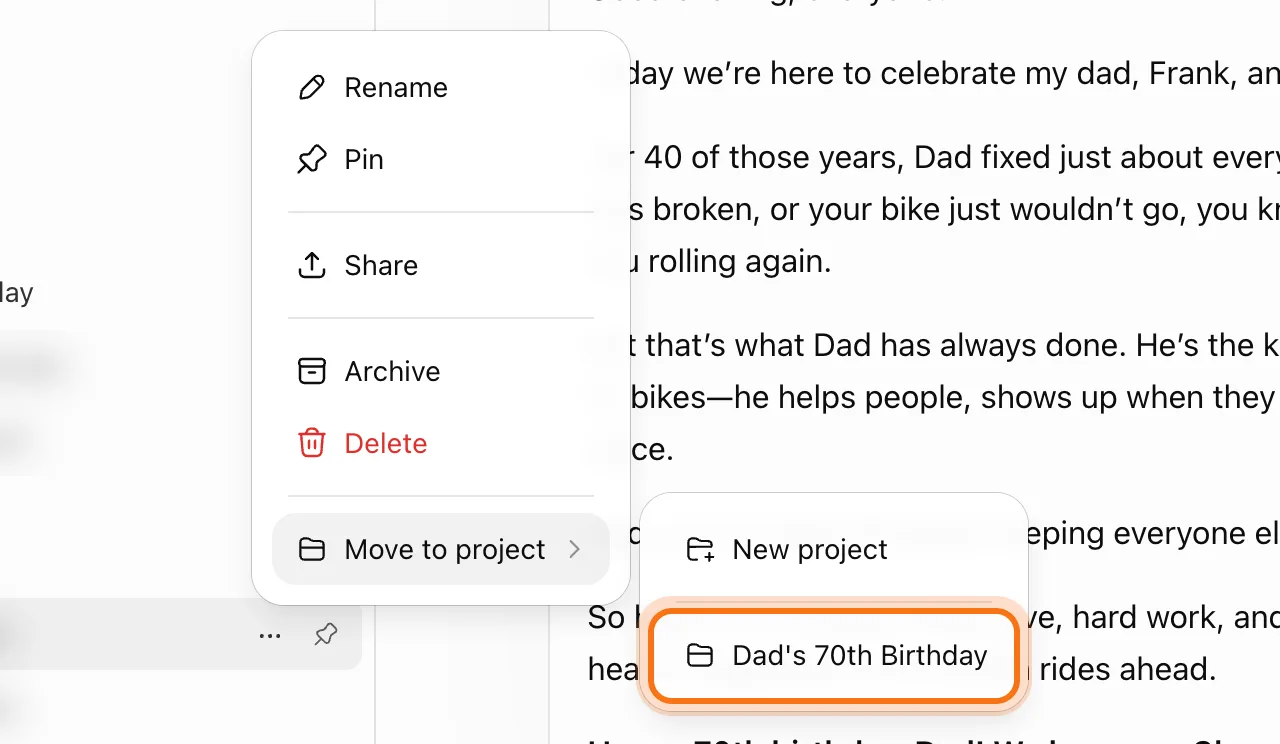
A chat you started before the project can join it. In the sidebar, hold the mouse over the chat, click its three dots, then "Move to project", then the project's name. We moved in a chat about a toast for Dad. OpenAI says a moved chat gets the project's instructions and files from then on.
Step 13: Delete a project you're done with
When it's over, click the three dots on the project's page, then "Project settings", then "Delete project" at the bottom.
Step 14: Confirm, and know what goes
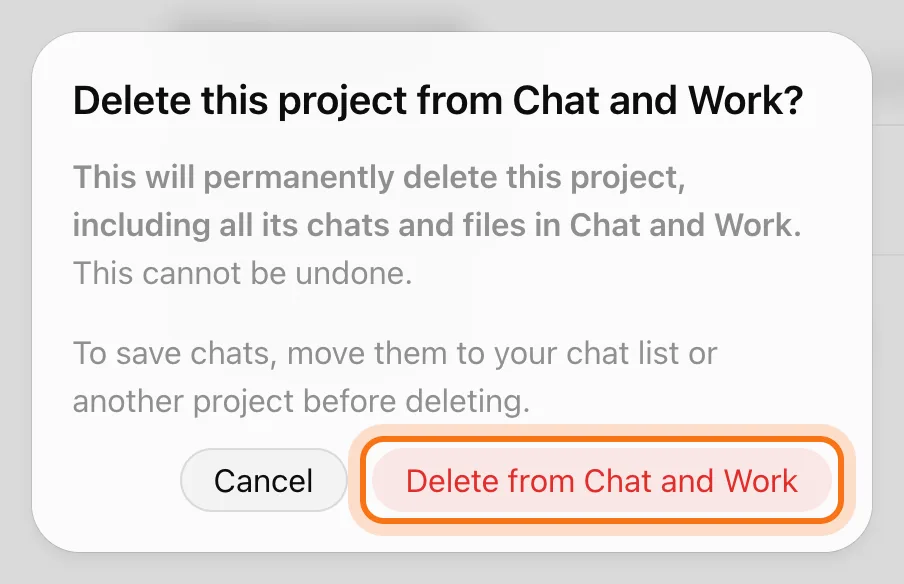
ChatGPT asks once more, and says what goes: the project and all its chats and files, for good. To keep a chat, move it out before you delete: its three dots in the sidebar, then "Remove from project". Then click "Delete from Chat and Work".
Members
The rest of this guide is for members
Create a free account and every room in the academy opens for 30 days. No credit card needed.
In the rest of this guide
8 projects to start, with instructions to copy
- A family party
- A trip
- Moving to a new home
- A small business's posts and emails
- Getting ready for doctor visits
- A job search
- A home repair
- Learning something new
Settings and limits worth knowing
- How many files
- Default or Project-only memory
- Project instructions and your own
- Share a project
- Gmail, Slack and other apps
- Take a chat out
- Pin a project you use a lot
When something goes wrong, and how to fix it
- ChatGPT says it can't find the file
- You can't add another file
- The answer has an old detail
- It doesn't know something from another chat
- There is no "Move to project" on a chat
- The new chat isn't in the project
- You deleted a project and want it back
- You want it to read your email
Where to go next
A project holds the details. These guides help you do more with them.