Chatting with a document, in one minute
You can give an AI assistant a document, like a PDF, a spreadsheet or a photo of a letter, and ask it questions the way you'd ask a coworker who just read it: "What do I pay, and when?" "Is anything unusual in here?" "Where does it say that?"
It reads in seconds what takes you an hour. But it can misread a blurry scan, miss a detail in a long file, or fill a gap with what documents like yours usually say. So the skill isn't just uploading. It's asking the right questions, asking where the answer is written, and checking what you'll act on.
The pictures in this guide use Claude, free at claude.ai. The same steps work in ChatGPT and Gemini, and we show you their buttons too.
Which tool to use for your documents
Claude, ChatGPT and Gemini all read files you upload, even on their free plans, and the steps in this guide work in all three. The differences are in the details: pictures inside a PDF, files in Google Drive, and how many documents you work with at once.
Use Claude, ChatGPT or Gemini when
- You have one file or a few, and real questions about them: a lease, two quotes, a letter, a price list. All three read PDFs, documents, spreadsheets and photos.
- The pictures in a PDF matter, like a scanned page or a chart. Start with Claude: Anthropic says it reads the pictures in PDFs of up to 100 pages. OpenAI says ChatGPT reads only the text of a PDF on most plans.
- The file is already in your Google Drive. Start with Gemini: "Add from Drive" brings it into the chat without downloading it first.
Look at another tool when
Gemini Notebook (formerly NotebookLM): You have many documents on one subject, like a binder of policies or a stack of reports. Google says its chat answers only from your sources, with citations you can click to see the exact quote. It's at notebook.google.com.
Read the guideClaude Cowork: The files are a whole folder on your computer, like a year of invoices. With the Claude desktop app, Cowork can read the files in a folder you give it access to. It's on Claude's paid plans.
Read the guide
Your first real answer from a document, in five steps
Here's the whole loop, from uploading a file to something you can act on. The example is a coffee shop owner checking a lease before he signs it.
Step 1: Upload the file
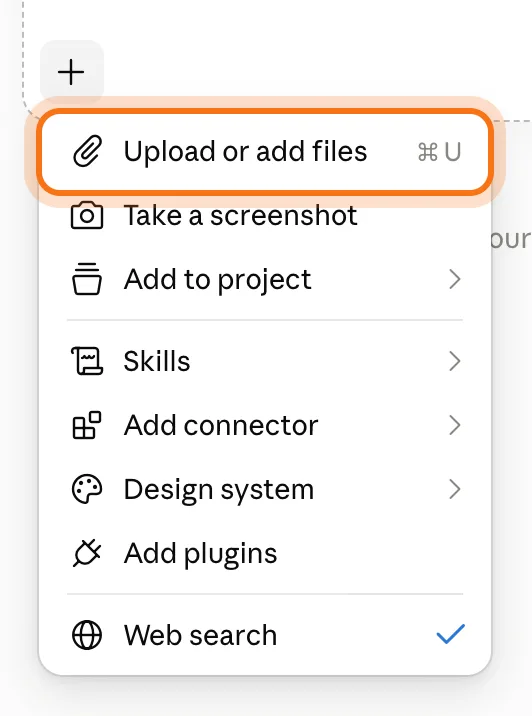
Open claude.ai and start a new chat. Click + in the message box, choose "Upload or add files", and pick your file. You can also drag the file into the chat. In ChatGPT the same option is called "Add photos & files", and in Gemini "Upload files".
Step 2: Ask what you actually need to know
"Summarize this" gets you a summary. A question about your situation gets you answers. Say who you are, what you're deciding, and how long the answer should be.

The example in the picture: a 3-page lease for a coffee shop. All the files in this guide are made up.
Try this prompt
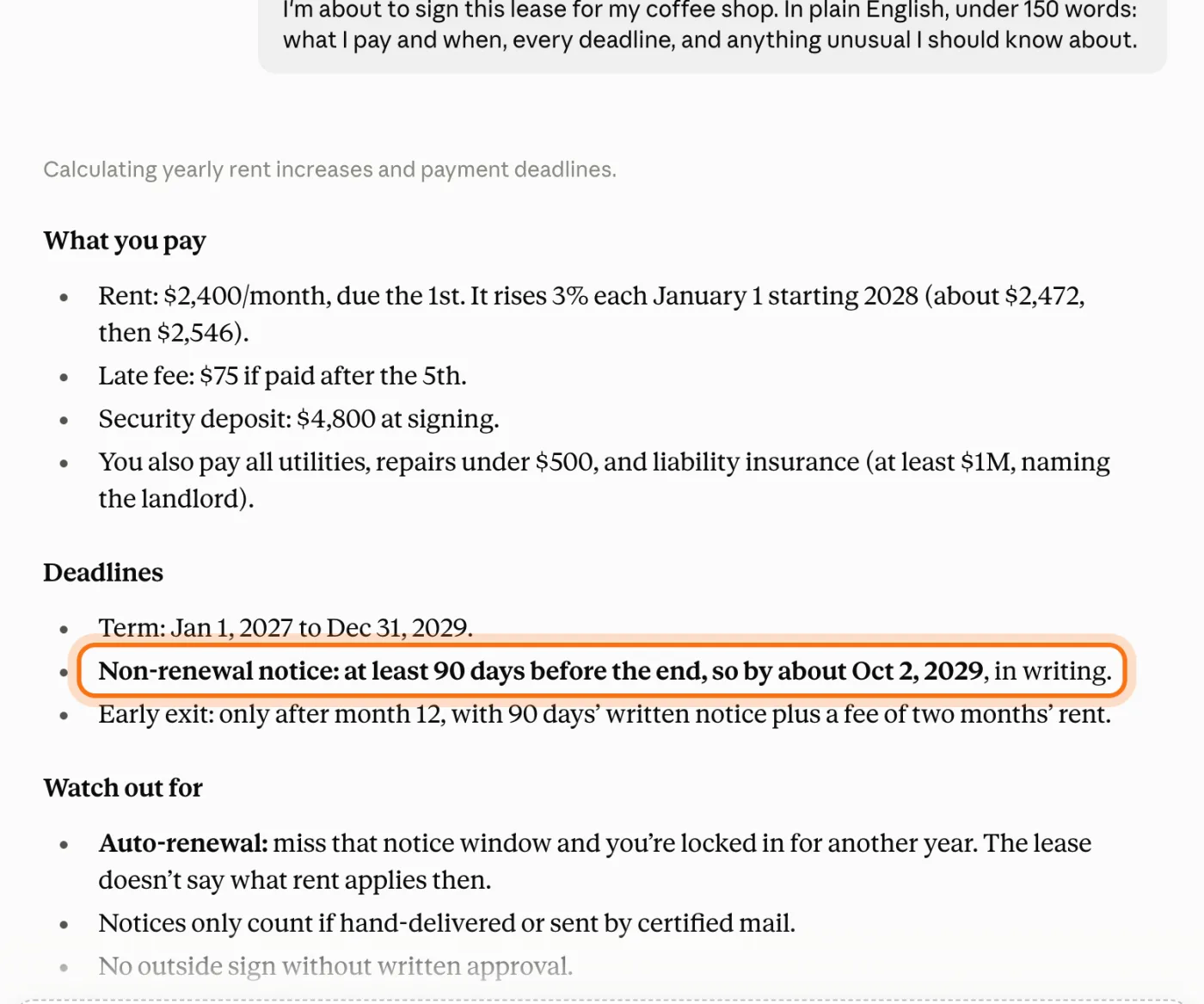
I'm [who you are, like the tenant]. I'm about to [what you're deciding]. In plain English, under 150 words: [what you need to know, like what I pay and when, every deadline, and anything unusual].Step 3: Read the answer, and look for the surprise
Claude answers from the file in a few seconds. Read it like notes from an assistant who read the document once: usually right, worth checking on anything you'll act on. The point that surprises you is the one to check first. Here, it's a clause that renews the lease on its own.
Step 4: Ask where it says that
For anything that matters, ask for the exact sentence and the page. Now you can find it in the document in seconds, and you know the answer came from your file, not from what leases usually say. Then keep asking in the same chat, like "What if I want to leave after a year?"
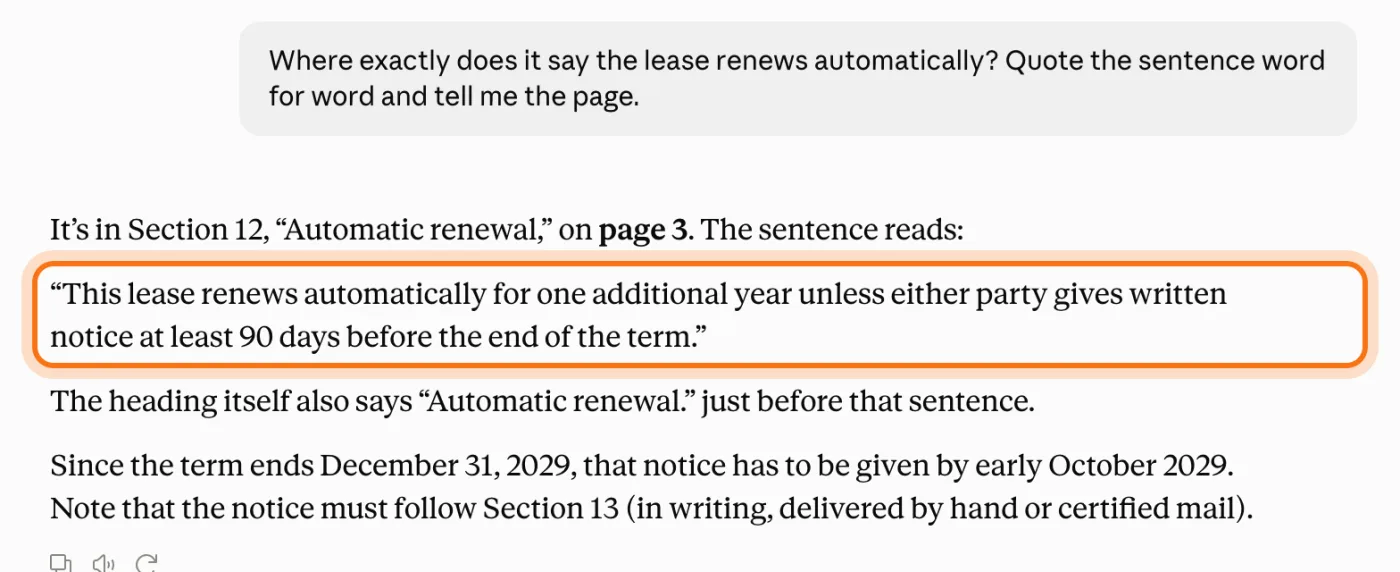
Anthropic's tip: when you refer to a page, use the number your PDF viewer shows, not the one printed on the paper.
Try this prompt
Where exactly does it say that? Quote the sentence word for word and tell me the page.Step 5: Turn it into something you can use
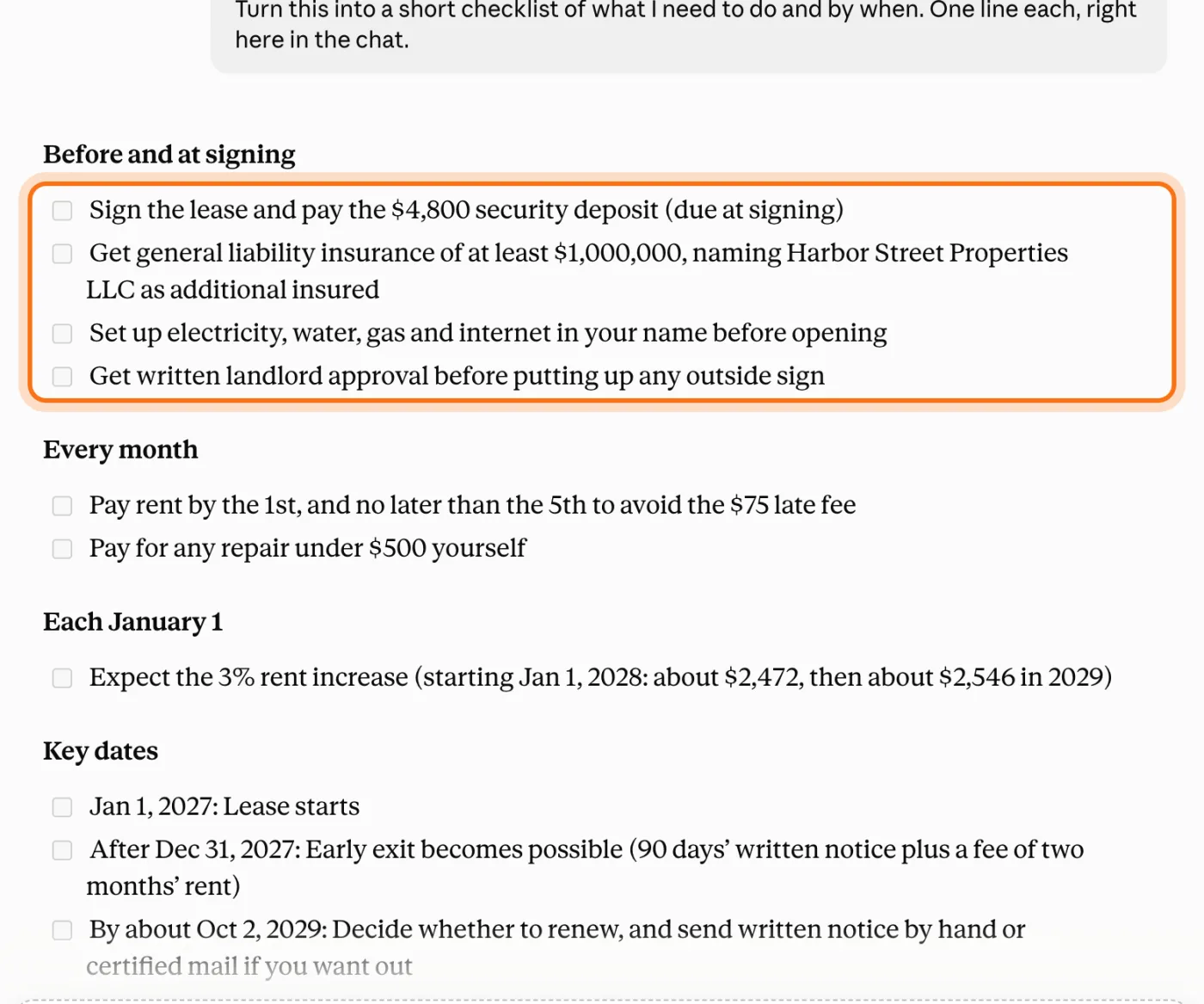
Once you understand the document, ask for what comes next: a checklist with dates, an email to the other side, questions for a meeting. It's the same chat, so you don't have to explain the file again.
Try this prompt
Turn this into a short checklist of what I need to do and by when. One line each, right here in the chat.
Members
The rest of this guide is for members
Create a free account and every room in the academy opens for 30 days. No credit card needed.
In the rest of this guide
8 real jobs for your documents, with prompts to copy
- Understand a lease or contract before you sign
- Compare two quotes side by side
- Get what matters out of a long report
- Find the deadline in a letter
- Turn a manual into steps you can follow
- Pull numbers out of a price list
- Prepare questions for a meeting
- Turn what you found into an email
Habits and buttons worth knowing
- Tell it to stick to the file
- A private file? Start an incognito chat
- A file you'll ask about again? Put it in a Project
- In ChatGPT: "Add photos & files"
- In Gemini: "Upload files" or "Add from Drive"
When it gets your document wrong, and how to fix it
- It misreads a scanned PDF or a photo
- It answers from general knowledge, not from your file
- It misses something in a long file
- The file won't upload
- It says you've reached a limit
- It gets a number or a date slightly wrong
- The file has private details in it
Where to go next
Two habits make every document answer better: asking where it says so, and checking what matters. These guides go deeper.