What Gemini Notebook is, in one minute
Gemini Notebook, which Google used to call NotebookLM, is a notebook for your own material. You add sources, like PDFs, Google Docs, websites or YouTube videos, and then ask questions. Google says its chat answers only from the sources you added.
Every answer comes with small numbered citations. Point at one and you see the exact passage from your document it came from. That makes it easy to check, and hard for it to sneak in something your documents don't say.
It's free with a Google account at notebook.google.com (the old address, notebooklm.google.com, takes you there). This guide uses the website on a computer, with three made-up documents from a coffee shop.
When to pick Gemini Notebook, and when another tool fits better
Claude, ChatGPT and Gemini can all read a file you upload. Gemini Notebook is built for a set of documents you come back to.
Pick Gemini Notebook when
- You have several documents on one subject, like a lease and two quotes, a binder of policies, or course readings, and want answers across all of them.
- You need to show where an answer came from. Each claim has a numbered citation you can point at.
- You want study or briefing material made from your documents. The Studio panel makes flashcards, quizzes, mind maps, reports and audio overviews.
Look at another tool when
Claude, ChatGPT or Gemini: It's one file and one quick question, or you want the AI to write something from it, like an email to the landlord. Upload it to the chat you already use.
Read the guidePerplexity: The answer isn't in your documents. You want the web searched, with sources you can open.
Read the guide
Your first notebook, in five steps
Here's the whole loop, from an empty notebook to an answer you can check. The example: a coffee shop owner with his lease and two painting quotes. All three documents are made up.
Step 1: Open notebook.google.com and create a notebook
Sign in with your Google account and click "New notebook". Make one notebook per subject, like "Shop lease and repairs" or "Food safety course", so the answers stay on topic.

Step 2: Add your sources
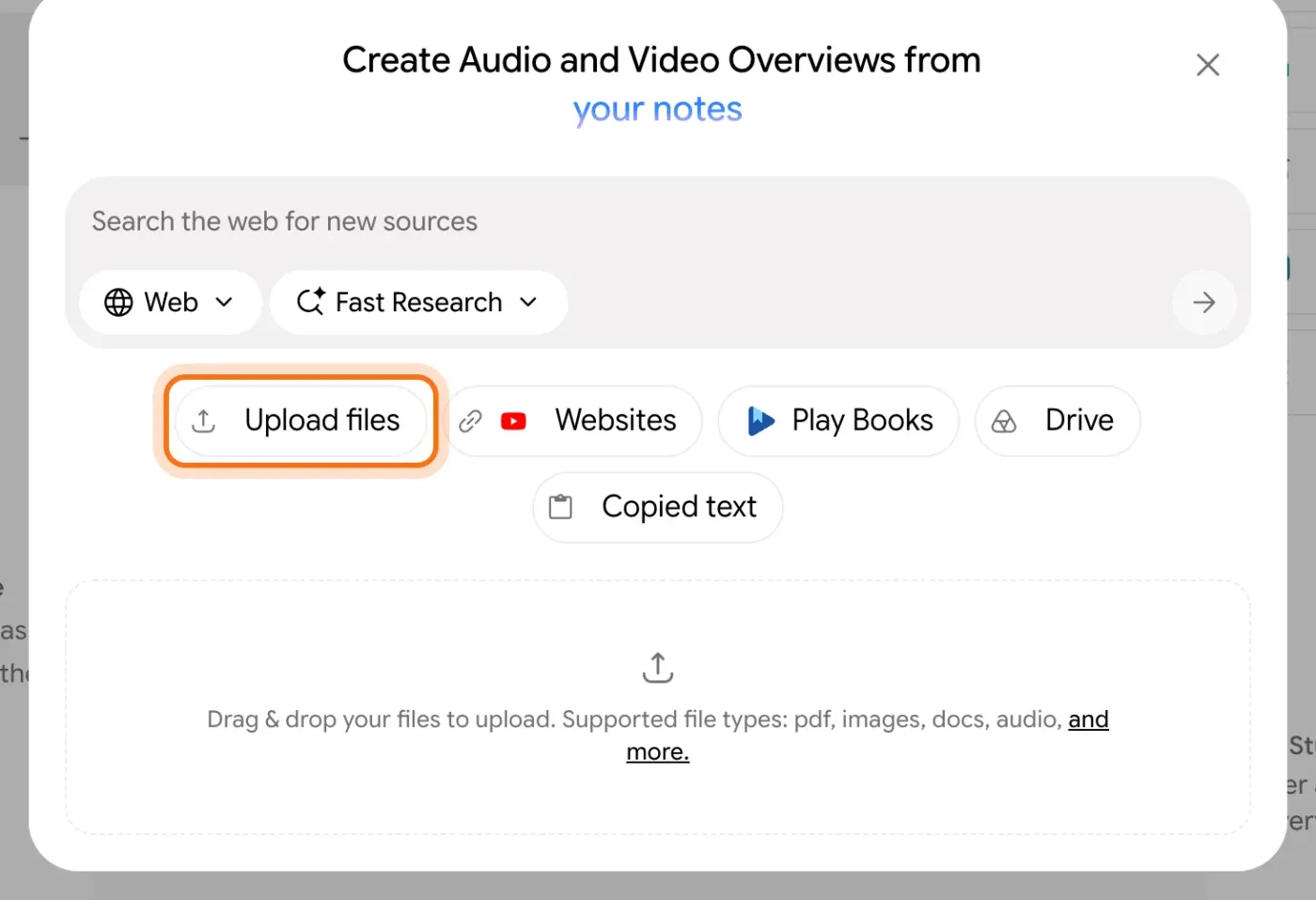
A window opens for your sources. Click "Upload files" for files on your computer, "Drive" for Google Drive, "Websites" for a web page or a YouTube video, or "Copied text" to paste. Google lists PDFs, images, documents and audio among the file types.
Step 3: Check that they all arrived
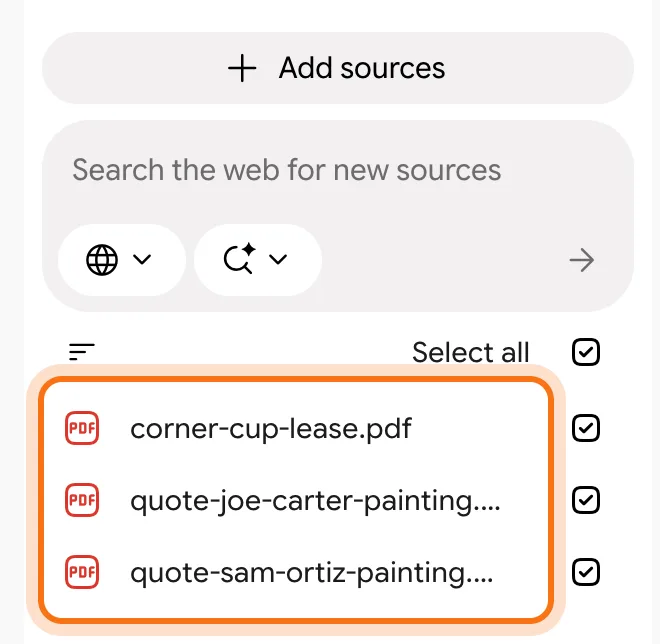
Your sources appear in the "Sources" panel on the left, each with a checkbox. A ticked box means the source is used in your answers. Untick one to leave it out of the next answer.
Step 4: Ask a real question across your documents
In the box at the bottom, ask what you actually need to decide, even if the answer is spread over several files. The counter next to the box shows how many sources the answer will use.

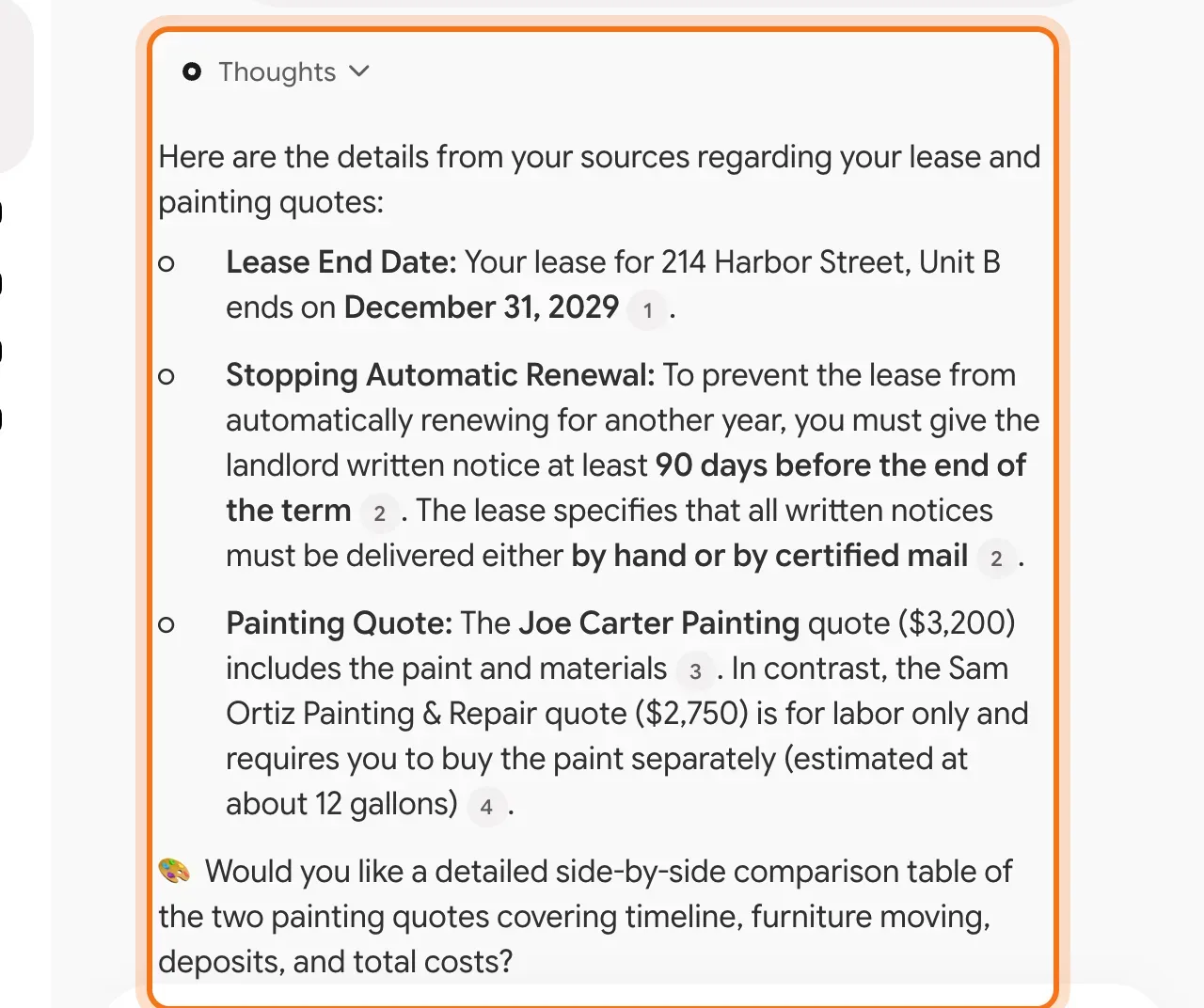
The example in the picture: when the lease ends, how to stop it renewing, and which painting quote includes the paint.
Try this prompt
I [who you are]. [Your question], using only these sources. If the answer isn't in them, say so.Step 5: Read the answer, and point at a citation
The answer pulls from all three documents, with a small number after each fact. Point at a number to see the exact passage from your file, and click "View source" to open the document right there. Check the ones you'll act on.
Members
The rest of this guide is for members
Create a free account and every room in the academy opens for 30 days. No credit card needed.
In the rest of this guide
8 real jobs for a notebook, with prompts to copy
- Keep your contracts in one place, and ask them questions
- Compare quotes or proposals
- Turn a handbook into answers for your team
- Study for a course or a certification
- Research a decision from several articles
- Prepare for a meeting
- Learn from a long video without watching it all
- Listen to your material on the go
Tools and settings worth knowing
- Check a citation in one move
- The Studio panel: make something from your sources
- Save a good answer as a note
- Share the notebook, not the files
When the notebook gets it wrong, and how to fix it
- It says it doesn't have your documents
- You wanted an answer from outside your documents
- It got a number or a date slightly wrong
- The answers mix up unrelated documents
- It missed something you know is in a document
- A file won't upload
- You reach a limit on the free plan
- You're not sure what's safe to add
Where to go next
A notebook is one way to work with your documents. These guides cover the rest.