What Microsoft Copilot is, in one minute
Microsoft Copilot is Microsoft's AI assistant. You type or talk to it like a helpful coworker, and it answers: a draft email, a summary, ideas, an explanation. Microsoft says it can also create images and Word, Excel and PowerPoint files that are ready to send.
It's the same assistant on the desktop, the web and your phone, and the account you sign in with shapes what you get. With a work or school account, your company decides what's included. With a personal account, you get Microsoft's personal version, with more if you pay for Microsoft 365.
Copilot asks you to sign in before it answers. We didn't make an account for this guide, so the pictures are Microsoft's own public pages.
When to pick Copilot, and when another tool fits better
Copilot, ChatGPT, Gemini and Claude can all write, explain and summarize. The real difference is which apps you already live in.
Pick Copilot when
- Your work runs on Microsoft: Outlook, Word, Excel, Teams. Copilot is built around those apps and files.
- Your company gives you Copilot with your work account. Microsoft says work accounts come with enterprise data protection.
- You're on a Windows PC. Microsoft says the Copilot app comes installed on new Windows 11 PCs, on the taskbar or the Start menu.
Look at another tool when
Gemini: Your work lives in Gmail, Google Docs and Drive. Gemini connects to those the way Copilot connects to Microsoft's.
Read the guideChatGPT: You want one general assistant that doesn't depend on which office apps you use, free with an email sign-up.
Read the guide
Get started with Copilot, in five steps
Here's how to open Copilot, sign in and ask your first question. The pictures are Microsoft's public Copilot page and its help page.
Step 1: Choose where to use it
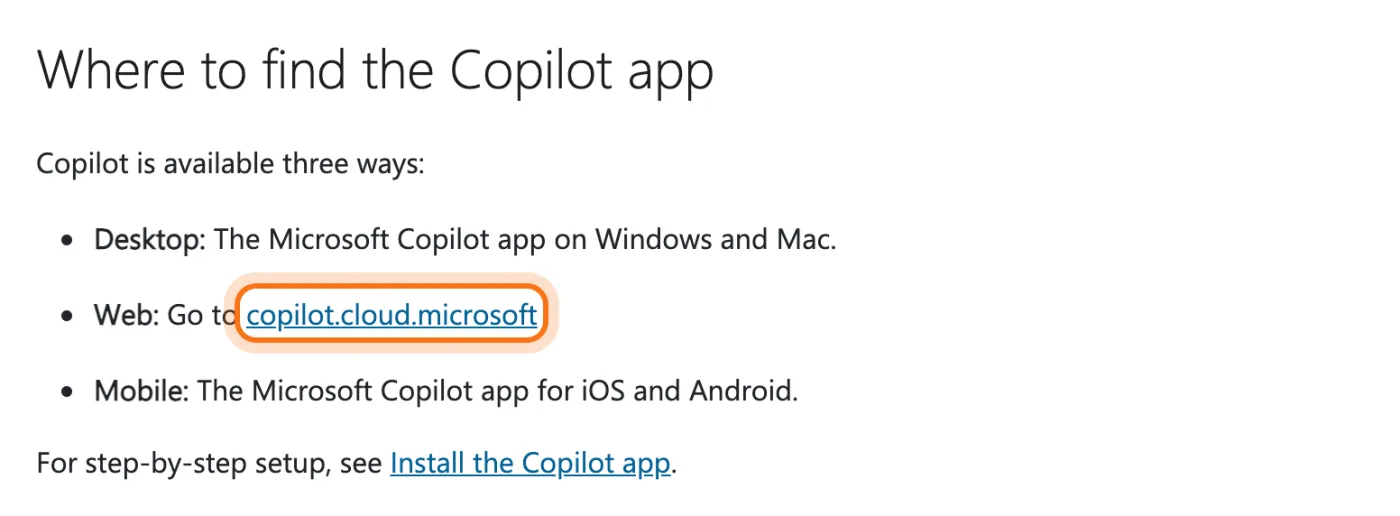
Microsoft lists three ways: the Copilot app for Windows and Mac, the web at copilot.cloud.microsoft, and the Copilot app for iPhone and Android. On a new Windows 11 PC, look for Copilot on the taskbar or in the Start menu.
Step 2: Open the Copilot page
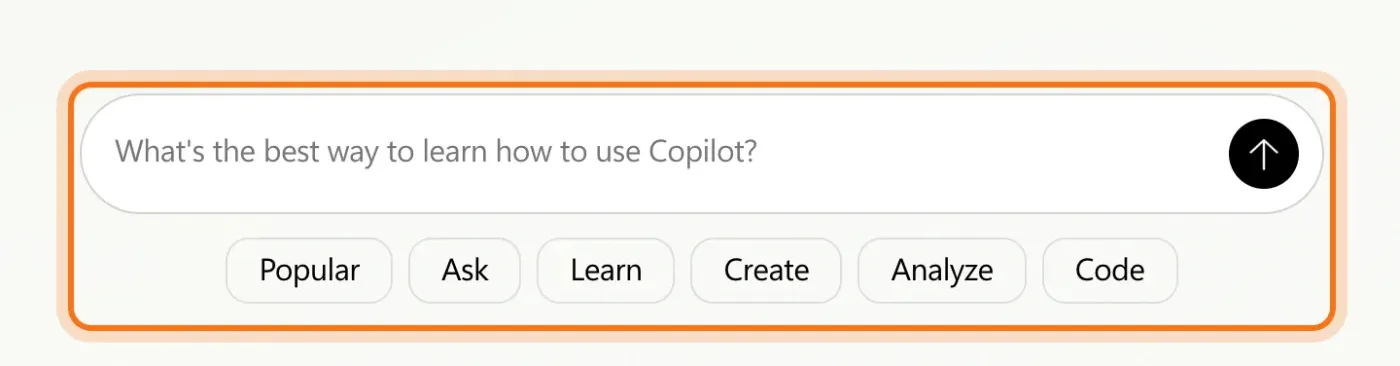
On the web, go to copilot.cloud.microsoft. The page has a message box with an example question, and buttons under it to get ideas: "Popular", "Ask", "Learn", "Create", "Analyze" and "Code".
Step 3: Sign in with the right account
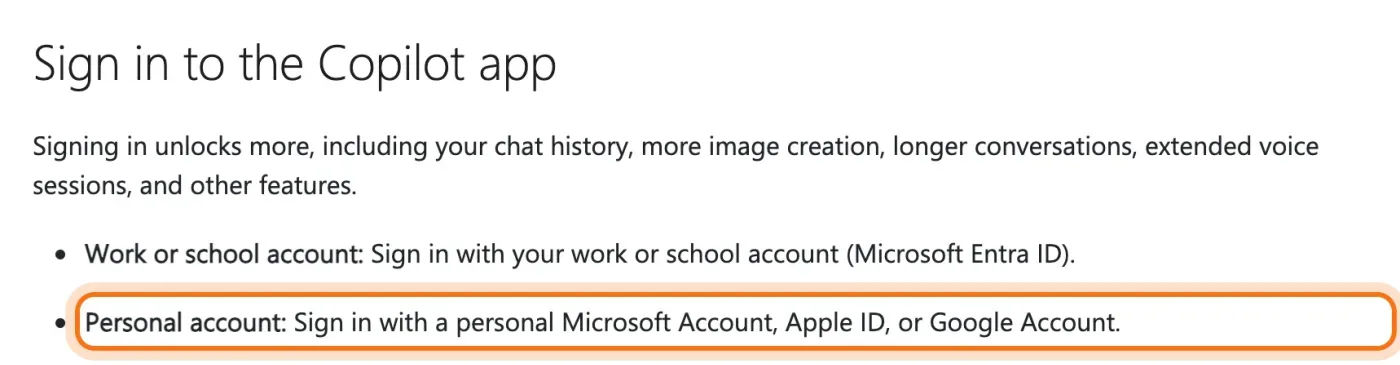
Click "Sign in". Use your work or school account if your company gave you Copilot, or a personal Microsoft account for your own use. When we typed a question without signing in, Copilot took us straight to Microsoft's sign-in page.

Step 4: Know what signing in gives you
Microsoft says signing in unlocks your chat history, more image creation, longer conversations and longer voice sessions. Its help page also lists an Apple ID or a Google Account for personal sign-in; the sign-in page we saw on the web offered a Microsoft account, a passkey or GitHub.
Step 5: Ask for one job, with the details that matter
Microsoft's advice is to start with a new chat. Write the way you'd brief a coworker: what you need, for whom, and how long. Then read the answer like a first draft, and say what to change in the same chat.
Try this prompt
I run [your business]. [What happened, or what you need]. Write [what kind of text] for [who will read it]. Keep it [how long, what tone].
Members
The rest of this guide is for members
Create a free account and every room in the academy opens for 30 days. No credit card needed.
In the rest of this guide
8 real jobs for Copilot, with prompts to copy
- Draft a reply to a tough email
- Make a Word document you can send
- Build a simple Excel tracker
- Turn notes into a short presentation
- Summarize a meeting or a long thread
- Make a simple image
- Explain a confusing letter or term
- Plan a busy week
Things worth knowing
- Use the idea buttons when you're stuck
- Check whether you're in Work or Personal
- The navigation pane
- What you get depends on your account
When Copilot doesn't do what you wanted, and how to fix it
- It sends you to a sign-in page
- You see different features than a coworker
- It states a fact that's wrong
- The answer is generic
- It's too long or too formal
- You wanted a file, but got text
- It stops or says you've reached a limit
- You're not sure what's safe to paste
Where to go next
These guides work with any assistant, Copilot included.