What this is, in one minute
Claude is the AI made by Anthropic. Its Design feature makes a real designed page from a sentence: a big headline, colors, shapes and your details, on a canvas next to the chat. You can click any text on it and change it, ask Claude to move things around, and download it as a PDF to print or send.
It's free. Anthropic's help page says Claude Design is on every plan, including Free, and we used a free account on 10/22, on a computer. Everything in this guide worked.
No design app, no templates, no boxes that won't line up. You say what the poster is for and what it must say.
Which way to use
Claude Design is for a page with words on it: a poster, a flyer, a sign or an invitation. Other guides cover the jobs around it.
Use Claude Design when
- You need a poster or a flyer for an event, a sale or a notice, and you know what it should say.
- You want your words on it exactly as you wrote them, big and easy to read.
- You'll print it, hang it, or send it as a PDF or a picture.
Use something else when
Use Canva: You want to start from a ready template, or put your own photos on it.
Read the guideCreate images with AI: You need a picture or a drawing, not a page with text.
Read the guide
Your first poster, step by step
Our example: the Pine Street Library is holding a book swap on a Sunday, and it needs a poster for the door.
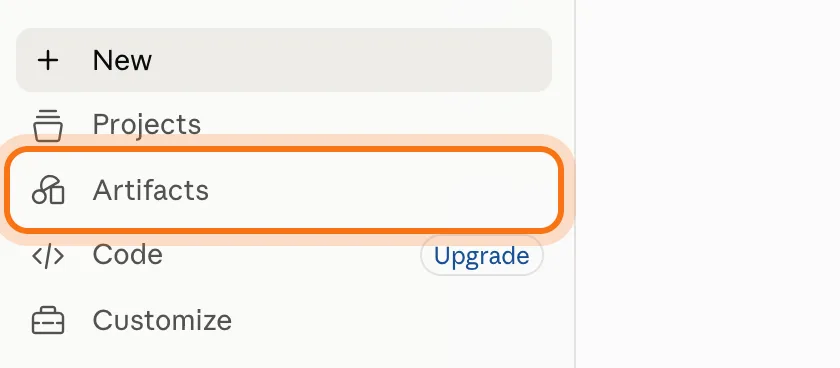
Step 1: Open Claude and click Artifacts
Go to claude.ai and sign in. A free account is enough. In the menu on the left, click "Artifacts".
Step 2: Click Design
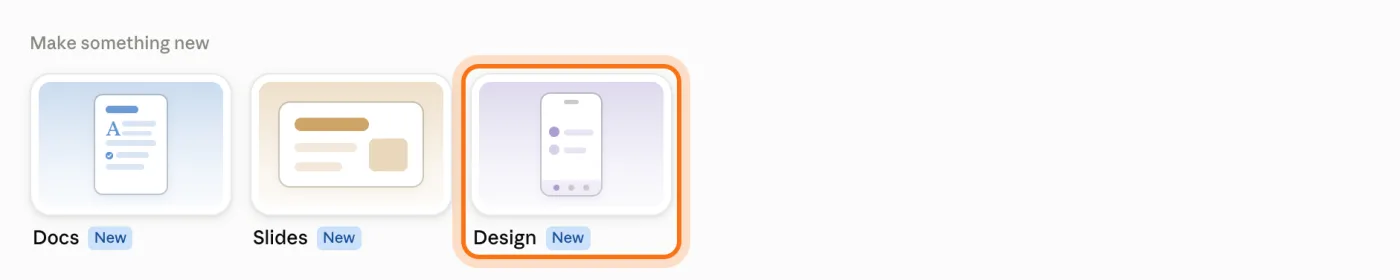
Under "Make something new" there are three cards: Docs, Slides and Design. Click "Design". A new chat opens, with a "Claude Design" label under the box.
Step 3: Describe the poster in one sentence
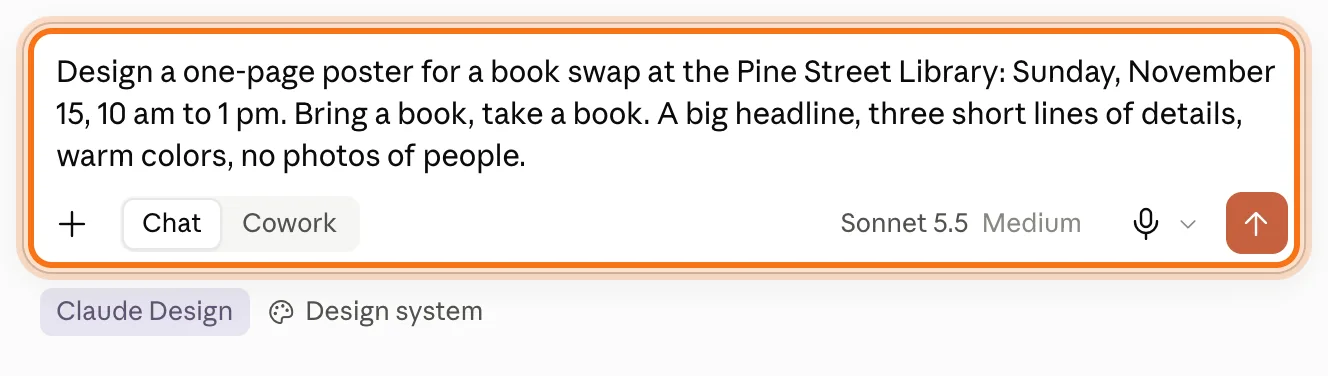
Say what it's for, every detail it must show, and how it should look. Ours: "Design a one-page poster for a book swap at the Pine Street Library: Sunday, November 15, 10 am to 1 pm. Bring a book, take a book. A big headline, three short lines of details, warm colors, no photos of people." Then press Enter.
Step 4: The poster opens next to the chat
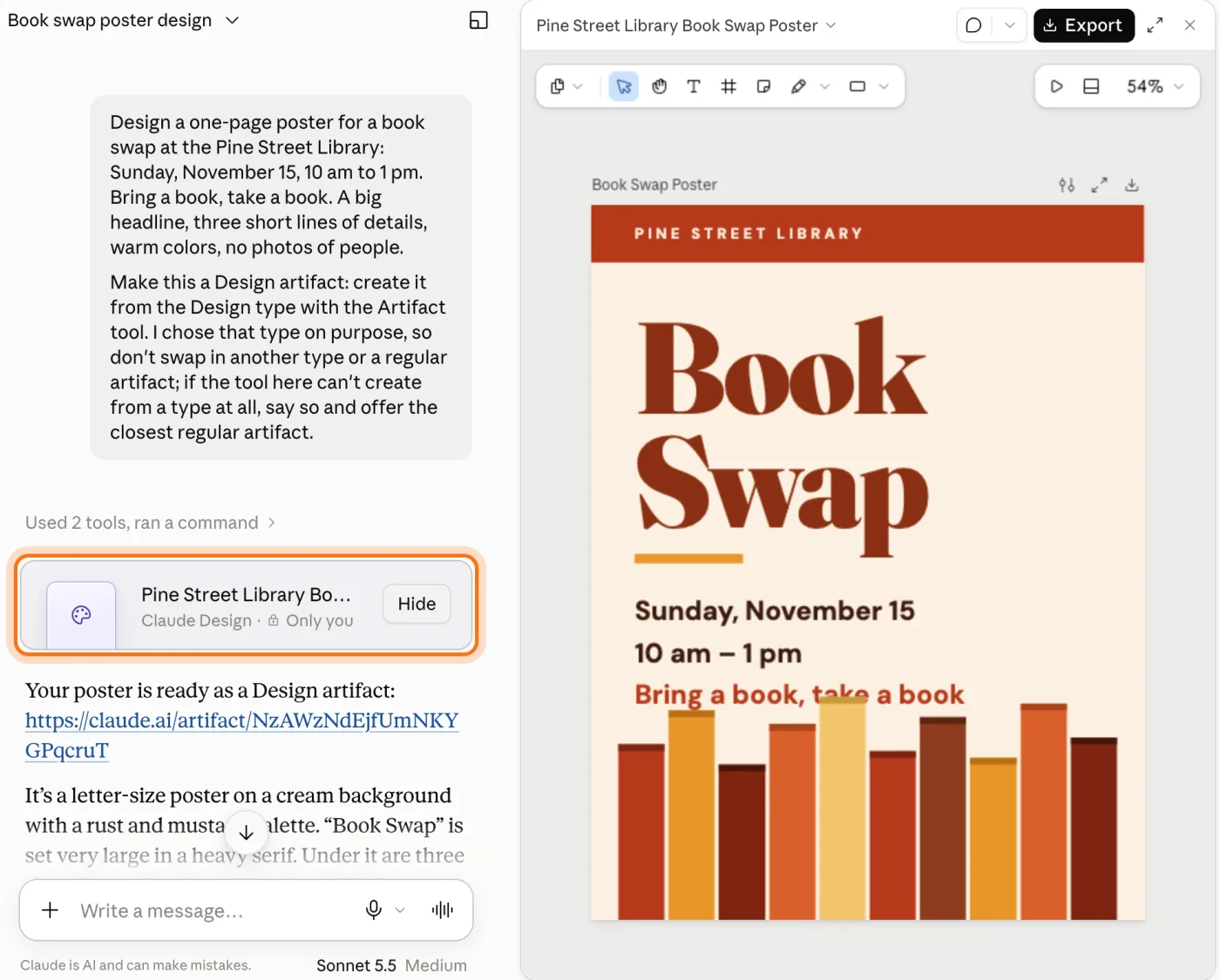
Claude adds a few lines of its own under your request ("Make this a Design artifact..."). That's normal. A card with the poster's name shows up in the chat ("Claude Design · Only you"), and the poster opens on the right. Ours was ready in under 4 minutes. Claude also said what it decided on its own: the library's name went in a banner at the top.
Step 5: Change any text by clicking it
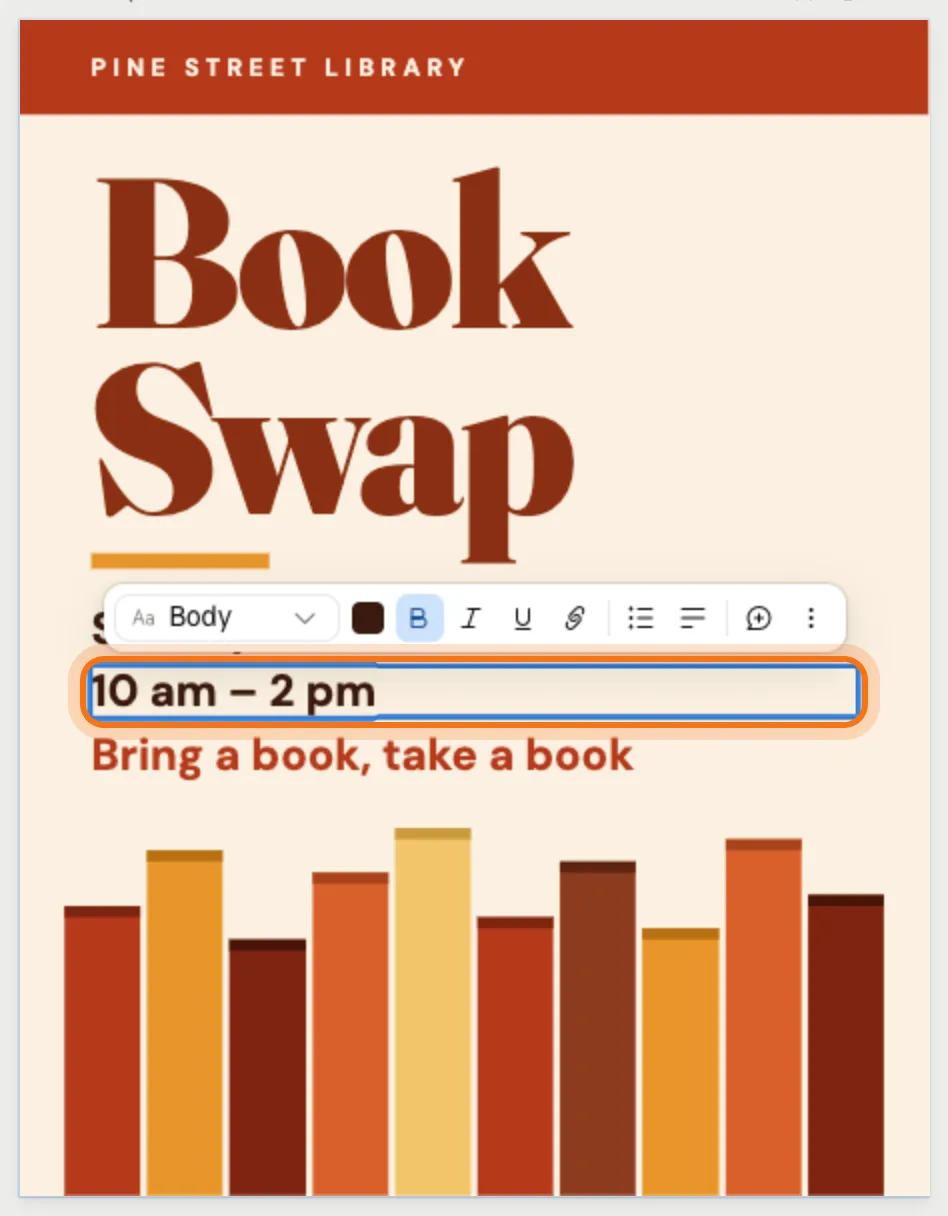
Double-click a line of text on the poster. It turns into a box you can type in, with a small toolbar over it for the font, the color and bold. Type the new words. We made the swap an hour longer: "10 am - 2 pm". Then click an empty gray spot on the canvas, next to the poster. That keeps the change. When we pressed Enter instead, the old text came back after we reopened the poster.
Step 6: Export it as a PDF
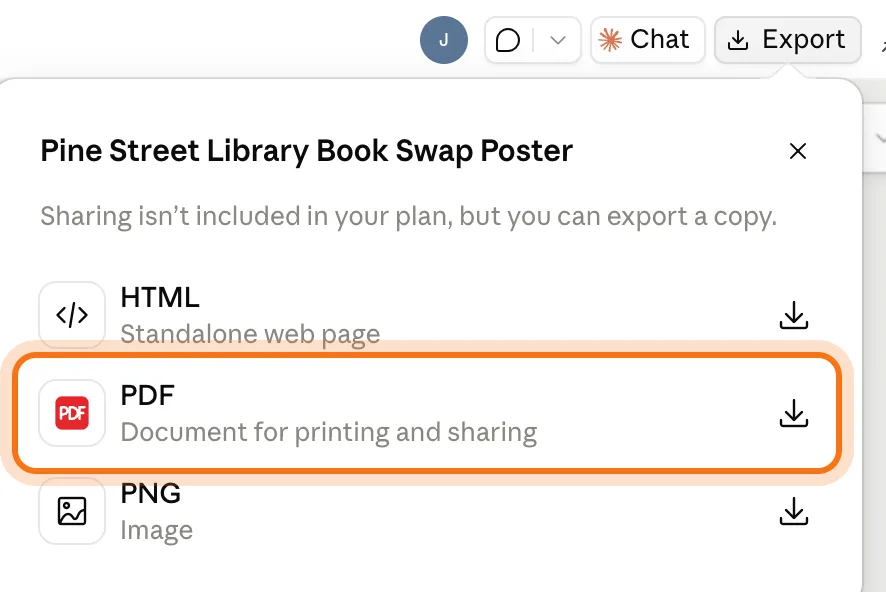
Happy with it? Click "Export" at the top right, then "PDF". "PNG" makes a picture instead, to send in a message or post online. "HTML" is a web page.
Step 7: Click Save file
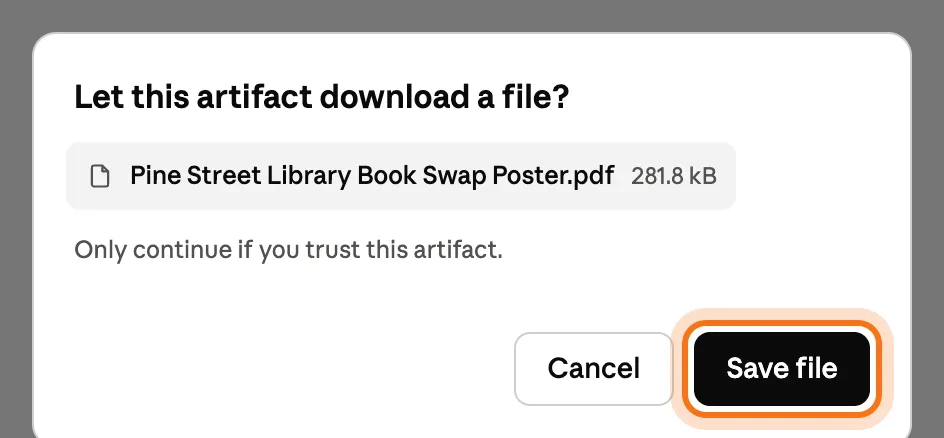
Claude asks "Let this artifact download a file?". Click "Save file". The PDF goes to your Downloads folder. Ours was one letter-size page with every word exactly as it was on the poster, our new time too. Print it, or attach it to an email.
Members
The rest of this guide is for members
Create a free account and every room in the academy opens for 30 days. No credit card needed.
In the rest of this guide
8 posters and flyers to make, with prompts to copy
- A garage sale or a yard sale
- A community event
- A party invitation
- A sign for a shop window
- A notice for a door
- A lost pet flyer
- A price list or a menu
- A chart for the fridge
More ways to use it
- Ask Claude to fix the layout
- Claude changes the poster and keeps your edits
- Tweaks: settings Claude made for this poster
- Find your poster again
- Undo a change
- Send it as a picture
- Make a poster from any chat
- On your phone
When something goes wrong, and how to fix it
- There's no Design card under Artifacts
- It's taking minutes, not seconds
- Something on the poster is covered or cut off
- Your text change didn't stay
- A detail you need isn't on the poster
- "Let this artifact download a file?"
- There's no way to share a link
- The chat stays in your history
Where to go next
Claude made the poster. These guides help with what's around it.