What Deep Research is, in one minute
Deep Research is a mode for questions that need more than one search. You ask, the AI writes a short research plan, reads dozens of websites over several minutes, and then writes a report based on the pages it read.
Gemini has it for free, with daily limits, if you're 18 or over. ChatGPT has it too, and lists it as limited on the free plan. Claude has a similar feature called Research, on its paid plans.
Use it for decisions, not for quick facts: choosing a supplier, understanding your customers, getting ready for a big meeting. And check the sources it used. A report can sound complete and still get something wrong.
When it's worth the wait
A normal chat answers in seconds. Deep Research takes minutes, so save it for questions where more reading changes the answer.
Use Deep Research when
- The answer needs many sources: comparing options, understanding a market, collecting what customers say.
- You'll make a decision or spend money based on the answer, so you want the reasons and the links.
- You can start it and come back later. Google says a report usually takes 5 to 10 minutes.
Use something faster when
Perplexity: You want a quick answer with sources, in seconds, not a full report.
Read the guideGemini Notebook: The sources are your own documents, and you want answers only from them.
Read the guide
Your first research report, in five steps
A real example: Mike runs a small lawn care company and wants to know what customers complain about in reviews, and how the best companies answer. The pictures use Gemini on a free account.
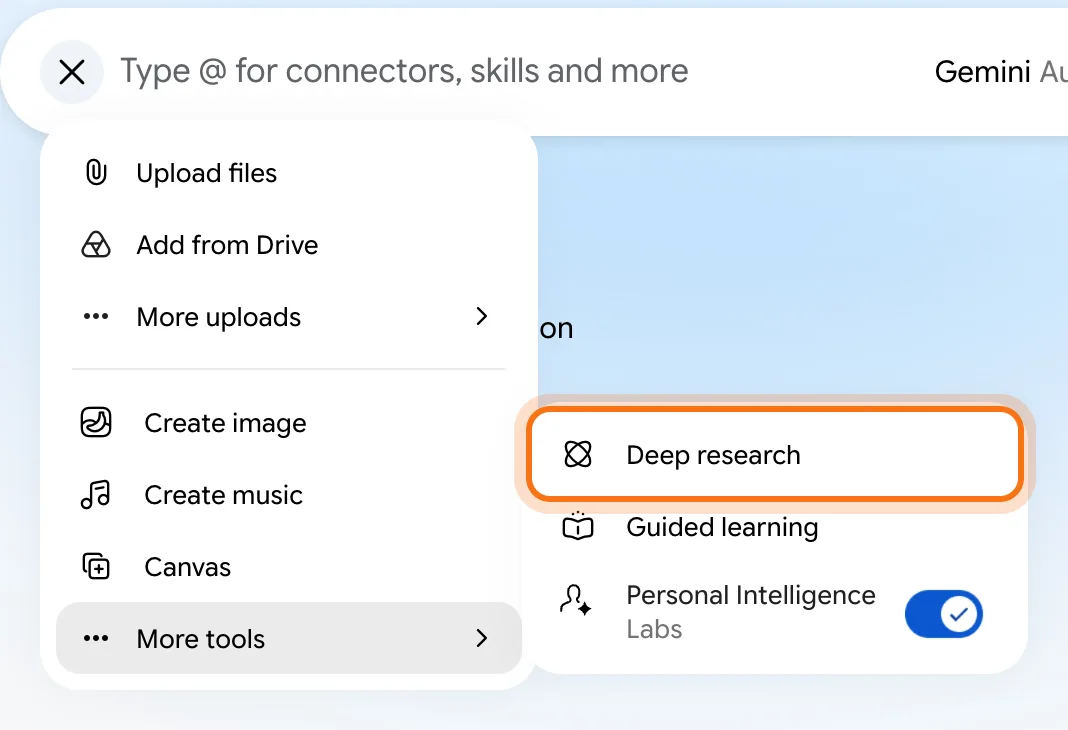
Step 1: Turn on Deep research
Go to gemini.google.com and sign in. Click + at the left of the message box, then "More tools", then "Deep research". A "Deep research" label appears in the message box.
Step 2: Ask a full question
Write two or three sentences: what you want to know, who you are, and what you'll do with the answer. That context shapes the whole report. Then press Enter.
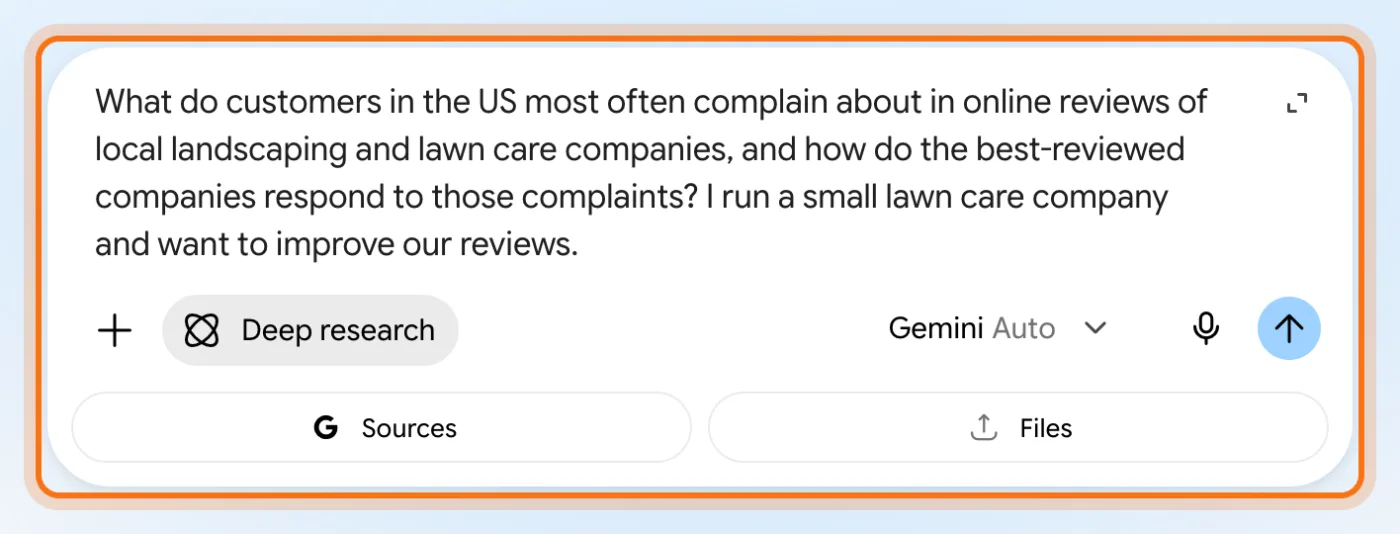
Try this prompt
Research [your question]. I'm [who you are], and I need this to [decide / plan / improve what]. Focus on [country or state], and on sources from the last [2] years.Step 3: Check the plan, then click Start research
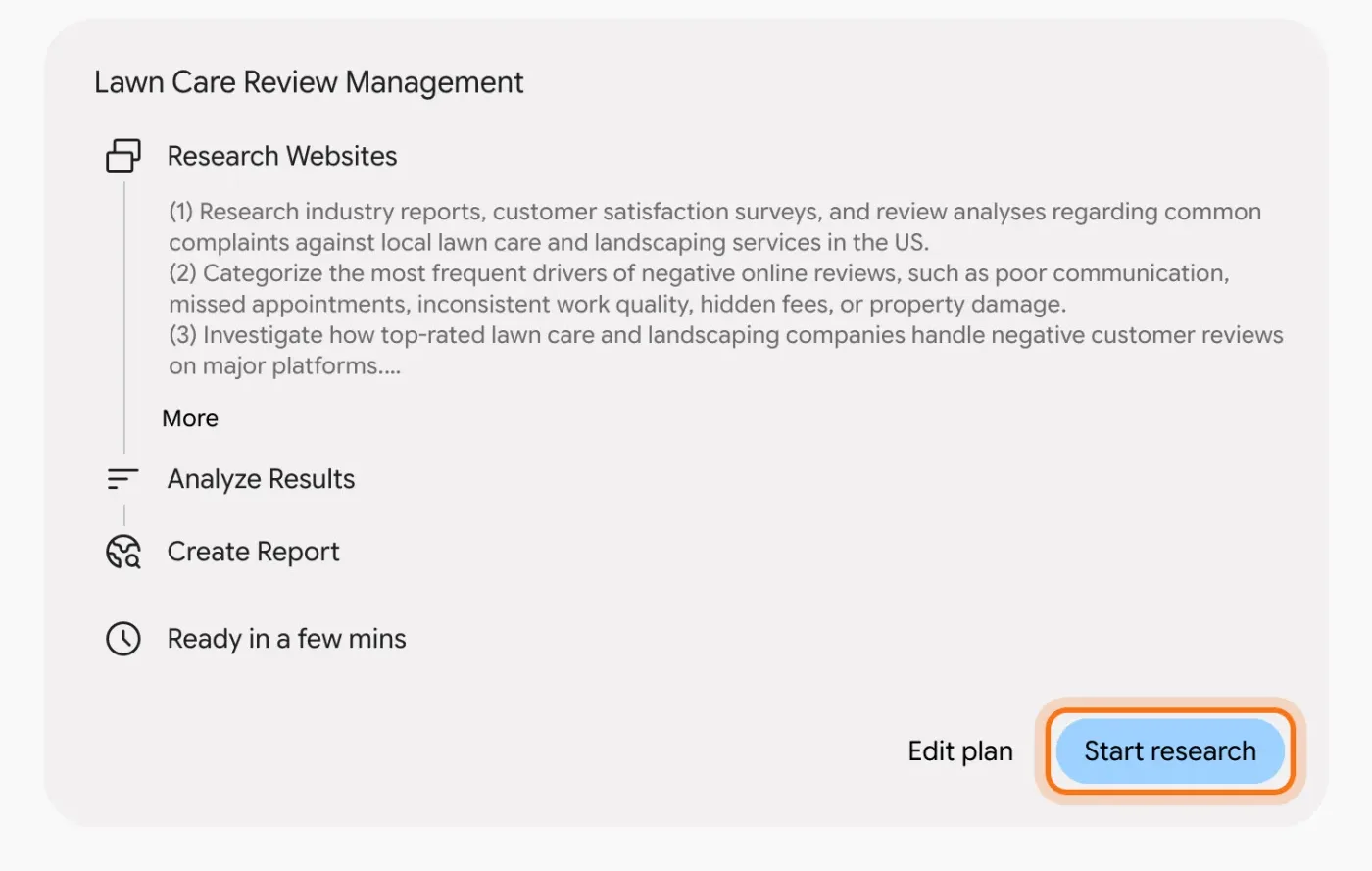
Gemini answers with a research plan: the steps it will take, then "Analyze Results" and "Create Report". If something is missing or off, click "Edit plan" and say what to change. When it looks right, click "Start research".
Step 4: Let it work, or leave and come back
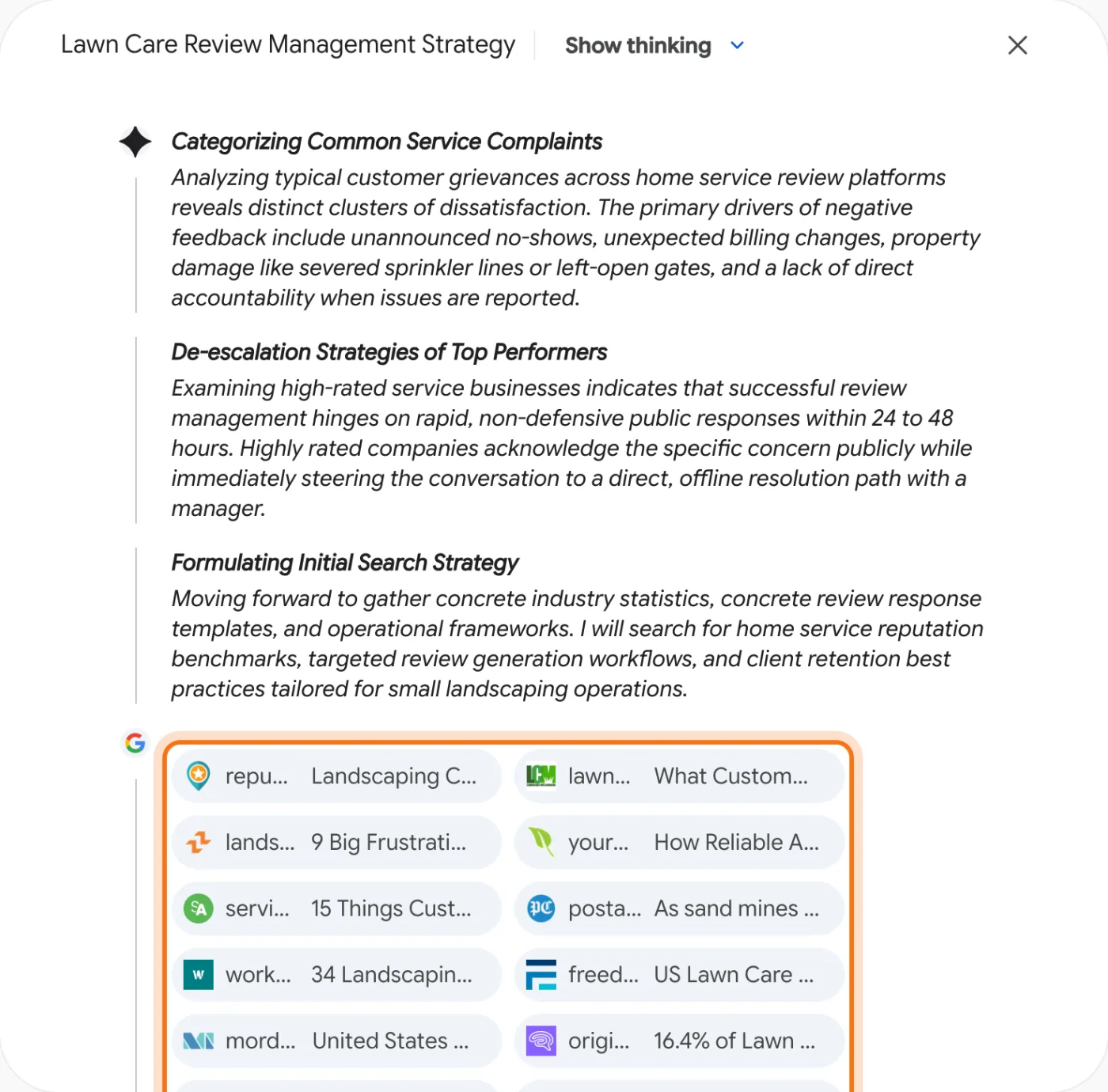
A panel opens next to the chat. Under "Show thinking" you can follow what Gemini is looking into, and the websites it's reading appear as small cards. You don't have to watch: Google says you can leave the chat and you'll be told when the report is ready.
Step 5: When the reading is done, open the report
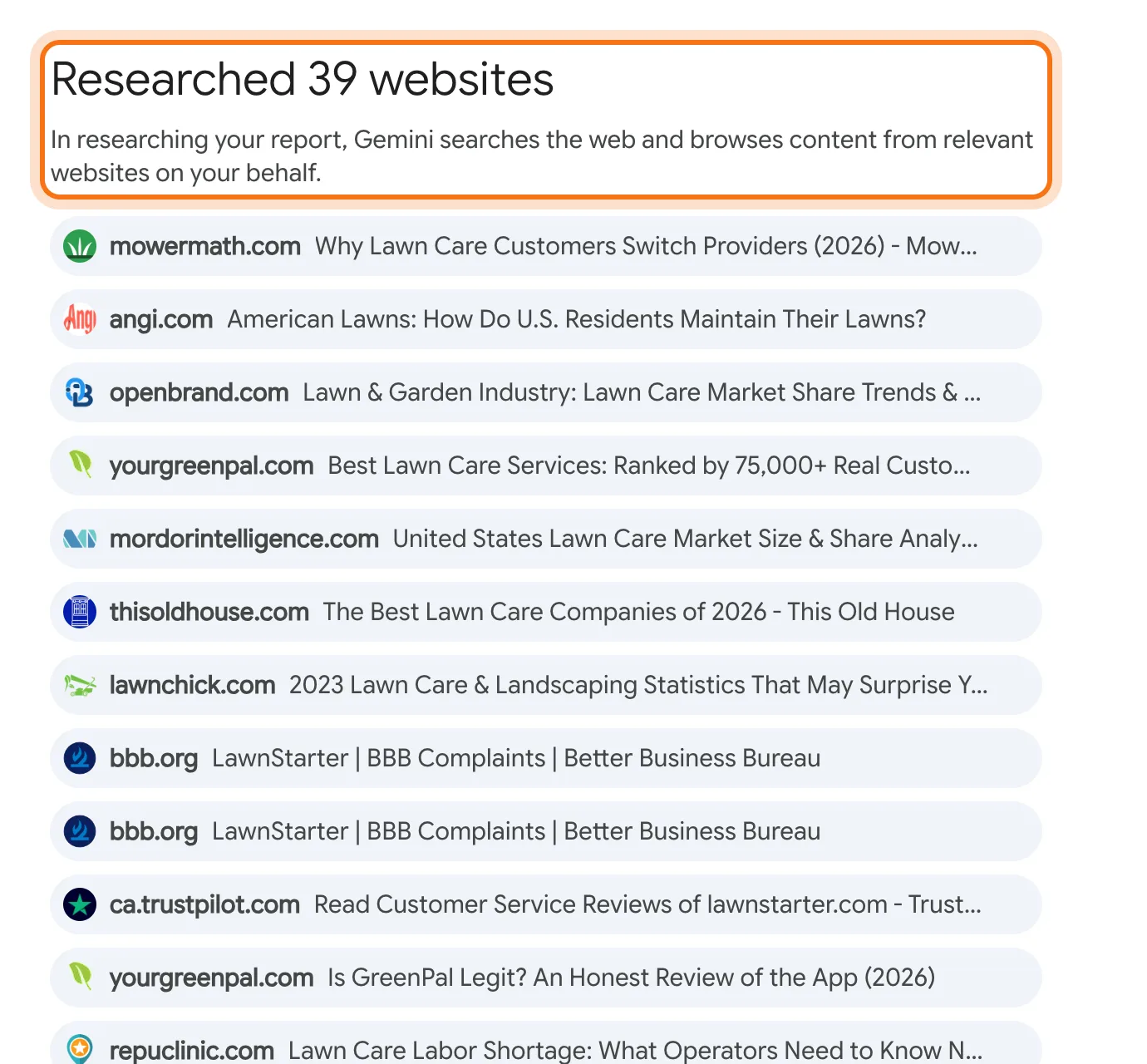
When Gemini has finished reading, the panel lists every website it researched, 39 in this example, and then it writes the report there. Google says the report appears next to the chat and Gemini tells you when it's ready. Start with the summary at the top, then open two or three of the sources behind the points that matter most to you.
Members
The rest of this guide is for members
Create a free account and every room in the academy opens for 30 days. No credit card needed.
In the rest of this guide
8 real research jobs, with prompts to copy
- Learn what customers complain about in your industry
- Compare suppliers or tools before you choose
- Understand the rules before you start something new
- Get to know your competitors
- Prepare for a big purchase
- Get ready for an important meeting
- Learn a new topic fast
- Plan an event or a trip in detail
Buttons and options worth knowing
- Share & export: send it to Google Docs
- Check the sources it read
- Research your own files too
- ChatGPT and Claude
When something goes wrong, and how to fix it
- It's been "Creating your report" for much longer than usual
- You can't find Deep research in the menu
- It says you've reached your limit
- The report is long and general
- Some sources are old or weak
- A point in the report isn't what the source says
- The answer is about the wrong country or state
- You don't want the research saved in your history
Where to go next
Research is only useful if it's right. These guides help you check it and use it.