What Gemini Canvas is, in one minute
Gemini is Google's AI. Canvas is a way to work with it on a document, not just in chat answers. You ask for a flyer, an email or a plan, and it opens as a page. You can click into it and type, or pick one line and tell Gemini how to change it. When the text is ready, Gemini can also turn it into a simple web page.
It's free. Google says Canvas is available for all Gemini users, in every language and country where the Gemini app works. We checked on a free Google account on 10/20, on a computer, and everything in this guide worked. Paid plans (Google AI Pro and Ultra) get a stronger model and room for much longer projects.
On our computer, Canvas opened inside the chat, under Gemini's answer. One button gives it the whole screen. On a wider screen it may open next to the chat instead.
Which way to use
Canvas is the best way when you want to keep working on the same text. Other guides cover the jobs around it.
Use Canvas when
- You need a longer piece, like a flyer, a letter or a one-page plan, and you'll change it a few times.
- You want to fix one line without Gemini rewriting everything else.
- You want to turn the text into a simple web page you can see right away.
Use something else when
Work on a document in ChatGPT: You use ChatGPT more than Gemini, and want the same kind of help with a document there.
Read the guideWrite a quick email: You need a short email or a reply now, and a chat answer is enough.
Read the guide
Your first document in Canvas, step by step
A real example: Dan, who runs a small bike repair shop, wants a one-page flyer for his spring tune-up special: $49 instead of $79, until May 31. Then he wants to make one line stronger, and to see the flyer as a web page. The pictures use Gemini on a free account, on a computer.
Step 1: Turn on Canvas
Go to gemini.google.com and sign in with your Google account. Click the + button at the left of the message box, and choose "Canvas".
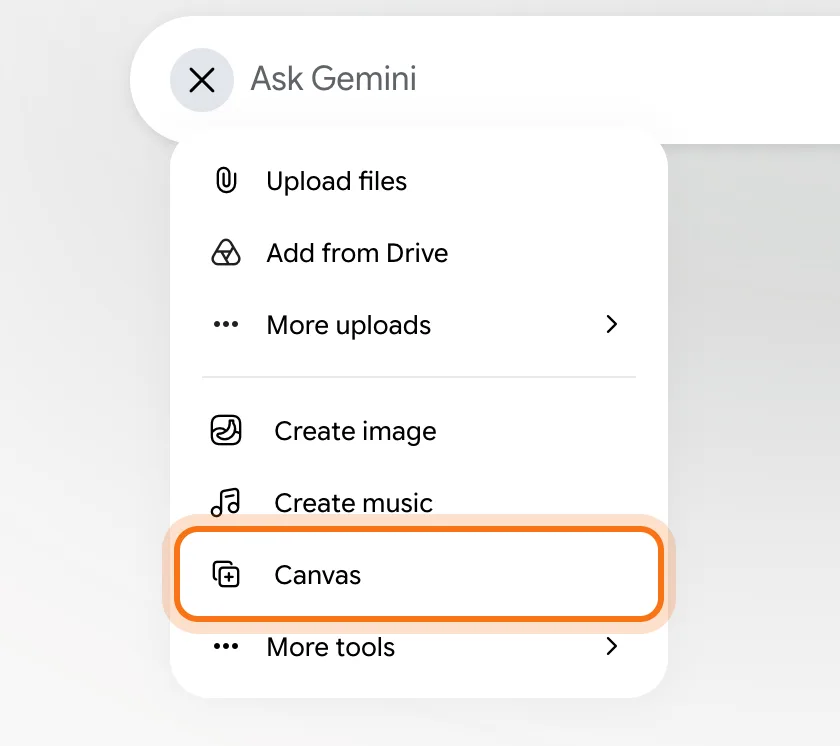
Step 2: Ask for the document
"Canvas" now shows in the message box. Type what you need, and include the facts that matter, like the price and the date. Press Enter.
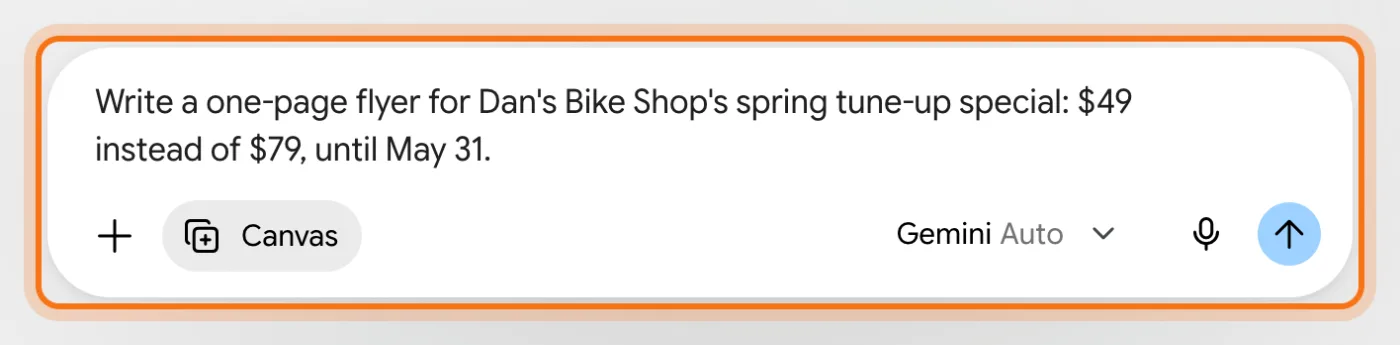
Step 3: Read the document
The flyer opens as a page, with its own name at the top. Click anywhere in it to type, like on any document. The cloud at the top means your changes are saved.
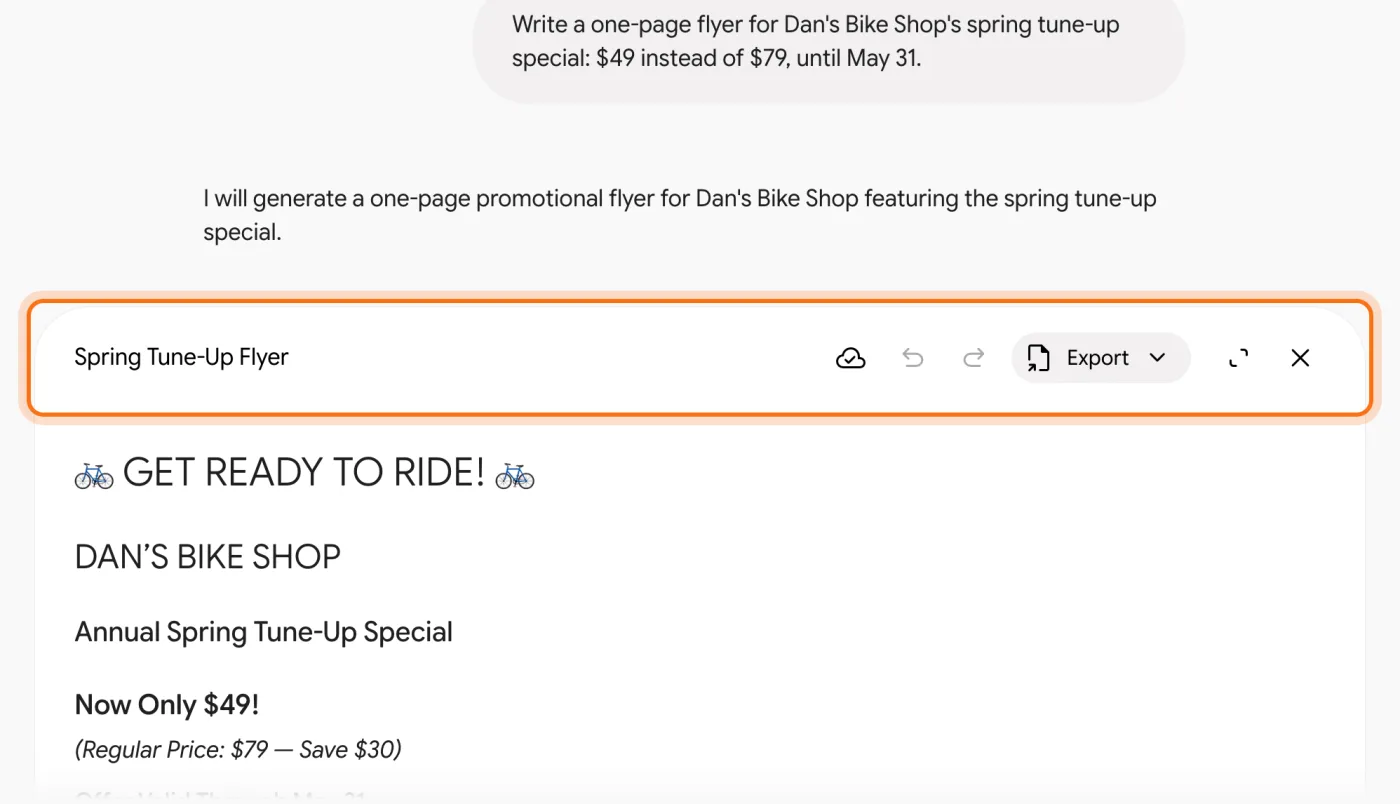
Step 4: Change one line
Select a line with your mouse. A small box opens, "Describe changes". Type what to change, and press Enter. Say "this line": on ours, "Make it more urgent" rewrote the whole flyer, and "Make this line more urgent" changed only the line.

Step 5: Go back if you don't like it
Gemini changes only that line, and the rest stays as it was. Don't like it? The arrows at the top go to the version before, and forward again.
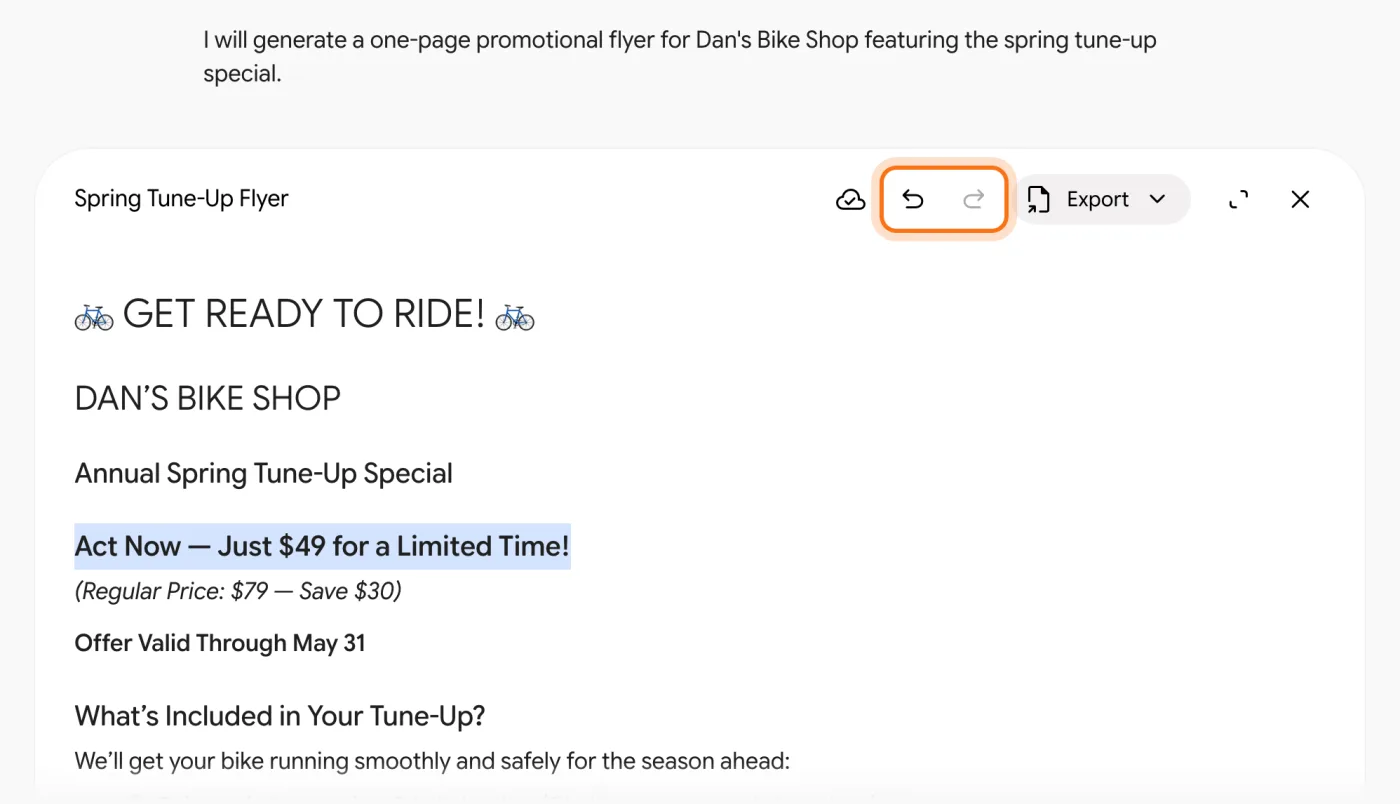
Step 6: Turn it into a simple web page
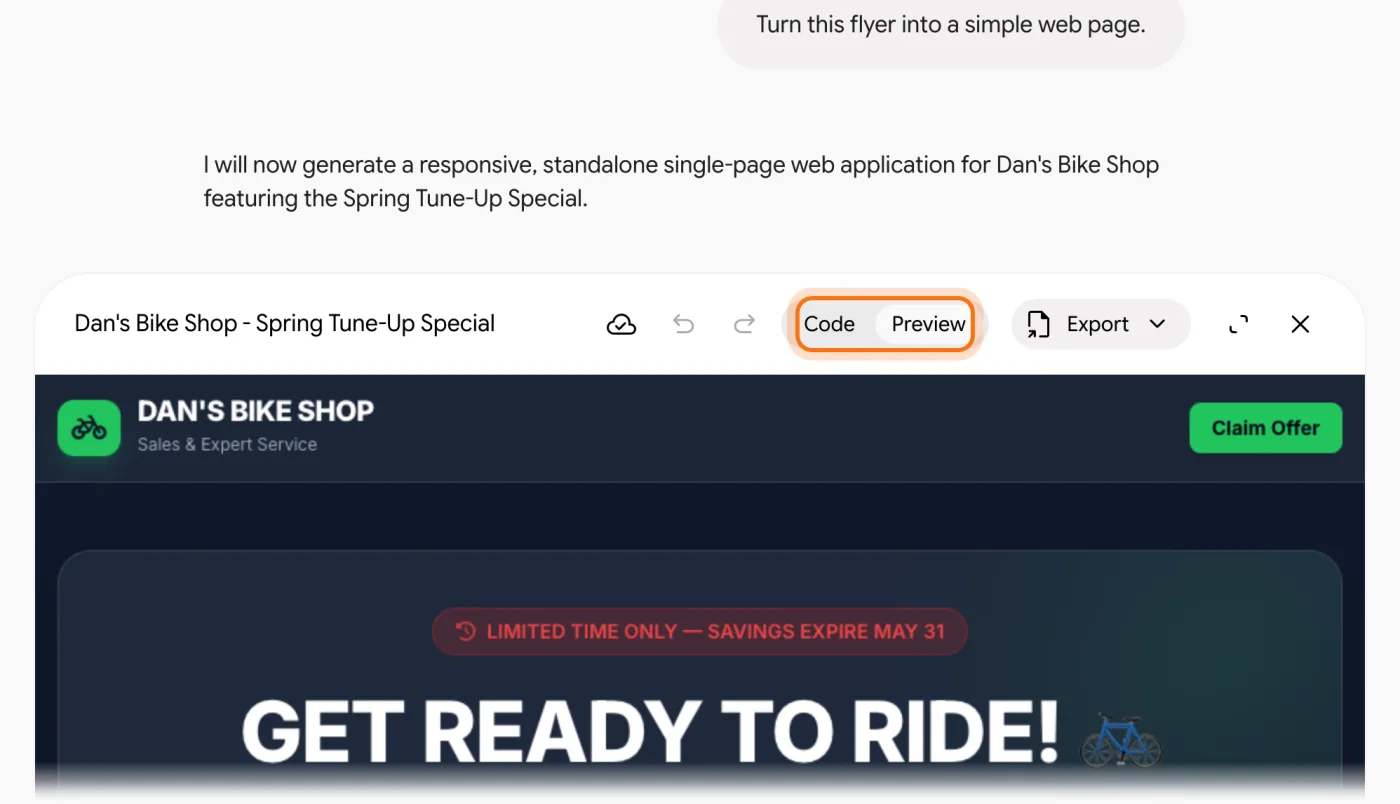
In the message box, ask "Turn this flyer into a simple web page." Canvas makes a page with the same offer. "Preview" shows how it looks, and "Code" shows the code behind it, if you want to give it to whoever runs your website.
Members
The rest of this guide is for members
Create a free account and every room in the academy opens for 30 days. No credit card needed.
In the rest of this guide
8 things to write in Canvas, with prompts to copy
- A flyer for an offer
- A letter to your customers
- A price list
- Answers to common questions
- A one-page plan
- A short article
- A simple web page
- A short quiz for your team
More ways to use it
- Take it out of Gemini
- Work on the full screen
- Use a normal chat to keep it
- Share it
- On your phone
When something goes wrong, and how to fix it
- Gemini answers in the chat, not on a page
- You asked to change one line, and Gemini rewrote everything
- A request in the message box answers "Suggestions added" or an error
- The document has an address or a phone number you didn't give
- You don't see a "Create" button
Where to go next
Canvas writes the document. These guides help with what's around it.