What a writing block is, in one minute
When you ask ChatGPT for a document, an email or a post, it can put the draft in a writing block: a box inside the chat that works like a small text editor. You can click in it and type, ask ChatGPT to change one part and keep the rest, and copy or download the result.
So you don't have to copy the draft somewhere else to fix one sentence, and you don't have to ask ChatGPT to rewrite everything again.
It works on a free account. OpenAI says the actions you see depend on your plan, your device, the model and the rollout, so a button may be missing in some chats. Writing blocks took the place of Canvas in ChatGPT's newest models in May 2026.
Which way to use
A writing block is the quickest way to get a first draft and fix it. Other guides cover the jobs around it.
Use a writing block when
- You have notes, and you want a clean one-page document from them.
- You want to change one paragraph and keep the rest.
- You want to finish the draft in the chat, then copy or download it.
Use something else when
Emails with any AI: Most of what you write is email, and you want prompts for replies, follow-ups and hard messages in ChatGPT, Gemini or Claude.
Read the guideWork from a file you already have: The text is already in a PDF or a Word file, and you want to ask questions about it or get a summary.
Read the guide
Your first document, step by step
A real example: Dan runs a small bike shop and is hiring a helper. He has a few notes, and he wants a one-page welcome guide. The pictures use ChatGPT on a free account, in a temporary chat.
Step 1: Open ChatGPT
Go to chatgpt.com and sign in; a free account works. The pictures use a temporary chat (the icon at the top right), so the example stays out of the chat history. OpenAI says edits in a temporary chat may not be kept after the conversation ends, so for a document you'll come back to, use a normal chat.
Step 2: Paste your notes and ask for a document
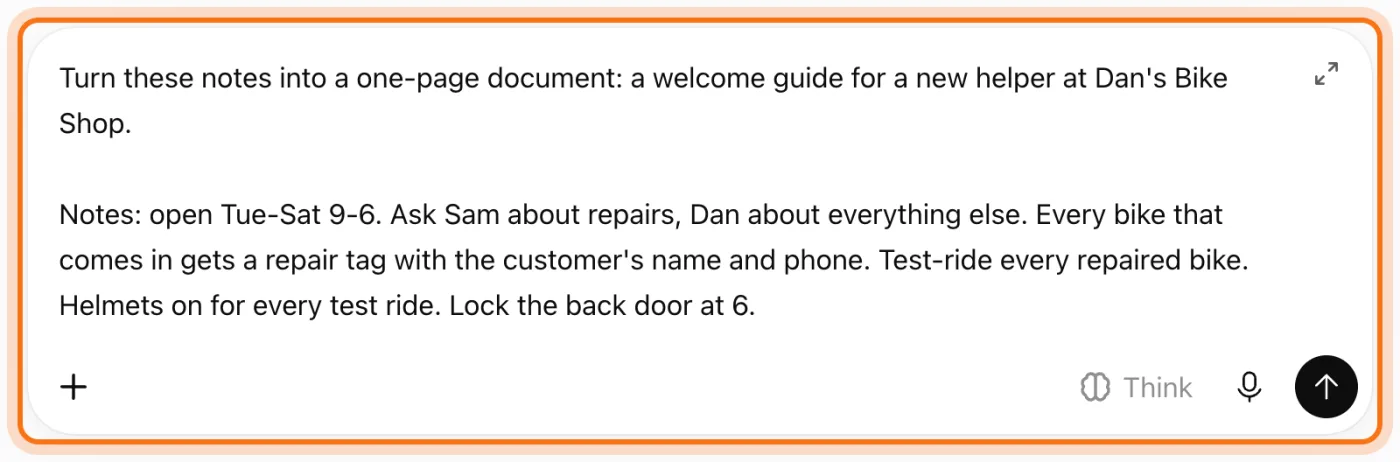
Say what the document is and who it's for, then paste your notes as they are: short lines, no full sentences needed. "Turn these notes into a one-page document" tells ChatGPT you want a draft to work on, not a chat answer.
Try this prompt
Turn these notes into a one-page document: [what it is and who it's for]. Notes: [paste your notes]Step 3: The draft opens in a writing block
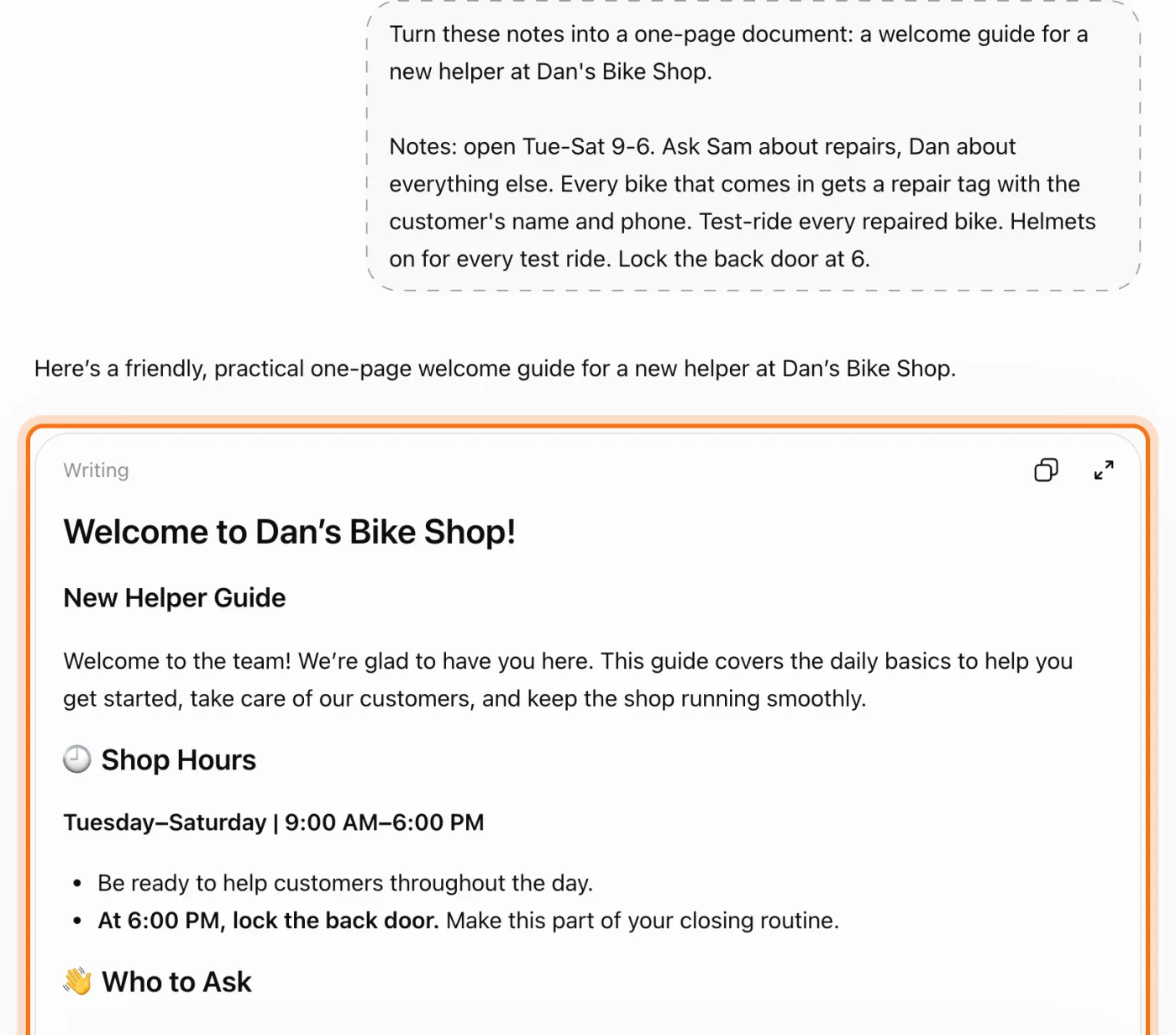
ChatGPT wrote the guide inside a writing block, the box marked "Writing": a title, headings, and short lists made from each note. The two icons at its top right copy the draft and open the bigger editor. Read it once from top to bottom before you change anything.
Step 4: Ask for a change to one part
Write in the message box what to change, and name the part: "the welcome paragraph at the top", "the Shop Hours section". Add "Keep everything else as it is", so ChatGPT doesn't rewrite the parts you already like.

Try this prompt
Change only [the part, by its heading or place]: [what to change]. Keep everything else as it is.Step 5: Check the new version
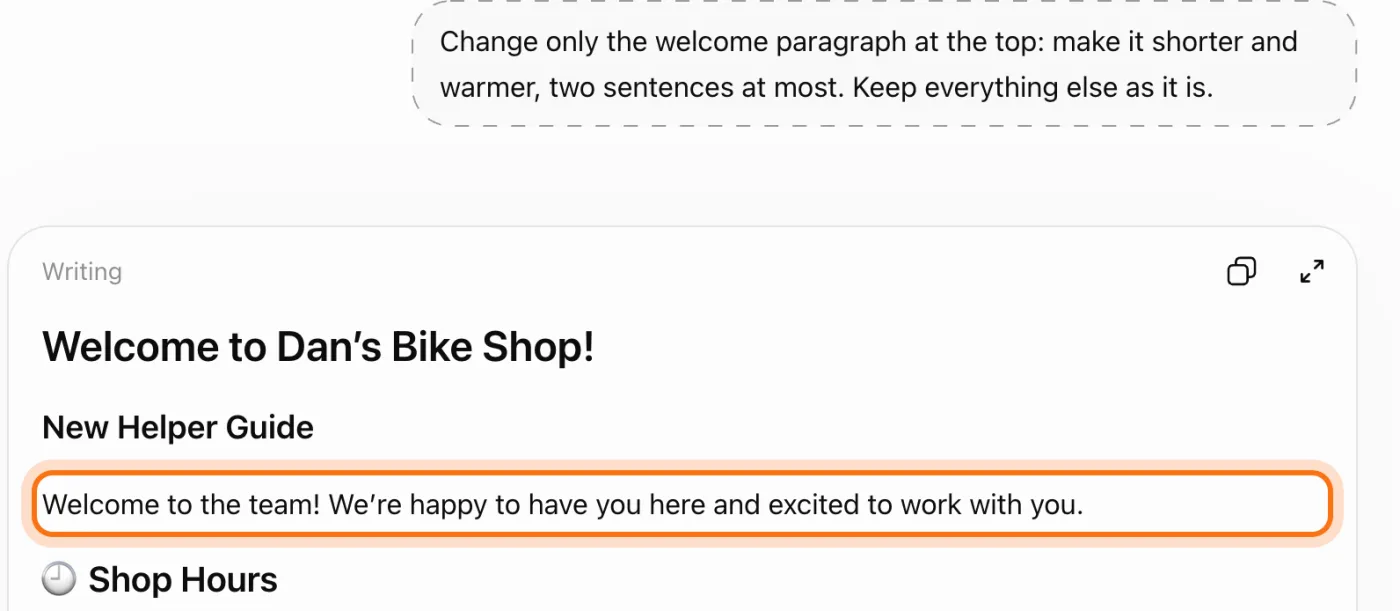
ChatGPT wrote the document again in a new block under the first one, with a shorter, warmer welcome: "We're happy to have you here and excited to work with you." The first version stays above it. Skim the rest too: in our tries ChatGPT sometimes reworded a line it was asked to keep.
Step 6: Type your own changes
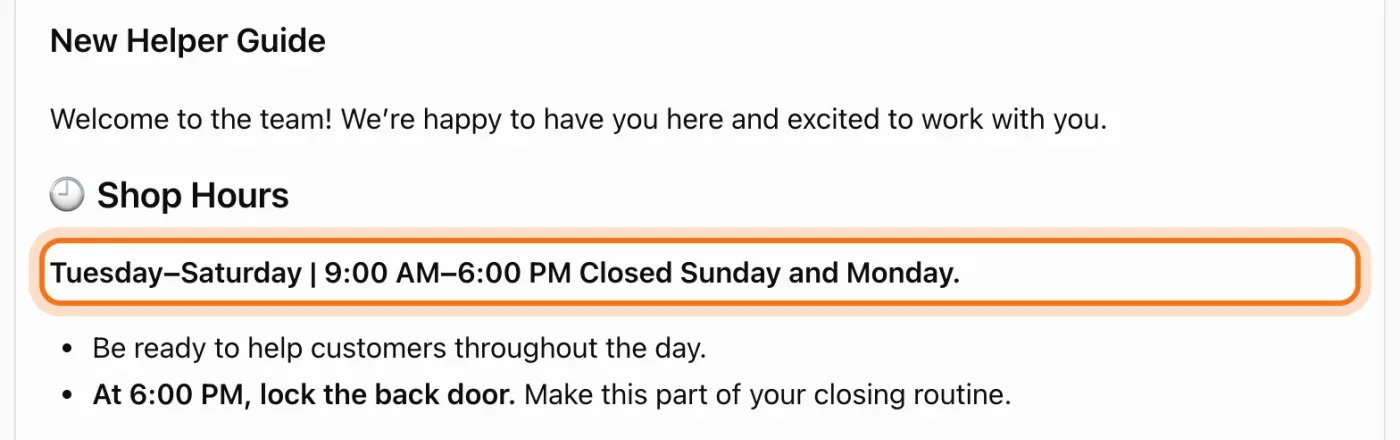
For a small fix, click in the draft and type, like in any document. Here Dan added "Closed Sunday and Monday." to the shop hours. Once you edit, an undo arrow appears at the top of the block. OpenAI says your edits are saved with the conversation, so ChatGPT works from your version when you ask for more.
Step 7: Select words to format them
Select a few words and a small toolbar opens over them: a link, bold, italic, and a menu for headings and lists. It also has "Ask for changes", which sends only the selection to ChatGPT. In our temporary chat it said "This selection changed or could not be saved", so the steps above name the part in the message box instead, which worked every time.

Step 8: Open the bigger editor
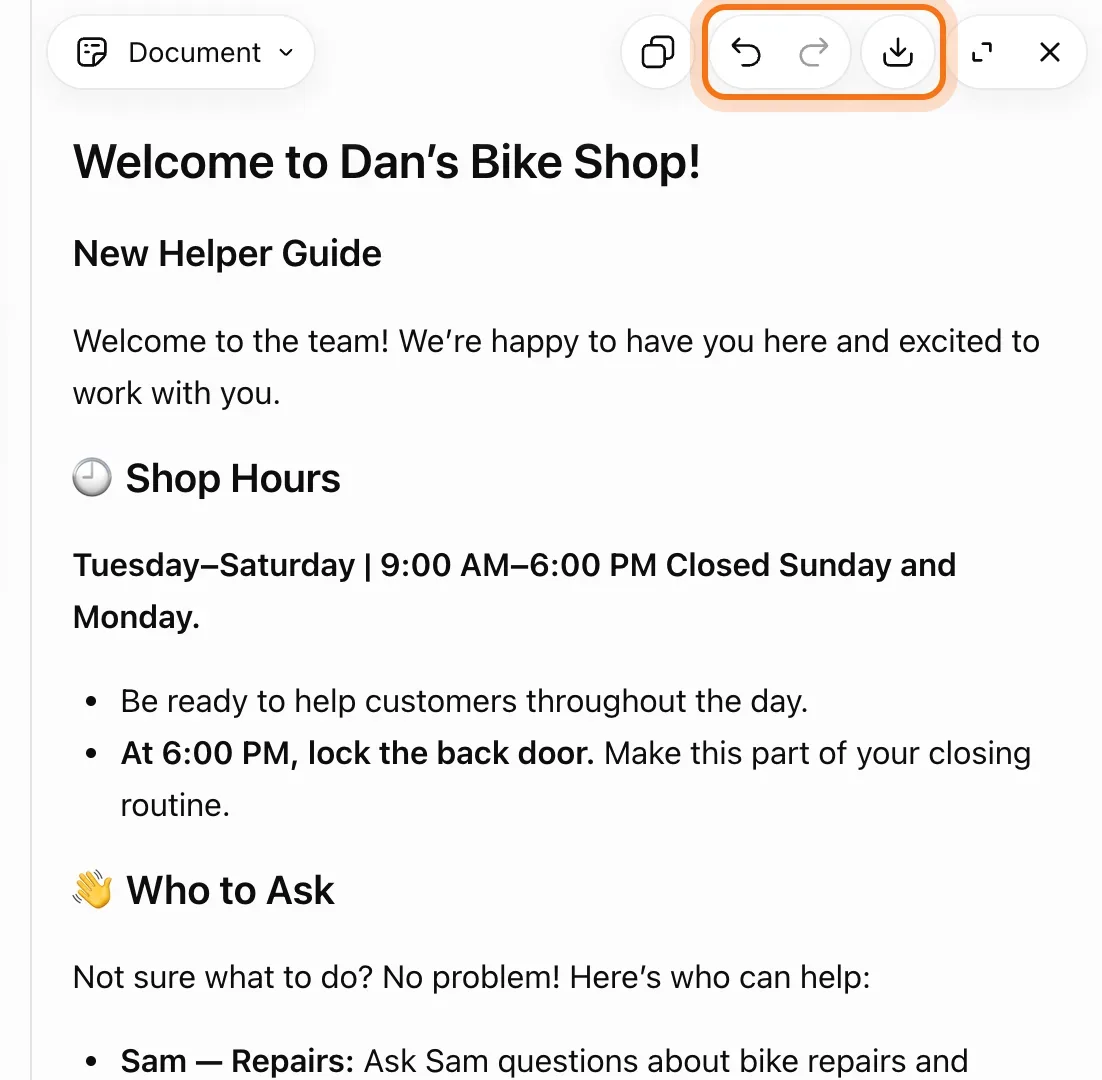
Click the expand icon at the top right of the block ("Open editor") to work on the document in a larger view. At the top: undo and redo for the last changes, "Download" to save the document, and a button for a full view. The X closes the editor and takes you back to the chat.
Step 9: The same works for an email
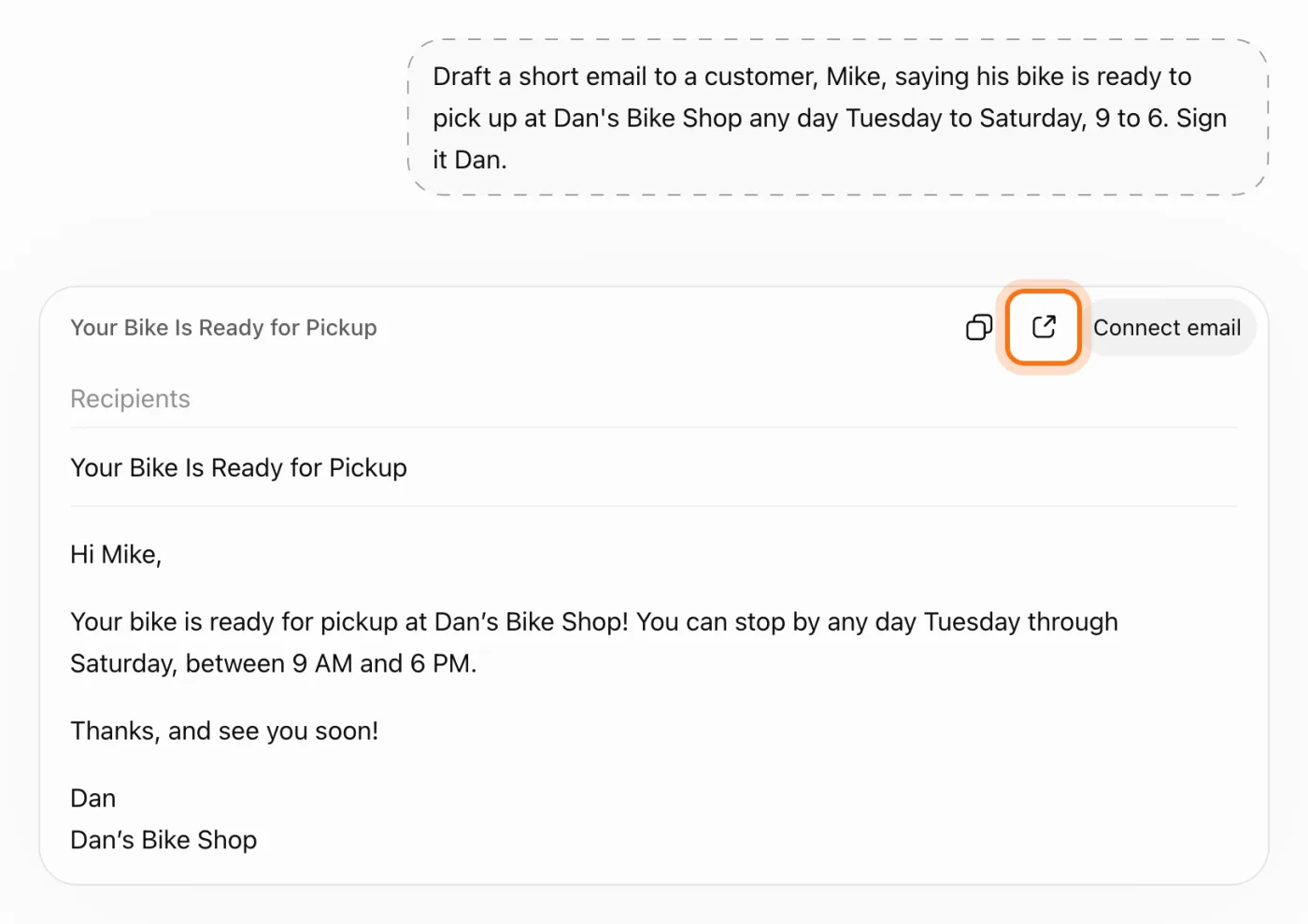
Ask for an email and the draft comes in a writing block too, with a subject line. You edit it the same way. The marked button opens it in your email app, so you check it and send it yourself. "Connect email" next to it would link your email account to ChatGPT; you don't need it for this.
Try this prompt
Draft a short email to [name] saying [what you need to tell them]. Sign it [your name].
Members
The rest of this guide is for members
Create a free account and every room in the academy opens for 30 days. No credit card needed.
In the rest of this guide
8 documents to start from, with prompts to copy
- A one-page guide for a new team member
- A letter to your customers
- A simple policy page
- A checklist
- A meeting agenda
- A job post
- A short update from your notes
- The words for a flyer or a sign
Settings and options worth knowing
- Formatting
- Undo a change you don't like
- Copy or download the document
- Where your edits are saved
- Email drafts
When something goes wrong, and how to fix it
- The draft comes as normal chat text, not in a block
- You asked for one change and ChatGPT changed more
- "Ask for changes" says the selection could not be saved
- Your edits are gone when you come back
- The draft has things you never wrote
- It's full of emojis and decorations
- It's longer than one page
- The document needs private details
Where to go next
A document is often part of a bigger job. These guides help with the rest.