What Gemini does in Gmail, in one minute
Gemini is Google's AI, and part of it is built into Gmail. You don't open another site or copy anything: in the window where you write an email, you tell it what you want to say, and it writes the email there. You can ask for a change, undo it, or have it clean up text you typed yourself.
The writing part works on a free Gmail account. On ours (checked 10/19), "Help me write" was in every new email and every reply, and "Polish" showed up on text we typed. Google says it's for personal accounts in the US, and it started in English. On ours, a request in Spanish got an email in Spanish too.
Some of Gemini in Gmail needs a paid plan: the Gemini panel on the side of Gmail, asking questions about your whole inbox, and Proofread. Gemini inside Google Docs needs one too. On our free account, those showed only an offer to upgrade.
Which way to use
Gemini in Gmail is the fastest way when the email starts and ends in Gmail. Other guides cover the jobs around it.
Use Gemini in Gmail when
- You know what you want to say, and want it written well, fast.
- You're answering an email, and want the reply to use what the email says.
- You typed a quick, messy note, and want it clean before you send it.
Use something else when
Work on an email in a chat: A hard email, a quote to follow up, or a file to work from. In ChatGPT or the Gemini app you can go back and forth more.
Read the guideAnswer a review, not an email: A customer wrote about you on Google or Yelp, and you want a calm, short public answer.
Read the guide
Your first email with Gemini, step by step
A real example: Dan, who runs a small bike repair shop, wants to tell a customer, Mike, that his bike is ready. The pictures use Gmail on a free account, on a computer.
Step 1: Start a new email
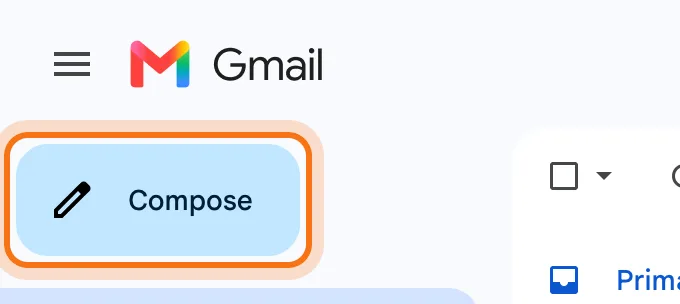
Go to gmail.com and sign in. At the top left, click "Compose". A new email opens at the bottom right.
Step 2: Click Help me write
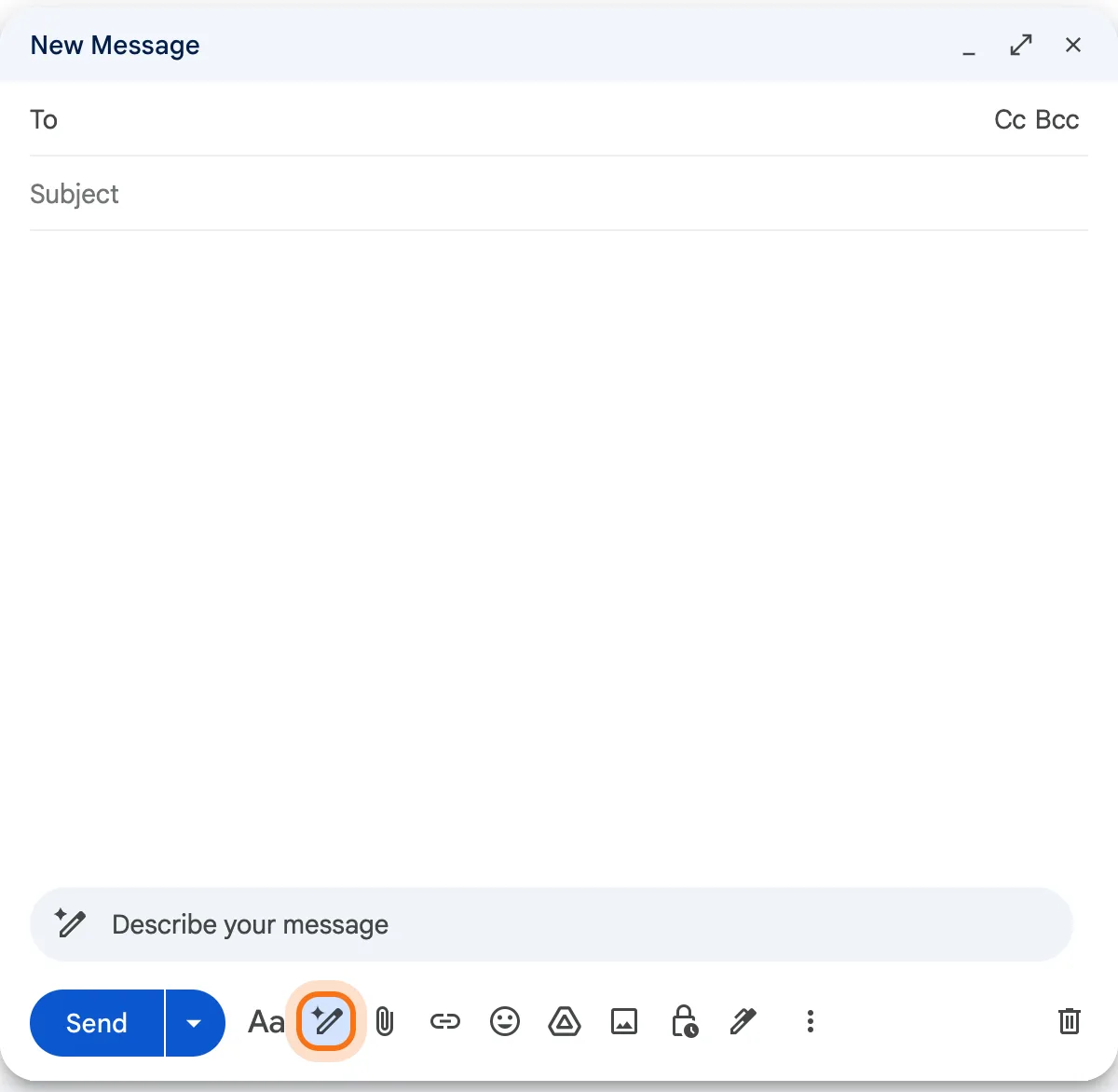
At the bottom of the email, next to Send, click the pencil with a small star: that's "Help me write". A box opens above it that says "Describe your message".
Step 3: Say what the email should say
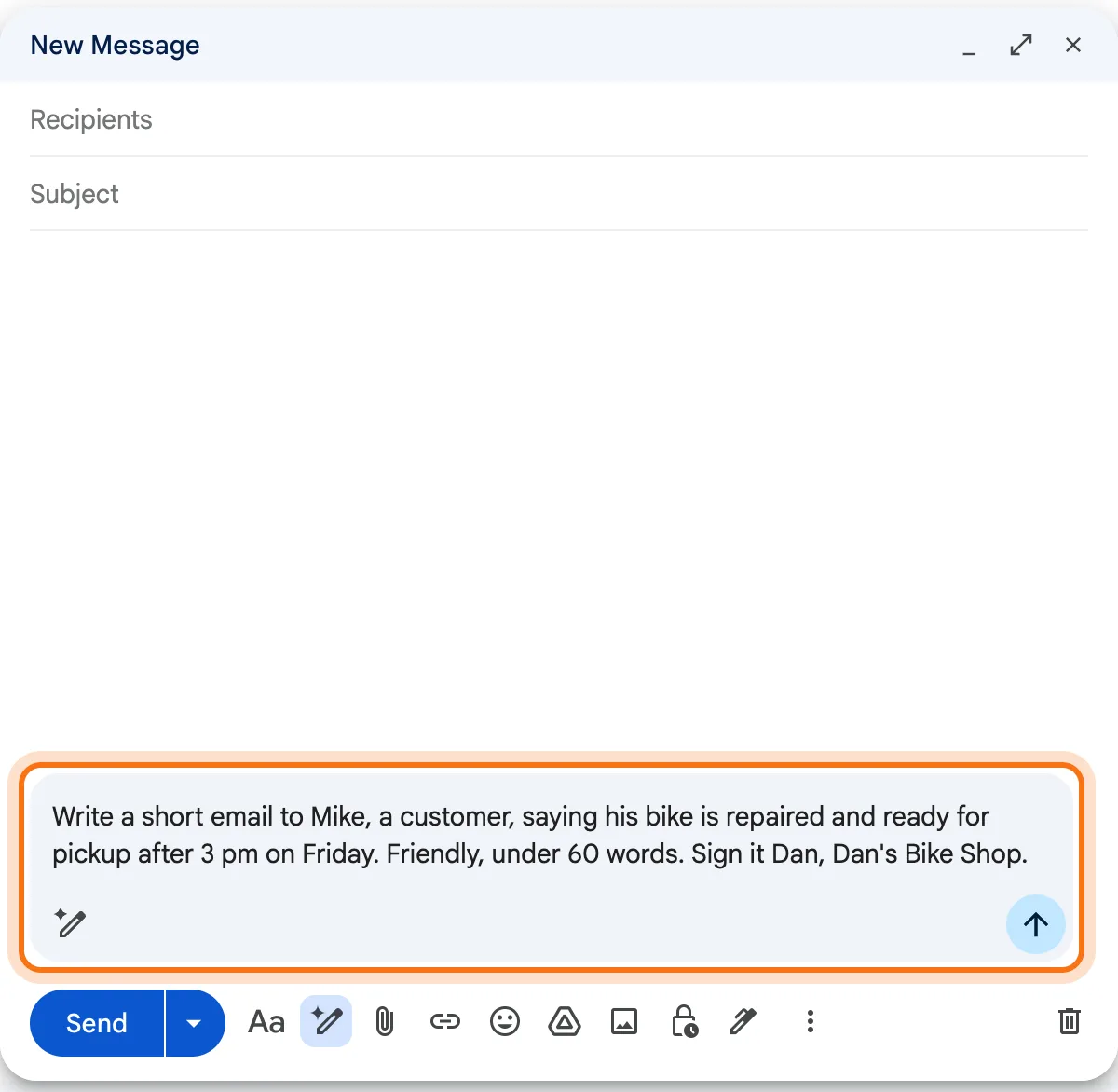
Type who it's for, what to tell them, how it should sound, and how to sign it. Then click the arrow, or press Enter. Ask for your own name at the end: on our account, Gemini first signed with the name on the Google account.
Step 4: Read the draft it writes
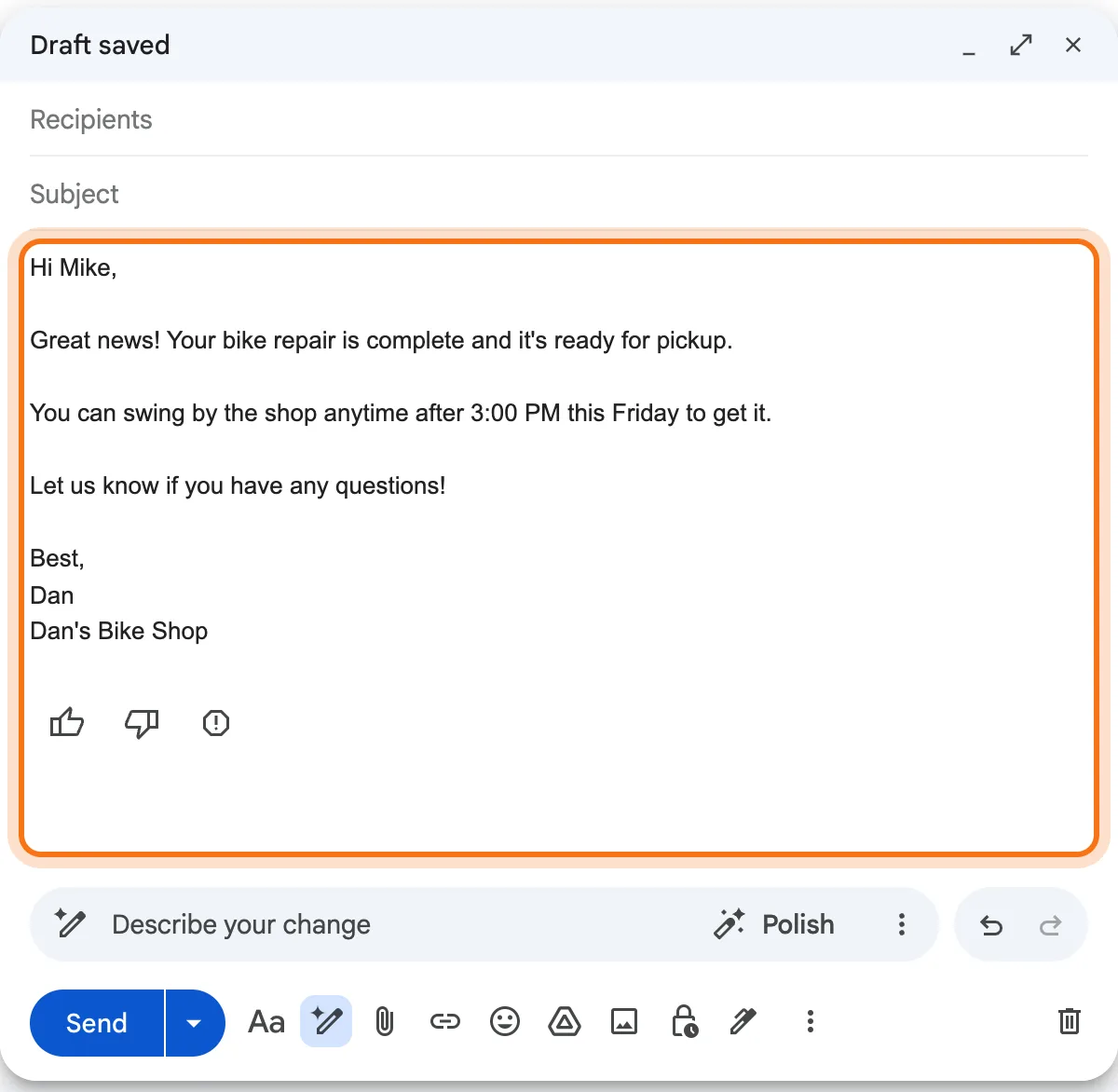
In a few seconds, the email is in the window, ready to send. Read all of it: the name, the day, the time. Under it, a thumbs up or down tells Google if the draft was good.
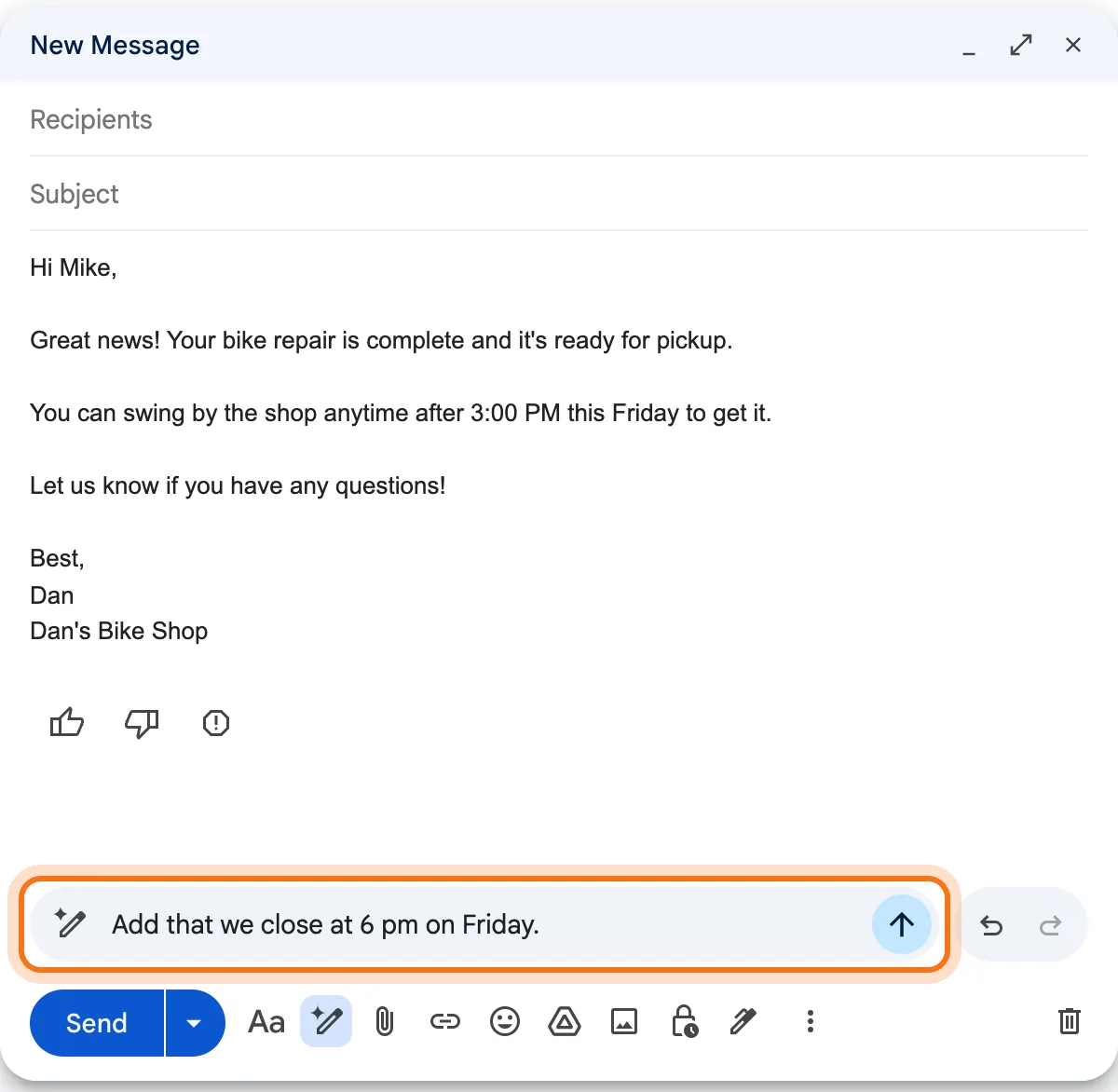
Step 5: Ask for a change in one line
Something to add or fix? Type it in the box at the bottom, which now says "Describe your change", and send it. Dan added the time the shop closes, and Gemini rewrote the line about pickup.
Step 6: Go back if you liked it better before
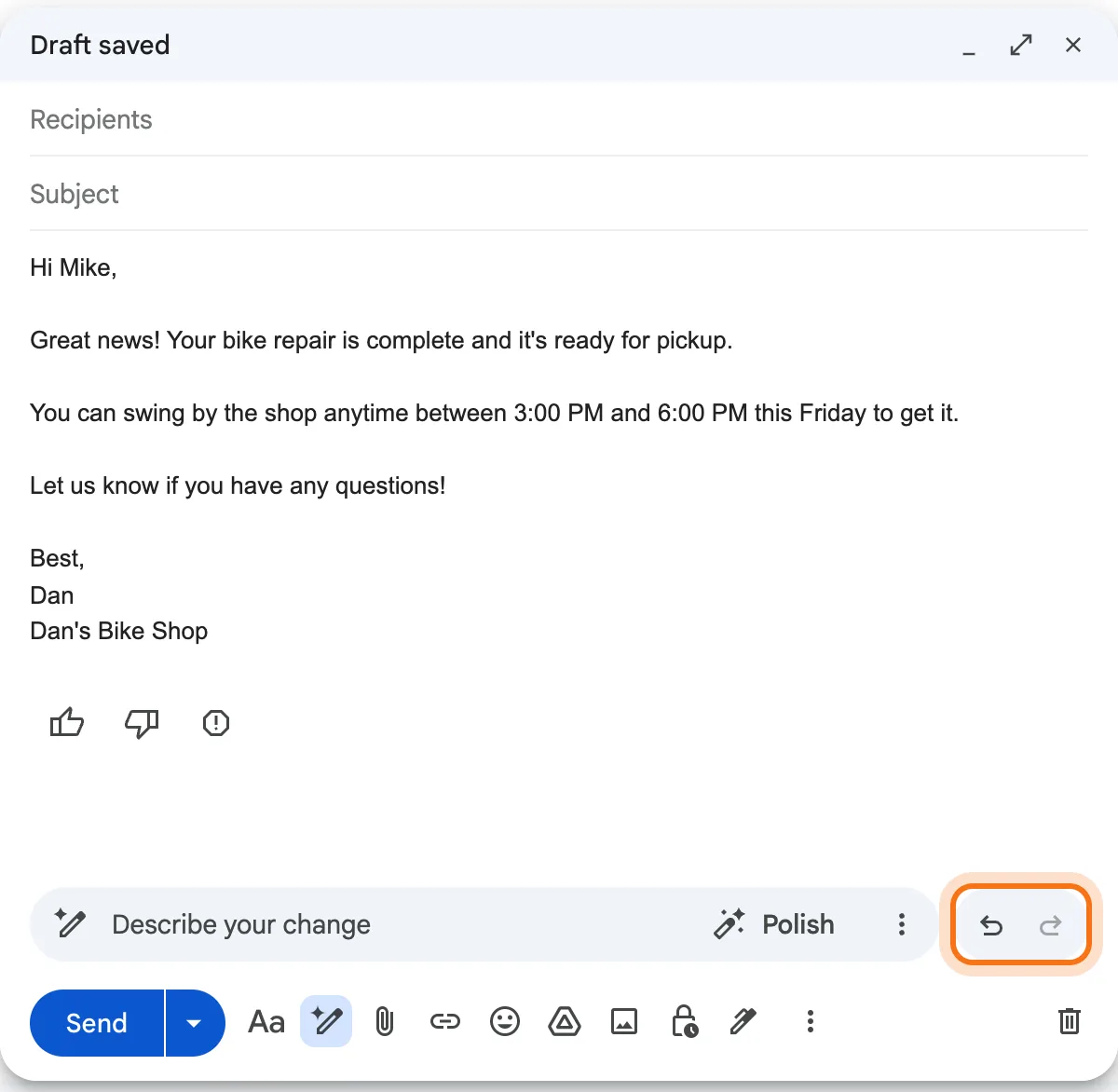
The new version now says "between 3:00 PM and 6:00 PM". If a change made it worse, click the curved arrow at the right of the box (Undo). The arrow next to it (Redo) brings the change back.
Step 7: Change the tone with one click
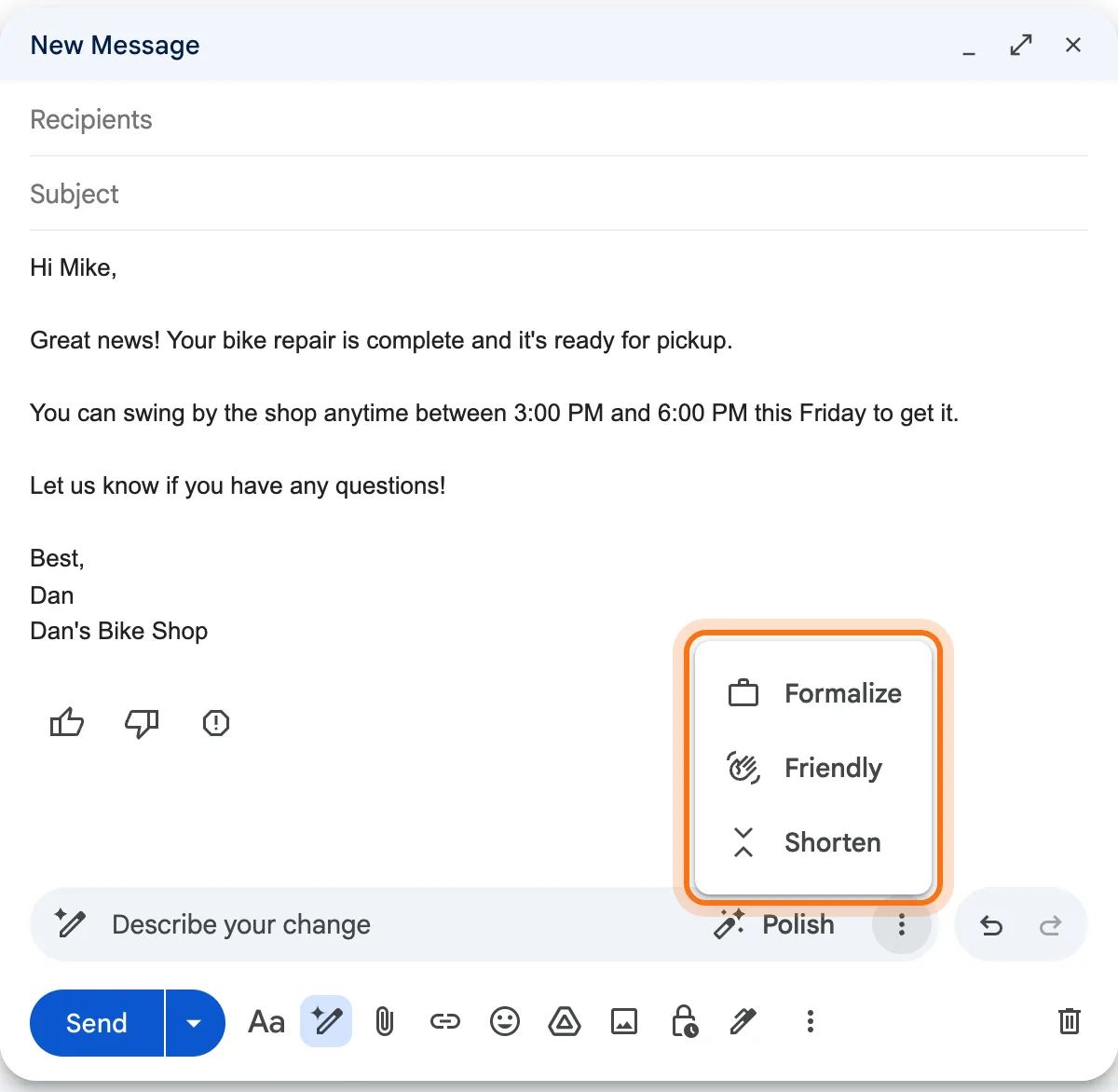
Click the three dots in the box for ready-made changes: Formalize (more formal), Friendly, or Shorten. When the email is right, add the address and a subject, and click Send.
Members
The rest of this guide is for members
Create a free account and every room in the academy opens for 30 days. No credit card needed.
In the rest of this guide
8 emails to write with Gemini, with prompts to copy
- Your order is ready
- A delay, said plainly
- A follow-up on a quote
- A reminder about an invoice
- Thanks after a first order
- New hours or a closed day
- Saying no, nicely
- A question to a supplier
More ways to use it
- Clean up what you typed
- Your words, clean
- Reply with Help me write
- A summary of a long thread
- Suggested replies
- What needs a paid plan
- If you don't want it at all
When something goes wrong, and how to fix it
- You don't see Help me write
- The email is signed with the wrong name
- The draft says something you didn't
- A change made the email worse
- Gemini asks you to upgrade
Where to go next
Gemini in Gmail writes the email. These guides help with what's around it.