What Meta AI in WhatsApp is, in one minute
Meta AI is an AI assistant built into WhatsApp. You chat with it like you chat with a friend: ask a question, ask it to write a message, plan a trip or explain something, and it answers in the chat. You can also call it into a group chat by typing @Meta AI.
It comes with WhatsApp, with nothing extra to install. WhatsApp calls it an optional service: it only answers when you or someone in a group starts the conversation.
Meta AI isn't in every country yet. WhatsApp says it might not be available to you yet, even if others in your country have it, and in some countries it only shows on phones set to certain languages. If you don't see it, update WhatsApp and check again later.
Which way to use
Meta AI is handy because it's already where you chat. For some jobs, another tool fits better.
Use Meta AI in WhatsApp when
- You're already in WhatsApp and want a quick answer or a message written for you.
- Your group needs one answer everyone sees: type @Meta AI in the group chat.
- You want to try AI for free, with nothing new to install.
Use another way when
A separate AI app: You want longer work, like files, long documents or a temporary chat that leaves no history. ChatGPT, Gemini and Claude all have free plans.
Read the guideYour phone's camera: The question is about something in front of you, like a plant, a label or a warning light. Point the camera and ask.
Read the guide
Your first chats with Meta AI, in six steps
A real example: Dan runs a small bike shop. He asks Meta AI to write a holiday message for his customers, then asks it a question in his riding group. The pictures show WhatsApp on an iPhone; on Android the buttons have the same names.
Step 1: Find Meta AI on the Chats tab
Open WhatsApp and go to the Chats tab. Tap the Meta AI icon, a round icon in purple and pink (on some phones blue and purple). You can also tap the search bar at the top, which says "Ask Meta AI or Search". The first time, WhatsApp may ask you to read and accept Meta AI's terms.
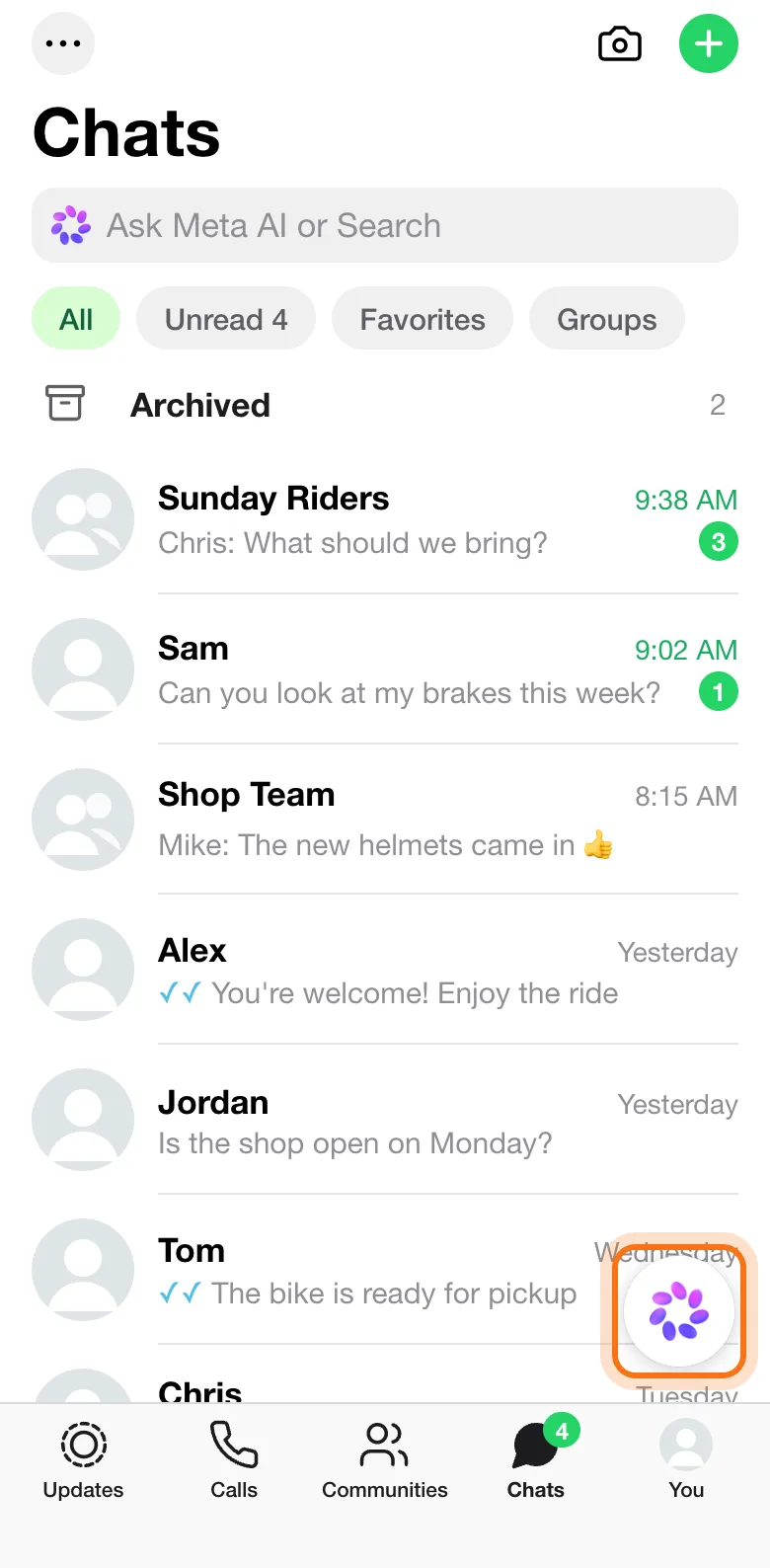
Screens recreated for clarity; your app may look slightly different.
Step 2: Type what you want and tap send
A chat with Meta AI opens, just like a chat with a person. Type your request in the message box and tap the green send button. Say who it's for and what to include: here Dan asks for a short message telling his customers when the shop is closed and when it opens again.
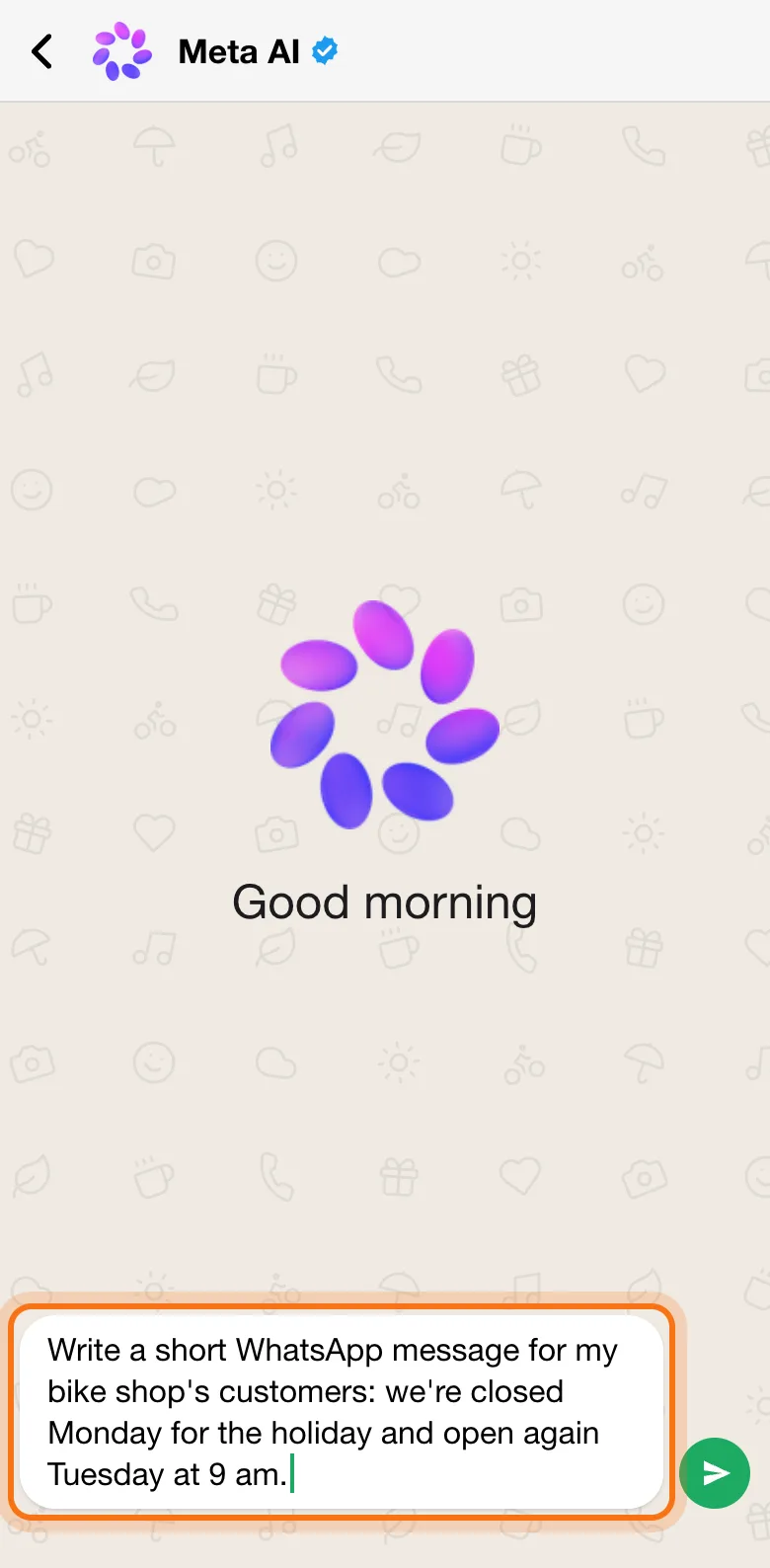
Try this prompt
Write a short WhatsApp message for my [business]'s customers: we're closed [day] for [reason] and open again [day] at [time].Step 3: Read the answer
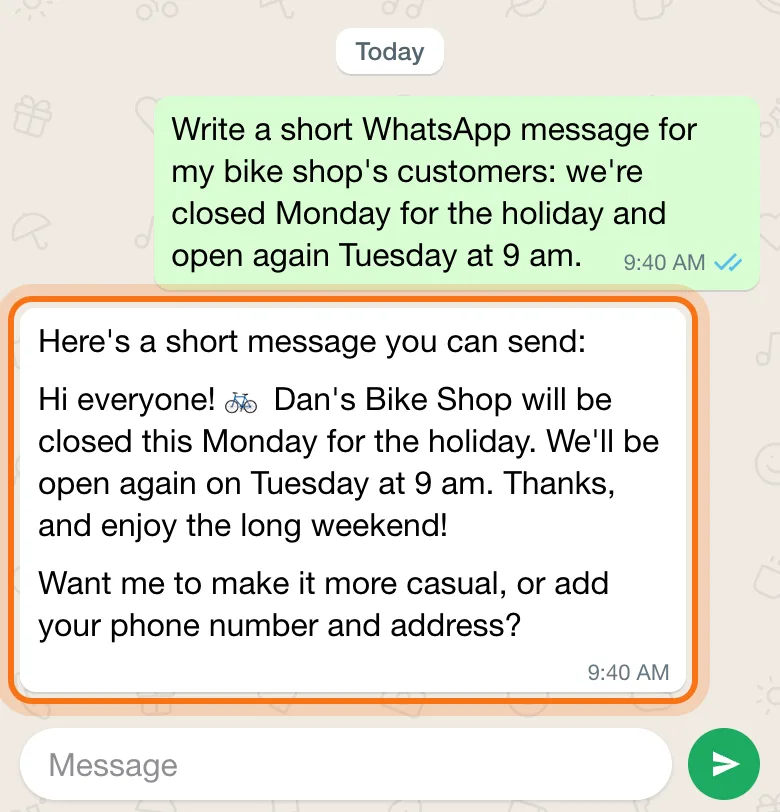
Meta AI answers in the chat a few seconds later. It wrote a ready-to-send message with the closed day, the opening time and the shop's name, and offered to change it. Check the facts before you send it anywhere: days, times and anything that sounds like a promise.
Step 4: Ask for a change in plain words
Keep talking in the same chat, and Meta AI remembers what you asked. "Now write it in Spanish too" gave the same message in Spanish. You could also ask for it shorter, friendlier or with your phone number. To send the result, press and hold the message, tap Copy, and paste it where you need it.
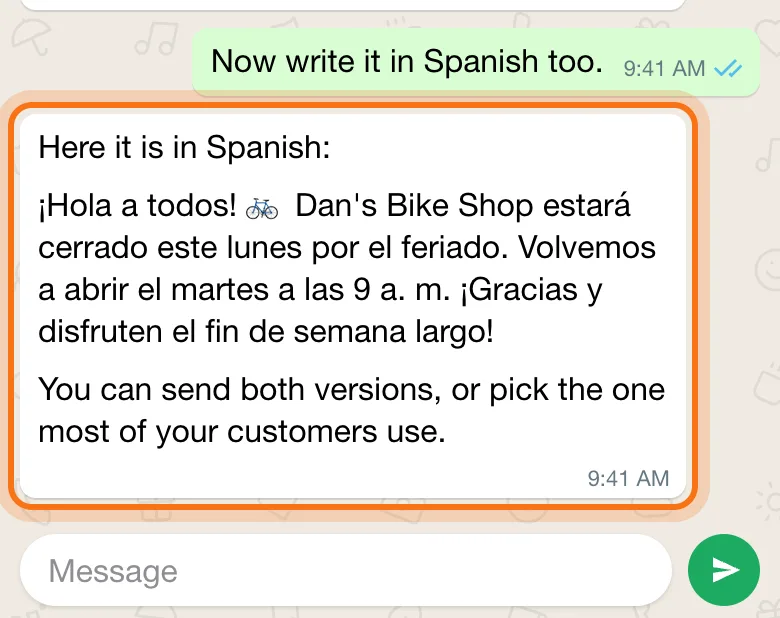
Try this prompt
Now write it in Spanish too.Step 5: In a group, type @ and pick Meta AI
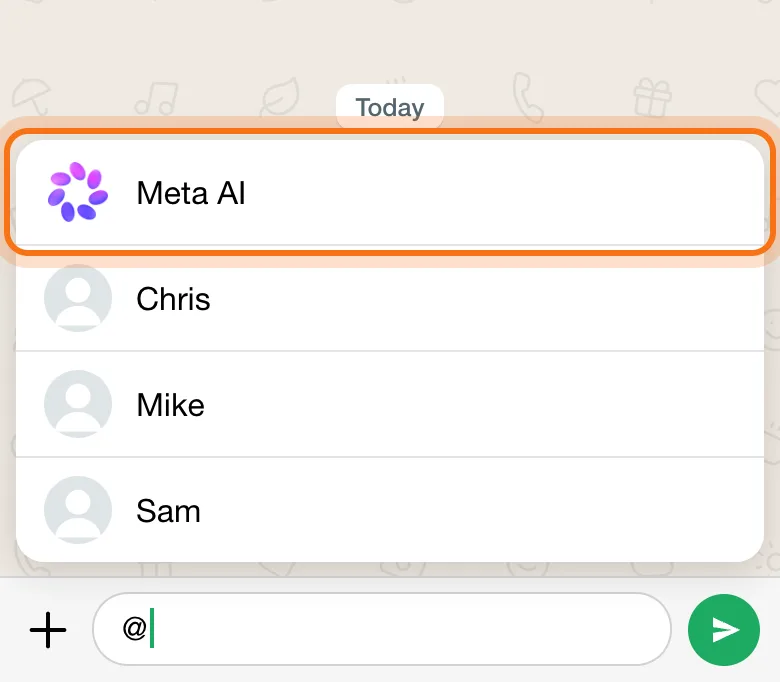
Open a group chat and type @ in the message box. A list opens with Meta AI at the top and the people in the group under it. Tap Meta AI, then type your question right after it.
Step 6: Everyone in the group sees the answer
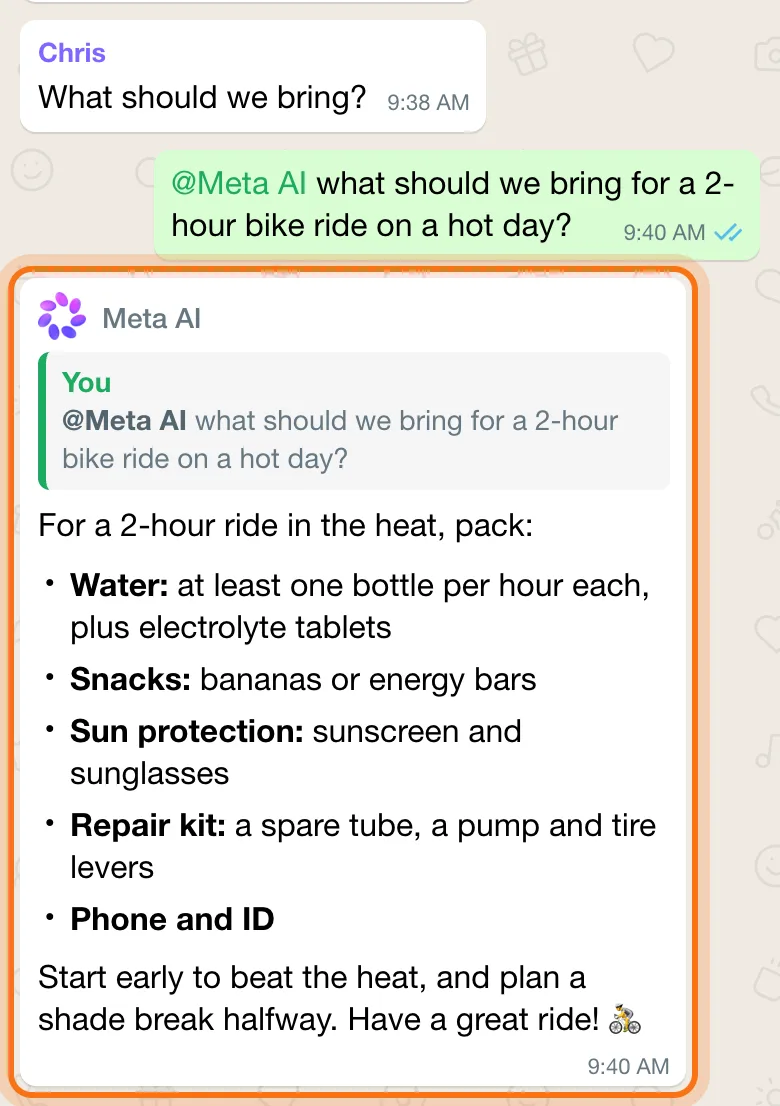
Send the message. Meta AI replies in the group, quoting your question, and everyone in the chat sees both. WhatsApp says Meta can read only the messages that mention @Meta AI, or that people choose to share with it, not the rest of the group's chat.
Try this prompt
@Meta AI [your question for the group]
Members
The rest of this guide is for members
Create a free account and every room in the academy opens for 30 days. No credit card needed.
In the rest of this guide
8 everyday uses, with prompts to copy
- A message to customers
- A reply you don't know how to word
- Plans for the group
- Translate a message
- Explain something simply
- Dinner from what you have
- A checklist for a trip or an event
- A picture for a card or a post
Settings and options worth knowing
- Create and edit pictures
- Talk to it with your voice
- Ask about a message you got
- Incognito chat
- Delete your chats with Meta AI
- Check where an answer came from
- Keep Meta AI out of a group
- On a computer
When something goes wrong, and how to fix it
- I don't see Meta AI
- My icon or screen looks different from the pictures
- The answer is wrong or made up
- I'm not sure what's safe to send
- Meta AI didn't answer in the group
- The answer is too long for a phone
- It answers in the wrong language
- I'd rather not use it
Where to go next
Meta AI is one AI assistant. These guides help you get more from any of them.